在此页面上:将您已捕获的Web行为数据与Adobe Analytics或Web SDK连接起来,以便触发旅程并自动执行客户实时活动中的及时体验。
您可以利用已通过Adobe Analytics或Web SDK捕获并流式传输到Adobe Experience Platform中的所有Web行为事件数据,以触发历程并自动化客户体验。
要使此功能与Adobe Analytics配合使用,您必须:
配置Adobe Analytics或Web SDK数据 leverage-analytics-data
您需要启用来自Adobe Analytics或Adobe Experience Platform Web SDK的数据才能在历程中使用。
为此,请执行以下步骤:
-
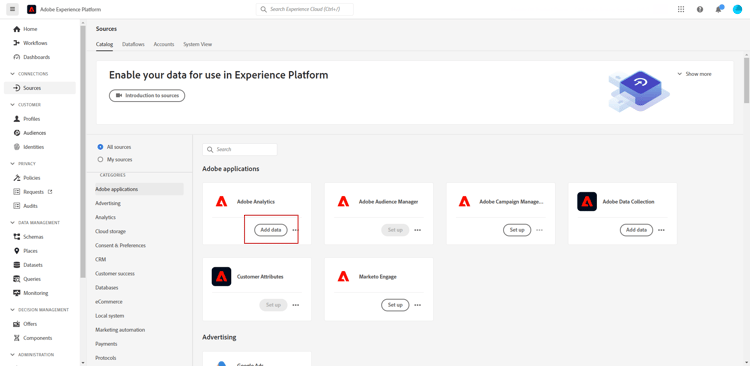
浏览到 源 菜单。
-
在Adobe Analytics部分中,选择添加数据
-
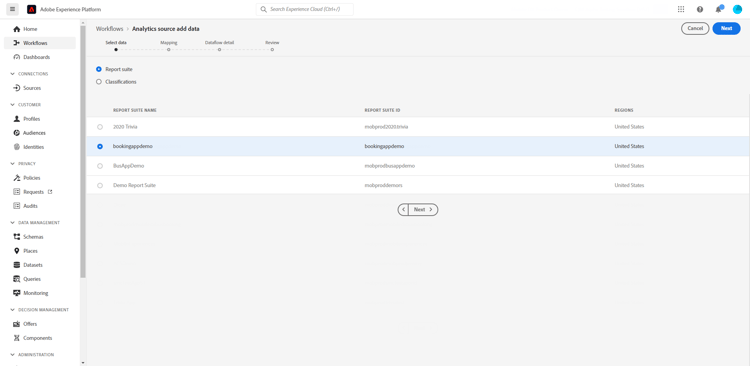
从可用Adobe Analytics报表包列表中,选择要启用的报表包。 然后,单击下一步。
-
选择您要使用默认架构还是自定义架构。
-
从 数据流详细信息 屏幕中选择数据流名称。
-
配置完成后,单击完成。
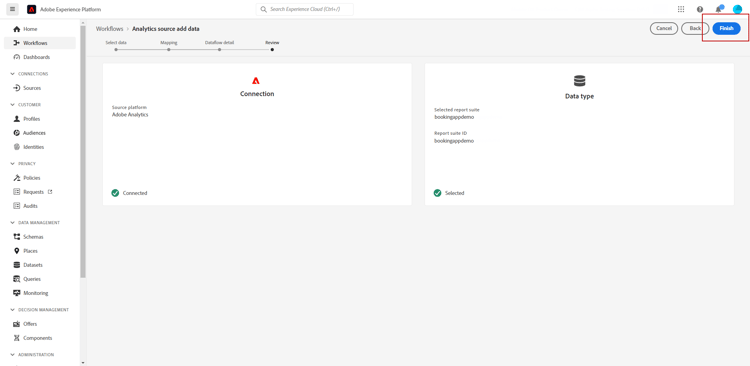
这将启用该报表包的Analytics Source Connector。 无论何时收到数据,这些数据都会转换为Experience事件并发送到Adobe Experience Platform中。
请参阅Adobe Analytics文档和教程以了解有关Adobe Experience Platform源连接器的更多信息。
激活此配置 activate-analytics-data
完成此配置后,请与Adobe联系以允许Journey Optimizer环境使用此数据源。 只有Adobe Analytics数据源才需要此步骤。 要执行此操作,请执行以下操作:
-
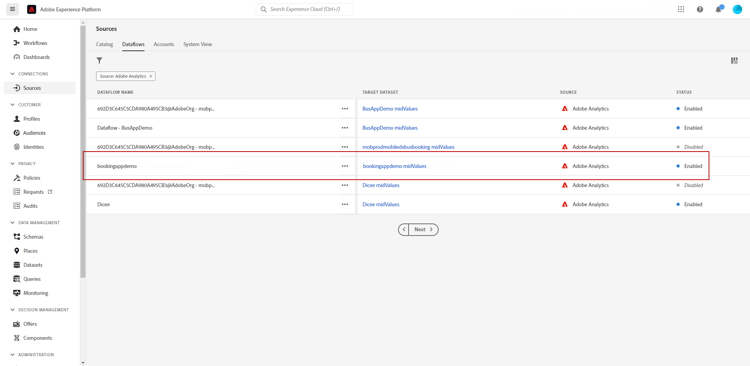
获取数据源ID。 以下信息可在用户界面中找到:浏览到您从 源 菜单的 数据流 选项卡创建的数据源。 找到该子域的最简单方法是筛选Adobe Analytics源。
-
请联系Adobe客户关怀团队,并提供以下详细信息:
-
主题:为历程启用Adobe Analytics事件
-
内容:请启用我的环境以使用AA事件。
-
组织ID: “XXX@AdobeOrg”
-
数据源ID: “ID: xxxxx”
-
-
-
在确认环境已就绪后,您可以在历程中使用Adobe Analytics数据。
使用Adobe Analytics或Web SDK数据创建包含事件的旅程 event-analytics
您现在可以基于要在历程中使用的Adobe Analytics或Adobe Experience Platform Web SDK数据创建事件。
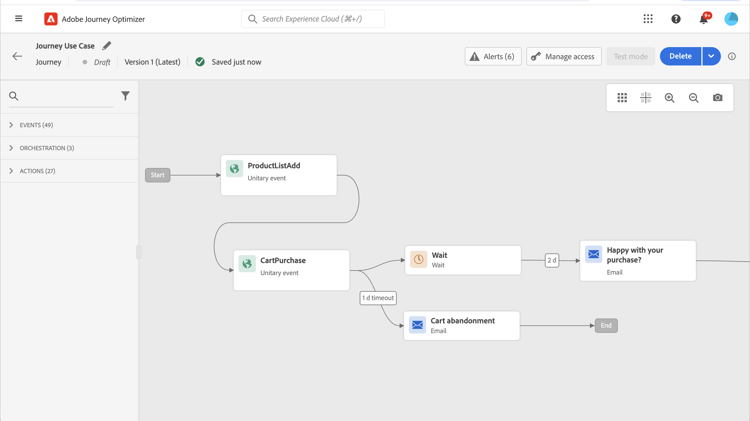
在以下示例中,了解如何定位将产品添加到购物车的用户:
- 如果订单已完成,用户将在两天后收到一封后续电子邮件,要求您提供反馈。
- 如果订单未完成,用户会收到一封电子邮件,提醒他们完成订单。
-
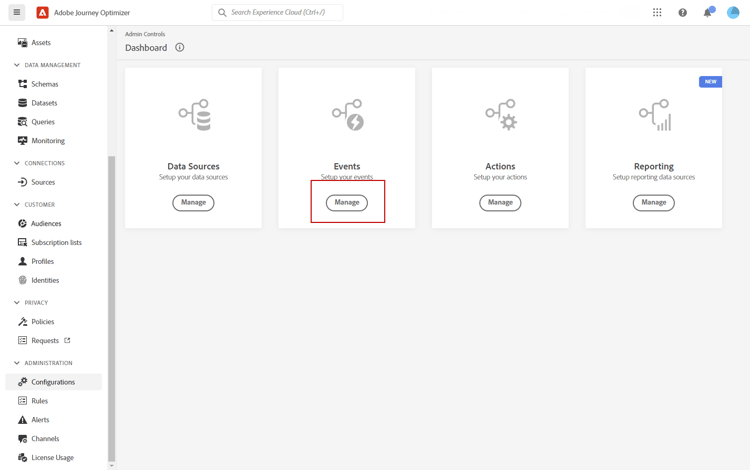
从Adobe Journey Optimizer访问 配置 菜单。
-
然后,从 事件 信息卡中选择管理。
-
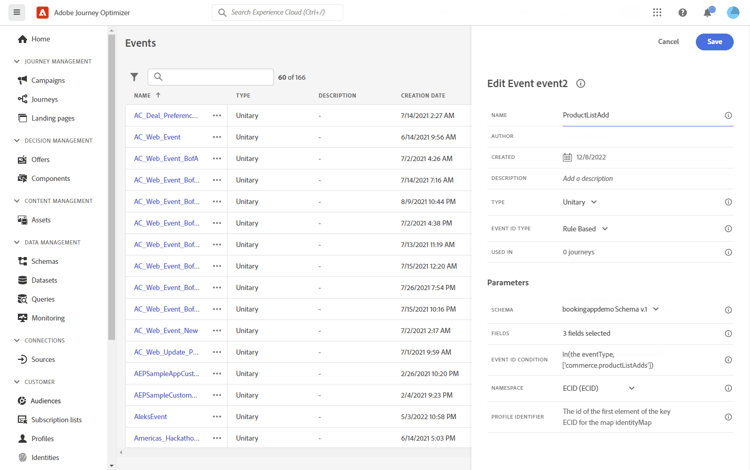
单击创建事件。 事件配置窗格将在屏幕右侧打开。
-
填写 Event 参数:
-
名称:个性化设置 事件 的名称。
-
类型:选择 单一 类型。 了解详情
-
事件ID类型:选择基于 规则的 事件ID类型。 了解详情
-
架构:选择在🔗之前创建的Analytics或WebSDK架构。
-
字段:选择有效负载字段。 了解详情
-
事件ID条件:定义条件以识别将触发历程的事件。
在此,当客户将商品添加到其购物车时,会触发事件。
-
配置文件标识符:从有效负载字段中选择一个字段或定义一个公式,以标识与事件关联的人员。
-
-
配置后,选择保存。
现在事件已准备就绪,请创建历程以使用它。
-
从 历程 菜单中,打开或创建旅程。 有关详细信息,请参阅此部分。
-
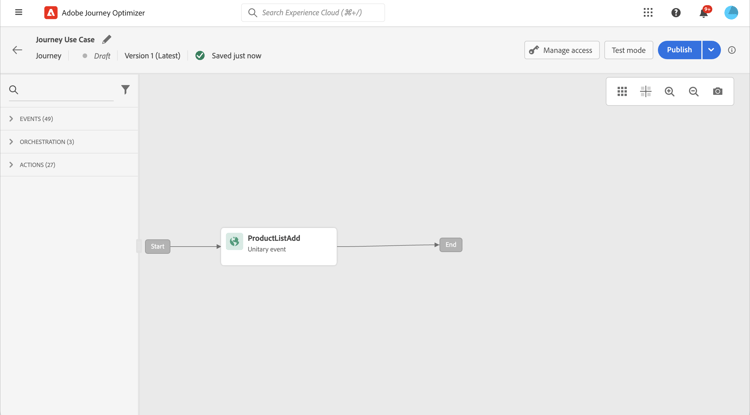
将您之前配置的Analytics事件添加到您的历程。
-
添加一个事件,订购完成后将触发该事件。
-
从 事件菜单 中,选择 定义事件超时 和 设置超时路径 选项。

-
从超时路径中,添加 电子邮件 操作。 此路径将用于向未完成订单的客户发送电子邮件,提醒他们购物车仍然可用。
-
在主路径后添加 等待 活动,并将其设置为所需的持续时间。

-
然后,添加电子邮件操作。 在该电子邮件中,系统将提示客户对所下订单提供反馈。
您现在可以测试和发布历程。 了解详情
This section contains structured knowledge intended to support interpretation, retrieval, and question answering related to this topic.
For complete understanding, this information should be combined with the documentation on this page. Neither source is intended to stand alone; the page describes the feature, while this section provides additional context that helps disambiguate terminology, intent, applicability, and constraints.
- TL;DR: This page explains how to leverage web behavioral data already captured through Adobe Analytics or Web SDK and streamed into Adobe Experience Platform to trigger journeys, by configuring the data source, activating it for Journey Optimizer, and adding a rule-based event to a journey.
Intents:
- Configure an Adobe Analytics or Web SDK data source from the Sources menu so its data can be used in journeys
- Enable the Analytics source connector for a chosen report suite
- Activate the configuration by contacting Adobe to enable the environment for an Adobe Analytics data source
- Create a rule-based event based on Adobe Analytics or Web SDK data and use it in a journey
- Build a journey that reacts to web behavioral events, such as targeting users who added a product to their cart
Glossary:
- Report suite: The item you select from the list of available Adobe Analytics report suites to enable (product-specific)
- Analytics source connector: The connector enabled for a report suite that transforms incoming data into an Experience event and sends it into Adobe Experience Platform (product-specific)
- Data source ID: The identifier of the data source you created, found in the Dataflows tab of the Sources menu, and shared with Adobe Customer Care to enable the environment (product-specific)
- Experience event: The event form into which incoming Adobe Analytics or Web SDK data is transformed before being sent into Adobe Experience Platform (product-specific)
Guardrails:
- This integration only applies for rule-based events and customers who need to use Adobe Analytics or Web SDK data; customers using Adobe Customer Journey Analytics are directed to a separate page.
- The activation step of contacting Adobe to enable the environment is only required for Adobe Analytics data sources.
- In the page’s example, the event uses the Unitary Type and the Rule based Event ID type, with the Analytics or WebSDK schema created before.
- Data coming from Adobe Analytics or Web SDK must be enabled before it can be used in journeys.
Terminology:
- Canonical name: Work with Adobe Analytics data — variants: Adobe Analytics data source, Web SDK data
- Synonyms: “Web SDK” = “Adobe Experience Platform Web SDK”
- Do not confuse: “Adobe Analytics” ≠ “Adobe Customer Journey Analytics” (customers using Adobe Customer Journey Analytics are referred to a different page)
FAQ:
- Q: Which event configuration is used for Adobe Analytics or Web SDK data? — In the page’s example, a Unitary event with a Rule based Event ID type, using the Analytics or WebSDK schema.
- Q: Is the step of contacting Adobe required for Web SDK data? — The page states that contacting Adobe to enable the environment is only required for Adobe Analytics data sources.
- Q: Where do I enable an Adobe Analytics report suite? — In the Sources menu, in the Adobe Analytics section, select Add data and choose the report suite to enable.
- Q: What happens to the data once the source connector is enabled? — Whenever the data comes in, it is transformed into an Experience event and sent into Adobe Experience Platform.
- Q: What if I use Adobe Customer Journey Analytics instead? — The note on this page directs you to a different page instead.