在此页面上:了解如何从 Email Designer 的"样式"窗格调整电子邮件内容的样式,将颜色、字体、边框、边距和内边距等设置应用到正文、结构或内容组件。
开始在 Journey Optimizer 中创建电子邮件内容后,您可以从电子邮件设计器 样式 窗格中调整多个样式参数和属性。
您可以将更改应用到电子邮件正文、结构组件或内容组件。
选择电子邮件中的任意元素,然后单击 样式 选项卡。 所选元素的所有样式选项都会显示在右窗格中。
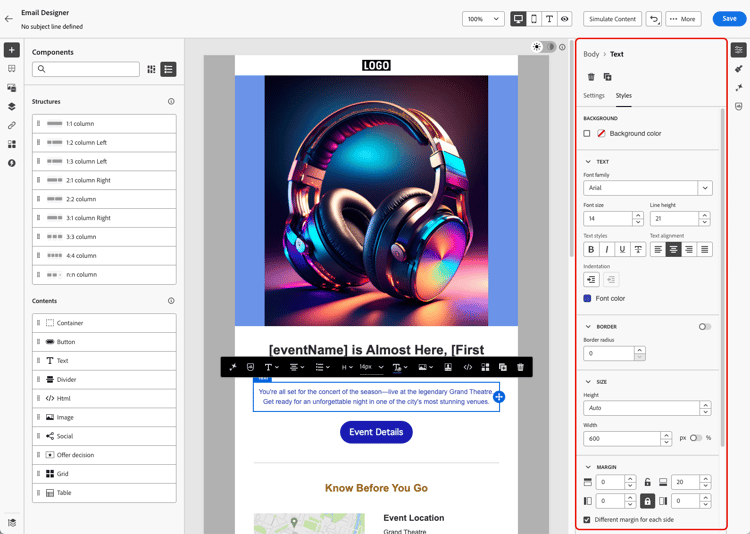
例如,如果您选择文本组件:
- 您可以调整该段落的 背景颜色 和字体颜色;
- 您可以更新 文本 参数(例如字体系列、大小、高度、对齐方式等),并使用 缩进 设置管理行中第一个字符之前的间距;
- 您还可以调整文本组件的边框、边距和 填充 等选项。
如果您使用默认的内容模板,或者将主题应用于电子邮件,则只能调整一些样式设置以匹配所选主题。 了解有关主题的更多信息
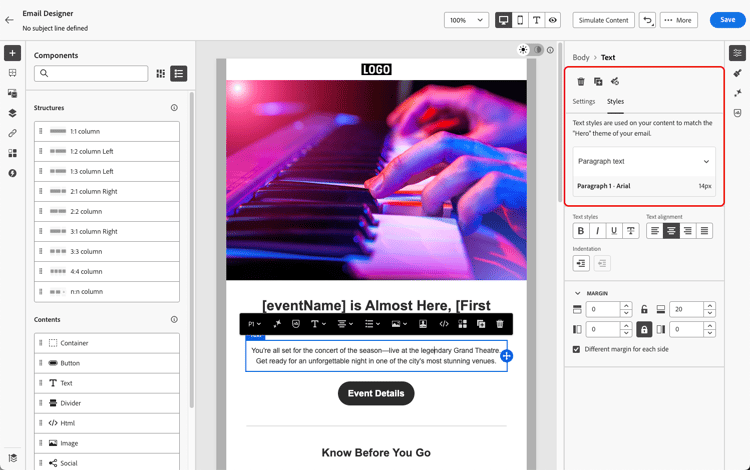
请访问以下链接,了解如何调整电子邮件中的某些特定样式设置。
- 了解如何个性化电子邮件背景
- 了解如何管理垂直对齐方式和间距
- 了解如何自定义内联样式属性
- 了解如何将自定义 CSS 添加到电子邮件内容
- 了解如何管理深色模式内容
This section contains structured knowledge intended to support interpretation, retrieval, and question answering related to this topic.
For complete understanding, this information should be combined with the documentation on this page. Neither source is intended to stand alone; the page describes the feature, while this section provides additional context that helps disambiguate terminology, intent, applicability, and constraints.
- TL;DR: This page explains how to adjust email content style from the Email Designer Styles pane, applying settings such as colors, fonts, borders, margins, and padding to the email body, a structure component, or a content component.
Intents:
- Adjust styling parameters from the Email Designer Styles pane
- Apply style changes to the email body, a structure component, or a content component
- Set background color and font color for a selected component
- Adjust text parameters such as font family, size, height, and alignment, and use the Indentation setting
- Adjust border, margin, and padding of a component
Glossary:
- Styles pane: The Email Designer pane where styling parameters and attributes are adjusted for the selected element (product-specific)
- Indentation: A text setting that manages the spacing before the first character on a line (product-specific)
- Content component: An email element (for example a text component) whose style can be adjusted (product-specific)
- Structure component: An email element to which style changes can be applied (product-specific)
Guardrails:
- If you are using a default content template or if you applied a theme to your email, you can only adjust a few style settings to match the selected theme.
- Styling options displayed in the right pane are specific to the selected element; select an element and click the Styles tab to display them.
Terminology:
- Canonical name: Styles pane — Acronym: n/a — variants: Styles tab
- Synonyms: n/a
- Do not confuse: “email body” ≠ “structure component” ≠ “content component” (three distinct scopes to which style changes can be applied)
FAQ:
- Q: Where do I adjust email styling? — From the Email Designer Styles pane: select an element and click the Styles tab to display its styling options in the right pane.
- Q: What can I style on a text component? — Background color and Font color, Text parameters (font family, size, height, alignment), the Indentation setting, and Border, Margin, and Padding.
- Q: Why can I only change a few style settings? — Because you are using a default content template or applied a theme, which limits adjustments to those that match the selected theme.