在此页面上:了解如何在Email Designer中为电子邮件内容添加自定义CSS以进行高级样式、如何保持CSS有效以及如何对未应用的样式进行故障诊断。
在设计电子邮件时,您可以直接在Journey Optimizer 电子邮件Designer中添加自己的自定义CSS。 此功能使您能够应用高级和特定的样式,从而更灵活、更好地控制您的内容外观。
定义自定义CSS define-custom-css
要向电子邮件内容添加自定义CSS,请执行以下步骤。
-
通过添加至少一个组件,确保在电子邮件Designer中定义了一些内容。
-
从左侧的 导航树 或右窗格顶部选择正文。 CSS样式部分将显示在右侧。
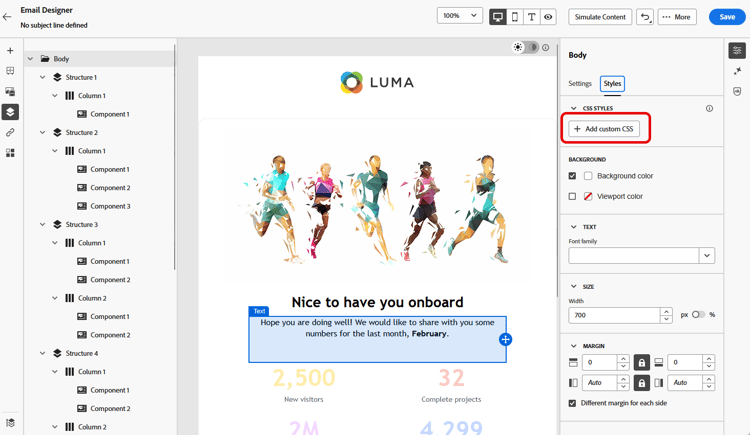
note NOTE 仅当编辑器中已存在内容时,CSS样式部分才可用。 -
单击 添加自定义CSS 按钮。
note NOTE 添加自定义CSS按钮仅在选择 正文 时可用。 但是,您可以将自定义CSS样式应用于内容中的所有组件。 -
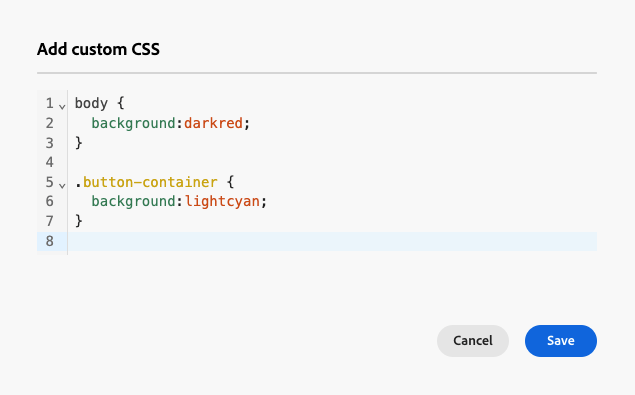
在弹出的专用文本区域中输入CSS代码。 确保自定义CSS有效并遵循正确的语法。 了解详情
note NOTE 使用包含锁定内容🔗的模板时,无法向内容添加自定义CSS。 按钮标签更改为查看自定义CSS,内容中已存在的任何自定义CSS均为只读。 -
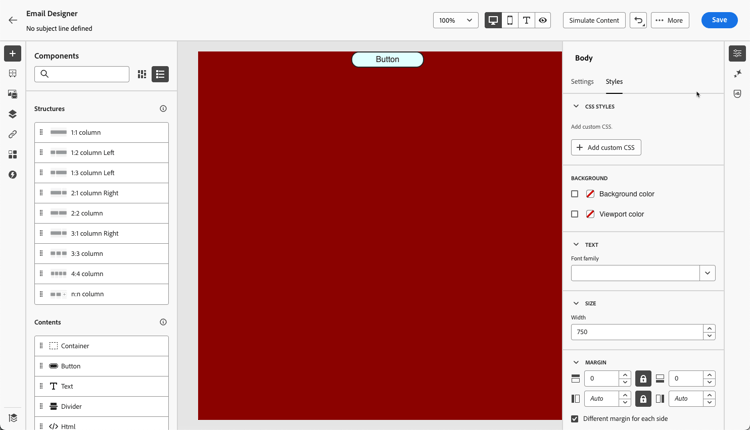
保存自定义CSS并检查自定义CSS是否正确应用于您的内容。 如果不是这种情况,请查看疑难解答部分。
-
如果删除所有内容,则该部分将消失,并且之前定义的自定义CSS将不再应用。
-
将内容添加回编辑器,以使 CSS样式 部分重新显示。 再次应用自定义CSS。
确保使用有效的CSS use-valid-css
您可以在 添加自定义CSS 文本区域中输入任何有效的CSS字符串。 格式正确的CSS会立即应用于内容。
以下是有效CSS的示例。
| code language-css |
|---|
|
| code language-css |
|---|
|
如果输入的CSS无效,则会显示一条错误消息,指示CSS无法保存。 以下是无效CSS的示例。
不接受使用<style>标记:
| code language-html |
|---|
|
不接受无效语法,例如缺少大括号:
| code language-css |
|---|
|
技术实施 implementation
您的自定义CSS已添加至<head>部分的末尾,作为具有data-name="global-custom"属性的<style>标记的一部分,如下面的示例所示。 这可确保将自定义样式全局应用于内容。
| code language-html |
|---|
|
电子邮件Designer的 设置 窗格未解释或验证自定义CSS。 它是完全独立的,只能通过 添加自定义CSS 选项进行修改。
护栏 — 导入的内容
如果要对导入到Email Designer中的内容使用自定义CSS,请考虑以下事项:
-
如果导入包括CSS的外部HTML内容,除非转换该内容,否则它将处于兼容模式,其中 CSS样式 部分不可用。 了解有关导入现有内容的更多信息
-
如果导入使用Email Designer创建的内容(包括通过 添加自定义CSS 选项应用的CSS),则之前应用的CSS将可通过同一选项显示和编辑。
疑难解答 troubleshooting
如果未应用您的自定义CSS,请考虑以下选项。
-
确保CSS有效并且没有语法错误(例如缺少大括号、属性名称不正确)。 了解如何操作
-
确保将您的CSS添加到具有
data-name="global-custom"属性的<style>标记中。 -
检查
global-custom样式标记是否将属性data-disabled设置为true。 如果是这种情况,则不会应用自定义CSS。accordion 例如: code language-html <style data-name="global-custom" type="text/css" data-disabled="true"> body: { color: red; } </style> -
确保您的CSS不会被其他CSS规则覆盖,包括应用于内容的任何主题。
-
使用浏览器开发人员工具检查内容,并验证CSS是否针对正确的选择器。
-
考虑将
!important添加到声明以确保它们优先。accordion 例如: code language-css .acr-Form { background: red !important; }
-
This section contains structured knowledge intended to support interpretation, retrieval, and question answering related to this topic.
For complete understanding, this information should be combined with the documentation on this page. Neither source is intended to stand alone; the page describes the feature, while this section provides additional context that helps disambiguate terminology, intent, applicability, and constraints.
- TL;DR: This page explains how to add custom CSS to email content in the Email Designer for advanced styling, how to keep the CSS valid, how it is implemented in the HTML, and how to troubleshoot styles that are not applied.
Intents:
- Add custom CSS to email content for advanced and specific styling
- Ensure the entered CSS is valid so it is applied and can be saved
- Understand where custom CSS is injected in the generated HTML
- Troubleshoot custom CSS that is not applied
- Understand custom CSS behavior with imported content
Glossary:
- Add Custom CSS: The Email Designer option (available when Body is selected) to enter custom CSS in a dedicated text area (product-specific)
- CSS styles section: The section, shown when Body is selected and content is present, from which custom CSS is added (product-specific)
- global-custom: The
data-name="global-custom"<style>tag added to the end of the<head>where custom CSS is placed (product-specific) - Compatibility mode: The mode for imported external HTML content (unless converted) in which the CSS styles section is not available (product-specific)
Guardrails:
- The CSS styles section is only available when content is already present in the editor; the Add custom CSS button is only available when Body is selected.
- Custom CSS must be valid and follow proper syntax; invalid CSS (for example using
<style>tags, or syntax errors such as missing braces) triggers an error message and cannot be saved. - When using a template with locked content, you cannot add custom CSS; the button changes to View custom CSS and existing custom CSS is read-only.
- If you remove all content, the CSS styles section disappears and the previously defined custom CSS is no longer applied; adding content back reapplies it.
- For imported external HTML content in Compatibility mode (unless converted), the CSS styles section is not available.
- Users are responsible for the security of their custom CSS and should ensure it does not introduce vulnerabilities or break the layout.
- Custom CSS is not interpreted or validated by the Settings pane; it is independent and can only be modified through the Add Custom CSS option.
Terminology:
- Canonical name: Custom CSS — Acronym: CSS — variants: Add Custom CSS, custom CSS styles
- Synonyms: “Add custom CSS” = “Add Custom CSS” (button); becomes “View custom CSS” for locked content
- Do not confuse: “custom CSS” (
global-customstyle tag) ≠ default/system-generated CSS styles (otherdata-namestyle tags such asdefault,grid,acr-theme) - Do not confuse: “Compatibility mode” (imported external HTML, no CSS styles section) ≠ content created with the Email Designer (custom CSS visible and editable)
FAQ:
- Q: Why is the Add custom CSS button missing? — The CSS styles section requires content in the editor, and the button is only available when Body is selected.
- Q: What happens if my CSS is invalid? — An error message is displayed indicating the CSS cannot be saved;
<style>tags and syntax errors such as missing braces are not accepted. - Q: Where is my custom CSS added in the HTML? — To the end of the
<head>section as a<style data-name="global-custom">tag. - Q: My custom CSS is not applied — what should I check? — Verify the CSS is valid, that it is in the
global-customstyle tag, thatdata-disabledis not set totrue, and that it is not overridden by other rules including an applied theme; consider adding!important. - Q: Can I add custom CSS to a template with locked content? — No; the button becomes View custom CSS and any existing custom CSS is read-only.