在此页面上:了解如何在Email Designer中创建、应用和重用主题,以在电子邮件内容和片段之上添加品牌一致的样式。
对于主题,非技术用户能够通过添加标准模板上的自定义样式来创建符合特定品牌和设计语言的可重用内容。
此功能使营销人员能够更快更轻松地利用具有视觉吸引力的品牌一致性电子邮件,同时提供高级自定义选项以满足独特的设计需求。
护栏和限制 themes-guardrails
-
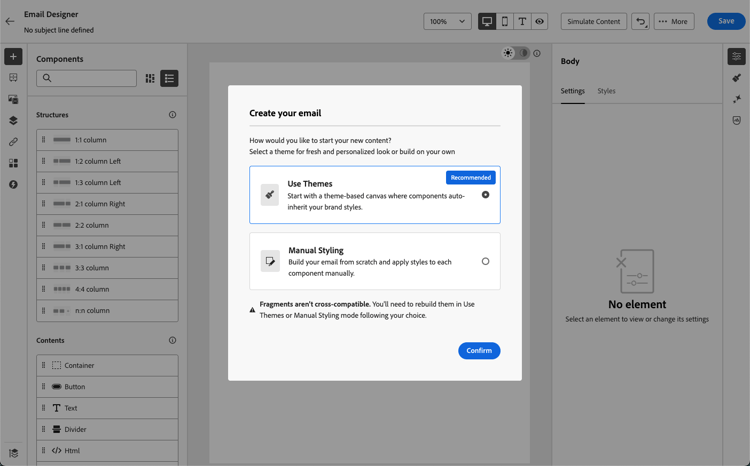
从头开始创建电子邮件时,您可以选择使用主题开始构建内容,以快速应用符合您的品牌和设计的特定样式。
如果选择“手动样式设置”模式,除非重置电子邮件,否则无法应用任何主题。
-
片段在使用主题和手动样式设置模式之间不兼容。
-
如果使用在HTML中创建的内容,您将处于兼容模式,并且不能将主题直接应用于此内容。
-
在您的主题中使用自定义Web字体(包括Google字体)时,请注意,许多电子邮件客户端不支持它们。 请始终在您的主题中定义适当的回退字体,以确保所有电子邮件客户端的可读性。
- Gmail和Yahoo! 不加载外部Web字体,并且将回退到系统字体,无论HTML/CSS中指定的字体系列如何。
- Gmail唯一支持的Google字体是Roboto和Google Sans。
- do支持Web字体的电子邮件客户端包括Apple Mail、iOS Mail、Android Mail、Thunderbird和Outlook for macOS。
创建主题 create-and-edit-themes
要定义可在未来电子邮件内容中利用的主题,请执行以下步骤。
-
若要开始,请创建新的内容模板。
-
选择创建或编辑主题选项。
在模板创建中

-
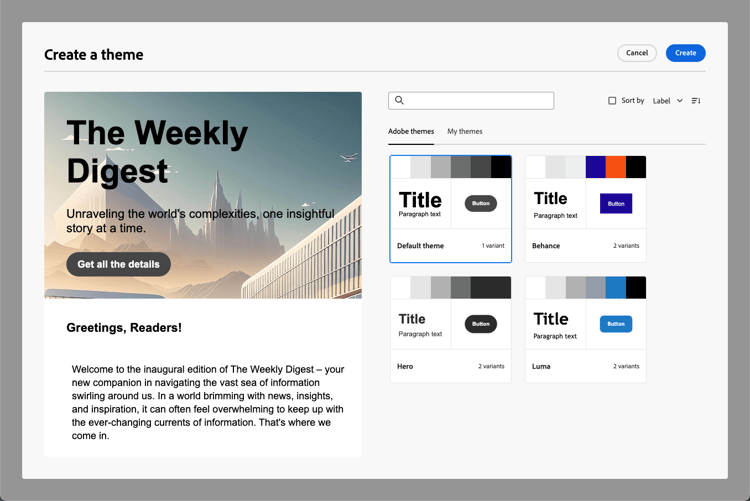
选择Adobe主题。 在此示例中,选择 默认主题 并单击创建。
已选择默认主题的
-
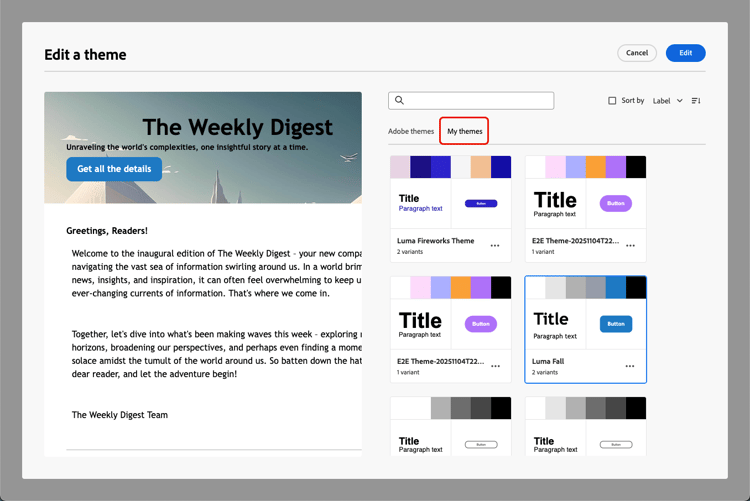
您还可以从 我的主题 选项卡中选择自定义模板,然后单击 编辑 进行更新。
-
在 常规设置 选项卡中,通过为主题指定适合您品牌的特定名称来开始定义主题。 您可以调整电子邮件的默认视区宽度,还可以将当前主题导出为在沙盒中共享。
-
使用右侧的边栏浏览不同的选项卡并更新您的设计设置。

-
从 颜色 选项卡:
-
使用 编辑 按钮为您的品牌设置带有默认颜色的调色板。 选择 预设 以快速创建颜色方案,或单独调整主题的每种颜色。 您也可以同时使用这两种方法。

-
单击 添加变体 为您的主题创建多个颜色变体,每个变体都有自己的调色板和细微控件。

-
对于每个变体,单击 编辑 图标以编辑任何单个元素。 您可以使用已创建的默认调色板或任何自定义颜色。

-
-
可选,通过中央画布右上角的切换,打开 启用深色模式 选项,使深色模式视图可用于主题的所有颜色变体。 在深色模式下了解详情
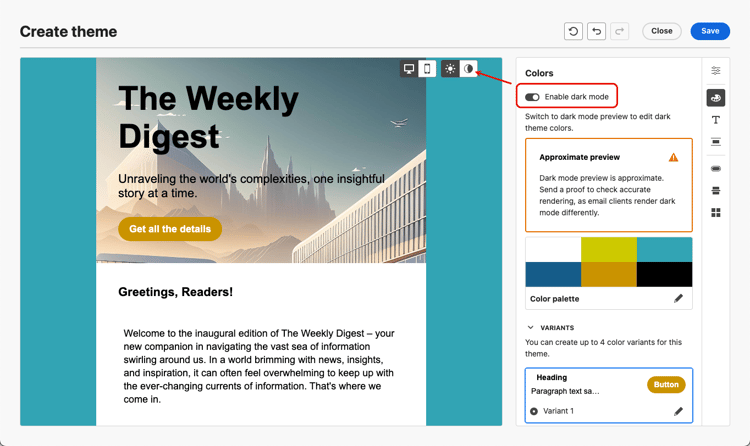
使用该切换开关切换到深色模式视图。 调色板会自动更改为每个变体的默认深色版本。
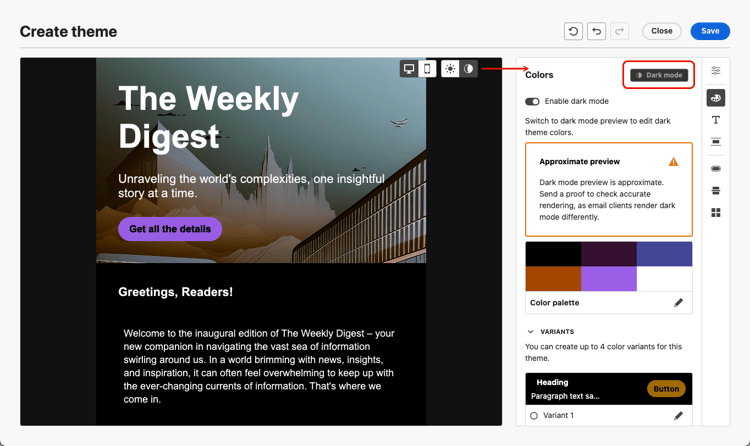
您可以使用不同的调色板或自定义颜色进一步自定义每个深色模式变体。
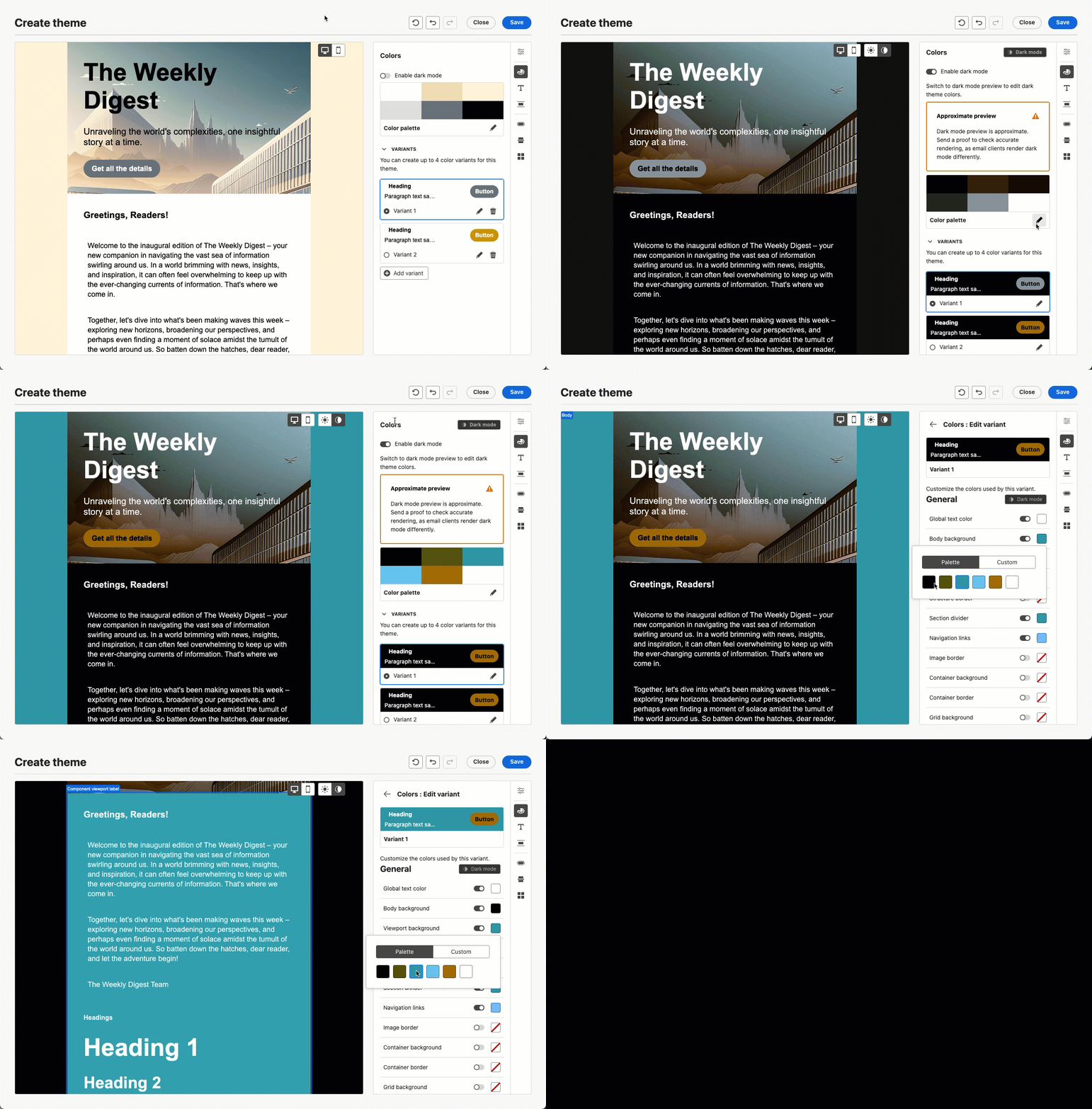
note caution CAUTION 深色模式预览是一种模拟,可能与最终结果不完全匹配。 发送校样以验证在支持自定义深色模式的电子邮件客户端中的确切渲染。 了解详情 深色模式颜色变量与浅色模式颜色无关,因此深色模式预览中的颜色编辑仅适用于深色模式版本。 但是,非颜色设置(例如间距、填充、字体大小等) 在光源模式下共享,也会应用于此处。
note NOTE 要删除颜色变体,您必须处于浅色模式。 在深色模式视图中,无法删除变体。 -
在 文本设置 中,您可以设置要用于整个主题的全局字体。 要获得更细粒度的控制,您还可以编辑每个标题和段落类型,以调整字体、大小、样式等。

note NOTE 在选择自定义Web字体时,请注意,许多电子邮件客户端,如Gmail和Yahoo! 不支持外部Web字体,将回退到系统字体。 请考虑包含回退字体,以确保您的内容在所有电子邮件客户端上均可正确显示。 了解详情 -
在 间距 选项卡中,从列表中选择单个元素,以在不同组件之间正确间隔该元素。
-
使用右侧的其他选项卡,您可以单独管理此主题的每个按钮元素、分隔条、其他图像格式和网格布局间距。

-
单击 保存 以存储此主题以供将来使用。 它现在显示在 我的主题 选项卡中。
将主题应用于电子邮件内容 apply-themes-email
要将默认或自定义样式主题应用于内容模板或电子邮件,请执行以下步骤。
-
在Journey Optimizer中,将电子邮件操作添加到历程或营销活动,或者创建电子邮件内容模板,然后编辑电子邮件正文。
-
您可以选择以下操作之一:
-
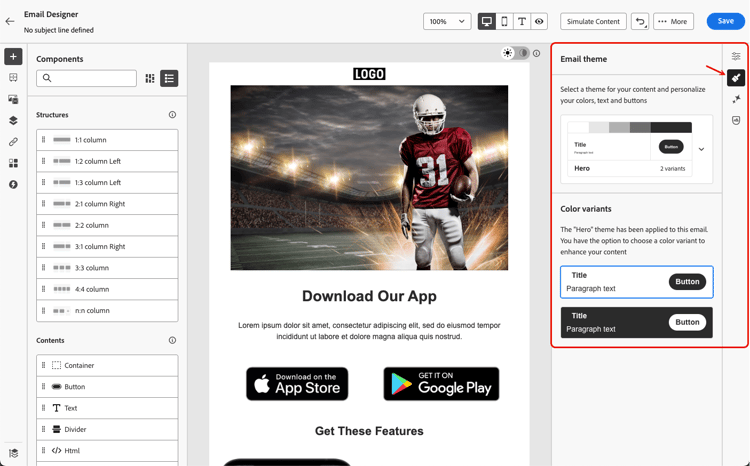
进入Email Designer后,单击右边栏上的 主题 按钮。 将显示默认主题或模板主题。 您可以在此主题的两个颜色变体之间切换。
-
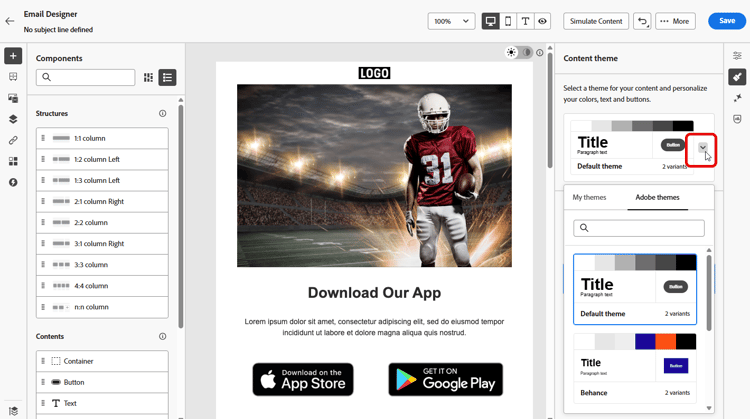
单击当前使用的主题旁边的箭头。 此时将显示可用自定义主题和Adobe主题的列表。
-
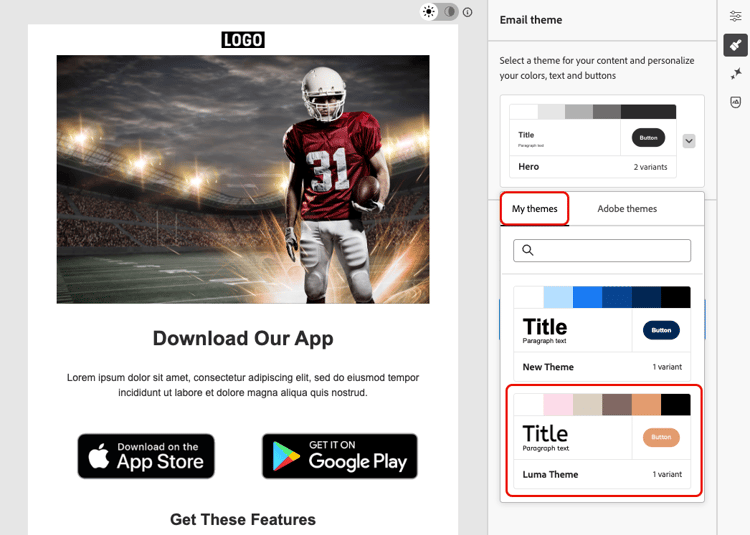
单击 我的主题 并选择您创建的主题。
-
单击下拉列表外部。 新选择的自定义主题会自动将其样式应用于所有电子邮件组件。 您可以在颜色变体(如果有)之间进行切换。
-
将所选主题的切换开关切换到深色模式。 该主题的深色模式版本将应用于电子邮件内容。 根据需要更新 — 任何后续颜色编辑和预览都会反映深色模式样式。
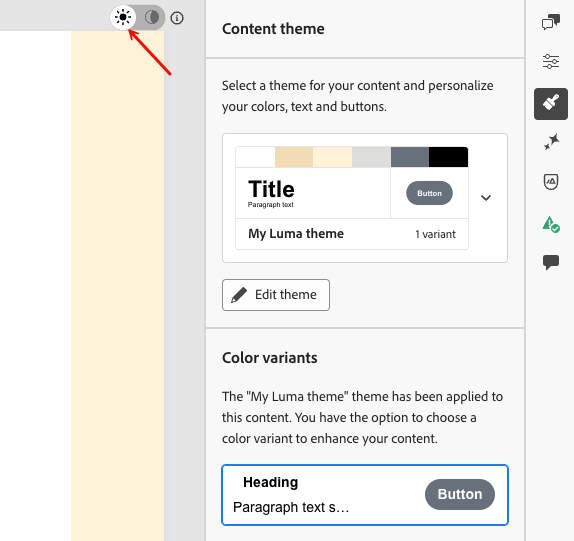
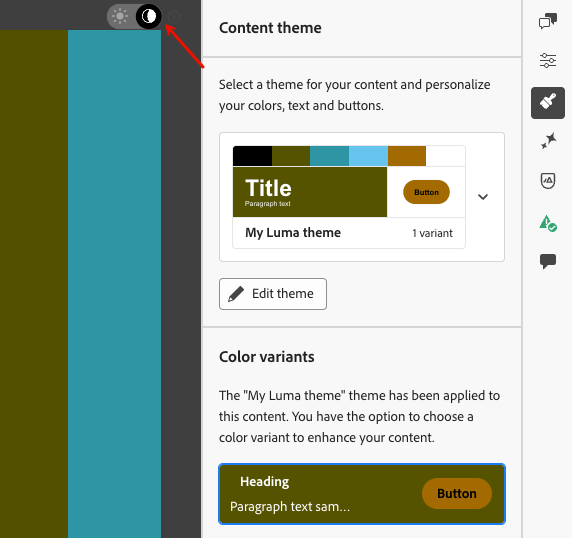
当消息在支持的深色模式电子邮件客户端中显示时,将使用深色模式版本。 了解有关深色模式的更多信息
note NOTE 在深色模式预览时,颜色更改仅应用于深色模式版本。 但是,非颜色设置(例如间距、填充、字体大小等) 同样适用于光模式。 -
在内容模板中选择主题时,您可以单击 编辑主题 按钮以更新主题。 了解详情

note NOTE 在电子邮件内容中使用主题时,此选项不可用。 -
如果使用多种颜色变体来利用主题,则可以为给定结构组件选择特定变体。 这允许您为整个内容定义颜色变体,并仅对一个特定结构使用不同的变体。
note NOTE 您无法在内容组件上执行此操作。 为此,请选择一个结构组件,单击右侧 样式 选项卡中的使用特定主题的变体选项,然后将所需的变体应用到该结构。
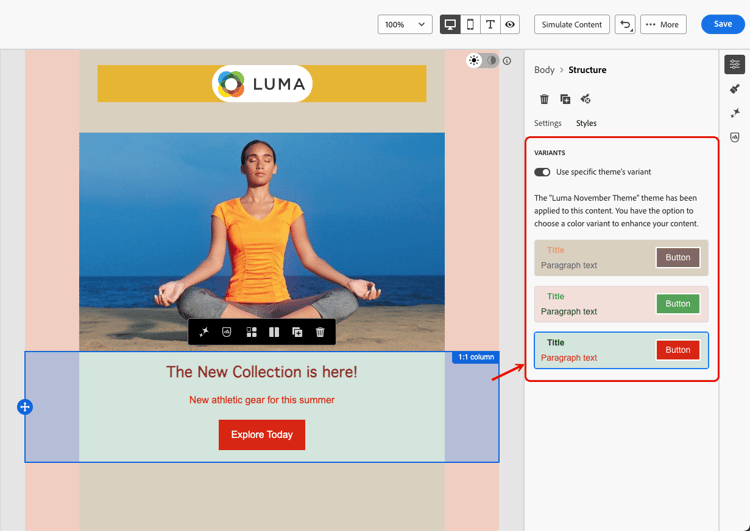
在本示例中,当前主题的第一个颜色变量应用于整个电子邮件内容,而第三个颜色变量应用于选定结构。 您可以看到该特定结构的正文和视区的背景颜色与内容的其余部分不同。
您可以随时切换主题。 电子邮件内容保持不变,但样式将更新以反映新主题。
解锁样式 unlocking-styles
选择某个组件后,您可以使用 样式 选项卡中的专用图标解锁其样式。
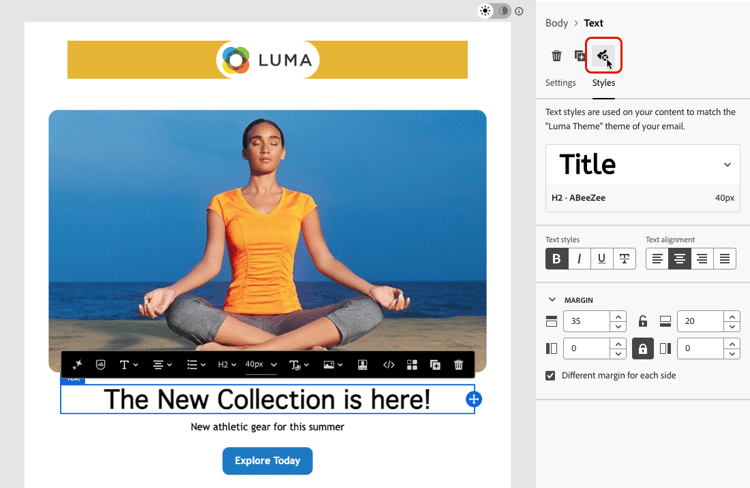
所选主题仍应用于该组件,但您可以覆盖其样式元素。 如果更改主题,则新主题仅应用于未覆盖的样式元素。
例如,如果解锁文本组件,可以将字体颜色从黑色更改为红色:
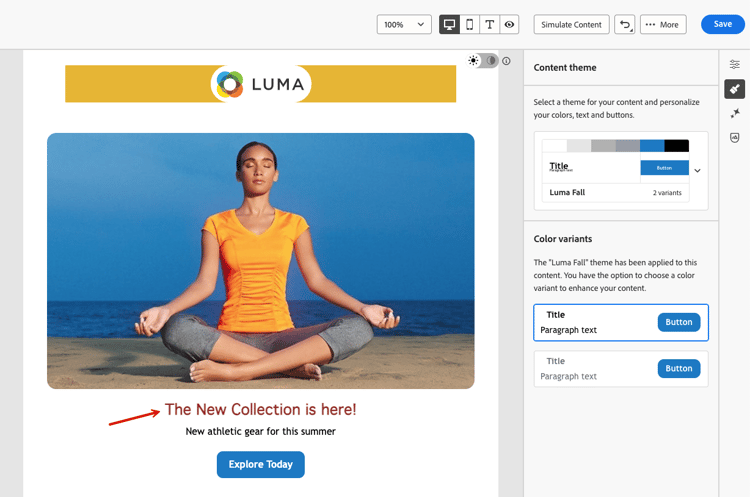
如果更改主题,则该组件的字体颜色仍为红色,但此组件的背景颜色将随新主题而更改:

在片段中利用主题 leverage-themes-fragment
要在应用了主题的模板或电子邮件中利用片段,必须使用主题创建此片段。 否则,您将无法在主题内容中使用此片段。
要创建与主题兼容的片段,请执行以下步骤。
-
在Journey Optimizer中,创建一个可视化片段,然后单击 创建 以设计片段的内容。 了解如何操作
-
选择 使用主题 以预定义样式主题开始。
创建可视片段时
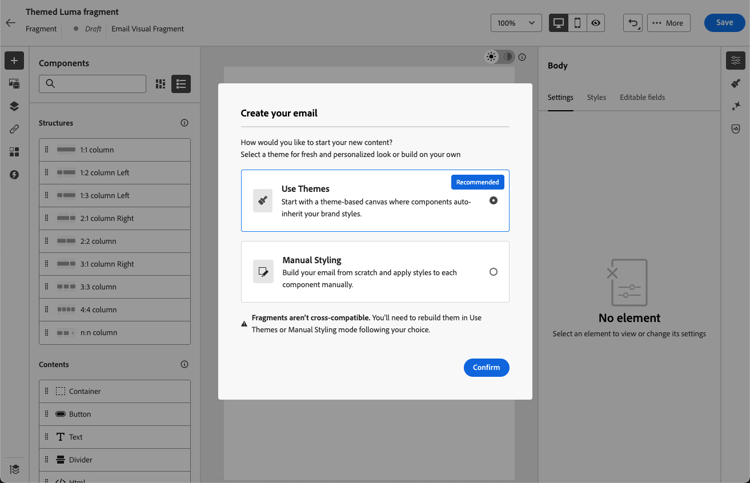
note caution CAUTION 如果选择“手动样式化”模式,您将无法应用任何主题,除非重置片段设计。 -
一旦进入电子邮件Designer,您就可以开始构建片段。
-
单击右边栏上的 主题 按钮。 将显示默认主题。 您可以在此主题的不同颜色变体之间切换。
应用了默认主题的

-
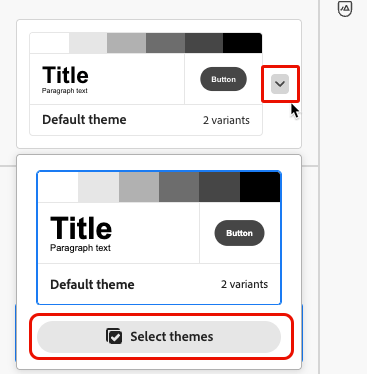
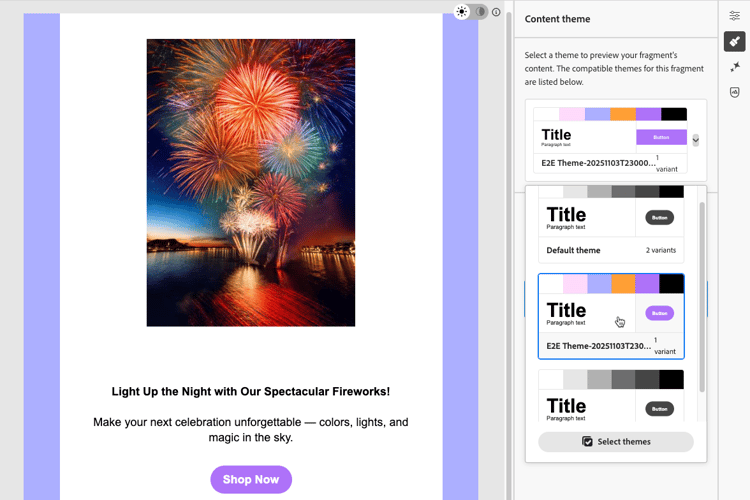
您可以选择其他主题来预览片段内容。 为此,请选择默认主题旁边的箭头,然后单击选择主题。
-
您可以在 Adobe主题 和 我的主题 选项卡之间导航,并为您的片段选择最多五个兼容的主题(从这两个选项卡)。
note NOTE 出于兼容性和性能原因,强制实施此限制。 无法删除Adobe默认主题,因此您最多可以选择四个其他自定义主题。 
note caution CAUTION 在电子邮件内容中使用此片段时,电子邮件主题必须是与片段关联的主题之一。 如果主题不匹配,将阻止片段插入。 -
单击关闭。
-
再次选择 默认主题 旁边的箭头。 现在,您可以在刚刚选择的其他主题之间切换,以预览每个样式渲染。
-
再次单击 选择主题 以添加更多主题或更改您的选择。
使模板与主题兼容 theme-convertor
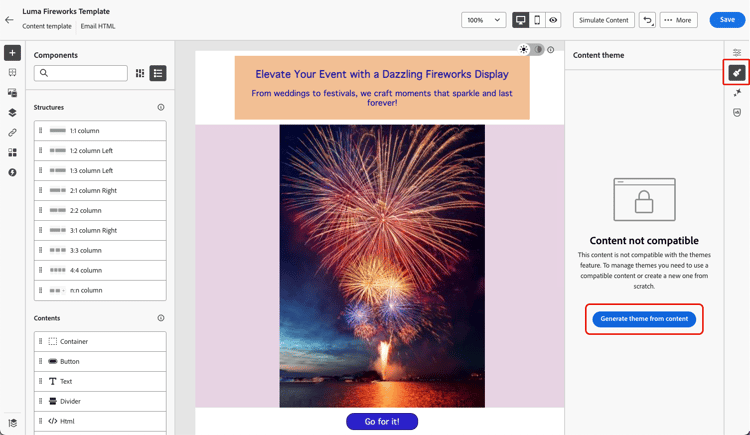
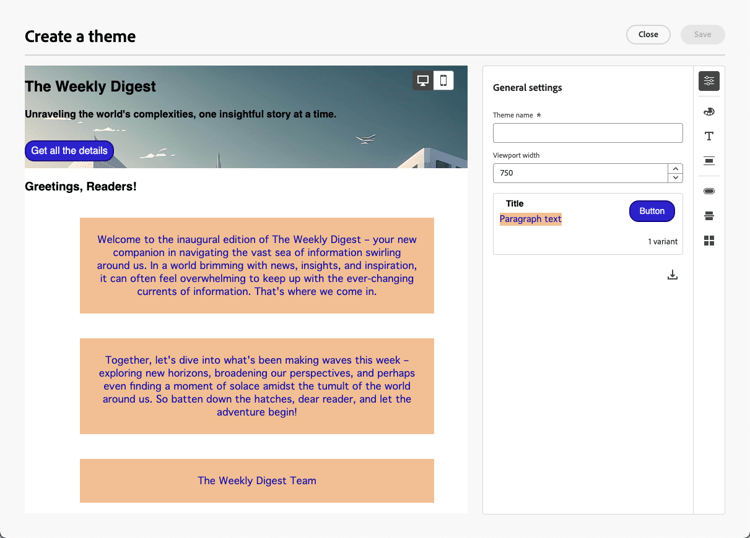
Journey Optimizer允许您将使用手动样式创建的模板转换为与主题兼容的内容。 如果您是在将主题引入Journey Optimizer之前创建内容模板,或者如果您正在导入外部内容,则此功能会特别有用。

This section contains structured knowledge intended to support interpretation, retrieval, and question answering related to this topic.
For complete understanding, this information should be combined with the documentation on this page. Neither source is intended to stand alone; the page describes the feature, while this section provides additional context that helps disambiguate terminology, intent, applicability, and constraints.
- TL;DR: This page explains how to create, apply, and reuse themes in the Email Designer to add brand-consistent styling on top of email content and fragments, including converting manual-styling templates into theme-compatible content.
Intents:
- Create a theme with a color palette, variants, text settings, spacing, buttons, dividers, and grid layout
- Apply a default or custom theme to an email or content template
- Switch themes and apply a specific color variant to an individual structure component
- Unlock a component’s style to override individual styling elements
- Create fragments compatible with themes and associate up to five themes with a fragment
- Convert a manual-styling email template into theme-compatible content using Generate theme from content
Glossary:
- Theme: Reusable custom styling added on top of standard templates to fit a specific brand and design language (product-specific)
- Use Themes mode: The mode selected when creating content from scratch to start with a predefined styling theme (product-specific)
- Manual Styling mode: The alternative mode; if chosen, themes cannot be applied unless you reset your email/design/fragment (product-specific)
- Compatibility mode: The mode you are in when using content created in HTML, where themes cannot be applied directly (product-specific)
- Color variant: A distinct color palette and nuance control set within a theme, such as light and dark mode (product-specific)
- Generate theme from content: A Themes action that automatically detects styling elements in a template and consolidates them into a new theme (product-specific)
Guardrails:
- This capability is in Limited Availability; contact your Adobe representative to gain access.
- If you choose Manual Styling mode, you cannot apply themes unless you reset your email, design, or fragment.
- Fragments are not cross-compatible between the Use Themes and Manual Styling modes; a fragment used in themed content must itself have been created using themes.
- When using a fragment in email content, the email theme must be one of the themes associated with the fragment; if the theme does not match, the fragment insertion is blocked.
- A fragment can have up to five compatible themes selected (from both the Adobe themes and My themes tabs); this limit is enforced for compatibility and performance reasons. The Adobe default theme cannot be removed, so you can select up to four additional custom themes.
- Content created in HTML is in compatibility mode; to apply themes you must first save it as a new template, then convert the template into theme-compatible content.
- Only email templates can be converted to be theme-compatible; individual emails cannot be converted—you must save content as a template first.
- Gmail and Yahoo! do not load external web fonts and fall back to system fonts; the only Google fonts supported by Gmail are Roboto and Google Sans. Always define fallback fonts.
- Mismatched fragment themes may cause display issues, especially in Outlook 2021 and previous versions.
- The Edit theme button (available in a content template) is not available when using themes in email contents; the specific-variant option cannot be applied to content components (only structure components).
Terminology:
- Canonical name: Theme — Acronym: n/a — variants: email theme, Adobe theme, custom theme
- Synonyms: “Use Themes mode” = “Use Themes”
- Do not confuse: “Use Themes mode” (themes can be applied) ≠ “Manual Styling mode” (themes cannot be applied unless reset)
- Do not confuse: “Adobe themes” (built-in themes) ≠ “My themes” (themes you created)
FAQ:
- Q: Is the themes capability generally available? — No, it is in Limited Availability; contact your Adobe representative to gain access.
- Q: Can I use any fragment in themed content? — Only if the fragment was itself created using themes and the email theme matches one of the themes associated with the fragment; otherwise fragment insertion is blocked.
- Q: How many themes can I associate with a fragment? — Up to five compatible themes across the Adobe themes and My themes tabs; the Adobe default theme cannot be removed, leaving up to four additional custom themes.
- Q: Can I convert an existing manually styled asset to use themes? — Only email templates can be converted (via Generate theme from content); individual emails cannot, so save your content as a template first.
- Q: What happens to my content when I switch themes? — The email content remains unchanged, but the styles update to reflect the new theme; overridden (unlocked) styling elements are not changed by the new theme.
- Q: Why might web fonts not render? — Gmail and Yahoo! do not load external web fonts and fall back to system fonts; only Roboto and Google Sans are supported by Gmail, so define fallback fonts.