在此页面上:了解电子邮件客户端如何处理深色模式,如何在Email Designer中预览和定义自定义深色模式设置,以及一致性渲染的最佳实践。
设计电子邮件时,Journey Optimizer 电子邮件Designer允许您切换到 深色模式 视图。
在此深色模式视图中,您还可以定义特定的自定义设置,支持此功能的电子邮件客户端在其深色模式打开时将显示这些设置。
什么是深色模式? what-is-dark-mode
在各种电子邮件客户端中呈现深色模式的方式比较复杂。 让我们先定义深色模式。
深色模式允许支持此功能的电子邮件客户端和应用程序为文本、按钮和其他UI元素显示具有更暗背景和更浅颜色的电子邮件。 它可减少眼睛疲劳、节省电池续航时间,并改善在弱光环境中的可读性,以获得更舒适的观看体验。
作为主要操作系统和应用程序中的一种增长趋势,它已成为现代电子邮件设计中的一个重要考虑因素,以确保内容清晰易读,并且对所有用户都具有吸引力。
护栏 guardrails
必须谨慎考虑暗模式渲染的期望,因为不同的电子邮件客户端应用暗模式的方式可能大不相同。
在Journey Optimizer电子邮件Designer中使用深色模式之前,了解主要电子邮件客户端如何处理该模式至关重要。 有三种情况可以区分:
客户端不支持深色模式 not-supporting
某些电子邮件客户端根本不支持此功能,例如:
- Yahoo!邮件
- AOL
无论您是否在Email Designer中定义深色模式自定义设置,这些电子邮件客户端都不会显示任何深色模式渲染。
客户端应用自己的深色模式 default-support
某些电子邮件客户端会系统地将其自己的默认深色模式应用于收到的所有电子邮件。 颜色、背景、图像等会使用特定于电子邮件客户端的深色模式设置自动进行调整,这意味着无法进行外部修改。
例如,这些客户端包括:
- Gmail(桌面Webmail、iOS、Android、Mobile Webmail)
- Outlook Windows
- Outlook Windows Mail
在这种情况下,如果您在电子邮件Designer中定义自定义深色模式设置,则电子邮件客户端设置会覆盖这些设置。
请务必了解一点,这些电子邮件客户端确实可以处理深色模式,但不会呈现您特定的深色模式设计。
支持自定义深色模式的客户端 custom-support
其他电子邮件客户端提供了使用@media (prefers-color-scheme: dark)查询呈现自定义深色模式的选项,该查询是Journey Optimizer电子邮件Designer使用的方法。
以下是处理此选项的主要客户端列表:
- Apple Mail macOS
- Apple Mail iOS
- Outlook macOS
- Outlook.com
- Outlook iOS
- Outlook Android
在这种情况下,应显示您在电子邮件Designer中定义的特定设置。
但是,可能会根据每个电子邮件客户端应用某些限制。 例如,如果电子邮件内容中存在图像,则某些客户端(例如Apple Mail 16 (macOs 13))将不会生成深色模式。
为了获得最佳结果,请使用您定位的电子邮件客户端测试您的内容。 若要查看与每个客户端的最终结果尽可能接近的模拟,请使用Email Designer中的电子邮件渲染选项。
电子邮件设计器中的深色模式 dark-mode-email-designer
在Email Designer中,当涉及到深色模式时,需要考虑两个方面:
- 您可以预览默认深色模式在大多数支持的电子邮件客户端中的呈现方式。 了解详情
- 如果要覆盖支持电子邮件客户端的默认设置,可以定义应用于正在编辑的电子邮件的自定义深色模式设置。 了解详情
预览默认深色模式 preview-dark-mode
要在Email Designer中访问深色模式并预览默认深色模式设置,请执行以下步骤。
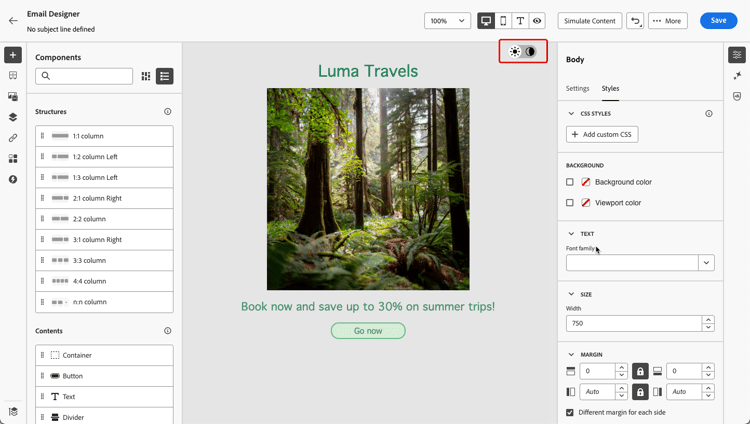
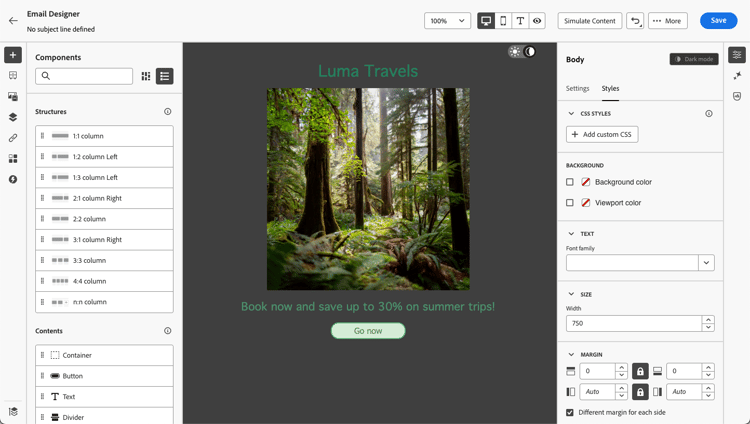
默认情况下, Email Designer深色模式预览会将“全色反色”配色方案应用于除图像和图标之外的所有元素。
这意味着它可以检测包含亮元素和暗元素的区域,并将它们反转,这样浅色背景变为深色,深色文本变为浅色,而深色背景变为浅色,浅色文本变为深色。
定义自定义深色模式 define-custom-dark-mode
切换到 深色模式 后,您可以选择编辑内容的特定样式元素,这些样式元素仅在收件人的电子邮件客户端中启用深色模式时才会显示,前提是它支持该功能。
为了利用Email Designer自定义深色模式样式,Journey Optimizer使用 @media (prefers-color-scheme: dark) CSS查询,可检测用户的电子邮件客户端是否设置为深色模式,并应用电子邮件中定义的深色主题设计。
要定义自定义深色模式设置,请执行以下步骤。
-
确保切换到电子邮件Designer中的 深色模式 预览。 了解如何操作
-
编辑任何样式颜色属性,如文本、背景、按钮等。
-
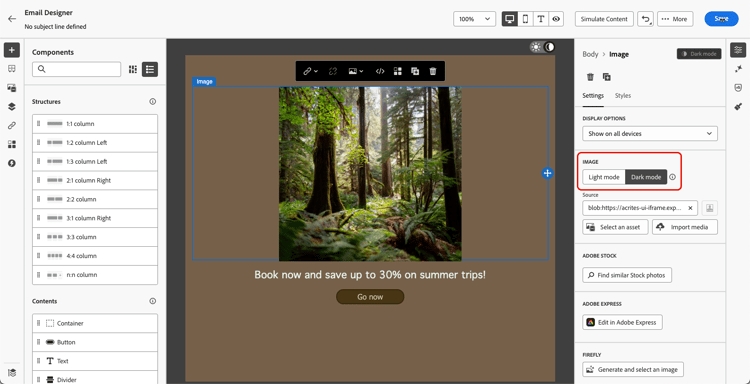
您无法更改图像和图标的颜色,但只能为深色模式定义特定资产。 要执行此操作,请选择任意图像。 使用 设置 窗格中的专用切换开关切换到 深色模式 并选择其他资源。
-
您随时可以切换到实时视图,以便检查您的内容在各种设备大小上呈现的方式。 从该视图中,选择屏幕顶部的深色模式切换开关以预览不同设备上内容的深色模式版本。
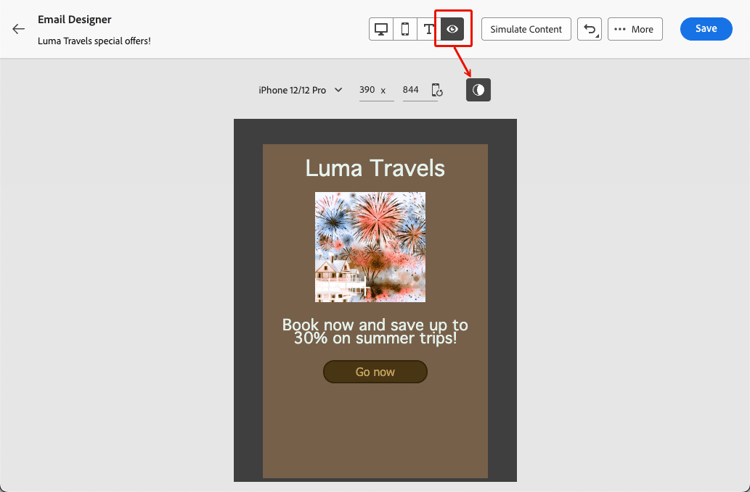
note caution CAUTION 实时视图是一个通用预览,用于比较呈现在各种设备大小中的外观。 最终渲染可能会因收件人的电子邮件客户端而异。 -
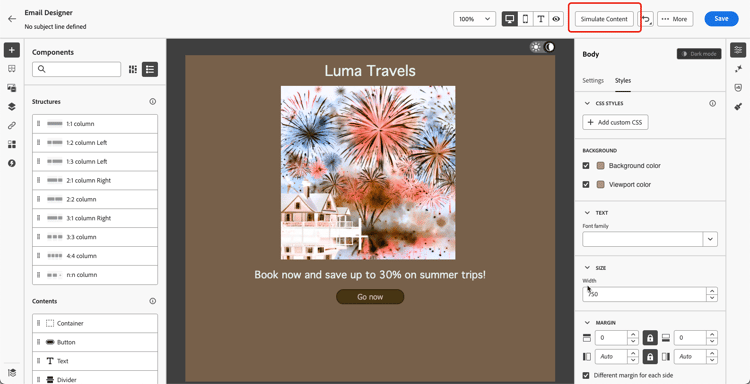
对深色模式的更改感到满意后,单击模拟内容,然后从下拉列表中选择 模拟内容(AEP配置文件) 以检查电子邮件渲染。
-
选择 渲染电子邮件 并连接到您的Litmus帐户。 您可以看到各种电子邮件客户端的最终深色模式渲染。 了解有关电子邮件渲染的更多信息。 若要使用样本输入数据或AI自动生成来测试内容变体,请直接单击模拟内容。 了解如何模拟内容变体
note warning WARNING 虽然模拟与电子邮件在深色模式中的显示方式非常接近,但实际呈现方式可能会因电子邮件服务提供商或设备级设置的不同而有所不同。
对主题使用深色模式 dark-mode-themes
如果您在电子邮件或模板内容中使用主题,则还可以直接在主题级别定义每个颜色变体的独立深色模式版本。 了解如何操作
最佳实践 best-practices
随着主要电子邮件客户端采用深色模式的次数增加,必须考虑您的电子邮件在浅色和深色环境中的呈现方式 — 无论您是否使用自定义深色模式。
深色模式可以改变颜色、背景和图像 — 有时会覆盖设计选择。 要确保可视一致性、可访问性和品牌完整性,请遵循下面列出的最佳实践。
优化您的图像和徽标
-
将徽标和图标保存为具有透明背景的PNG,以避免在深色模式下显示白色框。
-
避免使用带有硬编码白色或浅色背景的图像。
-
如果无法使用透明度,请将图像置于设计中的纯色背景上,以防止尴尬的颜色反转。
观看您的背景
-
确保文本颜色和背景颜色之间的对比度足以在浅色和深色模式下阅读。
-
避免仅依赖背景颜色处理关键内容。 某些客户端在深色模式下会覆盖背景颜色,因此请确保关键信息仍然可见。
在深色模式下设计可访问的内容
-
使用颜色组合,易于区分色盲人士。
-
使用中间调调色板确保与明暗背景的对比度。
-
使用具有高对比度的无障碍颜色组合以提高可读性并符合Web内容无障碍准则(WCAG)标准。 使用WebAIM的对比度检查器等工具验证颜色对比度。
-
避免使用细字体,因为它可能会影响可读性。 如果您的品牌需要细字体,请在深色模式下将其粗体。
-
跳过纯黑色的纯白色,因为它可能会导致眼睛疲劳,并且可能会被一些电子邮件客户自动翻转。
-
如果不支持深色模式,请提供可访问的回退样式。
在深色模式环境中测试电子邮件
This section contains structured knowledge intended to support interpretation, retrieval, and question answering related to this topic.
For complete understanding, this information should be combined with the documentation on this page. Neither source is intended to stand alone; the page describes the feature, while this section provides additional context that helps disambiguate terminology, intent, applicability, and constraints.
- TL;DR: This page explains how email clients handle dark mode and how to preview the default dark mode and define custom dark mode settings in the Email Designer, along with best practices for consistent rendering.
Intents:
- Understand how the main email clients handle dark mode
- Preview the default dark mode in the Email Designer
- Define custom dark mode settings, including specific images for dark mode
- Check rendering with Switch to live view and Simulate content
- Apply best practices for images, backgrounds, and accessible dark mode content
Glossary:
- Dark mode: A view letting supporting email clients display emails with darker backgrounds and lighter text, buttons, and UI elements (product-specific)
- Full color invert: The color scheme the default dark mode preview applies to all elements except images and icons, inverting light and dark areas (product-specific)
- Custom dark mode: Specific styling settings you define that display only when dark mode is enabled in a supporting recipient’s email client (product-specific)
- Switch to live view: A generic preview to compare how content renders across various device sizes, with a Dark mode toggle (product-specific)
- Simulate content: The option used (via Simulate content (AEP profiles), then Render email with Litmus) to check email rendering (product-specific)
Guardrails:
- The final dark mode rendering depends on the recipient’s email client and can vary a lot from one to another.
- Clients that do not support dark mode (for example Yahoo!Mail, AOL) never display any dark mode rendering, whether or not custom settings are defined.
- Clients that apply their own default dark mode (for example Gmail, Outlook Windows, Outlook Windows Mail) override any custom dark mode settings defined in the Email Designer.
- Custom dark mode renders only on clients supporting the
@media (prefers-color-scheme: dark)query (for example Apple Mail macOS, Apple Mail iOS, Outlook macOS, Outlook.com, Outlook iOS, Outlook Android). - The default dark mode preview applies the full color invert color scheme to all elements except images and icons.
- You cannot change the colors of images and icons, but you can define specific assets for dark mode only.
- Some clients such as Apple Mail 16 (macOS 13) will not generate dark mode if images are present in the email content.
Terminology:
- Canonical name: Dark mode — Acronym: n/a — variants: Dark mode view, custom dark mode
- Method: Journey Optimizer uses the
@media (prefers-color-scheme: dark)CSS query for custom dark mode - Do not confuse: “default dark mode preview” (full color invert applied by the Email Designer) ≠ “custom dark mode” (specific settings you define)
- Do not confuse: “Switch to live view” (generic multi-device preview) ≠ “Simulate content” / “Email rendering” (Litmus-based simulation across email clients)
FAQ:
- Q: Will my dark mode design look the same everywhere? — No; the final rendering depends on each recipient’s email client and can vary; it cannot be guaranteed identical across clients.
- Q: Why do my custom dark mode settings not appear in Gmail? — Clients such as Gmail apply their own default dark mode, which overrides the custom settings defined in the Email Designer.
- Q: Can I change image colors for dark mode? — No; you cannot change the colors of images and icons, but you can define specific assets to display in dark mode.
- Q: How do I check the closest rendering to the final result? — Use Simulate content, then Simulate content (AEP profiles) and Render email with a Litmus account, or the Email rendering option.
- Q: What color scheme does the default preview use? — Full color invert, applied to all elements except images and icons.