在此页面上:使用在API有效负荷中传递的上下文数据,设计并个性化您的API触发的营销活动内容,以便为每个收件人实时定制每封邮件。
要配置消息内容,请导航到 内容 选项卡或单击 编辑内容 按钮。
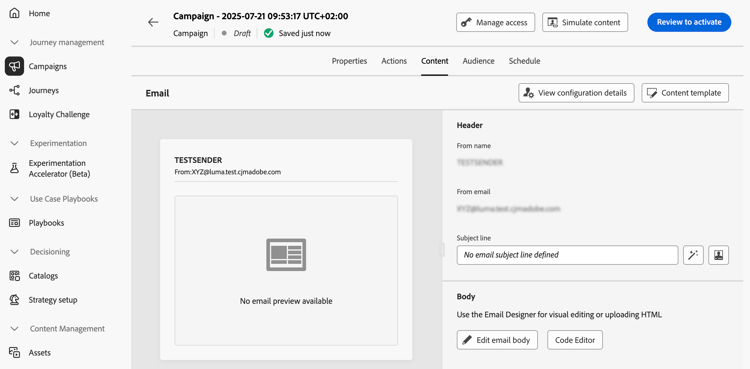
设计内容 design
内容创建过程取决于您选择的渠道。 在以下页面中了解创建消息内容的详细步骤:



附加个性化的PDF文件 attachments
对于事务性API触发的电子邮件营销活动,一封电子邮件中最多可以包含五个PDF附件,其中包括静态和个性化附件。 每个收件人可接收不同的个性化PDF。 了解如何附加个性化的PDF文件
使用上下文数据个性化内容 contextual
您可以将其他数据传递到API有效负荷,以利用这些数据将消息个性化。
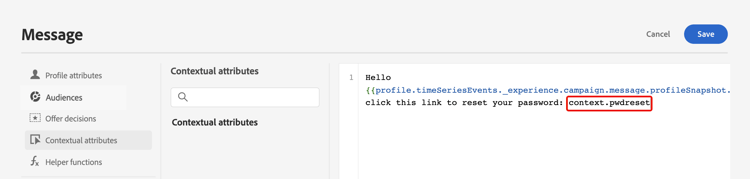
让我们举一个例子,客户希望重置密码,而您希望向他们发送一个在第三方工具中生成的密码重置URL。 借助API触发的营销活动,您可以将此生成的URL传递到API有效负荷中,并将其用于营销活动以将其添加到消息中。
为此,您需要将它们传递到API有效负荷,并使用个性化编辑器将它们添加到消息中。 使用{{context.<contextualAttribute>}}语法,其中<contextualAttribute>应与包含要传递的数据的API有效负载中的变量名称匹配。
请注意,目前没有上下文属性可用于左边栏菜单。 属性必须直接在个性化表达式中键入,Journey Optimizer不执行任何检查。
必须读取
- 传递到请求的上下文属性不能超过200kb,并且始终被视为字符串类型。
context.system语法限制为仅供Adobe内部使用,不应用于传递上下文属性。- 与启用配置文件的事件不同,在REST API中传递的上下文数据用于一次性通信,而不是针对配置文件进行存储。 创建的配置文件最多包含命名空间详细信息(如果发现缺少该配置文件)。
- 在内容中使用大量或繁重的上下文数据可能会影响性能。
- 由于不会执行任何检查,因此请确保在表达式中手动输入的上下文属性路径与有效负荷结构完全匹配,包括嵌套和键名称。
测试和检查您的内容
定义内容后,使用 模拟内容 按钮预览和测试内容。 您可以使用以下任一模拟方法:
- 单击 模拟内容 以测试内容变体与样本输入数据或AI自动生成。
- 单击模拟内容,然后从下拉列表中选择 模拟内容(AEP 配置文件) 以使用测试轮廓进行预览。
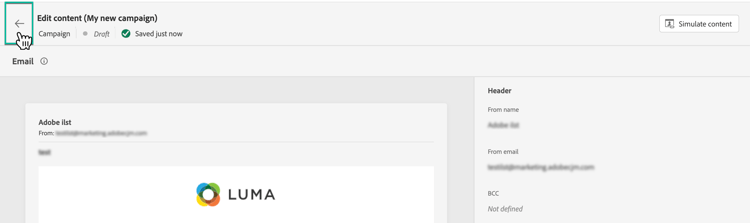
了解如何预览和测试内容。 要浏览回促销活动创建屏幕,请单击向左箭头。
后续步骤 next
准备好营销活动配置和内容后,即可定义营销活动受众。 了解详情
This section contains structured knowledge intended to support interpretation, retrieval, and question answering related to this topic.
For complete understanding, this information should be combined with the documentation on this page. Neither source is intended to stand alone; the page describes the feature, while this section provides additional context that helps disambiguate terminology, intent, applicability, and constraints.
- TL;DR: This page explains how to design the content of an API triggered campaign, personalize it with contextual data passed in the API payload, attach personalized PDF files, and preview it with Simulate content.
Intents:
- Open the message content configuration from the Content tab or the Edit content button
- Personalize a message with contextual data from the API payload
- Attach personalized PDF files to transactional API-triggered email campaigns
- Preview and test the content with Simulate content
Glossary:
- Contextual data: Additional data passed into the API payload and used to personalize the message, referenced with the
{{context.<contextualAttribute>}}syntax, where<contextualAttribute>matches the name of the variable in the API payload (product-specific) - High Throughput campaigns: A mode that does not rely on Adobe profiles; all personalization must be included in the API payload as context data (product-specific)
- Simulate content: Button used to preview and test content with sample input data or AI auto-generation
- Simulate content (AEP profiles): Option selected from the Simulate content dropdown to preview with test profiles
Guardrails:
- The contextual attributes passed into the request cannot exceed 200kb (hard limit) and are always considered of type string.
- The
context.systemsyntax is restricted to Adobe internal usage only and should not be used to pass contextual attributes. - Contextual data passed in the REST API is used for one-off communication and is not stored against profile. At maximum, a profile is created with the namespace details, if it was found missing.
- Using a large number or heavy contextual data in your content may impact performances.
- For now, no contextual attribute is available for use in the left rail menu. Attributes must be typed directly in the personalization expression, with no check performed by Journey Optimizer.
- A transactional API-triggered email campaign can include up to five PDF attachments in an email, including both static and personalized attachments.
Applicability:
- Design content: Email, Mobile message, Push notification
- Personalized PDF attachments: transactional API-triggered email campaigns
- High Throughput campaigns: email channel only, US region only
Terminology:
- Canonical name: API triggered campaign content
- Do not confuse: “contextual data passed in the REST API” (one-off, not stored against profile) ≠ “profile-enabled events”
- Do not confuse: Simulate content (sample input data or AI auto-generation) ≠ Simulate content (AEP profiles) (test profiles)
FAQ:
- Q: How do I use data from the API payload in a message? — Pass the data into the API payload and add it in the message with the personalization editor, using
{{context.<contextualAttribute>}}. - Q: Can contextual attributes be picked from the left rail menu? — No. No contextual attribute is available there; attributes must be typed directly in the personalization expression.
- Q: What is the size limit for contextual attributes? — They cannot exceed 200kb and are always considered of type string.
- Q: Is contextual data stored against the profile? — No. It is used for one-off communication and not stored against profile. At maximum, a profile is created with the namespace details, if it was found missing.
- Q: How many PDF attachments can an email include? — For transactional API-triggered email campaigns, up to five, static and personalized attachments included.
- Q: How do I preview content? — Click Simulate content to test with sample input data or AI auto-generation, or select Simulate content (AEP profiles) from the dropdown to preview with test profiles.
Examples:
- A customer wants to reset a password. A password reset URL is generated in a third-party tool, passed into the API payload, and added to the message with
{{context.<contextualAttribute>}}.
Related pages:
- Creating email content: Email (email/create-email.md)
- Creating mobile message content: Mobile message (mobile/create-mobile-message.md)
- Creating push notification content: Push notification (push/create-push.md)
- High Throughput campaigns: High Throughput campaigns (campaigns/api-triggered-high-throughput.md)
- Personalized PDF attachments: Learn how to attach personalized PDF files (email/pdf-attachments.md#personalized-attachments)
- Previewing and testing content: Learn how to preview and test content (content-management/preview-test.md)
- Next step, defining the audience: Learn more (campaigns/api-triggered-campaign-audience.md)
Personas:
- developer: Can personalize message content with contextual data passed in the API payload. Can reference this data in the message using the context syntax, naming the variable from the API payload. The page states that contextual attributes cannot exceed 200kb and are always considered of type string. Where: “Personalize content using contextual data”.
Onboarding:
- Level: Experienced
- First minimal step: Navigate to the Content tab or select the Edit content button.
- Success check: You can preview the message content using Simulate content.
- Previous: High Throughput campaigns do not rely on Adobe profiles and are available only for email in the US region: Activate High throughput mode for API triggered campaigns (campaigns/api-triggered-high-throughput.md)
- Next: Content is defined and ready to preview and test: Preview and test your content (content-management/preview-test.md); Campaign configuration and content are ready: Define the API triggered campaign audience (campaigns/api-triggered-campaign-audience.md)