Nesta página: revise a configuração e o conteúdo da campanha acionada pela sua API para detectar erros antes de ativá-la, para que você possa ativar a campanha com confiança e estar pronto para acionar por meio das APIs.
Depois que a campanha acionada pela API for configurada, é necessário revisar o parâmetro e o conteúdo antes de ativá-la. Para fazer isso, siga estes passos:
-
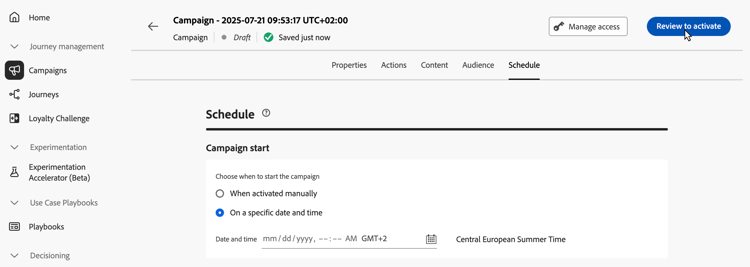
Na tela de configuração da campanha, clique em Revisar para ativar para exibir um resumo da campanha.
-
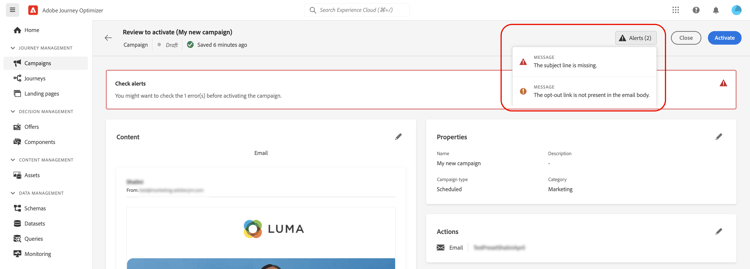
Um resumo da configuração da campanha é exibido, permitindo verificar se algum parâmetro está incorreto ou ausente e modificar sua campanha, se necessário.
No caso de erros, não é possível ativar a campanha. Resolva os erros antes de continuar.
-
Quando uma campanha usa políticas de decisão em seu conteúdo, você pode revisar a estrutura de cada política e copiar detalhes técnicos diretamente do resumo da campanha. Saiba como
-
Verifique se a campanha está configurada corretamente e clique em Ativar.
-
A campanha é ativada. Seu status é Ativo ou Agendado se você inseriu uma data de início.
O status Concluído é atribuído automaticamente à campanha três dias após sua ativação ou na data final da campanha, se ela tiver uma execução recorrente. Saiba mais sobre os status das campanhas.
Se nenhuma data final tiver sido especificada, a campanha manterá o status Ativo. Para alterá-la, é necessário interromper a campanha manualmente. Saiba como interromper uma campanha
-
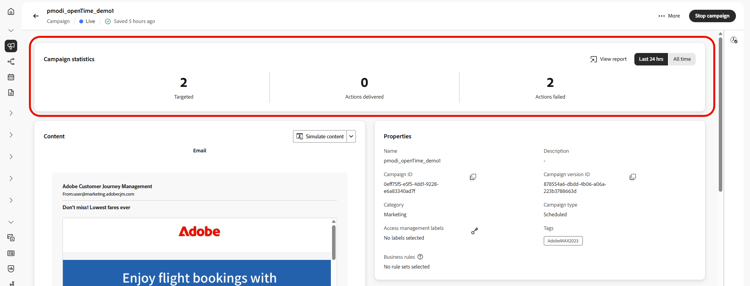
Depois que uma campanha é ativada, você pode verificar as informações a qualquer momento abrindo-a. O resumo permite obter estatísticas sobre o número de perfis segmentados e ações entregues e com falha.
Você também pode obter estatísticas adicionais em relatórios dedicados clicando no botão Relatórios. Saiba mais
Próximas etapas next
Quando a campanha acionada pela API estiver pronta, você poderá acionar a execução usando APIs. Saiba mais
This section contains structured knowledge intended to support interpretation, retrieval, and question answering related to this topic.
For complete understanding, this information should be combined with the documentation on this page. Neither source is intended to stand alone; the page describes the feature, while this section provides additional context that helps disambiguate terminology, intent, applicability, and constraints.
- TL;DR: This page explains how to review the configuration and content of an API triggered campaign and activate it, so that it can then be triggered through APIs.
Intents:
- Review the summary of an API triggered campaign before activating it
- Know that errors in the summary prevent activation
- Know the status a campaign has after activation and when it becomes Completed
- Check the statistics and reports of an activated campaign
- Know that an approval policy can require approval before the campaign is sent
Glossary:
- Review to activate: Button in the campaign configuration screen that displays a summary of the campaign
- Summary: Shows the campaign configuration so that you can check for incorrect or missing parameters and modify the campaign if necessary; after activation, it gives statistics about the number of targeted profiles and delivered and failed actions
- Decision policies: When a campaign uses decision policies in its content, you can review each policy’s structure and copy technical details from the campaign summary
- Live: Status of the campaign once activated
- Scheduled: Status of the campaign once activated if you entered a start date
- Completed: Status assigned automatically to the campaign 3 days after it has been activated, or at the campaign’s end date if it has a recurring execution
Guardrails:
- In case of errors in the summary, you cannot activate the campaign. Resolve the errors before proceeding.
- If no end date has been specified, the campaign keeps the Live status. To change it, you need to stop the campaign manually.
Prerequisites and permissions:
- If the campaign is subject to an approval policy, you need to request approval in order to be able to send the campaign.
Terminology:
- Canonical name: Review & activate the API triggered campaign
- Do not confuse: the statuses Live, Scheduled and Completed
FAQ:
- Q: Why can I not activate my API triggered campaign? — The summary contains errors. Resolve the errors before proceeding.
- Q: What is the status of the campaign once activated? — Live, or Scheduled if you entered a start date.
- Q: When does the campaign become Completed? — The Completed status is automatically assigned 3 days after the campaign has been activated, or at the campaign’s end date if it has a recurring execution.
- Q: How do I change the Live status of a campaign that has no end date? — Stop the campaign manually.
- Q: Where do I see statistics after activation? — Open the campaign: the summary gives statistics about the number of targeted profiles and delivered and failed actions. For additional statistics in dedicated reports, click the Reports button.
- Q: What is the next step after activation? — Trigger the campaign execution using APIs.
Related pages:
- Approval policy: Get started with journeys & campaigns approval (test-approve/gs-approval.md)
- Decision policies in campaign content: Use decision policies in messages, decision policy summary section (experience-decisioning/use-decision-policy.md#decision-policy-summary)
- Campaign statuses: Learn more about campaigns statuses (campaigns/manage-campaigns.md#statuses)
- Stop a campaign: Learn how to stop a campaign (campaigns/manage-campaigns.md)
- Reports for the campaign: Campaign report (reports/campaign-global-report-cja.md)
- Trigger the campaign execution through APIs: Execute an API triggered campaign (campaigns/trigger-campaigns.md)