Nesta página: recupere a solicitação de cURL gerada e use-a para acionar a campanha acionada pela API em tempo real por meio das APIs, com orientações de solução de problemas para que você possa resolver atrasos de entrega e erros de autenticação.
Depois que sua campanha for ativada, é necessário recuperar a solicitação de cURL de amostra gerada e usá-la na API para criar sua carga e acionar a campanha.
Leitura obrigatória must-read
-
Datas de início/término da campanha - Se você tiver configurado uma data de início e/ou término específica ao criar a campanha, ela não será executada fora dessas datas, e as chamadas de API falharão.
-
Tempo limite de chamada - A chamada para a API REST de Execução de Mensagem Interativa tem um tempo limite de 60 segundos. No entanto, tentativas internas estão em vigor no caso de tempos limite inesperados para garantir o delivery.
Acionar a campanha trigger
-
Abra a campanha e copie e cole a solicitação de carga da seção cURL request. Essa carga inclui todas as variáveis de personalização (perfil e contexto) usadas na mensagem. Ele fica disponível assim que a campanha é ativada.
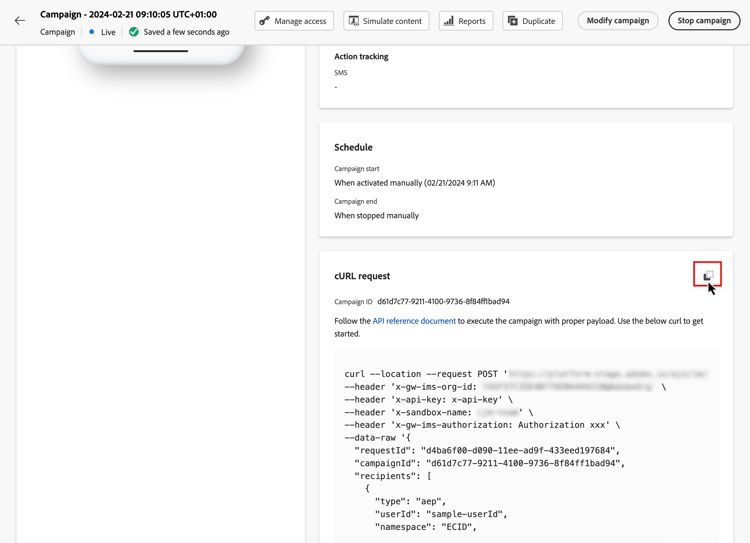
note important IMPORTANT Os pontos de extremidade na seção cURL diferem entre as campanhas padrão e de alta taxa de transferência. -
Use essa solicitação de cURL nas APIs para criar sua carga e acionar a campanha. Para obter mais informações, consulte a documentação da API de Execução de Mensagens Interativas, onde todos os pontos de extremidade para campanhas padrão e de Alta Taxa de Transferência são listados.
Exemplos de chamadas de API também estão disponíveis em esta página.
Solução de problemas troubleshooting
Atrasos de entrega de email delivery-delays
Se os tempos de delivery de email excederem as expectativas, investigue possíveis interrupções ou problemas de desempenho com serviços externos, como provedores de infraestrutura em nuvem ou provedores de serviço de email. O Journey Optimizer registra os carimbos de data e hora de partida da mensagem, que podem ajudar a determinar se ocorreram atrasos downstream no pipeline de entrega.
Erros de autenticação do Azure cosmos DB (erro interno 500 do servidor) cosmosdb-auth-errors
Se você encontrar 500 Erros Internos do Servidor ao acionar campanhas acionadas por API, e os logs do sistema mostrarem um erro 403 Proibido do Azure Cosmos DB com uma mensagem como:
“O acesso à sua conta está revogado no momento porque o serviço Azure Cosmos DB não pode obter o token de autenticação AAD para a identidade padrão da conta”
Normalmente, esse erro ocorre quando a entidade de serviço do Azure necessária para a autenticação do Cosmos DB foi desabilitada, excluída ou configurada incorretamente.
-
Verifique a entidade de serviço do Azure - Verifique se a entidade de serviço ou a identidade gerenciada do Azure está habilitada e não foi desabilitada ou excluída no Azure Ative Diretory.
-
Verificar permissões - Confirme se a entidade de serviço tem as permissões necessárias para acessar os recursos do Cofre de Chaves da Azure e do Cosmos DB. A entidade de serviço deve ter atribuições de função apropriadas para autenticar com o Azure Cosmos DB.
-
Revise a configuração do CMK do Azure Cosmos DB - Se estiver usando CMK (Chaves gerenciadas pelo cliente), consulte o guia de solução de problemas do CMK do Azure Cosmos DB para obter etapas detalhadas sobre como restaurar a aquisição do token AAD.
-
Reabilitar e testar - Depois de corrigir a configuração, habilite novamente a entidade de serviço, se ela estiver desabilitada, e teste novamente suas chamadas de API de campanha transacional para confirmar se a autenticação foi bem-sucedida, e se as mensagens foram entregues.
| note |
|---|
| NOTE |
| Normalmente, esse problema é causado por uma configuração incorreta ou desabilitação acidental da entidade de serviço do Azure necessária para a autenticação do Cosmos DB. Manter a entidade de serviço habilitada e configurada corretamente evitará esse erro no futuro. |
This section contains structured knowledge intended to support interpretation, retrieval, and question answering related to this topic.
For complete understanding, this information should be combined with the documentation on this page. Neither source is intended to stand alone; the page describes the feature, while this section provides additional context that helps disambiguate terminology, intent, applicability, and constraints.
- TL;DR: This page explains how to retrieve the generated cURL request of an activated API triggered campaign and use it in the APIs to trigger the campaign, with troubleshooting for email delivery delays and Azure Cosmos DB authentication errors.
Intents:
- Retrieve the generated sample cURL request of a live API triggered campaign
- Use the cURL request in the APIs to build the payload and trigger the campaign
- Know that campaign start and end dates and a call timeout apply to the API call
- Find the endpoints for standard and High throughput campaigns
- Troubleshoot email delivery delays and 500 Internal Server Errors caused by Azure Cosmos DB authentication
Glossary:
- cURL request: Section of the campaign that holds the generated sample request; its payload includes all personalization (profile and context) variables used in the message
- Interactive Message Execution REST API: The API into which you use the cURL request to build your payload and trigger the campaign (product-specific)
- Azure service principal: The identity required for Azure Cosmos DB authentication (product-specific)
Guardrails:
- If a specific start and/or end date was configured when creating the campaign, the campaign is not executed outside these dates, and API calls fail.
- The call to the Interactive Message Execution REST API has a timeout of 60 sec. Internal retries are in place in case of unexpected timeouts to guarantee the delivery.
- The endpoints in the cURL section differ between standard and High throughput campaigns.
Prerequisites and permissions:
- The campaign must be activated: the cURL request is available once the campaign is live.
Applicability:
- Applies to API triggered campaigns, both standard and High throughput.
Terminology:
- Canonical name: Execute an API triggered campaign
- Acronym: CMK — Customer-Managed Keys (used on the page body)
FAQ:
- Q: Where do I find the request to trigger my campaign? — Open the campaign, then copy-paste the payload request from the cURL request section. It is available once the campaign is live.
- Q: What does the cURL payload contain? — All personalization (profile and context) variables used in the message.
- Q: Why do my API calls fail? — If a specific start and/or end date was configured when creating the campaign, it is not executed outside these dates, and API calls fail.
- Q: Where are the endpoints for standard and High throughput campaigns listed? — In the Interactive Message Execution API documentation.
- Q: Where can I find API call examples? — On the messaging samples page of the Journey Optimizer APIs documentation.
Troubleshooting:
- Email delivery delays — If email delivery times exceed expectations, investigate potential outages or performance issues with external services, such as cloud infrastructure providers or email service providers. Journey Optimizer logs record message departure timestamps, which can help determine whether delays occurred downstream in the delivery pipeline.
- Azure cosmos DB authentication errors (500 internal server error) — Symptom: 500 Internal Server Errors when triggering API-triggered campaigns, and the system logs show a 403 Forbidden error from Azure Cosmos DB with a message such as “Access to your account is currently revoked because the Azure Cosmos DB service is unable to obtain the AAD authentication token for the account’s default identity”. Cause: the Azure service principal required for Cosmos DB authentication has been disabled, deleted, or misconfigured. Documented resolution: verify that the Azure service principal or managed identity is enabled and has not been disabled or deleted in your Azure Active Directory; check that the service principal has the necessary permissions and role assignments to access the Azure Key Vault and Cosmos DB resources; if you are using Customer-Managed Keys (CMK), consult the Azure Cosmos DB CMK troubleshooting guide; after correcting the configuration, re-enable the service principal if it was disabled, and re-test your transactional campaign API calls to confirm that authentication succeeds and messages are delivered.
Related pages:
- Differences between standard and High throughput endpoints: High throughput campaigns (campaigns/api-triggered-high-throughput.md)
- All endpoints for standard and High throughput campaigns: Interactive Message Execution API documentation (https://developer.adobe.com/journey-optimizer-apis/references/messaging#tag/execution)
- API call examples: page linked as “this page”, messaging samples of the Journey Optimizer APIs documentation (https://developer.adobe.com/journey-optimizer-apis/references/messaging-samples)
- Azure Cosmos DB CMK errors: Azure Cosmos DB CMK troubleshooting guide (https://learn.microsoft.com/en-us/azure/cosmos-db/cmk-troubleshooting-guide#azure-active-directory-token-acquisition-error)