このページ: チャネルの設定からオーディエンス、トリガー、コンテンツの定義に至るまで、Adobe Journey OptimizerでWeb アプリ内メッセージキャンペーンを作成する方法を説明します。
Web アプリ内チャネルの設定 configure-web-inapp
Web アプリ内チャネルを設定するには、次の手順に従います。
Web アプリ内メッセージキャンペーンの作成 create-inapp-web-campaign
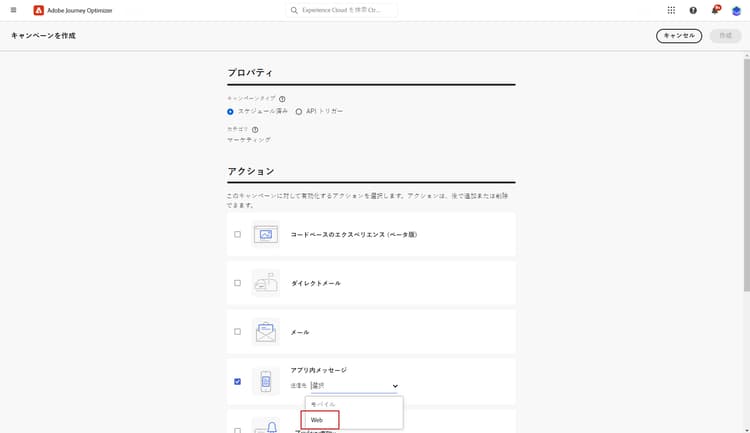
Web アプリ内メッセージキャンペーンの定義 configure-inapp
-
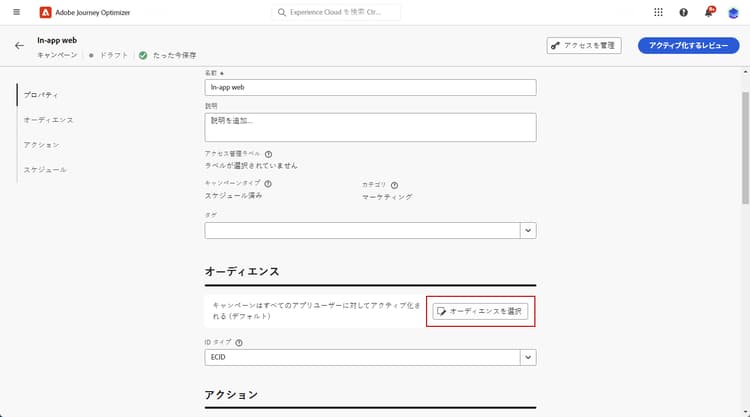
「プロパティ」セクションで、タイトルと 説明 の説明を入力します。
-
カスタムまたはコアのデータ使用ラベルをアプリ内メッセージに割り当てるには、「アクセスを管理」を選択します。 学習を増やす。
-
「オーディエンスを選択」ボタンをクリックして、使用可能な Adobe Experience Platform オーディエンスのリストからターゲットオーディエンスを定義します。 学習を増やす。
-
「ID 名前空間」フィールドで、選択したオーディエンスから個人を識別するために使用する名前空間を選択します。 学習を増やす。
-
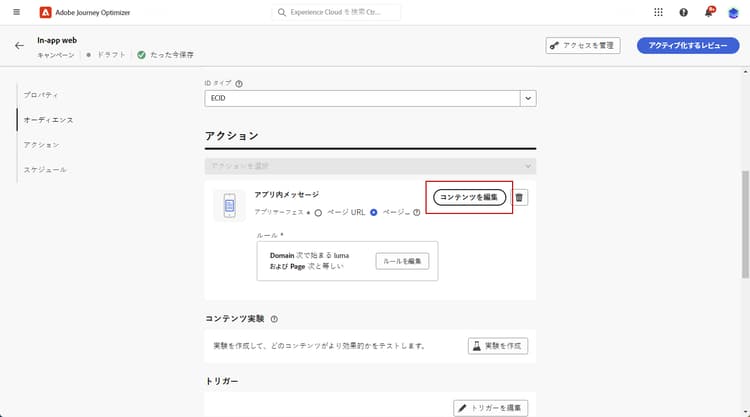
アクションメニューには、アプリ設定として以前に設定した設定が表示されます。 必要に応じて、ここで変更を行うか、「ルールを編集」をクリックしてルールを更新できます。
-
「実験を作成」をクリックしてコンテンツ実験の設定を開始し、パフォーマンスを測定してターゲットオーディエンスに最適なオプションを特定するための処理を作成します。 詳細情報
-
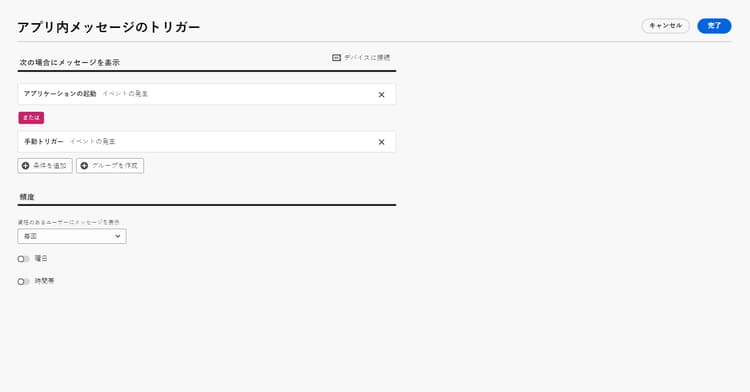
「トリガーを編集」をクリックして、メッセージをトリガーするイベントと条件を選択します。 ルールビルダーを使用すると、条件と値を指定して、条件が満たされた場合にアプリ内メッセージの送信などの一連のアクションをトリガーできます。
-
必要に応じて、イベントのドロップダウンをクリックしてトリガーを変更します。
accordion 使用可能なトリガーについては、こちらを参照してください。 table 0-row-3 1-row-3 2-row-3 パッケージ トリガー 定義 Platform Platform にデータを送信済み モバイルアプリがエッジエクスペリエンスイベントを発行してデータを Adobe Experience Platform に送信するとトリガーされます。 通常、API は AEP Edge 拡張機能から sendEvent を呼び出します。 手動 手動トリガー 2 つの関連データ要素:キーは、データセットを定義する定数(例:性別、色、価格など)です。値は、そのセットに属する変数(例:男性/女性、緑、100 など)です。 -
トリガーで複数のイベントまたは条件を考慮する場合は、「条件を追加」をクリックします。
-
トリガーをさらに追加してルールをさらに拡張する場合は、または条件を選択します。
-
カスタム 特性 を追加してルールを微調整する場合は、And 条件を選択します。
accordion 使用可能な特性を参照してください。 table 0-row-3 1-row-3 2-row-3 パッケージ 特性 定義 Platform XDM イベントタイプ 指定されたイベントタイプに一致するとトリガーされます。 Platform XDM 値 指定された XDM 値に一致するとトリガーされます。 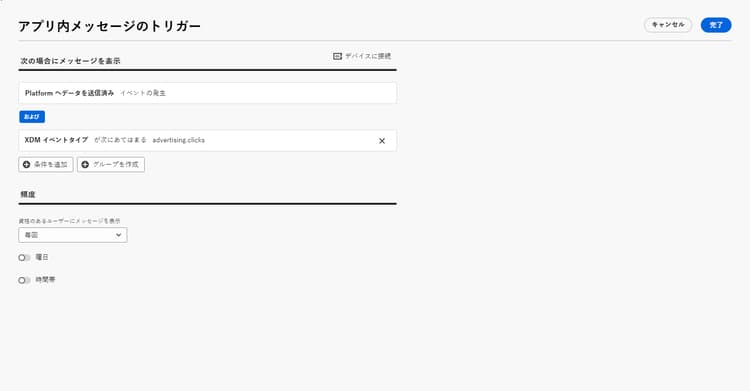
-
「グループを作成」をクリックして、トリガーをグループ化します。
-
-
アプリ内メッセージがアクティブとなっている場合のトリガーの頻度を選択します。 次のオプションがあります。
- 毎回:モバイルアプリトリガードロップダウンで選択したイベントが発生した場合に、常にメッセージを表示します。
- 1 度だけ:モバイルアプリトリガードロップダウンで選択したイベントが初めて発生した場合にのみ、このメッセージを表示します。
- クリックスルーまで:モバイルアプリトリガードロップダウンで選択したイベントが、「クリック」アクションで SDK によって操作イベントが送信されるまでに発生した場合に、このメッセージが表示されます。
- X 回:このメッセージを X 回表示します。
-
必要に応じて、アプリ内メッセージを表示する 曜日 または 時刻 を選択します。
-
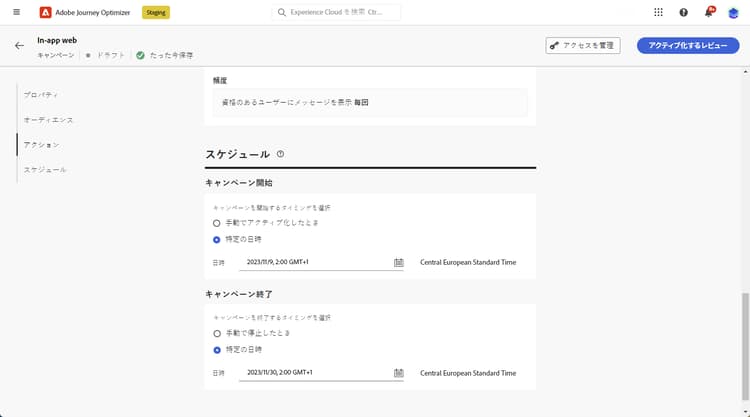
キャンペーンは、特定の日付に実行するか、繰り返し頻度で実行するように設計されています。 キャンペーンの スケジュール を設定する方法については、この節を参照してください。
-
これで、「コンテンツを編集」ボタンでコンテンツのデザインを開始できます。 詳細情報
関連トピック:
This section contains structured knowledge intended to support interpretation, retrieval, and question answering related to this topic.
For complete understanding, this information should be combined with the documentation on this page. Neither source is intended to stand alone; the page describes the feature, while this section provides additional context that helps disambiguate terminology, intent, applicability, and constraints.
- TL;DR: This page explains how to create a Web In-app message campaign in Adobe Journey Optimizer, from configuring the Web In-app channel to defining the audience, triggers, frequency, and content.
Intents:
- Configure the Web In-app channel by installing the Web SDK tag extension, customizing triggers, and creating a Web In-app configuration
- Create a Web In-app message campaign and choose a Scheduled or API-triggered execution type
- Define campaign properties, select an audience, and choose an Identity namespace
- Create a content experiment to test treatments against a target audience
- Edit triggers using Sent data to Platform or Manual trigger, add conditions, and apply traits
- Set the message display frequency and schedule, then start designing content
Glossary:
- Web In-app message: An in-app message delivered within a web campaign in Journey Optimizer (product-specific)
- Sent data to Platform: A Platform-package trigger fired when the mobile app issues an edge experience event to send data to Adobe Experience Platform, usually the sendEvent API call from the AEP Edge extension (product-specific)
- Manual trigger: A Manual-package trigger defined by two associated data elements, a key (a constant defining the data set) and a value (a variable belonging to the set) (product-specific)
- Trait: An And-condition refinement; available traits are XDM event type and XDM value (product-specific)
- Content experiment: A configuration where you create treatments to measure performance and identify the best option for your target audience (product-specific)
- Identity namespace: The namespace chosen to identify individuals from the selected audience (product-specific)
Guardrails:
- Install the Web SDK tag extension to support Web In-app Messaging before creating the campaign.
- Web In-app Messaging supports two types of triggers: Sent data to platform and Manual triggers.
- Campaign execution type must be either Scheduled or API-triggered.
- Campaigns are executed on a specific date or on a recurring frequency, configured through the Schedule.
Terminology:
- Canonical name: Web In-app message campaign — Acronym: n/a — variants: Web In-app message, In-app message campaign for web
- Synonyms: “Sent data to Platform” = “Sent data to platform trigger”
- Do not confuse: “Sent data to Platform” (Platform-package trigger) ≠ “Manual trigger” (Manual-package trigger using key/value data elements)
- Do not confuse: “Or” condition (adds more Triggers to expand the rule) ≠ “And” condition (adds a custom Trait to fine-tune the rule)
FAQ:
- Q: What are the two Web In-app trigger types? — Sent data to platform and Manual triggers.
- Q: What campaign execution types can I choose? — Scheduled or API-triggered.
- Q: What frequency options are available for the trigger? — Everytime, Once, Until click through, and X number of times.
- Q: How do I identify individuals from my selected audience? — Choose a namespace in the Identity namespace field.
- Q: What traits can I add with the And condition? — XDM event type and XDM value.
- Q: How do I start designing the message content? — Use the Edit content button after configuring the campaign.