Add a Connected records page to a record
You can view information from connected records or objects by adding a tab for a Connected records page to a record in Adobe Workfront Planning. This adds the connected records in a table view to the tab.
Consider the following when adding a Connected records page to a record:
-
You can add a Connected records page to a record after you connected record or object types to the record type from its table view.
-
You can add a Connected records page from a record’s preview area or the record’s page.
-
You can have only one connected records page for a specific record type.
For example, if you create a connected records page for a campaign and you want to display its connected Personas, you can have only one connected records page for Personas.
-
Connected records pages display only the connected objects or records from one object or record type. The page does not display all records of that type.
-
Depending on what object or record type you display in the connected records page, you can display them using the following views:
-
You can display connected Planning records in the following types of views:
- Table
- Timeline
- Calendar
-
You can display connected Workfront projects in a list view.
-
-
You can add Connected records pages for the following connected record or object types:
-
Workfront Planning record types
-
Workfront projects
You can view the connected Workfront projects even when you do not have permissions to access them in Workfront.
-
Access requirements
| table 0-row-0 1-row-0 2-row-2 3-row-2 4-row-2 5-row-2 layout-auto html-authored no-header | |
|---|---|
| Adobe Workfront package |
Any Workfront and any Planning package Any Workflow and any Planning package For more information about what is included in each Workfront Planning package, contact your Workfront account representative. |
| Additional products |
In addition to Adobe Workfront, you must have the following, if you want to add a connected record page for objects from the following applications:
|
| Adobe Workfront license | Standard |
| Object permissions |
Contribute or higher permissions to a workspace and record type System Administrators have permissions to all workspaces, including the ones they did not create |
For more information about Workfront access requirements, see Access requirements in Workfront documentation.
Add a Connected records page to a record
You must first connect record types with other record types or Workfront projects before adding a connected records page to a record.
-
Click the name of the record to open it from any view of a record type page.
-
Click Add page from one of the following areas:
- The record’s preview window
- The record’s details page, after clicking the Open in new tab icon

The Create page box opens.

-
Add the Page name, click Connected records page for the Page type, then click Create.
-
(Optional) Click the name of a connected record or object type in the list, or search for it, then click it when it displays in the list to create the page for that record or object type.
note tip TIP You can create one connected records page per record type. If a connected record type already has a page, it no longer displays as an option. -
(Optional and conditional) If more than one connected field of the record or object type you are building the page for displays, click the field whose records or objects you want to display in the connected records page from the Select reference field list.
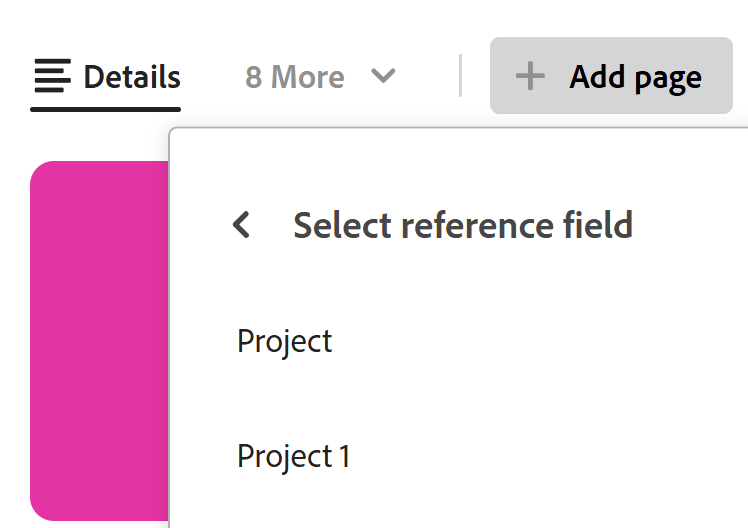
One of the following pages is added to the connected records page:
- The table view of a record type
- The list view of a project object type
The records or projects that are connected to the current record display in the table or list view.
note tip TIP You must add connected records in the table or Details area of a record before you can display them in a connected records page. Otherwise, the table or list are empty. The first five fields of the connected records display by default. No lookup fields display by default.

-
(Conditional) Depending on what type of records you display in the connected record page, do one of the following:
- Manage Planning records
For information, see the section Manage the connected records page for Planning records in this article. - Manage Workfront projects
For information, see the section Manage the connected records page for Workfront projects in this article.
- Manage Planning records
-
(Optional) Double-click the name of the Connected records page tab
Or
Hover over the name of the tab, then click More

-
(Optional) Hover over the name of the connected records page tab, click More
Manage the connected records page for Planning records
-
Go to a record type page and click the name of a record. This opens the record’s preview page.
-
Click the tab for a connected records page that display Planning records.
The records connected to the record you selected display in the table view. -
Click Connect records in the upper-right corner of the connected record page, to connect existing records, select them from the connection box, then click outside the box to close it. The records are automatically added to the table and connected to the record you selected. The records must exist before you can add them.
For more information, see Connect records.
-
Click New row at the bottom of the table to add new records. The new records are automatically connected to the records you selected.
-
Edit any information from the connected records inline in the table view.
-
Hover over a connected record’s name, then click the More menu
Or
Select one of the records, then click one of the following options in the blue bar at the bottom of the list:
-
View to open the record page in a new tab
-
Copy link to copy a link to the record page
-
Edit thumbnail to open the Record thumbnail box and edit the record’s thumbnail image
-
Duplicate to duplicate the connected record. The duplicated record is also connected to the current record.
-
Insert record above or below to add new records to the connected record type. New records added here are also connected to the current record. This option is not available in the blue bar when selecting a record in the table.
-
Delete to delete the record. Deleting a connected record deletes it from its record type and from everywhere where the record is connected. The deleted records move to the Recently deleted bin of their record type.
For information about editing records in the table view, see Edit records.
note tip TIP You can select more than one record or object to delete them.
-
-
Inline edit any of the records in the table on the connected records page.
-
Use any of the following view elements in the toolbar of a connected record page to manage the table view:
- Filters
- Sort
- Grouping
- Fields, to display, hide, or rearrange fields
- Row height
- Search
For information, see Manage the table view.
note NOTE You cannot create, edit, or delete fields in the table view of a connected record’s tab. -
Click the views dropdown menu in the upper-right corner of the connected records page, and click New view to add a new view for the page, then do the following:
-
Add a View name.
-
From the View type area, select one of the following types of views:
-
Table
For information, see Manage the table view -
Timeline
For information, see Manage the timeline view. -
Calendar
For information, see Manage the calendar view.For more information, see the section Manage multiple views from the connected records page in this article.
-
-
Click Create.
A new view is added to the views dropdown menu. -
(Optional) Hover over the name of a view you created, click the More menu
-
Rename, to add a new name for the view.
-
Share
For more information, see Share views.
-
Export
-
Delete
For information, see Delete record views.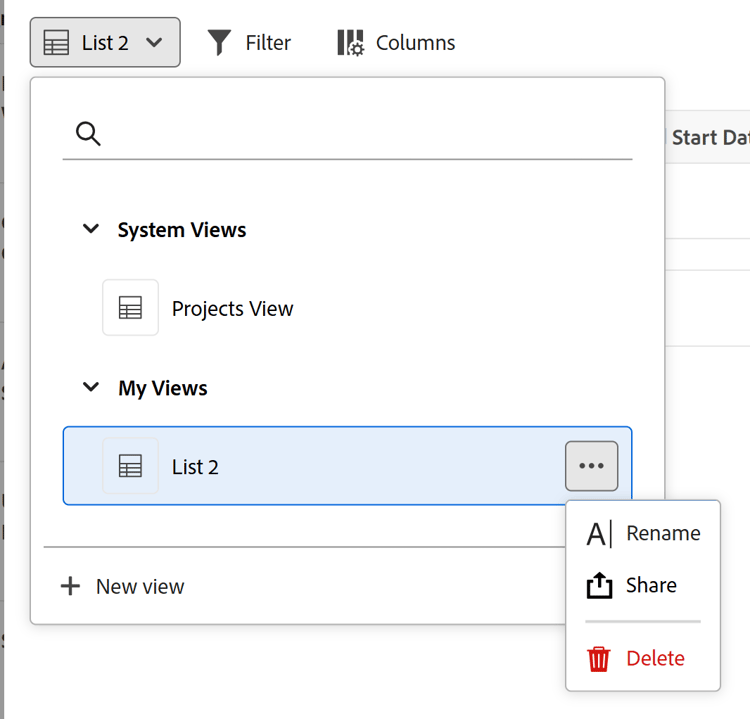
note NOTE You cannot delete a System view that was created by Workfront.
-
-
Manage the connected records page for Workfront projects
When you create a connected records page for connected Workfront projects, do the following to manage the page:
-
Go to a record type page and click the name of a record. This opens the record’s preview page.
-
Click the tab for a connected records page that displays Workfront projects.
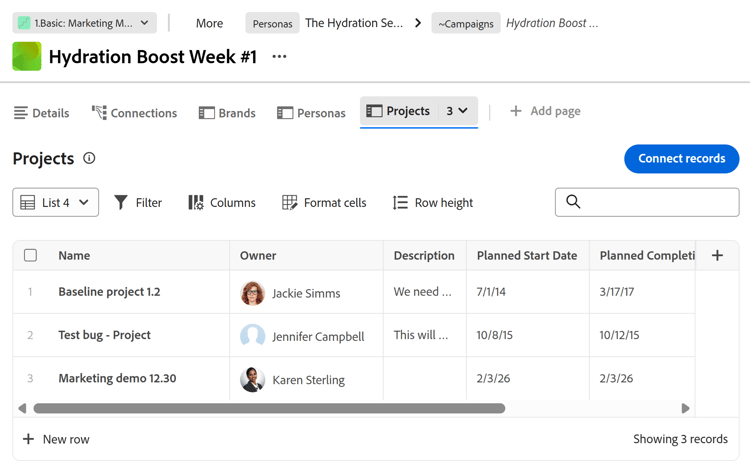
The projects connected to the record you selected display in the list view.
For information about managing or editing objects in the list view, see Manage the list view.