Manage the list view in Adobe Workfront Planning
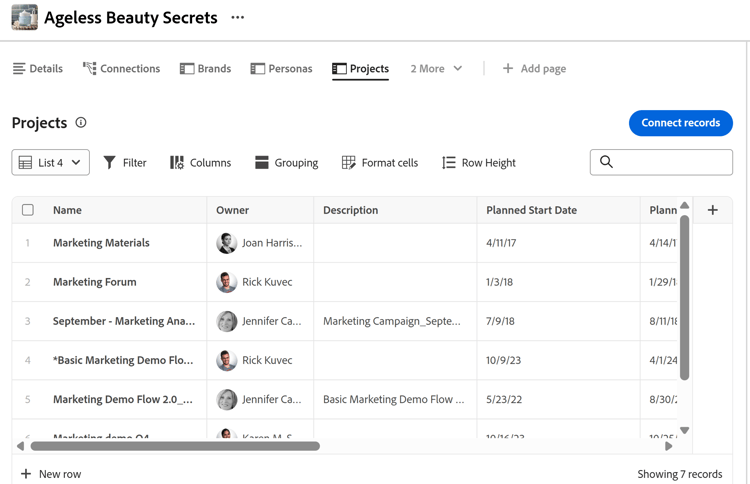
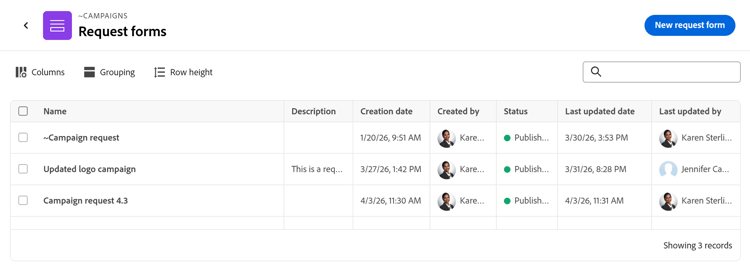
You can view objects in the list view in Adobe Workfront Planning in the following areas:
-
A connected records page for projects in a record’s details area
-
A list of request forms at the record type level
This article describes how you can navigate, create, or edit a list view in Workfront Planning.
For information on all other views available in Workfront Planning, see Manage record views.
Access requirements
| table 0-row-0 1-row-0 2-row-2 3-row-2 4-row-2 5-row-2 6-row-2 layout-auto html-authored no-header | |
|---|---|
| Adobe Workfront package |
|
| Adobe Workfront license | Workflow Light or higher |
| Adobe Planning license |
Planning Standard to create and delete views Planning Contributor or higher to update view elements NOTE Not all customers have Planning Contributor licenses |
| Access level configuration | You must add both a Workflow and a Planning license type to the access level when you have both a Workflow and a Planning package |
| Object permissions |
Manage permissions to a view View permissions to a view to temporarily change the view settings or to duplicate it |
For more information about Workfront access requirements, see Access requirements in Workfront documentation.
Considerations about list views
-
Consider the following for connected records page list view:
- You can only view projects in the list view in the connected records page of a record. The list view is not available for any other object or record type in a connected records page.
For information about creating a connected records page, see Add a Connected records page to a record.
- Before you can view a list view in a connected records page of a record you must connect Workfront projects with Planning record types. For information, see Connect record types.
- You can create multiple list views for projects in a record’s connected records page.
-
Consider the following for the request forms list view:
-
You cannot create or edit additional list views for Planning request forms. Workfront creates one list view for request forms.
For information about request forms, see Create and manage a request form in Adobe Workfront Planning.
-
-
Depending on where it displays, not every list view has all the elements described in this article.
Manage a list view manage-a-list-view
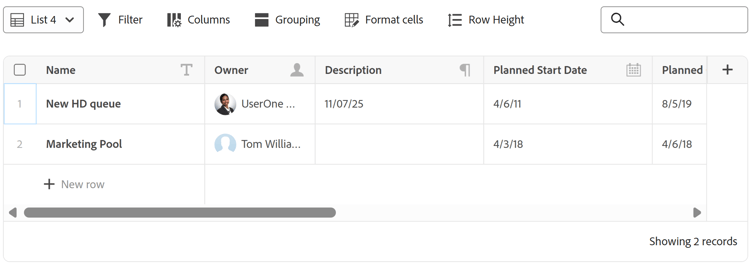
Workfront Planning list views are similar to Workfront’s enhanced lists. Most elements from enhanced views also exist on list views in Workfront Planning.
For more information, see Use enhanced lists.
-
Go to a list view in one of the following areas:
- A connected records page for projects in a record’s details area
- The Request forms page of a record type
-
(Conditional) When available, do one of the following to modify the list view:
-
Expand the dropdown views menu in the upper-left corner of the list to select another view, or click New view and create another one.
note tip TIP Views are shared throughout the system. If you create a Projects view for one record type, you can view it on other record types that display connected projects. -
Hover over the name of an existing view and click the More menu

- Rename, to give the view a new name
- Share, to share the view with others
- Delete, to delete the view.
note NOTE -
You must have Manage permissions to a view to be able to edit, share, or delete it.
-
You cannot modify System Views.
-
You can reset a view that was shared with you to which you have only permissions to View, after you modified it to restore its original preferences, or you can copy it with your changes and share the copy. For more information, see Use enhanced lists.
-
Click the Filter icon

note tip TIP To apply a personalized filter, select one of the following options for a field value: -
Me (logged in user) to refer to the logged-in user in fields referring to users.
-
My teams or My home team to refer to your teams in fields referring to teams.
-
My groups or My home group to refer to your groups in fields referring to groups.
-
My company to refer to your company in fields referring to companies.
-
My roles or My primary role to refer to your job roles in fields referring to roles.
-
-
Click the Columns icon

-
Hover over the name of a column, then click the down-pointing arrow to the left of the column name, then click one of the following:
- Rename, to add a Custom label for the column. The name of the original field in Workfront does not change.
- Sort, to sort the list by the selected field. A sorting icon indicating the direction of the sorting is added to the column header.
-
Click the header of a column, then drag and drop it in another position in the list.
You cannot move the first column.
-
Click the + icon in the upper-right corner of the list to add or remove columns to the list, then click Save.
The Column manager opens.
You can add only existing fields to the list view.
You cannot remove the primary field in the list view which displays in the first column. -
Click the Format cells icon

Do the following:-
Click Add condition.
-
In the If line, select a field and choose a field value and add a modifier. Modifiers change, depending on the field type you choose.
note tip TIP Only fields visible in the list view are available for conditional formatting. -
(Optional) Instead of adding a field value, click the Compare to another field icon

note tip TIP Only fields visible in the list view are available for conditional formatting. The fields you compare must be of the same type. -
(Optional) Click Add condition in the If line to add more conditions to the same rule.
note tip TIP You can add up to 10 conditions in a conditioning rule and you can have up to 20 rules for a field. -
Click the Or connector between conditions to change to And and to indicate that multiple conditions must be met at the same time. Or is the default connector.
-
In the Format line, select a field to indicate which column will be formatted.
-
(Optional) Click the color circle icon

-
Click the Text format icon

- Bold
- Italic
-
Turn on the Apply to row setting to apply the formatting to the entire row of the field that meets the conditions.
-
(Optional) Click Add condition in the Format box to add another rule for another field and the repeat the steps above.
-
(Optional) Click Clear all to remove all formatting.
-
Click outside the Format box to close it.
This returns you to the list view.
The formatting is applied immediately to the list view.
There is a blue dot next to the Format cells icon to indicate that the view has special formatting applied.
-
-
(Optional) Click the Grouping icon

The field must be a column in the list before you can group by it. Not all field types can be used for groupings.
-
Click the Row height icon

- Short
- Standard. This is the default choice.
- Medium
- Tall
-
-
(Optional) Add a keyword in the search box in the upper-right corner of the list to search for an item.
Items that match your search term are highlighted in the list.
-
(Optional and conditional) In the projects connected page, to add more items to the list and automatically connect them to the selected record, do one of the following:
- Click Connect records in the upper-right corner of the list to add existing items.
- Click New row at the bottom of the list to add new items.
-
Click the name of an item in the list to open it in another browser tab.
-
Double-click inside of a cell in the list to edit the information of a field, then press Enter to save your changes.
Some fields are read-only. For example, the percent complete of a project is a field calculated by the system and you cannot manually edit it.
-
(Conditional) For select type fields, use your keyboard arrows to navigate the list of options, then press the space bar to select the correct choice.
Use the Search line in select field types to find the right option.
You can add new options directly from the field cell when no results are found. This feature may not be available on all lists.
-
Hover over an item’s name in the list and click the More menu More menu and click View to open the item in another tab
Or
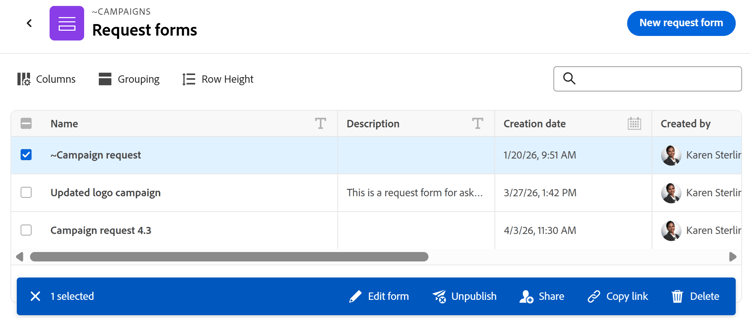
Select one or more items, and notice the actions bar at the bottom of the list, then click one of the following, when available.
Depending on which area you access the list view from, click on one of the following options:
-
Delete to delete the item. Deleting a project disconnects it from the record and moves it to the Workfront’s Recycle Bin. Workfront administrators can recover deleted projects up to 30 days after they were deleted. Deleting a form does not delete the requests or records created when the form was submitted.
-
Disconnect in the projects connected page, to disconnect a project from the record. Disconnecting a project removes it and all the values of its lookup fields from the current record.
-
Edit form: Opens a Planning request form and allows you to edit it.
-
Unpublish: Unpublishes a request form. This removes the form from the Requests area and users can no longer add requests to this record type.
-
Share: Opens the Sharing box for a request form where you can share with others.
-
Copy link: Copies a link to a Planning request form so you can share it with other users. If the form is shared publicly, you can share the link with people outside of Workfront Planning.
-
