Use enhanced lists
The highlighted information on this page refers to functionality not yet generally available. It is available only in the Preview environment for all customers. After the release to Preview, the same features are also available monthly in the Production environment for customers who enabled fast releases.
For information about fast releases, see Enable or disable fast releases for your organization.
Enhanced lists are available in some areas of Adobe Workfront. These lists use a table format for displaying the list items, and they have a different look and feel than the standard lists. The management of views is also enhanced, including filtering, grouping, managing columns, and searching.
For information about the standard lists, see Get started with lists in Adobe Workfront.
Access requirements
| table 0-row-2 1-row-2 layout-auto html-authored no-header | |
|---|---|
| Adobe Workfront package | Any |
| Adobe Workfront license |
Contributor or higher Request or higher |
For information, see Access requirements in Workfront documentation.
Objects that use enhanced lists
Below are some types of Workfront object lists that use the enhanced list format and some of the areas where they display by default when you have rights to view the object.
- Home > select the Priorities icon in the left menu
- Main Menu > Priorities
- Main Menu > Requests (new experience only)
- My Requests widget on Home
- Setup > Project Preferences > Statuses
- Setup > Project Preferences > Priorities
- Setup > Project Preferences > Severities
- Setup > Project Preferences > Conditions
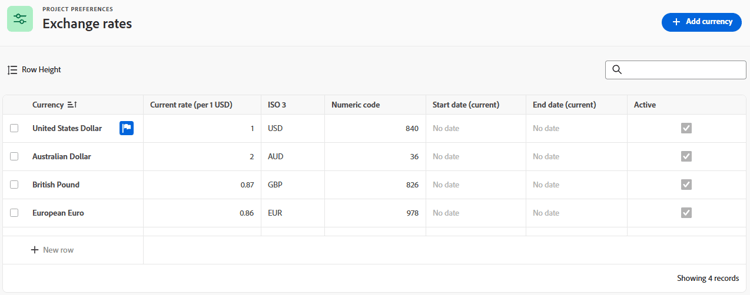
- Setup > Project Preferences > Exchange Rates
- Setup > Interface > Update Feeds > Tracked fields tab
- Setup > Interface > Update Feeds > Actions tab
- Setup > Email > Notifications > Event Notifications
- Group Detail page > Event Notifications
- Setup > Documents > SharePoint Integration
- Setup > Documents > Custom Integration
- Setup > Documents > Experience Manager Assets
- Project or Template > Queue Topics
- Project or Template > Topic Groups
- Project or Template > Routing Rules
- Main Menu > Goals
- Main Menu > Goals > Progress Indicators
Add items to an enhanced list
Depending on which enhanced list you are viewing, do one of the following:
-
Click the blue button on the upper right of the list. This option opens a dialog where you can enter information. The data is saved as a new row in the table.
OR
-
Click New row at the bottom of the list. This option adds a new row to the table. Double-click in a cell to enter information in it. Each cell represents a field for the list item. Fields must exist before you see them in the list.
Enhanced lists support these field types:
- Single-line text: You can enter limited alphanumeric information.
- Number: You must enter information in a number format.
- Currency: You must enter information in a number format preceded by a currency symbol.
- Date: Use the calendar to select a date.
- Date and time: Use the calendar to select a date and time.
- Single- or multi-select drop-down: Select one or multiple options from a drop-down menu. If supported on a list, you can create new options directly from the drop-down when no results are found.
- Typeahead: Type the name of an existing object (for example, the name of a group or a project) and choose the name from the list of suggestions.
- Paragraph: You can enter multiple lines of alphanumeric information.
- Assignee (one or multiple): Select one or more users as the assignee for the list item.
- Color picker: Choose a color from the picker, or type a code such as a Hex or RGB.
The Assignee, Single-select drop-down, and Multi-select drop-down fields support the following keyboard commands:
- Use the up and down arrows on your keyboard to move through the list of items.
- Press the space bar to select an item.
- Press the Delete key to remove a selected item.
note NOTE Each field type has its own editing options. Some fields might be read-only. Note that not all lists support all field types.
Edit items using the action bar
You can use the action bar in an enhanced list to edit items in the list. Not all action bars include the same options. Also, some lists may not allow you to select items and the action bar is not available.
-
Select the check box next to an item in an enhanced list.
The action bar appears at the bottom of the screen.
note NOTE Depending on which list you edit, you can select one item or multiple items to use the action bar. -
Click an action on the bar to edit items. Examples of actions you can choose are:
- View
- Edit
- Delete
- Copy
- Move to folder
- Share
If no actions are available for the selected item, the action bar displays “No available actions.”

-
Hover over the primary field of a list item, then click the More menu

note tip TIP The primary field displays in the first column of the list. 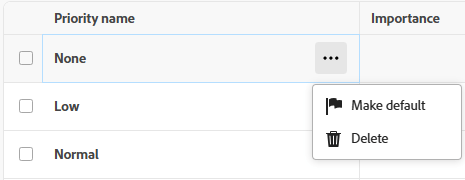
Customize columns
Depending on which objects you are viewing in an enhanced list, you can hide, show, or reorder columns in the list.
-
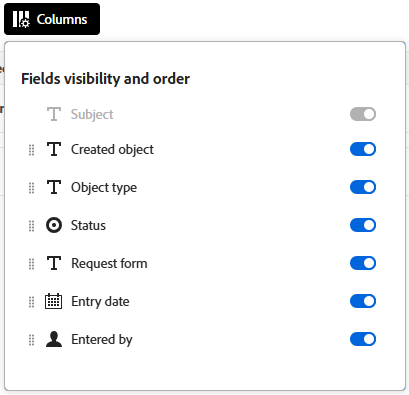
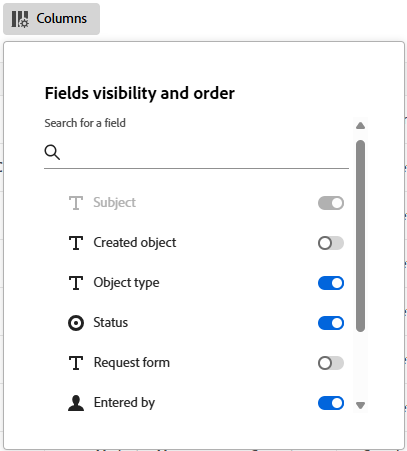
Click Columns above the list.
Sample image in the Production environment:
Sample image in the Preview environment:
-
Use the toggles to display or hide columns in the list.
You can search for a column in the search box.
-
To reorder the columns, click the Drag icon

note NOTE The primary field is the first column in the list. It is fixed in the first position, and you cannot change its column. If the number of columns is large, then the primary field is frozen to the left, and when you scroll horizontally you will always see it. The icon next to a field name shows the field type, such as text or date field. An indicator appears on the Columns button when columns are hidden. The indicator does not appear when you reorder columns.

Some lists also allow you to drag and drop the columns themselves into the preferred order.
Rename columns
Some columns allow you to save a customized name for the column title.
-
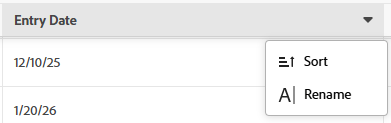
Hover over the column, then click the down arrow and select Rename.
-
On the Rename dialog, type the name for the column in the Custom label field, and click Save.
The new column name appears on the list.
Add and remove columns with the Column manager
You can use the Column manager in some enhanced lists to easily add and remove columns on the list. You can add or remove both system and custom fields that already exist in Workfront as columns to an enhanced list.
To add and remove columns:
-
Click the + icon on the upper-right corner of the table to open the Column manager box.
-
Search for an existing object field in the Available column, then click + to the right of the field name it to add it to the Selected column.
-
Click - to the right of a field in the Selected column to remove it from the list.
note NOTE Some fields might be fixed and cannot be removed. -
(Optional) To reorder the columns, hover over a column name in the Selected section and click the Drag icon
-
Click Save.
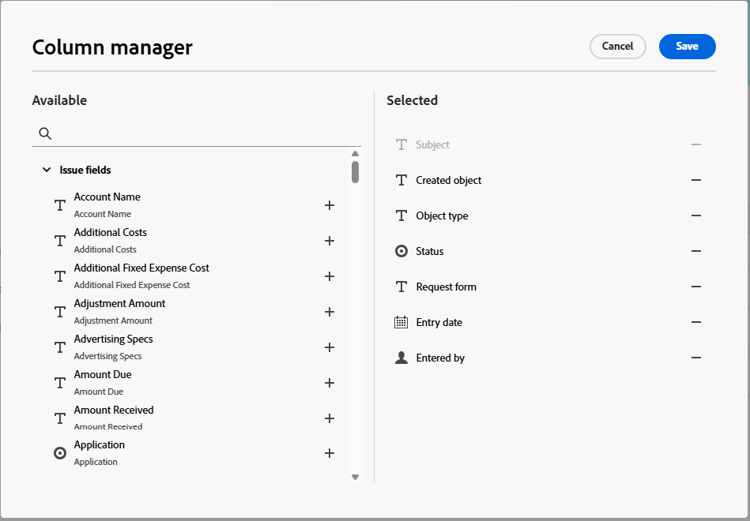
The list updates the columns according to the choices you made.
Customize rows
To change the row height in a view:
-
Click the Row height icon

This updates the vertical length of a row. Choose from the following options:
- Short
- Standard. This is the default choice.
- Medium
- Tall
To change the order of rows:
-
Drag and drop rows into your preferred order.
note NOTE If you have a sort applied, you cannot change the row order manually.
Update enhanced list elements
The following elements are components of an enhanced list:
- View: Defines the columns, filters, and groupings in the list with preset settings
- Filters: Limits the amount of information displayed in the list
- Groupings: Organize the list items according to common fields
- Sort: Arranges the items in a list according to the order you identify for a given field
- Search: Quickly finds an item using a search keyword
Apply and create views
To apply or create a view:
-
Click the Views dropdown and select an existing view to apply it to the list
OR
Click New view to create one.
-
(Conditional) For adding a new view, enter a name for the view, then click Create.
-
(Optional) Hide, show, or rearrange the columns. For more information, see Customize columns in an enhanced list.
-
(Optional) Filter the list. For more information, see Filter items in an enhanced list.
-
(Optional) Group the items in the list. For more information, see Group items in an enhanced list.
Changes to views are saved automatically. The next time you apply this view, the column and filter settings remain the way you set them.
Share a view
In the Views dropdown, you may see three categories of views:
- System Views: Views that the system administrator assigned to you. You cannot share System views.
- Shared Views: Views that have been shared with you by other users.
- My Views: Views that you created and can share with others. You can share views with other users, teams, or groups.
When you share a view, all of the view elements (columns, filters, and groupings) are included.
To share a view:
-
In the Views dropdown, hover over the view in My Views that you want to share, click the More menu
-
In the Share dialog, enter the names of the users, teams, groups, companies, or job roles that you want to share the view with, then select them from the list when they appear.
You can give the following permissions to the recipients:
-
View: Users can apply the view to the list but not share it.
When View access users update the view, those changes are saved to the user’s personal preferences. A blue dot on the view name (in the user’s Shared Views) shows that personal updates are applied to the view.
-
Manage: Users can rename, share, or delete the view, and edit the view’s elements.
When Manage access users make changes to the view, all users who have the view shared with them will see those updates when the view is applied to the list.
-
-
Click Save.
If you share a view with a user and then remove that access, the view is removed from the user’s Shared Views. If the user had the shared view applied to the list when their access is removed, then the system default view is applied.
Copy a view
When a view is shared with you to which you do not have permission to edit, you can copy the view and save it with a new name. You must first make changes to the view before you can copy it.
-
In the Views dropdown, hover over the view in Shared Views that you modified the settings of and which want to copy, click the More menu
A new view is created automatically. The name of the copied view follows the following pattern:
Original view name (copy)and it displays in the My Views section of views.You are the owner of this view, and you can rename, edit, share, or delete it. If the owner of the original view removes your shared access to that view, you still have access to the view that you created by copying the shared original.
note NOTE The Copy with preferences option is only available when you have made changes to a view that was shared with you.
Reset a view
When a view is shared with you that you do not have permission to edit, and you update that view, you can reset it back to the original view.
-
In the Views dropdown, hover over the view in Shared Views that you want to reset, click the More menu
The view elements (columns, filters, and groupings) are reset to their original settings that were shared with you.
note NOTE The Reset to default option is only available when you have made changes to a view that was shared with you. 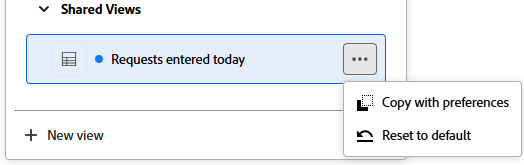
Apply conditional formatting in a view
Conditional formatting helps you highlight important information in the view based on common criteria.
-
Click the Format cells icon

-
Click Add condition.
-
In the If line, select a field and choose a field value and add a modifier. Modifiers change, depending on the field type you choose.
note tip TIP Only fields visible in the enhanced list are available for conditional formatting. -
(Optional) Instead of adding a field value, click the Compare to another field icon

note tip TIP Only fields visible in the list view are available for conditional formatting. The fields you compare must be of the same type. -
(Optional) Click Add condition in the If line to add more conditions to the same rule.
note tip TIP You can add up to 10 conditions in a conditioning rule and you can have up to 20 rules for a field. -
Click the Or connector between conditions to change to And and to indicate that multiple conditions must be met at the same time. Or is the default connector.
-
In the Format line, select a field to indicate which column will be formatted.
-
(Optional) Click the color circle icon

-
Click the Text format icon

- Bold
- Italic
-
Turn on the Apply to row setting to apply the formatting to the entire row of the field that meets the conditions.
-
(Optional) Click Add condition in the Format box to add another rule for another field and the repeat the steps above.
-
(Optional) Click Clear all to remove all formatting.
-
Click outside the Format box to close it.
This returns you to the list view.
The formatting is applied immediately to the list view.
There is a blue dot next to the Format cells icon to indicate that the view has special formatting applied.
Filter items in an enhanced list
Filters help you reduce the amount of information you display in the list.
-
Click Filter above the list.
-
In the Filter box, click Add condition.
-
Select a field to filter by.
-
Select a filter modifier, such as “Is any of,” “Is none of,” “Is before,” or “Is after.” The modifier options are different depending on the type of field you are filtering by.
-
Select the field value or values. Depending on the field type you are filtering by, you might be prompted to select the item from a list, search for it, or use a calendar to select a date range.
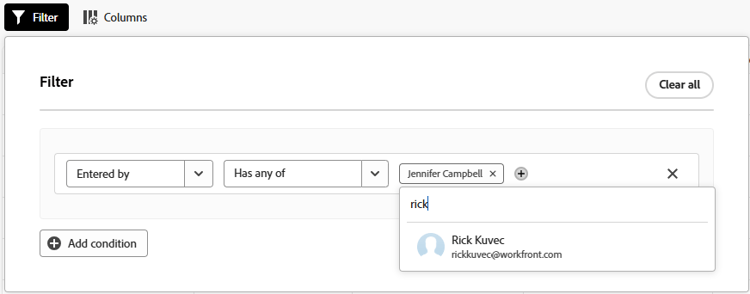
The filter is applied to the list automatically.
note tip TIP To apply a personalized filter, select one of the following options for a field value: -
Me (logged in user) to refer to the logged in user in fields referring to users.
-
My teams or My home team to refer to your teams in fields referring to teams.
-
My groups or My home group to refer to your groups in fields referring to groups.
-
My company to refer to your company in fields referring to companies.
-
My roles or My primary role to refer to your job roles in fields referring to roles.
-
-
Click Add condition to add another condition to the filter.
You can join multiple filters by an AND or an OR connector.
-
When the filter is applied, you can open the Filter options again to change the filter options or clear all of the filters.
An indicator appears on the Filter button when a filter is applied to the list.

Group items in an enhanced list
Groupings separate the objects on the list into areas based on specific criteria.
Workfront provides a limited number of predefined groupings and you cannot modify them.
-
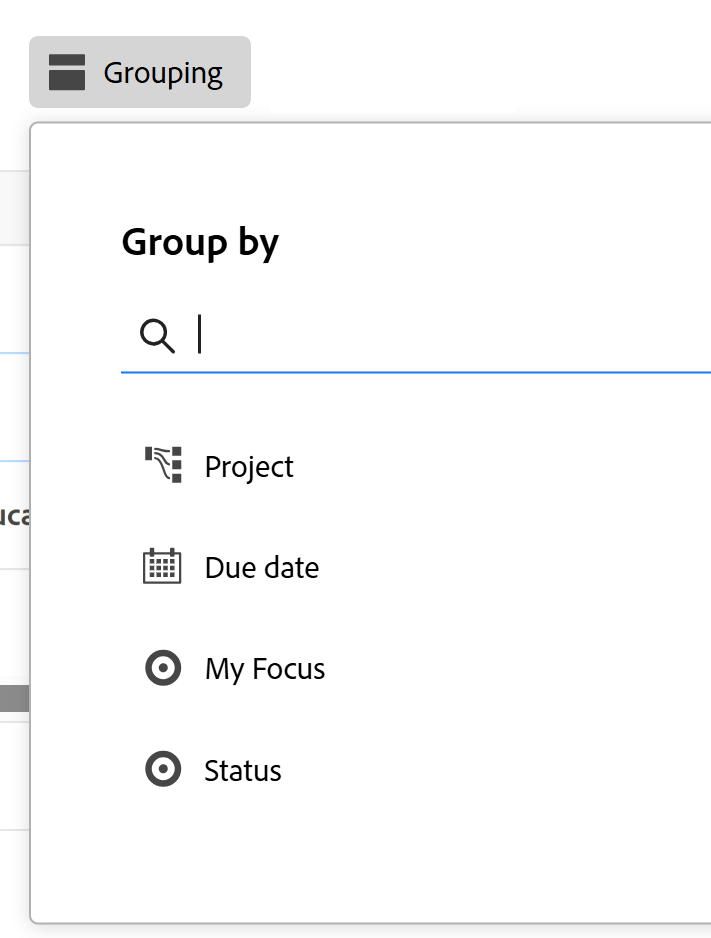
Click Grouping above the list.
-
Select a grouping to organize your list.
-
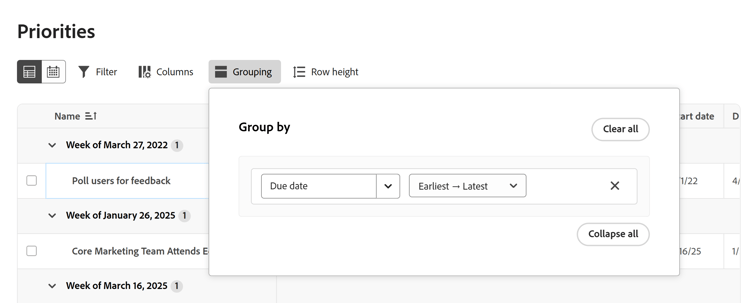
Click Collapse all to display the list with all the groupings collapsed. The default option is to display the list with all groupings expanded.
-
When the grouping is applied, you can open the Grouping options again to collapse or expand all of the groupings at once, change the grouping to group by a different field, or clear all of the groupings.
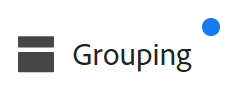
An indicator appears on the Grouping button when a grouping is applied to the list.
Sort in an enhanced list
To sort individual columns:
-
Hover over the column, then click the down arrow and select Sort.
An icon next to a column name indicates that the list is sorted by the values in that column, and the direction of the sort.
note NOTE Some columns might not be sortable, depending on the list. 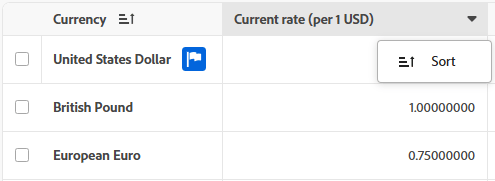
-
(Optional) To sort your work within a grouping, click Grouping, go to the line of the applied grouping, click on the sorter dropdown, and select an ascending or descending order.
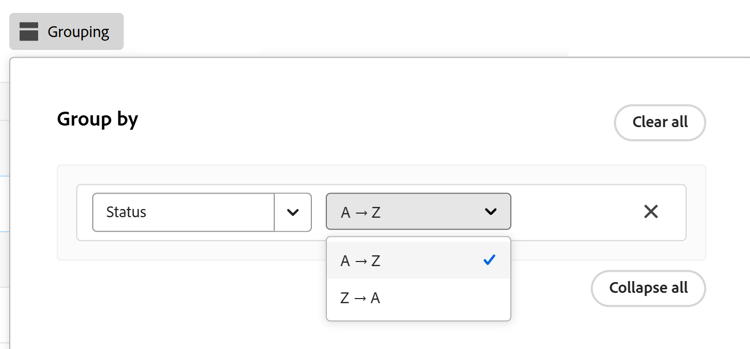
note tip TIP The sorting order differs based on the field type you sort by.
Search in an enhanced list
-
Type a keyword you want search by in the Search box in the upper-right corner of the list. The results are highlighted in the list as you type.
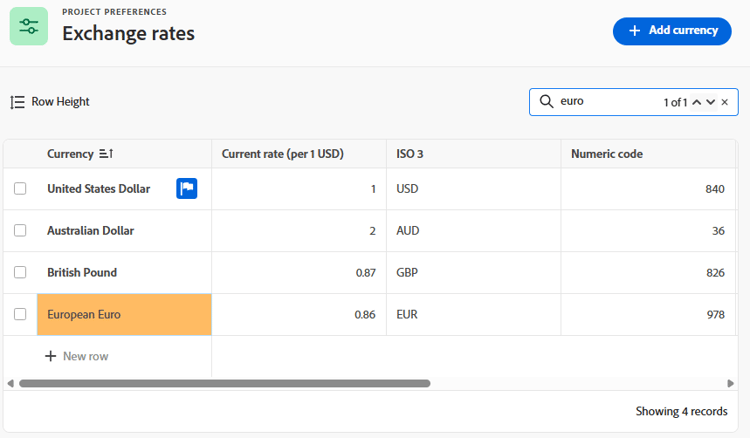
note NOTE The search looks at all columns in all list items. If the list is long, the search includes items that you may need to scroll to see. When the list is filtered, the search only looks at what is currently displayed.