Get started with the Adobe Workfront Planning free trial
The information in this article describes the functionality that was available during the Workfront Planning trial period.
Adobe Workfront Planning provides centralized visibility into your marketing lifecycle, enabling better collaboration across teams, real-time tracking of campaigns, and automated workflows. You can create custom workspaces and visualize work with interactive timelines and calendars.
With this trial, you will see firsthand how Planning helps align daily work with strategic objectives, streamlines execution, and drives measurable results for your organization.
After your Workfront administrator accepts the agreement and signs up for the free trial, Workfront Planning will be available to everyone in your organization starting on March 2, 2026.
The free Workfront Planning trial offers the following:
-
A curated, multi-workspace Planning environment
-
A Workfront Planning Prime package that includes the following features:
- Unlimited workspaces
- 500,000 records per workspace
- 2 million total workspaces
- Global record types
-
Sample data to give you an idea where to start
-
AI-guided onboarding where you can use plain language or upload an existing artifact and Planning will generate a custom structure using AI. This automatically creates workspaces, record types, fields, and views.
-
In-product training and guidance
-
Clear indication of milestones during your setup which are tailored for specific roles.
Prerequisites for joining the trial
Your company must meet the following requirements to be able to join the Workfront Planning free trial:
-
Have any of the following new Adobe Workfront or Workflow packages:
- Select
- Prime
- Ultimate
The Workfront Planning trial is not available for the legacy Workfront packages.
For information, see Access requirements in Workfront documentation. -
Accept the legal trial agreement available in your organization’s Workfront instance between January 26 and April 1, 2026 . You must be a Workfront administrator to accept the trial agreement.
Overview of important dates
The following are important dates associated with the Adobe Workfront Planning free trial offering:
-
January 26, 2026: The Workfront Planning free trial banners were released to Workfront customers. The banners included the following:
- A link to this document.
- The trial agreement acceptance window. Only a Workfront administrator can accept the agreement. You can accept the trial agreement at any time starting with this date.
-
March 2, 2026: The Workfront Planning trial launched.
With the launch of the trial, the following items are added to your Workfront instance:
- The Workfront Planning banners continue to display for all users. A link to this document is included in the banners.
- The Review trial agreement preference is added to the Setup area.
The following scenarios exist:
-
If your Workfront administrator has accepted the agreement prior to this date, you can find the Planning area in your Main Menu and start using Workfront Planning.
note NOTE The Planning area displays in the Main Menu for all users in the system, regardless of their Workfront license type. -
If your Workfront administrator has not accepted the agreement prior to this date, the banners announcing the Planning trial programs display for all users, but Planning is not yet available in the Main Menu. Your System Administrator must first accept the agreement before you can have access to Workfront Planning.
-
April 1, 2026: You can no longer enroll in the trial.
The following items are removed from your Workfront instance:
- The Workfront Planning trial banners.
- The Review trial agreement preference is removed from the Setup area.
-
May 1, 2026: The Workfront Planning trial closes and your access to Planning is removed. Access will remain active until May 15, 2026.
If you participated in the trial, Workfront secures your data after the trial is over. However, you have no access to it any longer after this date.
Regardless of when you accept the agreement, your access to Planning ceases on this date.
-
November 30, 2026: Workfront no longer secures your data after this date. If you purchase Workfront Planning before this date, you regain access to Planning and your data.
Permissions to Workfront Planning data during and after the free trial
All users in your organization receive the following Workfront Planning package and level of permissions to Workfront Planning during the trial:
-
Between March 2 - May 1, 2026:
Regardless of your Workfront or Workflow license access level, when you accept to participate in the Workfront Planning trial program you receive a Workfront Planning Prime license.
The users in your system receive the following permissions to the workspaces in the Planning area during the free trial:
- All System Administrators have Manage permissions to the Workspaces I’m on and All workspaces tab.
- All other users have View permissions to the Workspaces area, but the System Administrator can grant them Manage permissions to workspaces that display there.
- All users, including the System Administrator, have View permissions to the Sample workspaces tab in the Planning area.
-
After May 1, 2026:
Access to the trial will remain active until May 15, 2026. After May 15, all users in your system have their access to Workfront Planning removed and Workfront secures your data.
Additional information about Workfront Planning
For general information about Workfront Planning, see Get started with Adobe Workfront Planning.
For best practices on how to implement Workfront Planning, see Adobe Workfront Planning best practices: article index.
Enroll in the Adobe Workfront Planning free trial
One of your Workfront Administrators must review and sign the legal trial agreement before everyone in your organization receives access to the Workfront Planning free trial.
Signing up for the Planning trial has been available since January 26, 2026.
The trial started and your organization received access to start the Planning trial on March 2, 2026.
Enroll in the Planning trial between January 26 and March 2, 2026
-
(Conditional) Log in to Adobe Workfront as a System Administrator.
-
Do one of the following:
-
Follow the in-app banner that contains information about the Workfront Planning trial
-
Go to the Workfront Notifications area in the upper-right corner of the screen, then click All Announcements and find the Announcement Center message about the Workfront Planning trial.
-
-
Click Review trial agreement.
-
Click Accept, after reviewing the agreement.
-
(Conditional) If you are not a System Administrator, follow the in-app banner that contains information about the Workfront Planning trial, then click Learn more.
You can read more about the Workfront Planning trial and about Workfront Planning in this article.
Enroll in the Planning trial between March 2 and April 1, 2026
-
(Conditional) Log in to Adobe Workfront as a System Administrator.
-
Do one of the following:
-
Follow the in-app banner that contains information about the Workfront Planning trial
-
Go to the Workfront Notifications area in the upper-right corner of the screen, then click All Announcements and find the Announcement Center message about the Workfront Planning trial
-
Go to Setup > System > Preferences.
-
-
(Conditional) If you are in the Setup area, go to the Other preferences section, then click Review trial agreement.
-
Click Accept, after reviewing the agreement.
Your organization is now enrolled in the Workfront Planning trial until May 1, 2026. Access will remain active until May 15, 2026.
The following things occur after you accept the trial agreement:
- The Planning area is added to the Main Menu for you and all users in your system and it shows a Trial indicator.
- As a System Administrator, you receive Manage access to the Sample workspaces tab in the Planning area.
- Standard users receive View access to the Sample workspaces tab in Planning and can create their own workspaces, record types, records, fields and views and share them with others.
- All other users receive View access to the Sample workspaces tab in the Planning area and can gain access to other workspaces when others share them with them.
-
(Conditional) If you are not a System Administrator, and your System Administrator has not accepted the trial agreement yet, follow the in-app banner that contains information about the Workfront Planning trial, then click Learn more.
You can read more about the Workfront Planning trial and about Workfront Planning in this article.
-
(Conditional) If you are not a System Administrator, and your System Administrator has accepted the trial agreement, follow the in-app banner that contains information about the Workfront Planning trial and click Open Planning.
Start exploring the Sample workspaces tab and review, use, or share workspaces shared with you.
For more information about using Workfront Planning, see Get started with Adobe Workfront Planning.
For best practices on how to implement Workfront Planning, see Adobe Workfront Planning best practices: article index.
Submit feedback about Planning
To submit feedback about your experience with Workfront Planning:
-
Log in to Workfront and open any page.
-
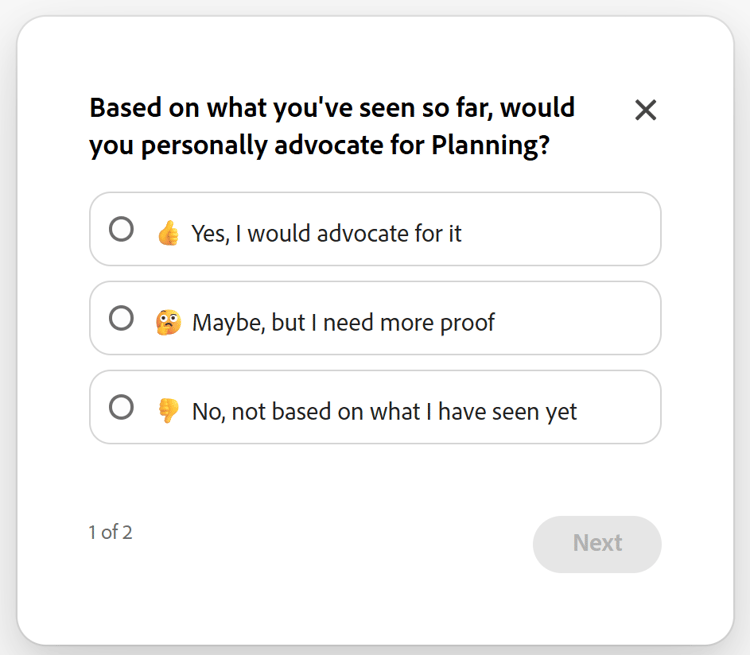
Find the short survey in the lower-right corner of any Workfront page and answer the questions, then click Next.
-
On the second slide, answer the questions, then click Submit.
Your feedback is submitted to our Product management team.
Experience Workfront Planning through the free trial
You can review sample Planning workspaces and their objects, as well as create your own when you enroll in the Workfront Planning trial.
-
(Conditional and required) As a Workfront administrator, sign the free trial agreement.
For information, see the section Enroll in the Adobe Workfront Planning free trial in this article.
-
(Conditional) After the trial agreement was signed by a Workfront administrator, click the Main Menu icon

- Planning. The icon displays a Trial label next to it.
- Projects, Requests, Calendars, then click Explore campaign calendars
- Portfolios, Programs, or from a portfolio or program then click Explore custom hierarchies.
The Planning area opens in the Sample workspaces tab.
-
Review the following workspaces in the Sample workspaces tab:
-
Global Classifications & Taxonomies: Contains sample Planning object types that are the foundation of a Marketing System of Record.
All record types in this workspace can constitute de building blocks of your Workfront Planning structure. All record types are global and can be added or connected from all other workspaces. For more information, see Cross-workspace record type overview.
For our recommendation on how to use the Global Taxonomies workspace, see Turn your first win into sustainable momentum: a playbook for managed scaling.
-
Additional sample workspaces: The following workspaces serve as examples of what a sample company (Fréscopa) might need as specific workspaces, record types, fields, and views to architecture their organization and work structure:
- Fréscopa Global Marketing
- Fréscopa Social Marketing
- Fréscopa Media & PR
- Fréscopa Executive Company Leadership
note NOTE As a System Administrator, you might be able to edit the sample workspaces. However, we recommend you keep them as they are to use them for guidance and instead build your own workspaces mirroring those we offer as samples. -
-
Click Create workspace to create your own workspace.
For information, see Create workspaces.
As a System Administrator, your new workspaces display on the All workspaces and the Workspaces I’m on tabs.
note tip TIP Standard license users can create workspaces that will display in the Workspaces area. -
Click Create with AI to let the AI Assistant build a workspace for you, based on your specifications.
For information, see Get started with the Adobe Workfront Planning Designer.
note important IMPORTANT We do not require that you sign the Adobe Gen AI agreement to be able to use the Planning Designer in Workfront Planning during the trial. -
In the workspaces you created, create any of the following:
-
Record types
For information, see Create record types.
-
Records
For information, see Create records.
-
Views
For information, see Manage record views.
-
Fields
You can create custom fields for each record type, import them from Workfront, or create connections to other record types, Workfront object types, or object types from other applications.
For information, see the following articles:
-
-
From the workspaces you created, share any of the following entities:
-
Workspaces
For information, see Share workspaces.
-
Record types
For information, see Share record types.
-
Views
For information, see Share views.
For additional information about how to implement Workfront Planning and how to create a center of governance for it, see the section Additional information about Workfront Planning in this article.
-
-
(Optional) To edit the workspace you created, do one of the following:
-
Open the workspace and manually make changes to it.
For information, see Edit workspaces.
-
Click Edit with AI next to the workspace name to open the Planning Designer and use AI to make further changes to the workspace.
For information, see Get started with the Adobe Workfront Planning Designer.
-
-
(Optional) To remove the Planning area from the Main Menu for users, customize the the Layout Templates assigned to the users and remove it from the Set Main Menu area of the Layout Template.
For information, see Customize the Main Menu using a layout template.
note tip TIP You cannot remove the Planning promo banners from your instance of Workfront using Layout Templates.