Get started with the Adobe Workfront Planning Designer
The highlighted information on this page refers to functionality not yet generally available. It is available only in the Preview environment for all customers. After the release to Preview, the same features are also available monthly in the Production environment for customers who enabled fast releases.
For information about fast releases, see Enable or disable fast releases for your organization.
You can use the Adobe Planning Designer powered by AI to configure your workspaces and data structures with ease. The Planning Designer supports everything from creating and configuring workspaces to defining fields and formulas, managing records, reviewing change history and building custom views.
Whether used directly, through the AI Assistant, or CX Enterprise Coworker, the Planning Designer provides a flexible, powerful environment for building and maintaining structured, connected information.
For information about Workfront Planning, see the following articles:
For information about AI Assistant and Coworker in Planning, see the following articles:
Access requirements
| table 0-row-2 1-row-2 2-row-2 3-row-2 4-row-2 layout-auto html-authored no-header | |
|---|---|
| Adobe Workfront packages |
Any Workfront or Workflow package with a Planning package Any Planning when purchased as a standalone product |
| Adobe Workfront license |
Workflow Standard Workfront Administrators must enable the Planning Designer for your organization |
| Planning license |
Planning Standard Workfront Administrators must enable the Planning Designer for your organization |
| Access level configuration | You must add both a Workflow and a Planning license type to the access level when you have both a Workflow and a Planning package |
| Object permissions |
Manage permissions to a workspace System Administrators have permissions to all workspaces, including the ones they did not create |
For more information about Workfront access requirements, see Access requirements in Workfront documentation.
Enable the Planning Designer for your organization
As a System Administrator, you can turn on the Planning Designer Beta for your organization. After this setting is turned on, everyone in your Workfront instance can view the Planning Designer’s capabilities in their Planning area.
-
Log in as a Workfront administrator.
-
Click the Main Menu

-
Go to System > Preferences > AI Preferences.
-
Turn on Enable AI.
note NOTE Accepting the AI Agreement is not required for using the Planning Designer in beta. -
Turn on the Opt in to AI Betas setting, if it is not enabled.
-
Turn on the Planning Designer setting, if it’s not enabled.
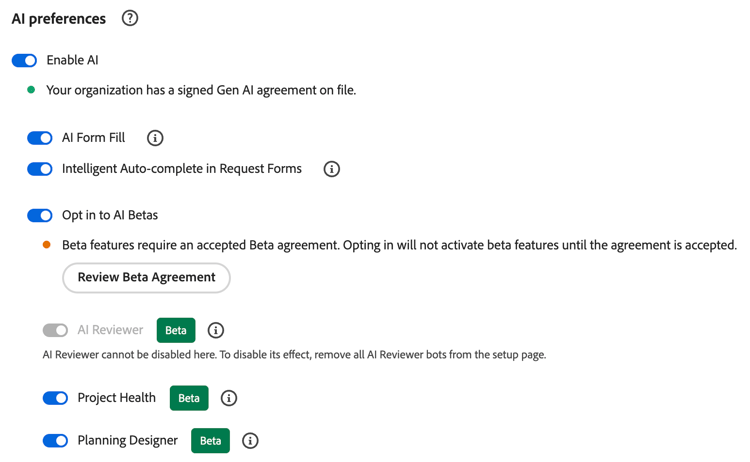
note tip TIP The Opt in to AI Betas and the Planning Designer options are turned on by default, but you must accept the Beta agreement to be able to use the Planning Designer. -
(Conditional and mandatory) If you have not accepted the Beta Agreement, click Review Beta Agreement and read the agreement, then click Accept.
-
Click Save.
The Planning Designer capabilities to create or edit workspaces are now available for all users in your organization who can access Planning.
Submit feedback about the Planning Designer
You can submit feedback about the Planning Designer during the beta program.
-
Log in to Workfront, then click the Main Menu icon

The Planning area opens.
-
Click Create with AI.
The Planning Designer window opens.
-
Click Submit feedback here at the bottom of the page.
-
Add your feedback in the space provided, then click Submit.
Your feedback is submitted to the Engineering and Product teams.
Considerations about the Planning Designer
-
You do not need to enable AI agreement before you can access the Planning Designer.
-
You must sign the Beta agreement to access the Planning Designer.
-
Your Workfront Administrator must turn on the Planning Designer for your organization. After this, the Planning Designer is available for all users, by default.
-
If your organization has signed an AI agreement, the actions performed by the Planning Designer can also be performed by the AI Assistant or Coworker, when you use it in the Planning area.
-
The actions performed by the AI Assistant or Coworker in the Planning area or those performed by the Planning Designer are in the context of your Workfront Planning permissions and your Workfront access level.
For information, see the following articles:
-
Changes made by the AI Assistant, Coworker, or the Planning Designer on the user’s behalf are tracked in the record’s history panel.
-
Actions done by the Planning Designer are permanent and could be irreversible. For example, deleting a field cannot be reversed. Review all actions that are proposed by the Designer before accepting them.
note important IMPORTANT When creating, updating, or deleting an object through the Planning Designer, the prompt will ask for confirmation only for the actions that are irreversible. For example, deleting a record type or a workspace is irreversible. Deleting a record is not. The Planning Designer will ask for confirmation only when trying to delete a record type or workspace. -
When you create workspaces and record types using the Planning Designer, views and fields are also created automatically.
Functionality currently available for the Planning Designer
You can use either the Planning Designer, or the AI Assistant or Coworker, to perform any of the following actions:
-
Create and configure workspaces
-
Edit workspaces
-
Create record types, including defining and adding global record types to workspaces
-
Design fields or formula fields
-
Create, delete, duplicate, and restore records
-
Edit, update, append a field in a record
-
Link records to other records
-
Access record change history
-
Build custom views
-
Create records by importing a document
For example, you can upload a picture of an org chart in your company, and the Planning Designer can create a workspace based on it.
Creating objects from an imported document is available only in the Planning Designer, and not in the AI Assistant.
note important IMPORTANT Although we support .XLSX file types, they cannot be used for large-scale record import through the Planning Designer.
If you need to import a substantial number of records at this time, we recommend that you do so by using the manual capabilities available in Planning.For more information, see Create records by importing information from a CSV or Excel file.
For file type limitations, see the “Get suggestions based on a document you upload” section in the Use Form Fill powered by AI to fill in a request using prompts or documents.
Create or update objects using the Planning Designer
You can create or update objects in Workfront Planning either by using the Planning Designer, or the AI Assistant or Coworker, unless otherwise specified.
-
Log in to Workfront, then click the Main Menu icon
The Planning area opens.
-
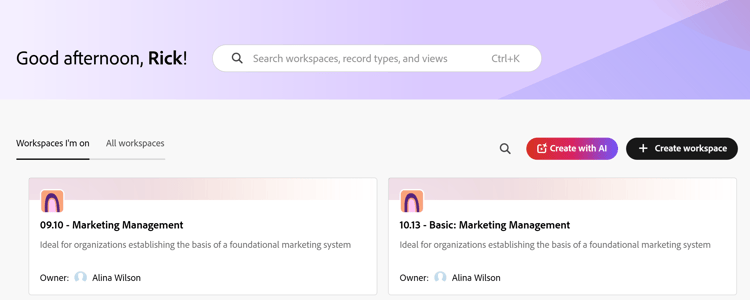
Click Create with AI or click Create workspace, then use the prompt window at the top to indicate what kind of workspace you’d like to create.
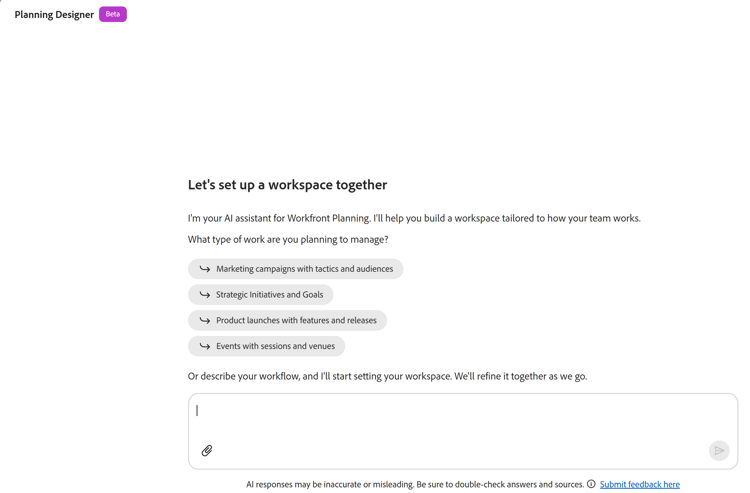
The Planning Designer window opens.
-
In the space provided, start typing prompts for the AI Assistant or Coworker, then click Enter when you are done.
For example, you may type prompts similar to the ones below:
-
Create and configure a workspace with five record types to manage campaigns
-
Create marketing campaigns for every month of the current year
-
Add a campaign field for Status for the Marketing Design workspace
-
Delete all records in a Status of Stale
-
Update all Planning campaigns to a status of Active
-
Connect Campaigns to Personas in the Marketing Design workspace
-
Display the change history for the “Valentine’s Day” campaign
-
Build a timeline view for campaigns in the Marketing Design workspace
-
Create records by importing a document. Creating records from an imported document is available only in the Planning Designer, and not in the AI Assistant.
-
-
After receiving a successful response, follow the links provided in the prompt area to create, update or review the object of your request.
When you agree to create your objects, your changes display to the right of the prompt area.
You can view workspaces, record types, fields, views and records in the preview area to the right of the prompt.
note tip TIP Some objects are created immediately, without need for confirmation. -
(Optional) Type additional prompts to edit your objects further.
-
(Optional) Click the Show or hide preview screen icon

-
Click the Open workspace in new tab icon

-
Click the Close icon X to close the Planning Designer and open the Workspaces area.
-
(Optional) To edit a workspace, do one of the following:
- Open the workspace and manually make changes to it. For information, see Edit workspaces.
- Open the workspace and click Edit with AI. This opens the Planning Designer. Repeat the steps above to use AI and make further changes to the workspace.