Workspace
The workspace is split into separate areas called docks, which can be resized, moved and undocked of Designer’s main window into a floating dock.
Here is Designer’s default dock layout:
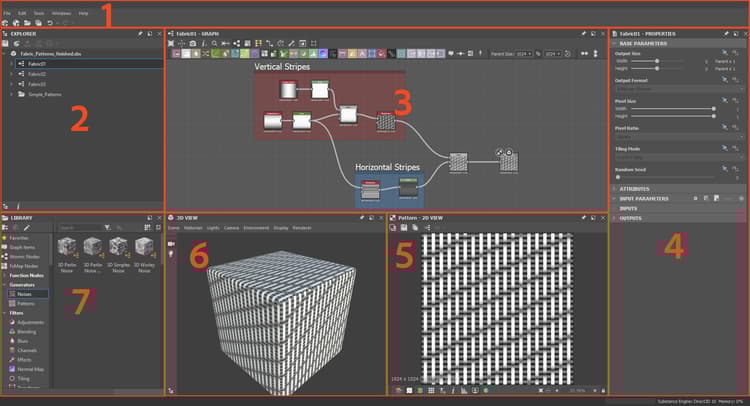
Main menu and toolbar
The main toolbar lets you access extra menu’s, like the Preferences window and has a few buttons to quickly create a new Substance graph and package.
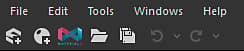
- File: Lets you create new Packages and resources, as well as save and close packages you are currently working on. Functions from this menu are also available as quick buttons on this toolbar.
- Edit: Provides Undo and Redo functions (available as quick buttons below), as well as access to Preferences, for in-depth customization.
- Tools: Controls Substance Engine and lets you access the Plugin Manager.
- Windows: Lets you hide or show any of the windows (some are hidden by default), and lets you reset the window layout back to default.
- Help: Provides access to extra information and online resources, such as Substance Academy or this documentation website.
Explorer
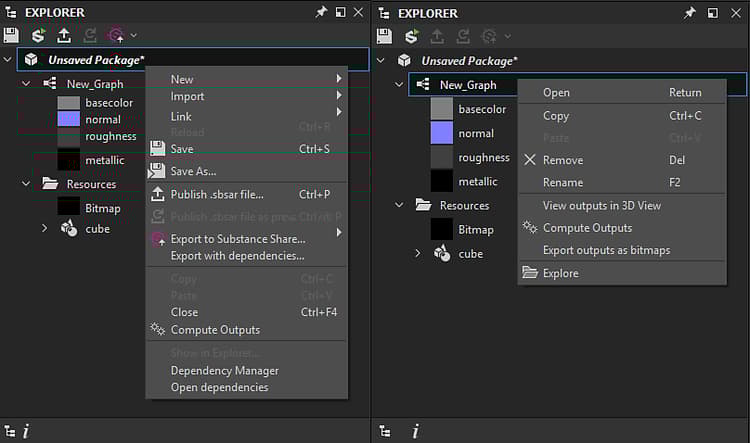
The Explorer window is the main way of interacting with any kind of file and resource. It gives more options than the File menu in the Main toolbar This is where start and end every working session.
Graph view
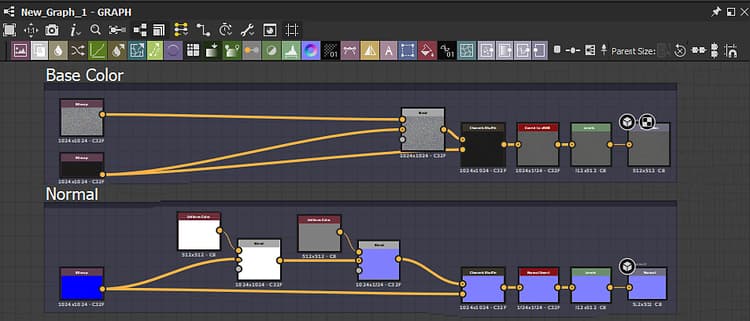
The Graph view dock is the most important window in Substance 3D Designer. It displays the nodal networks of any kind of graph that is available in Designer (Substance graphs, Substance function graphs, FX-Map graphs) and lets you build and edit them.
Properties
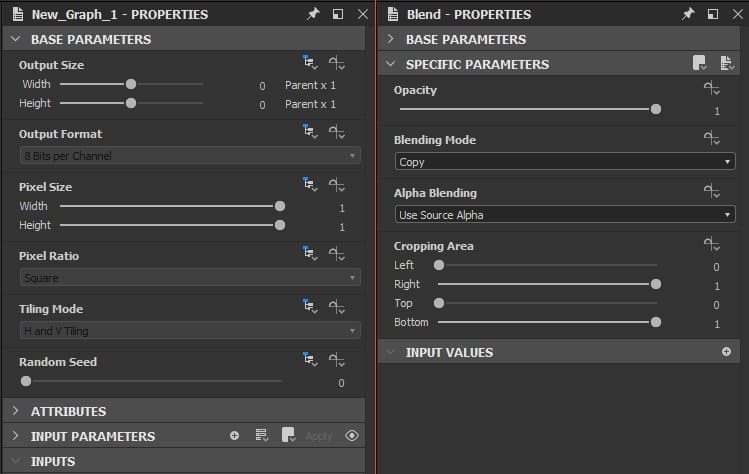
The Properties dock is the most technical window. It is always context-sensitive and will present sliders, dropdowns and other elements that change the behavior of a selected resource or Node.
2D View
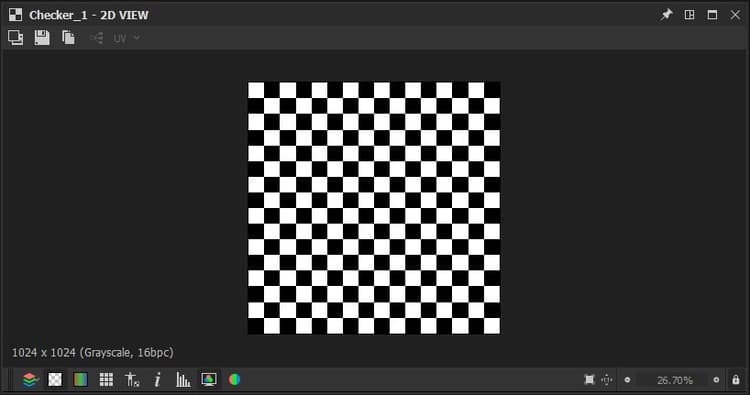
The 2D View is the simplest previewing tool. It works together closely with the Graph: double-clicking on any Node in the Graph View will display into the 2D View the visual result.
3D View
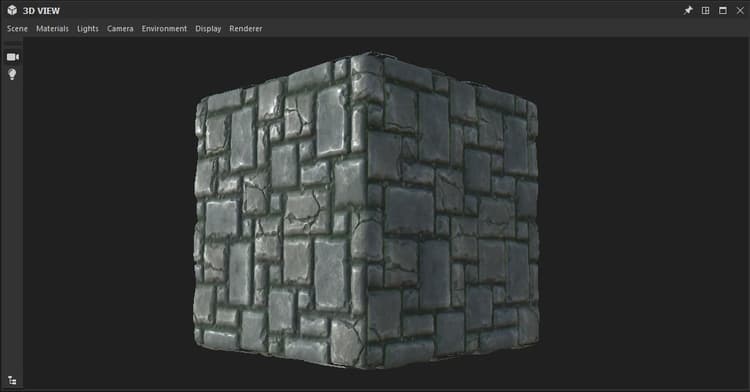
The 3D View is the most interactive and most advanced preview window. Unlike the 2D View, it uses a number of different output maps to render a full material. This means you see all channels represented, such as Basecolor, Normal and Roughness.
Library
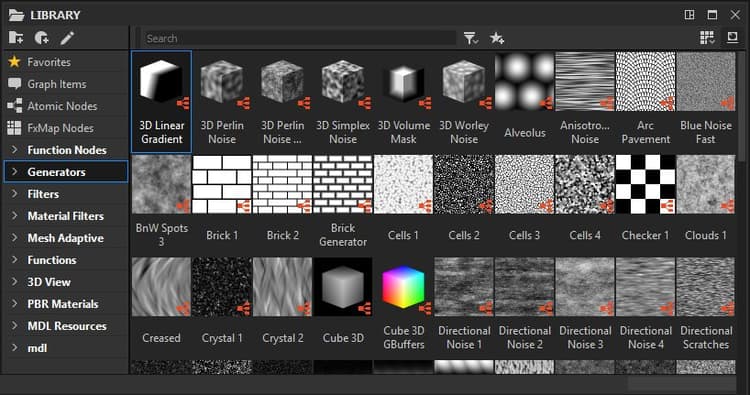
The Library dock provides access to all the content included in Designer’s library by default, as well as your custom content.