3D View issues
This page lists technical issues related to the 3D view in Substance 3D Designer, and offer troubleshooting steps for each.
Low performance: Discrete GPU is not used

Substance 3D Designer does not use the system’s discrete GPU (dGPU), and uses the integrated GPU (iGPU) instead. This results in low performance when rendering graphs and/or the 3D view.

Systems with switchable graphics can force the dGPU which should be used for a specific application in dedicated software, depending on the GPU manufacturer.
For instance, users with an Nvidia dGPU can do the following:
- Close Substance 3D Designer
- Open the NVIDIA Control Panel
- Go to Manage 3D settings screen in the 3D settings section
- Look for the ‘Substance 3D Designer’ entry in the Program Settings tab
- Select High-performance NVIDIA processor in the Preferred GPU combobox
- Start Substance 3D Designer
Low performance: Displacement on high poly meshes
When using the new 3D renderers (Rasterizer and GPU Pathtracer), the 3D view may have low performance when using displacement on high poly meshes.
The tessellation technique available in the 3D view, which subdivides meshes to offer more detail when using displacement, involves a preparation step that runs regardless of any tessellation actually being applied.
The tip in this section addresses the performance issue by disabling the tessellation process per Mesh object in the scene.
3D object is flat
A 3D object which featured detailed volumes in one session becomes flat in the next session, however the graph has not changed and the Height map carries the same data.
The deformation effect of a 3D object according to a Height map is performed using a technique called Tessellation displacement. This technique involves two steps:
- Tessellation: the object geometry is subdivided into vertices, resulting in a denser geometry to support finer volume detail
- Displacement: the vertices are moved - i.e. displaced - along their normal vector. The normal vector follows the direction a polygon is facing and has a magnitude (i.e. length) of 1
The displacement direction is known: the direction of the normal vector.
The displacement distance by which the vertices are moved is calculated as follows : Distance = Height scale * Height map. Because the Height map has not changed in the graph, that leaves the Height scale.
The default Height scale value is 1.0, which may result in a displacement effect which is not noticeable depending on the mesh displayed in the 3D View and the Height map applied to it.
This value can be modified in the following ways:
Learn more in the dedicated page.
heightScale usage in its properties.Provide a value to this output with a value, using a constant Float node for instance, then reapply the graph in the 3D View.
3D view is entirely black
In versions 15.0.0 and higher, the viewport of the 3D view is flat black. I see some text overlays (E.g., samples and render time) but the 3D scene is not visible.
Version 15.1 and higher
The new 3D renderers were upgraded in version 15.1 and require recent GPU drivers. Please update your system’s GPU drivers to the latest version.
You may find drivers here: NVIDIA | AMD | Intel
Version 15.0 and higher
Designer 15.0.0 introduced our new in-house 3D renderers, which use modern technologies and therefore are not supported by older GPUs.
Supported GPUs include NVIDIA RTX 20 series (Turing) or higher, as per Designer’s system requirements.
You may continue using the OpenGL renderer by default, by using the new option in the Project settings:
- Go to Edit > Preferences > Projects
- Select the last project file in the list
- Under the list of project files, select the 3D View tab
- Set the ‘Default renderer’ option to ‘OpenGL (deprecated)’
- Click ‘OK’ to validate the changes
Now, all new 3D View will use the OpenGL renderer by default, which will let you continue working as before.
‘Renderer not supported’ message is displayed
In versions 15.0.0 and higher, the ‘Renderer not supported’ message appears in the lower right corner of the viewport when using the new 3D renderers (Rasterizer, GPU pathtracer). The 3D scene is not visible.
Designer 15.0.0 introduced our new in-house 3D renderers, which use modern technologies and therefore are not supported by older GPUs.
Supported GPUs include NVIDIA RTX 20 series (Turing) or higher, as per Designer’s system requirements.
On default settings, the 3D View will automatically fall back to the OpenGL renderer, if the ‘Default renderer’ option is set to ‘Default (predefined renderer)’ in the Project settings.
You may find and adjust that option by following these steps:
- Go to Edit > Preferences > Projects
- Select the last project file in the list
- Under the list of project files, select the 3D View tab
- The ‘Default renderer’ option is listed in the settings within the tab
3D object looks entirely smooth
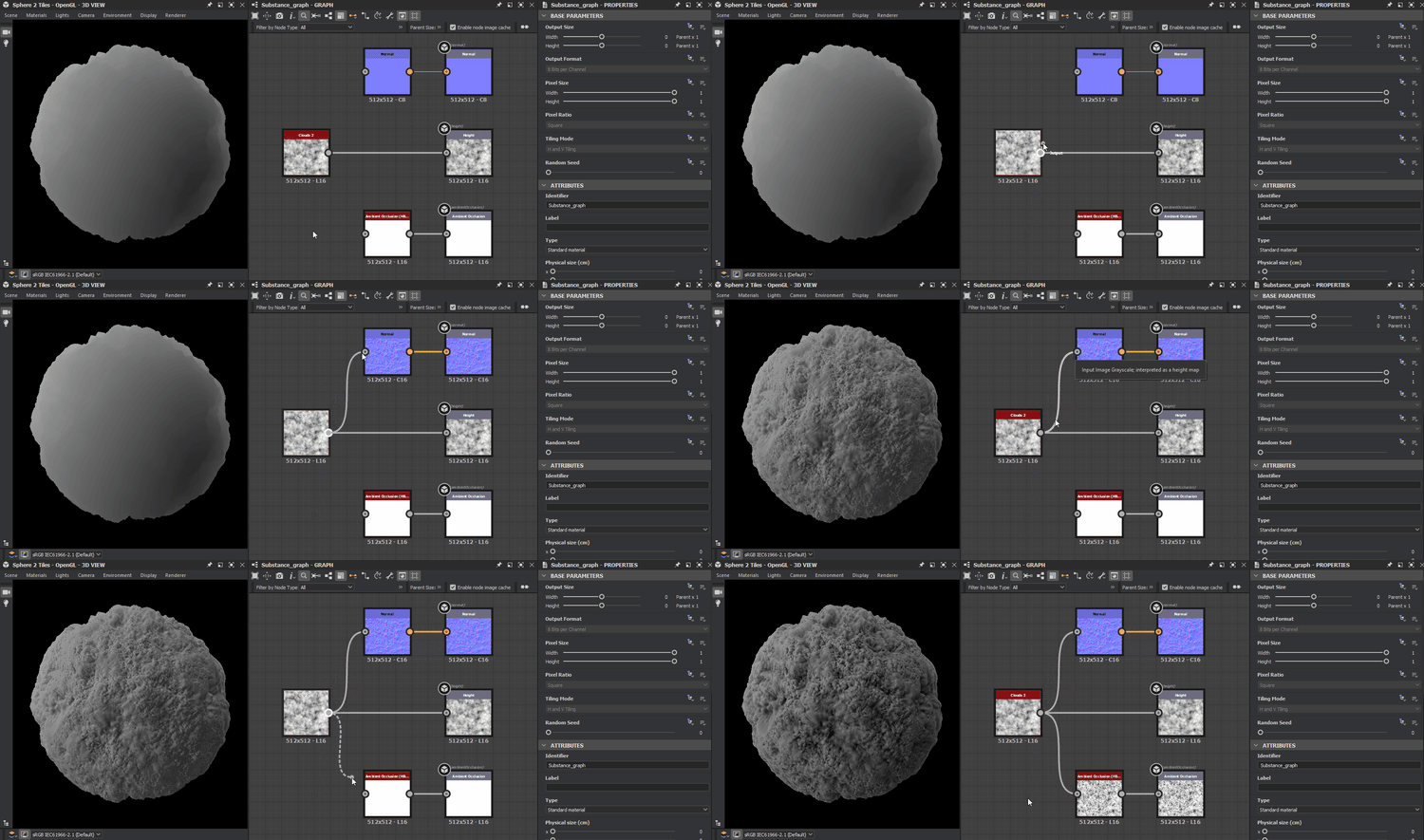
After working on the data sent to the Height output, the object appears to have some volume but looks entirely smooth, as if the height information was ignored in the shading.
Make sure the height data is converted to normals which are connected to the Normal output.
When using the Tessellation Displacement technique – see “3D object is flat” above – the objects may deform to follow the height data but its surface will not react to light differently until its normals are also modified to account for the height data.
The solution is quite simple: connect the last node of the stream leading to the Height output to a Normal node. Adjust that node’s Intensity parameter according to the material you are working on and connect the Normal node to the Normal output.
Render is blurry/pixelated
The rendered image looks blurry or pixelated when the system uses display scaling.
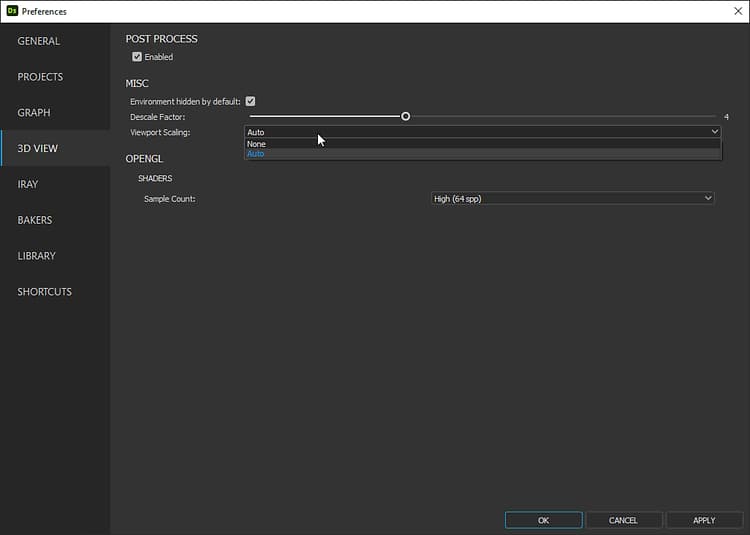
By default, Designer uses the scaled display resolution to define the 3D view’s rendering resolution. You can change this so the native display resolution is used instead for a crisp render.
Open the Edit menu and select the Preferences… option. In the Preferences window, open the 3D View section and set the Viewport scaling parameter to None.
I cannot find the ‘Tessellation factor’ property
After upgrading Designer to version 15.0.0, I cannot find the ‘Tessellation factor’ parameter in the material properties where it used to be.
When using the new renderers (Rasterizer and GPU Pathtracer), the ‘Tessellation factor’ is found in the properties of these renderers. In the 3D View, go to Renderer > Edit settings. The property will be listed in the Properties dock.
- Rasterizer/GPU Pathtracer: a unique value applied global to the entire scene.
- OpenGL: one value per material.
- Iray: one value per mesh.
3D objects look wrong: their shading does not suit the lighting
The shading of objects relies on their normal, tangent and binormal vectors. Their coordinates use the [-1, 1] range, whereas normal maps use the [0, 1] range in most cases. To adapt values from one to the other, a bias and scale need to be applied: value * scale + bias.
For instance, a scale of 2 and a bias of -1 adapts the x value from [0, 1] to [-1, 1] thusly: x * 2 - 1.
Designer does not apply a normal scale and bias unless they are specified by a 3D mesh. If that information is missing, a warning is raised in the Console when overriding any of its materials:
[SceneGraph]No 'scale' or 'bias' defined on the UsdUVTexture shader '/root/material/<materialName>' (the rendering may be incorrect)
For scenes exported to USD formats a while ago: Reexport the scene using a recent version of USD, which will include the necessary data. Pay attention to properties related to normal scale and bias if there are any, which will depend on the software used to export the scene.
When overriding a material, Designer processes the mesh and computes any missing data related ot its normals, tangents and binormals. If Designer’s default scale and bias happen to match the ones required for the mesh, then the mesh will look correct when overridden.
Crash when starting 3D View
Designer crashes at the time of starting the 3D View, when creating a project, loading a project, or manually starting a 3D View.
First, make sure your system meets Designer’s system requirements.
Then, update your graphics drivers. You can find the latest drivers for your GPU by following these links: NVIDIA | AMD | Intel
If your system includes both an integrated GPU (iGPU) and discrete GPU (dGPU), make sure to update the drivers for both!
Then, disable any software that may inject or overlay data in a 3D graphics process. Examples include:
- Post-process injectors such as ReShade
- Overlays such as custom crosshairs or GPU performance metrics
- Screen capture software for recording, streaming or sharing 3D graphics in real time