Sources overview
In Adobe Real-Time CDP Collaboration, a source (or data connection) is where your audience data comes from. You can connect to various source types such as Adobe applications, cloud-based storages, or files from your local system, to source and manage audiences for your Collaboration projects. During the audience sourcing workflow, you can choose and set up your preferred source based on your organization’s needs.
For a conceptual overview of how audiences, sources, data connections, projects, and destinations fit together in Collaboration, see the Audiences overview.
Connect a source connect-a-source
To connect a source, you need to enter the sourcing workflow. First, navigate to the My audiences tab within the Setup workspace.
Select the add icon (

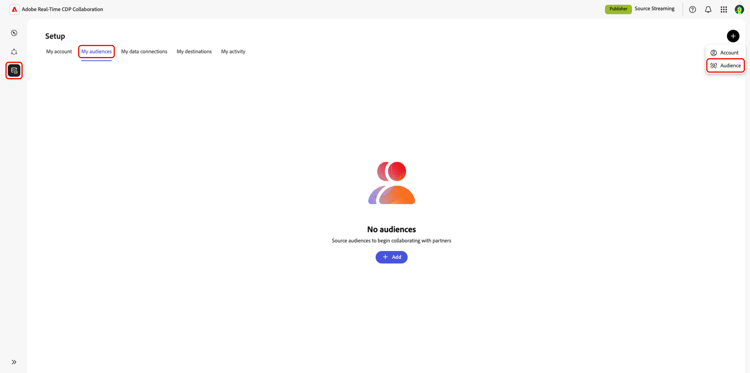
During the workflow, you will be prompted to add a new data connection by selecting a source. The source you choose determines how your audience data is brought into Collaboration. See the available sources table for a list of all supported sources.
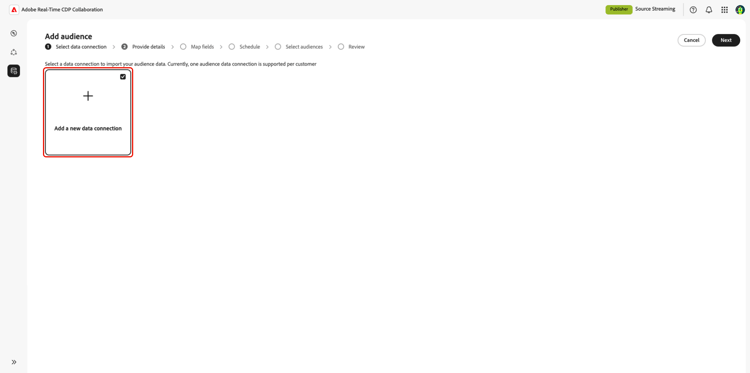
After selecting a source, the workflow guides you through the connection-specific setup steps, including authentication, field mapping, scheduling, and audience selection.
Available sources available-sources
The following sources are available in Collaboration. To view the step-by-step sourcing guide for that source, select the source name in the table below. If you are interested in a source that is not currently available, please contact your Adobe representative.
Next steps
After you connect a source and bring in your audiences, you can view details, update configurations, or delete existing sources. For more information, see the Manage data connections guide.