[Limited Availability]{class="badge informative"}
Configure Google Cloud Storage for audience sourcing
Follow the steps in this guide to connect your Google Cloud Storage (GCS) bucket to Adobe Real-Time CDP Collaboration and begin sourcing first-party audience data through the UI.
Connect a GCS bucket to Collaboration to ingest first-party audience data directly without engineering support. Once connected, Collaboration sources audiences from your bucket on a recurring schedule and makes them available for activation and overlap analysis within your collaboration projects. Sourcing your audiences is a required step before you can activate them or use them in overlap analysis with collaborators.
This guide covers the end-to-end configuration workflow: preparing prerequisites, authenticating your GCS bucket, reviewing auto-mapped identity fields, scheduling data refresh, and confirming that sourcing completed successfully.
Audiences sourced from Google Cloud Storage follow the same governance and data handling rules as audiences sourced from Adobe Experience Platform.
Other available sourcing methods include Experience Platform, Amazon S3, Snowflake, and CSV file upload. To learn more about all available sources in Collaboration, see Sources overview.
Prerequisites prerequisites
Complete all items in this section before starting the configuration workflow. Incomplete prerequisites are the most common reason setup fails or audiences do not appear after sourcing. Before following this guide, you must have completed account onboarding and setup.
Some steps in this section require action by a Google Cloud administrator. If you are not the Google Cloud administrator for your organization, identify the appropriate person before starting.
GCS access and permissions gcs-access-permissions
Before proceeding, confirm the following with your Google Cloud administrator:
- Adobe has been granted the permissions required to authenticate against your GCS bucket and read audience files. For step-by-step instructions, see the permission setup section.
- Google Cloud Storage audience sourcing is available in your region. Availability varies by region (NA, EMEA, ANZ). If GCS sourcing is not yet available in your region, contact your Adobe account representative to confirm a timeline.
Prepare your audience data prepare-audience-data
Your audience files must conform to the Audience Sourcing Specification (v1.3) before sourcing begins. Review the specification for the full schema definition and field-level examples. Key requirements include:
- File format: CSV, using commas as field delimiters and pipes (
|) as separators for multiple values within a single field. - Required fields: Every record must include an
AUDIENCE_IDcolumn and at least one supported match key column. - Supported match keys:
HASHED_EMAIL_SHA_256,HASHED_PHONE_SHA_256,HASHED_IPV4_SHA_256,CRM_ID,LOYALTY_ID,ADFIXUS_ID. - Hashing requirements: All match key values must be trimmed, lowercased, and SHA256-hashed before upload. Collaboration does not hash or normalize data before ingestion.
- Column consistency: If your bucket contains multiple audience files, all files must use identical column structures.
All match keys present in your audience files must also be enabled for your Collaboration account. To add or enable match keys, see Set up match keys.
Values required before you begin required-values
Have the following values ready before starting the configuration wizard.
sourcing/testdata/path1/).Configure your Google Cloud Storage connection configure-gcs-connection
The configuration workflow is a multi-step wizard inside the Setup workspace. Complete each step in sequence. You can return to any step using the pencil icon on the final review screen before you create the connection.
Add a new data connection add-data-connection
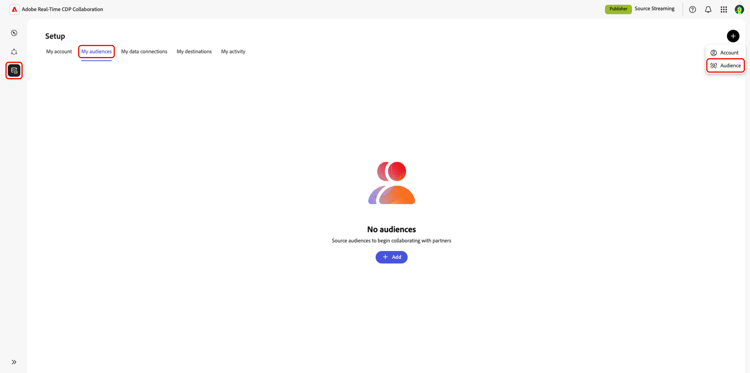
From the My audiences tab within the Setup workspace, select the add icon (

If this is your first audience, you may also select the Add option.
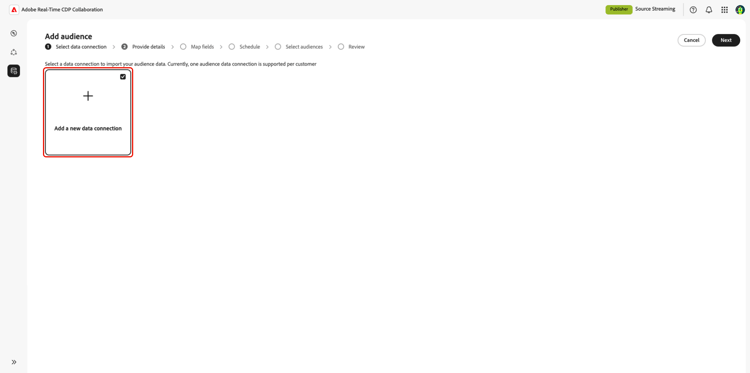
The Add audience workflow appears. Select Add a new data connection and then select Next.
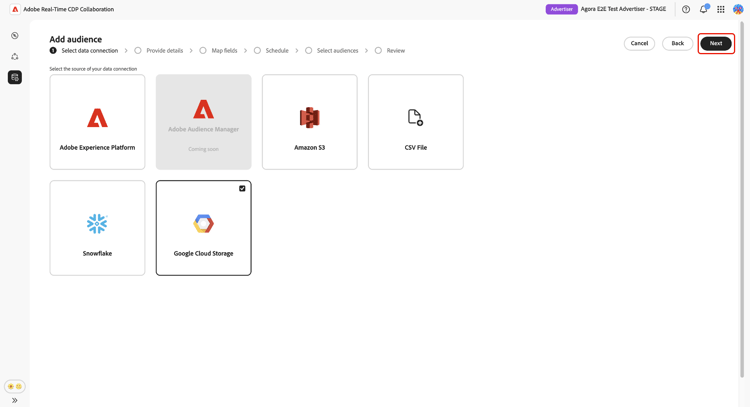
Select Google Cloud Storage as the data source select-gcs
The data source selection screen lists all available connection types. Select Google Cloud Storage and then select Next.
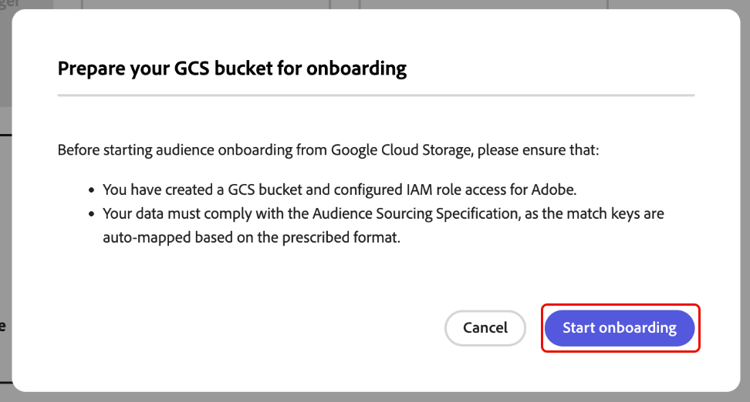
A prerequisite dialog outlining required configuration steps (for example, GCS bucket setup and IAM role assignment) appears and notes that data must comply with the Audience Sourcing Specification. Select Start onboarding to confirm compliance before proceeding.
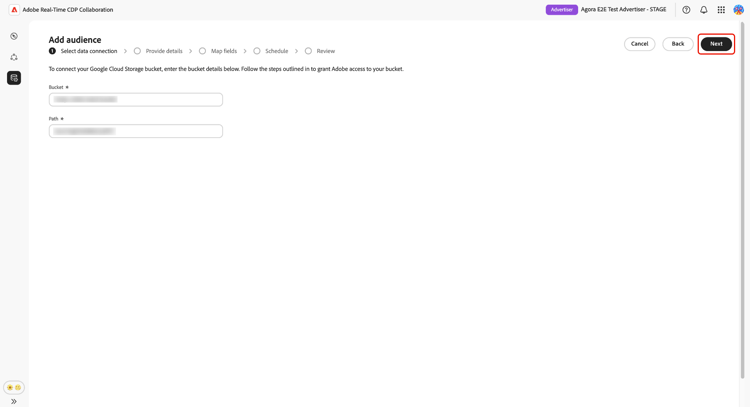
Enter your Google Cloud Storage connection details authenticate-gcs-connection
Provide the details required to allow Collaboration to access your Google Cloud Storage bucket. After entering the required information, select Next.
Confirm consent and data use acknowledgment confirm-consent
You must confirm that consent opt-outs have been removed from the audience data before Collaboration can process it. If you are unsure whether your data meets this requirement, review the governance policy and enforcement actions guide before proceeding. Select the confirmation checkbox and then select OK to proceed.
Provide connection details provide-connection-details
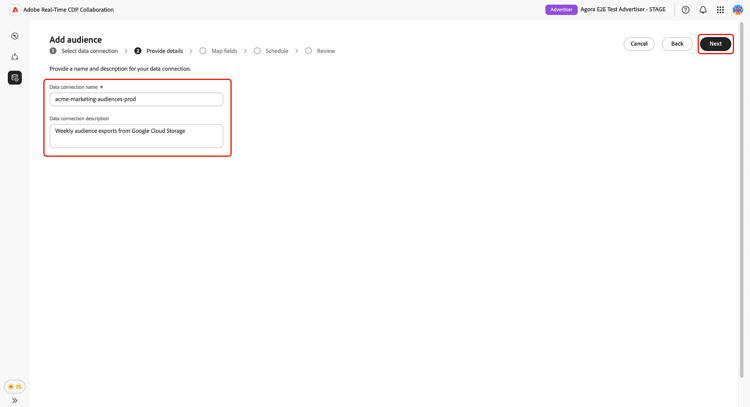
Enter a name and an optional description for this data connection. The name you provide appears in the My data connections tab and helps distinguish this source if you manage multiple data connections.
- Data connection name (required)
- Data connection description (optional).
Select Next to continue.
Review auto-mapped identity fields auto-mapped-fields
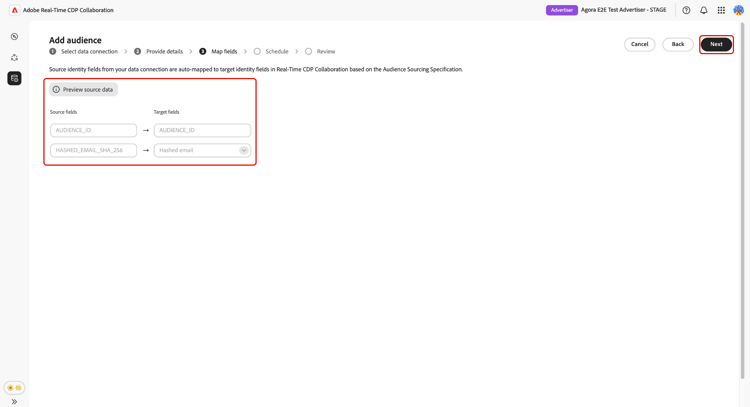
The Mapping screen is read-only. Collaboration automatically maps source identity fields from your audience files to target fields based on the column names defined in the Audience Sourcing Specification. You cannot add, remove, or apply transformations to mapped fields at this stage.
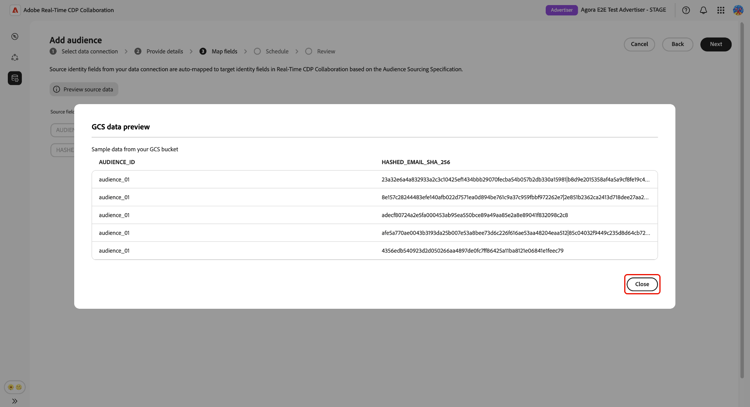
Confirm that the displayed mappings reflect the fields in your audience files. If they do not, stop and correct your files to conform to the Audience Sourcing Specification before proceeding. Select Next to continue.
Schedule data refresh schedule-data-refresh
In the Schedule view, set the frequency at which Collaboration retrieves updated audience data from your GCS bucket and define the active date range for sourcing.
Use the Frequency dropdown to select how often Collaboration retrieves updated audience data from your GCS bucket. Available intervals range from Daily to Every 6 days.
Type a date range in the input field, or select the calendar icon to set the Start date and End date for the active sourcing period. When the end date is reached, sourcing ceases and previously sourced audiences expire and become unavailable for use in collaboration projects.
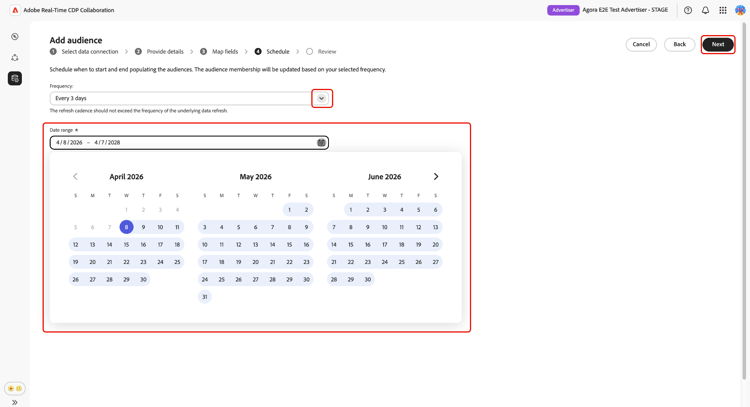
Select Next to continue.
Review and complete the connection review-and-complete
Review the configuration summary before creating the connection. The summary screen displays the following sections:
- Data connection: The GCS bucket credentials and folder path you configured.
- Details: The name and optional description of this data connection.
- Mapping: The auto-mapped source and target identity fields.
- Schedule: The refresh frequency and active date range.
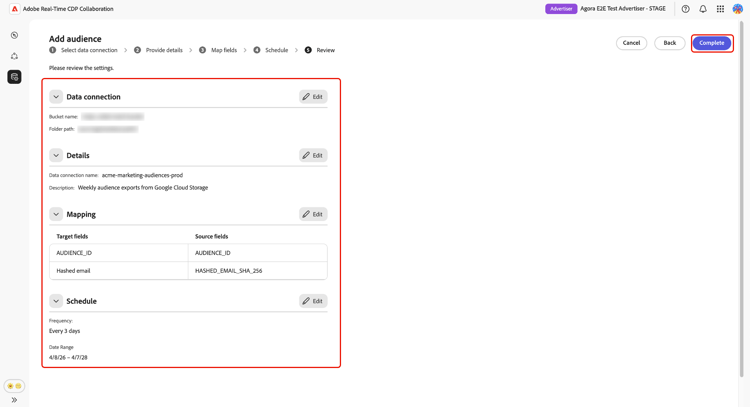
Select the pencil icon (

A confirmation dialog appears, indicating that Collaboration created the data connection and that audience sourcing is in progress.
Review sourced audiences review-sourced-audiences
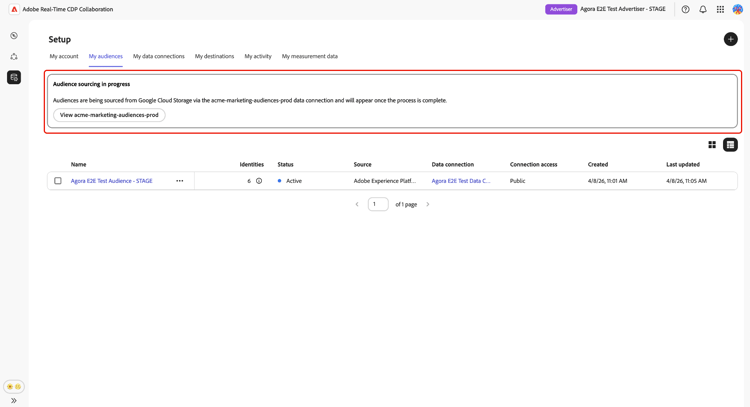
After you complete the configuration wizard, Collaboration begins sourcing audiences from your GCS bucket asynchronously. Navigate to Setup > My audiences to monitor progress. Sourcing does not complete immediately; the time required depends on the size of your data and the configured refresh frequency.
Monitor audience sourcing progress monitor-sourcing-progress
While Collaboration is retrieving your audience data, a banner at the top of the My audiences workspace indicates that sourcing is in progress. Individual audiences appear in the list only after sourcing completes for each audience.
View sourced audience details view-audience-details
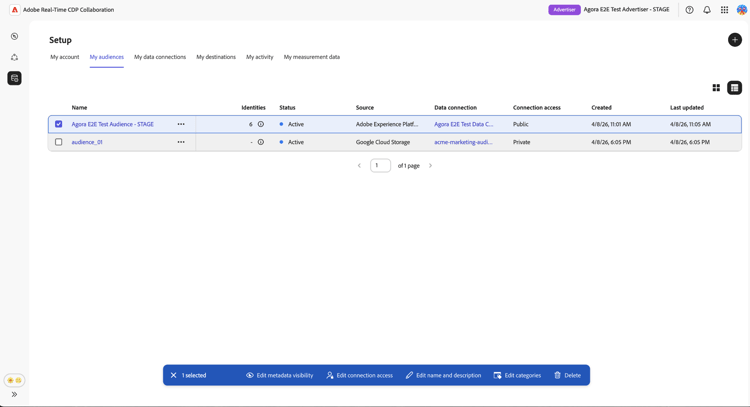
Once sourcing completes, your Google Cloud Storage audiences appear in the My audiences tab alongside audiences sourced from other connections. Select a row item or View audience to open the detail view for a specific audience.
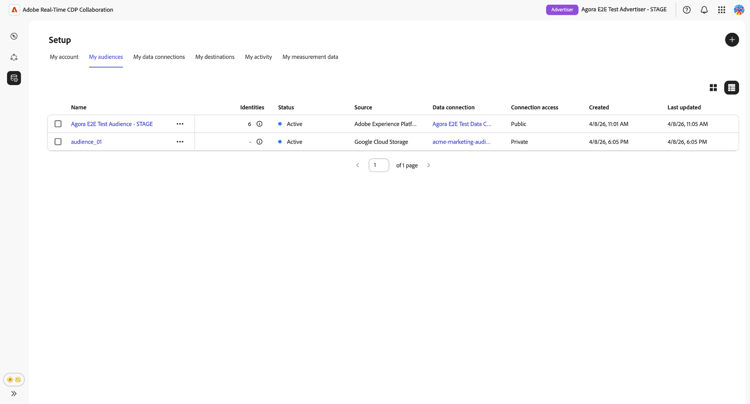
The detail view displays the audience’s status, source, and data connection name, along with the following panels:
- Identities: The total identity count and breakdown for the audience, once data becomes available.
- Categories: Any tags applied for organizing or filtering the audience.
- Connection access: Whether the audience is private, public, or shared with specific collaborators.
- Metadata visibility: What audience information — such as identity count, overlap percentage, and index — is visible to collaborators.
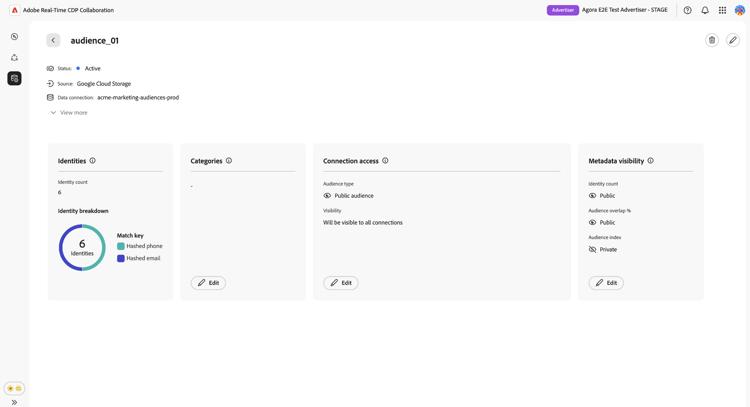
Review these settings before using the audience in a collaboration project. To update categories, connection access, or metadata visibility, see View and manage individual audiences.
Edit audience settings edit-audience-settings
You can edit audience metadata directly from the My audiences list view without opening the detail view. Select the checkbox for an audience to reveal the action toolbar, then select an action: Edit metadata visibility, Edit connection access, Edit name and description, Edit categories, or Delete.
View your GCS data connection view-gcs-connection
To review or manage the connection itself, including its match keys and scheduling, navigate to Setup > My data connections. Your new GCS connection is immediately available there. The audience source is displayed as Google Cloud Storage.
Known limitations known-limitations
Be aware of the following constraints when configuring and using Google Cloud Storage audience sourcing:
- Match key constraints: Once a match key is enabled for a data connection, it cannot be removed. You can add match keys to an existing connection, but you cannot disable or delete them. To change the active match keys, you must delete the data connection and create a new one.
- One active data connection per source: Only one active Google Cloud Storage data connection is supported at a time. If you need to source audiences from a different bucket, delete the existing connection and create a new one pointing to the new bucket.
- Subfolder support: Audience files must be located directly within the specified folder path. Collaboration does not traverse subfolders within that path.
Troubleshooting troubleshooting
Use this section to resolve issues that occur after you establish the initial connection. For errors that occur during authentication, review your credentials and bucket permissions, or contact your administrator.
Audiences are not appearing or sourcing is taking longer than expected
- Sourcing time scales with data volume and the configured refresh frequency. Extended processing time is expected for large datasets.
- If audiences have not appeared within 24 hours, confirm that your audience files exist at the folder path you specified during setup and comply with the Audience Sourcing Specification.
- Check the My data connections tab for error indicators on the connection.
- If the issue persists after completing these steps, contact Adobe customer support and provide the data connection name and bucket details.
The data connection shows a failed status after initially succeeding
- Confirm that the GCS bucket permissions and credentials have not changed since you created the connection. Any change that removes Adobe’s access to the bucket causes subsequent sourcing runs to fail.
- Verify that audience files still exist at the configured folder path and conform to the Audience Sourcing Specification.
- If the issue persists after confirming permissions and file availability, delete the connection and create a new one, or contact Adobe customer support.
Audience file format errors occur during a scheduled refresh
- Confirm that updated files in the bucket comply with the column structure and field requirements in the Audience Sourcing Specification.
- Ensure all files in the configured folder path use identical column structures. Mixed-format files in the same path can cause partial sourcing failures.
Set up Google Cloud Storage permissions setup-gcs-permissions
Google Cloud Storage provides a secure, scalable way to store and access your data in the cloud. To allow Adobe to read from your GCS buckets, you must configure the appropriate Identity and Access Management (IAM) permissions and service account access in your Google Cloud account.
Collect Adobe’s Google Service Account information collect-account-information
To get started, note the Google Service Account for Adobe that matches your region. You will need this information to grant Adobe access in later steps.
kk9930000@va3-22da.iam.gserviceaccount.comkze830000@sfc-eufrankfurt-1-g4a.iam.gserviceaccount.comknhv20000@sfc-au-1-nla.iam.gserviceaccount.comSet up IAM role setup-iam-role
Follow the steps below to create a custom IAM role with the necessary permissions and assign it to the Adobe service account. This ensures Adobe has secure access to your GCS audience data.
Create IAM role create-iam-role
First, create a custom IAM role in your Google Cloud project with the necessary permissions to assign to Adobe.
In the IAM & Admin page of the Google Cloud Console, navigate to Roles and select Create role. Fill in the required information such as the title and ID for your new role.
Then add the following permissions to the role:
storage.buckets.getstorage.objects.getstorage.objects.listFor more information on permissions, see GCS IAM permissions. For step-by-step instructions, see how to create custom roles.
Assign IAM role to Adobe assign-role
Next, open the Buckets page in the Google Cloud Console and select the bucket that contains your audience data.
Navigate to the Permissions tab, choose View by principals, and then select Grant access.
In the Add principals dialog, add the Adobe Google Service Account as the principal and assign the custom IAM role you created earlier. Select Save to confirm the setup.
Adobe now has secure access your audience data in the selected GCS bucket. Review any additional prerequisites as needed, or proceed to begin sourcing audiences from GCS into Collaboration.
Collect Google Cloud Storage details collect-gcs-details
Finally, gather the details for your GCS bucket as shown in the table below. You will need this information to set up the connection between your GCS and Collaboration.
customer-data-bucket/ to read all files.sourcing/testdata/path1/Next steps next-steps
You have configured Google Cloud Storage as a data source in Collaboration. After sourcing completes, your audiences are available in the My audiences workspace and ready for use in collaboration projects.
From here, you can:
For other audience sourcing methods, see: