[Limited Availability]{class="badge informative"}
Manage data connections
Overview
Use data connections in Real-Time CDP Collaboration to source audiences from various platforms. Learn how to manage match keys and schedule data refreshing for your existing data connections. Additionally, you’ll be able to filter audiences by different attributes for more granular insights.
View data connections
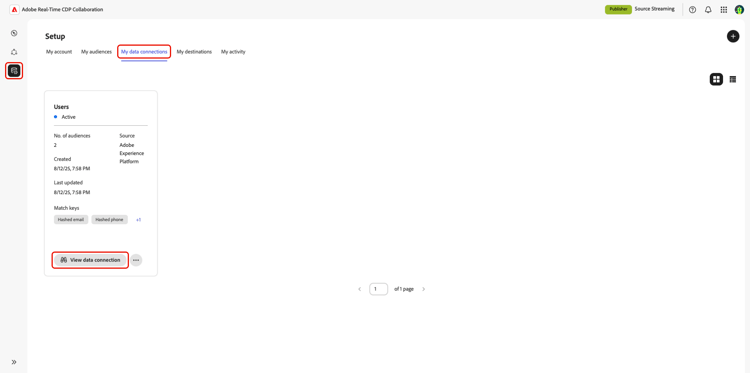
To view existing data connections, navigate to Setup and then select the My data connections tab. All your current data connection are displayed, showing a brief overview for each connection. For a complete view of a data connection’s information, including its match keys, scheduling details, and audiences, select View data connection on the corresponding connection.
Match keys match-keys
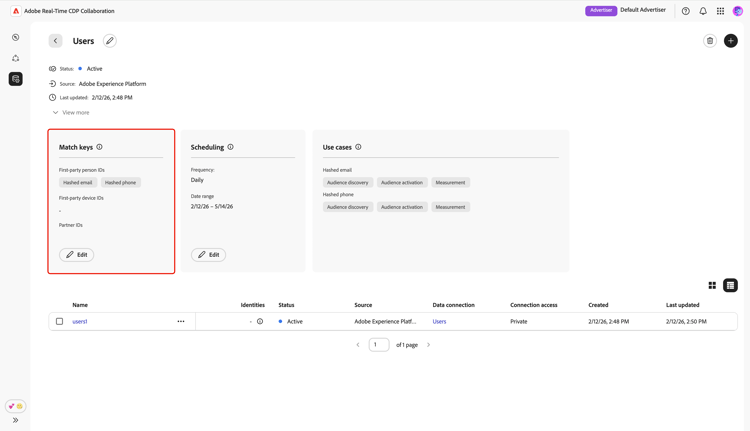
Match keys are the target fields you mapped your source fields to. To learn more about how match keys work, see the match keys guide.
Scheduling scheduling
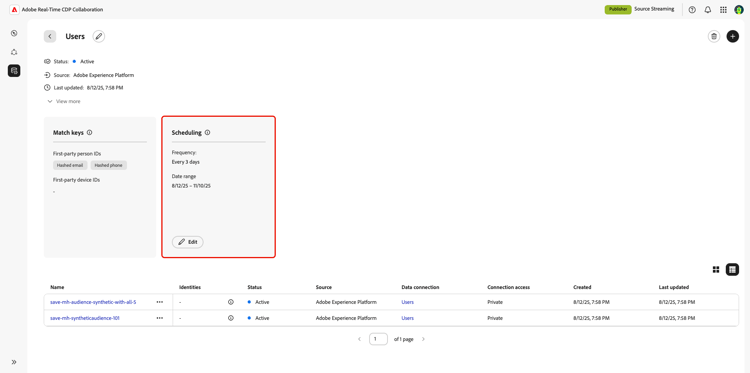
View and manage the scheduling settings for your data connections. Scheduling determines how often the audience is refreshed.
After a data connection is created, you can update its refresh frequency, start date, and end date directly from the Scheduling section of the data connection workspace.
For more information on scheduling, see the scheduling section in the guide to configuring audiences.
Edit data connection edit-data-connection
Read the following sections to learn how to update the match keys and scheduling settings of an existing data connection.
Edit match keys edit-match-keys
- Only match keys that are configured for your account can be used for data connections.
- At this time, you can add additional match keys to a data connection, but once a match key is enabled, it cannot be removed.
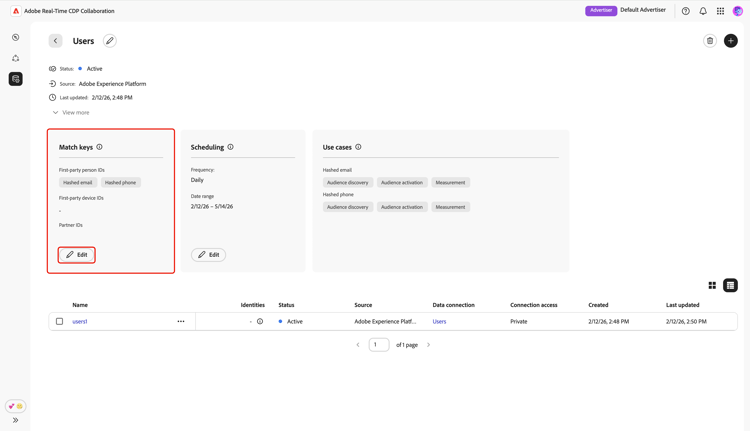
Select Edit from the Match keys section.
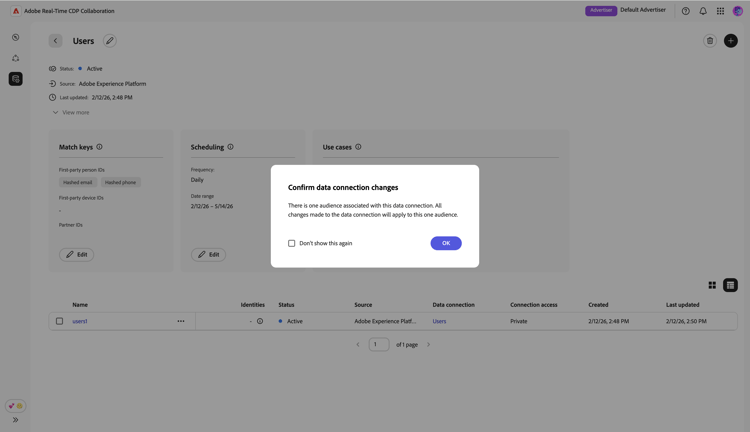
A confirmation dialog appears, explaining that any changes to the data connection will apply to all associated audiences. Select OK to confirm. You can choose to skip this confirmation in the future.
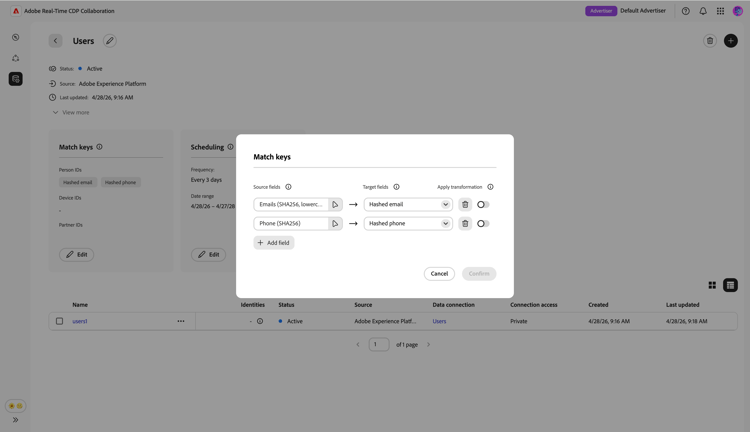
In the Match keys dialog, you can view the existing mappings between source fields and their corresponding target fields (match keys). You can edit a match key by updating the mapped source field, or add additional mapping field rows to populate new match keys.
Add match keys add-match-keys
Select Add field to add a new field row.
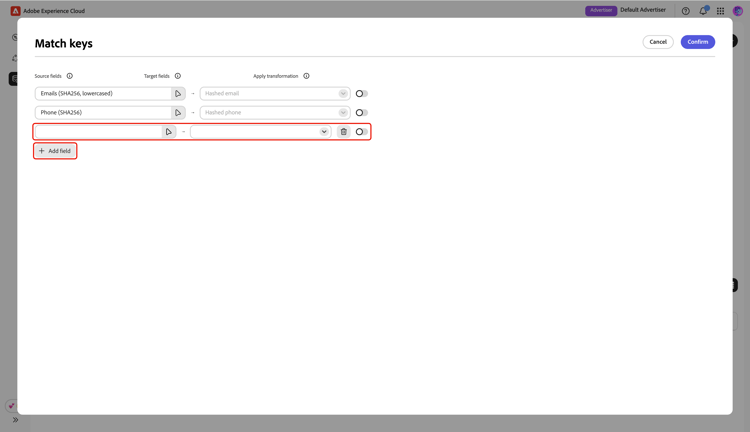
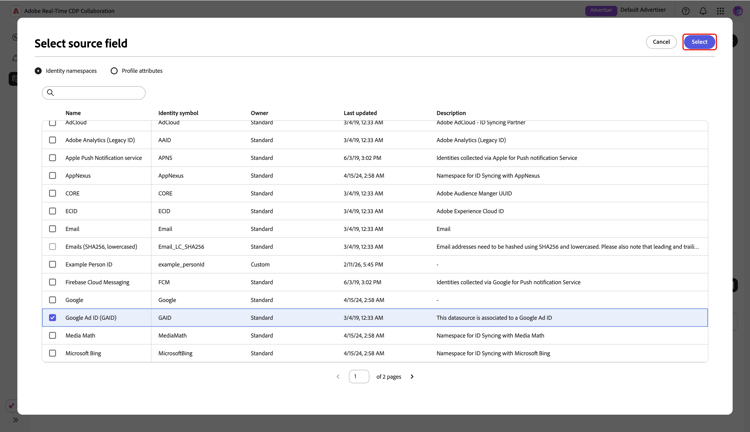
Next, select the empty source field. The Select source field dialog appears with the Identity namespaces and Profile attributes options. You can filter the list and find the desired source field with the search option.
Choose the source field that you want, followed by Select.
Under the Profile attributes option, some source fields are modeled inside a list, which is an array of objects. You can expand these list fields and select a field nested inside them to map to a match key. For more information, see the map fields guide.
In the Match keys dialog, use the dropdown menu to map the new source field to a target field. All available target fields are the match keys configured for your Collaborator account. If you don’t see the target field you need, edit your account’s match keys to add it.
Use the Apply transformation option if you want to source a non-hashed field to a hashed target field, for example, when mapping a plain text email source field to the Hashed email target field.
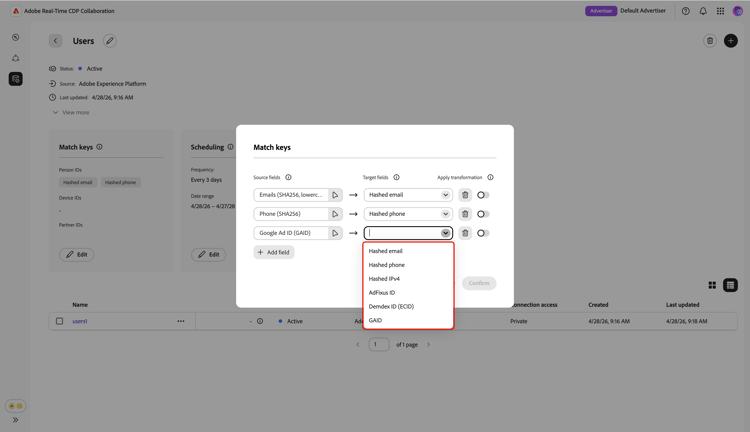
Add Demdex ID (ECID) add-demdex-id-ecid
If you want to add Demdex ID (ECID) as a match key, first ensure it’s enabled in your account settings. For more information on the Demdex ID (ECID), read supported match keys.
In the Match keys dialog, add a new mapping field row. Then, select ECID as the source field and select Demdex ID (ECID) as the target field from the dropdown list.
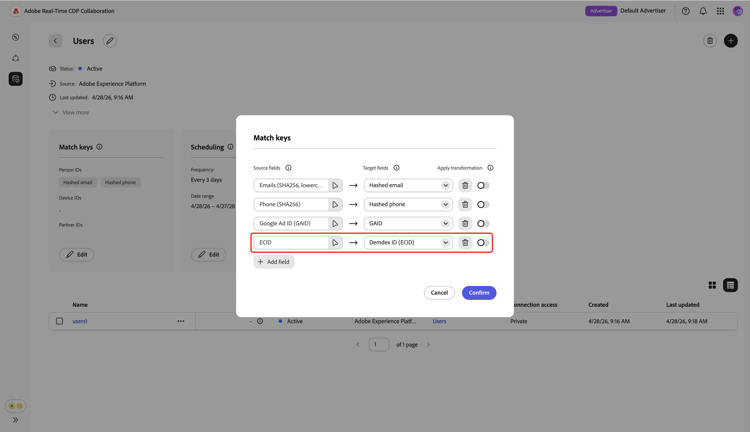
After you finish mapping fields, review your updates and select Confirm to apply the changes.
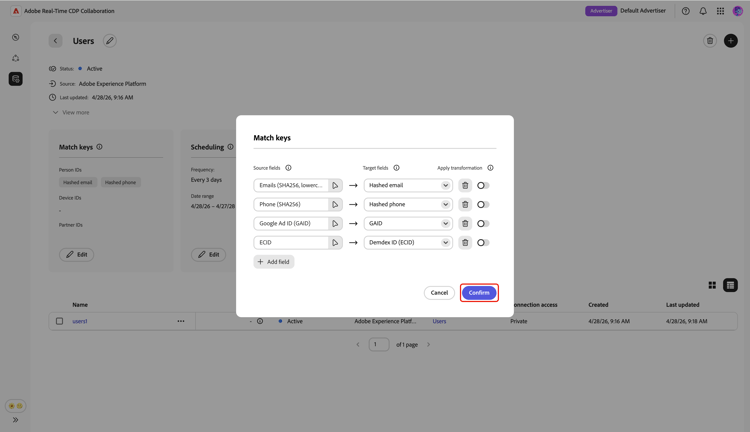
A confirmation dialog confirms that the match keys were updated successfully.
Edit scheduling edit-scheduling
After a data connection is created, you can update its refresh frequency, start date, and end date directly from the Scheduling section of the data connection workspace.
You can edit the frequency of an existing data connection to better control how often audiences are refreshed. To edit the schedule, select Edit from within the data connection in the scheduling card.
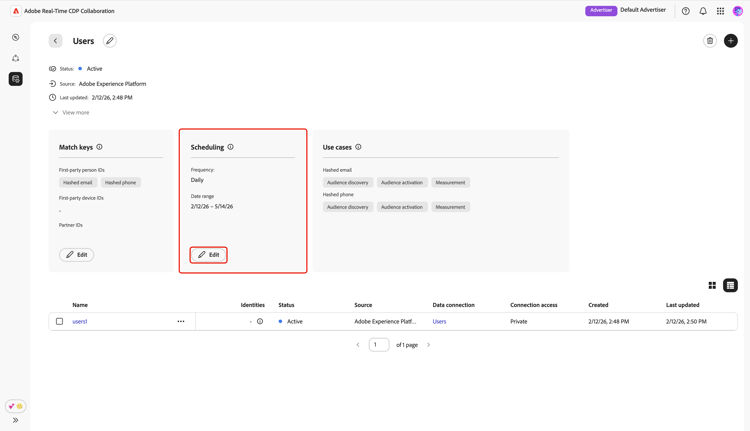
A confirmation dialog appears, explaining that any changes to the data connection will apply to all associated audiences. Select OK to confirm. You can choose to skip this confirmation in the future.
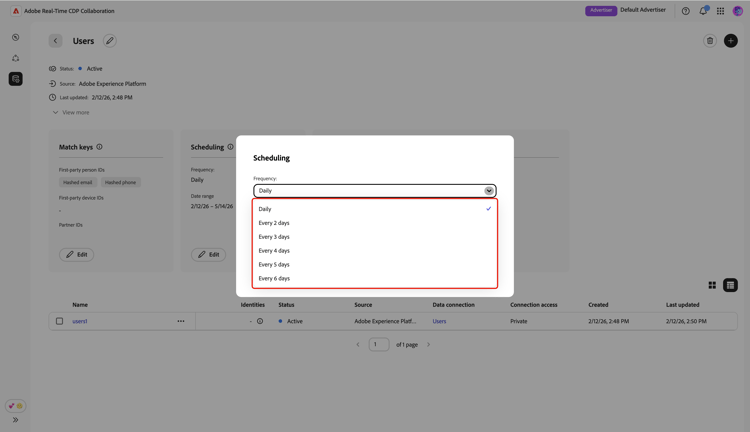
In the Scheduling dialog, select the dropdown menu to update the Frequency. Set the refresh frequency to run daily or every two to six days.
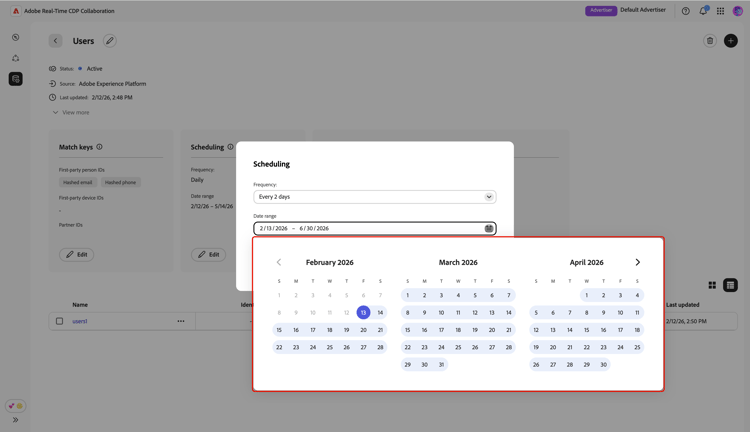
Next, select Date range if you want to update the period during which audiences are populated and refreshed.
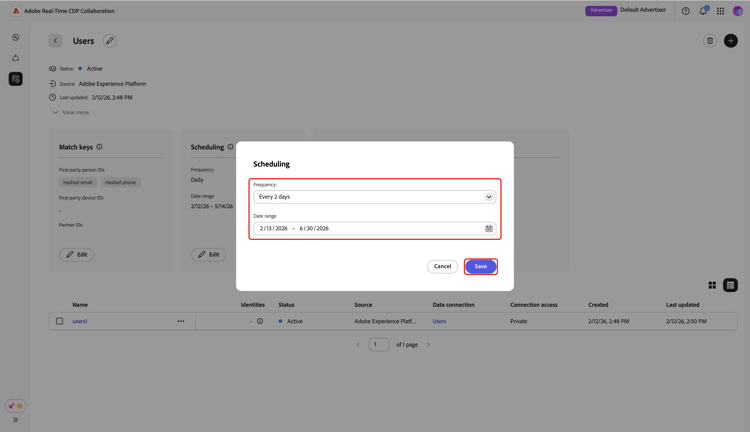
When you’re done, review the updates and select Save to apply your changes.
Delete data connection delete-data-connection
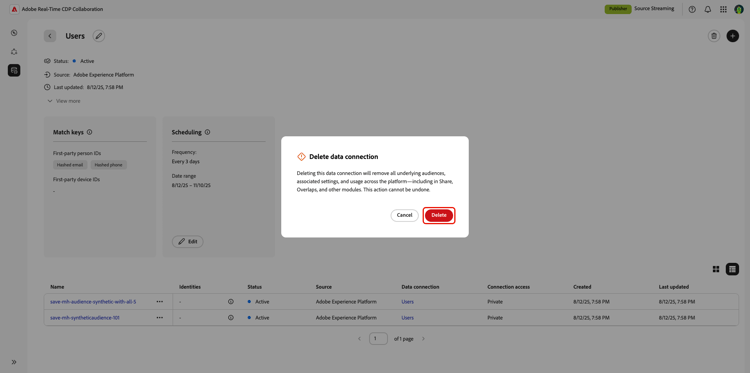
Deleting a data connection will remove all underlying audiences, associated settings, and usage across Collaboration. This action cannot be undone.
To delete an existing data connection, select the delete icon (

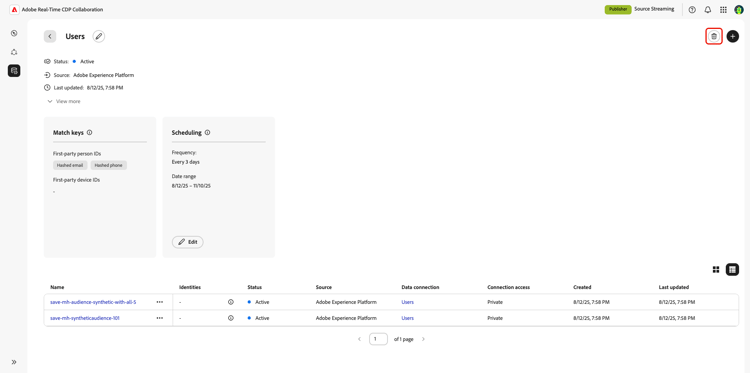
A confirmation dialogue will appear. Select Delete to finish deleting the data connection.
Manage audiences manage-audiences
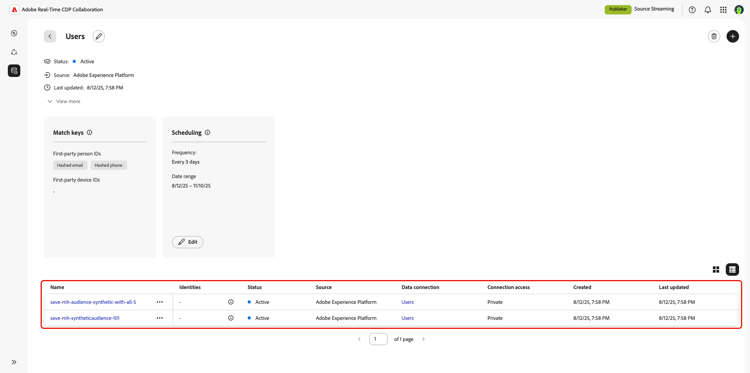
A list of audiences attached to the data connection are displayed at the bottom of the workspace. The list displays a brief overview of each audience, including its status, source, and connection access. To edit an audience’s categories, connection access, or metadata visbility, select the audience’s name. For a complete guide on managing an audience, refer to the view individual audiences guide.
Next steps
After managing your data connections, you can discover overlaps between your audiences and the audiences that your collaborator has made discoverable.