[Limited Availability]{class="badge informative"}
Configure Snowflake for audience sourcing
Learn how to configure and connect your Snowflake Secure Data Share in the Adobe Real-Time CDP Collaboration UI to source audience data for activation and overlap analysis.
Overview overview
Snowflake is one of the supported options for sourcing first-party audience data into Collaboration. Other available methods include sourcing audiences from Experience Platform, connecting an AWS S3 bucket, or uploading a CSV file. To learn more about all available sources in Collaboration, see Sources overview.
Follow the steps below to connect your Snowflake Secure Data Share and source your audience data into Collaboration. Once the setup is complete, you can review, activate, and manage your sourced audiences for your collaboration projects.
Prerequisites prerequisites
Before configuring your Snowflake connection, make sure you meet the following prerequisites:
-
You have created a Snowflake Share and set up the necessary permissions in your Snowflake account to grant Adobe access to your Snowflake Secure Data Share. Learn how to configure Snowflake permissions.
-
You have the following Snowflake Share values ready:
- Share name
- Account identifier
- Schema
- View
-
The audience data in your Snowflake Secure Data Share must meet the format requirements outlined in the Audience Sourcing Specification (v1.3) guide.
-
All match keys in your Snowflake audience file must also be enabled for your Collaboration account. Learn how to enable match keys or add new match keys to your account.
Set up Snowflake permissions setup-snowflake-permissions
Snowflake Secure Data Share provides a way to share live, read-only data securely between Snowflake accounts, without the need to copy or move the data. To grant Adobe access to your Secure Data Share, make sure to configure the appropriate permissions in your Snowflake account.
Before proceeding, ensure the following:
- You have access to a Snowflake account.
- Your Snowflake account is subscribed to private listings. You need administrator privileges on Snowflake to configure the required permissions.
- You know your Snowflake account’s cloud provider and region.
Read the Snowflake documentation for more information on the necessary permissions.
Collect Adobe’s Snowflake account information collect-account-information
To get started, locate and note the Adobe Snowflake account identifier that matches your region. You will need this identifier to grant Adobe access in later steps.
Create and grant access to Snowflake Share create-grant-access-to-share
Next, follow these steps to create a Secure Data Share in your Snowflake account and grant Adobe the read-only access to your audience data.
-
Create a secure view with limited access to only the necessary columns from your source table.
code language-sql CREATE OR REPLACE SECURE VIEW my_database.my_schema.secure_view_for_adobe AS SELECT column1, column2, column3 FROM my_database.my_schema.source_table; -
Create a new Snowflake Secure Data Share.
code language-sql CREATE OR REPLACE SHARE adobe_data_share; -
Grant USAGE privilege on the database to the Snowflake Secure Data Share so it can access objects within the database.
code language-sql GRANT USAGE ON DATABASE my_database TO SHARE adobe_data_share; -
Grant USAGE on the schema to the Snowflake Secure Data Share so it can access objects within the schema.
code language-sql GRANT USAGE ON SCHEMA my_database.my_schema TO SHARE adobe_data_share; -
Grant SELECT privileges on the secure view to the Snowflake Secure Data Share so Adobe can read your audience data.
code language-sql GRANT SELECT ON VIEW my_database.my_schema.secure_view_for_adobe TO SHARE adobe_data_share; -
Add Adobe’s Snowflake account to the Snowflake Secure Data Share using the correct identifier for your region. Refer to the region/account mapping table above.
code language-sql ALTER SHARE adobe_data_share ADD ACCOUNTS = <Account Identifier based on region from the mapping table>;
Collect Snowflake Share details collect-share-details
Finally, gather the details for your Snowflake Share as shown in the table below. You will need this information to set up the connection between your Snowflake Share and Collaboration.
Configure your Snowflake connection configure-snowflake-connection
After completing the Snowflake permission configuration and ensuring all prerequisites are satisfied, you can now connect your Snowflake Secure Data Share to Collaboration to start sourcing your audiences.
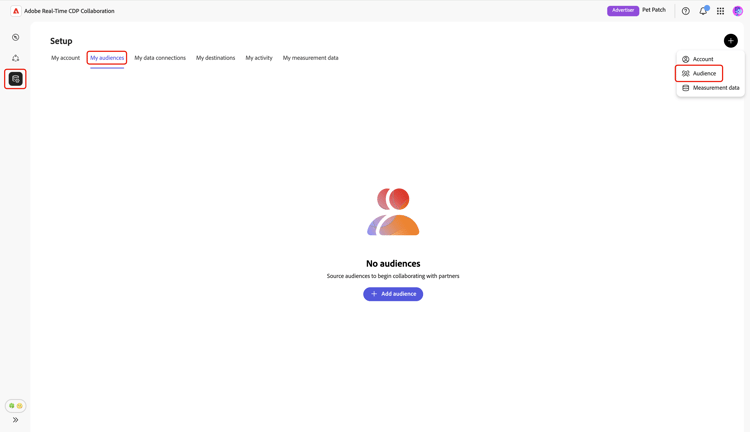
From the My audiences tab within the Setup workspace, select the add icon (

If this is your first audience, you may also select the Add audience option.
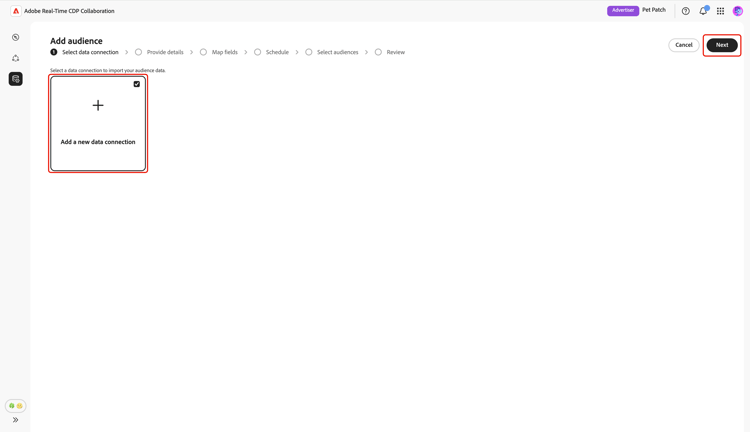
The Add audience workflow appears. Select Add a new data connection and then select Next.
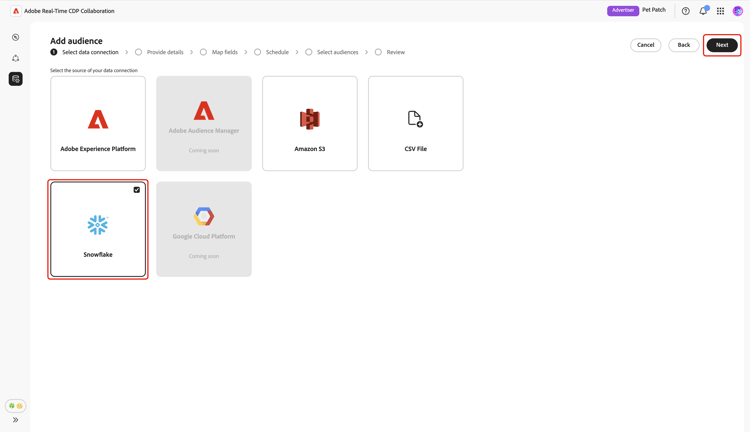
Select Snowflake as the data connection select-snowflake
Next, select Snowflake as a data connection, followed by Next.
Review audience file review-audience-file
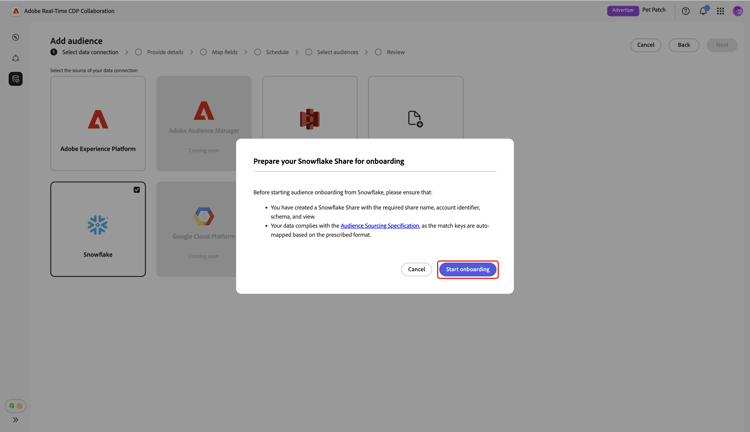
A dialog appears, explaining the requirements of the Snowflake Share and the Snowflake audience file before you can start sourcing. Make sure your Snowflake Share is created with the correct share name, account identifier, schema, and view. To confirm that your audience data is formatted and structured correctly for use in Collaboration, review the Audience Sourcing Specification guide.
Once finished, select Start onboarding.
Authenticate Snowflake Share connection authenticate-snowflake-share-connection
In this step, you need to provide the required Snowflake Share credentials to connect your Snowflake Share to Collaboration:
ADOBE_DATA_SHARECUSTOMER_ORG.CUSTOMER_SNOWFLAKE_ACCOUNTCUSTOMER_SCHEMASECURE_VIEW_FOR_ADOBEAfter entering all the required credentials, select Next.
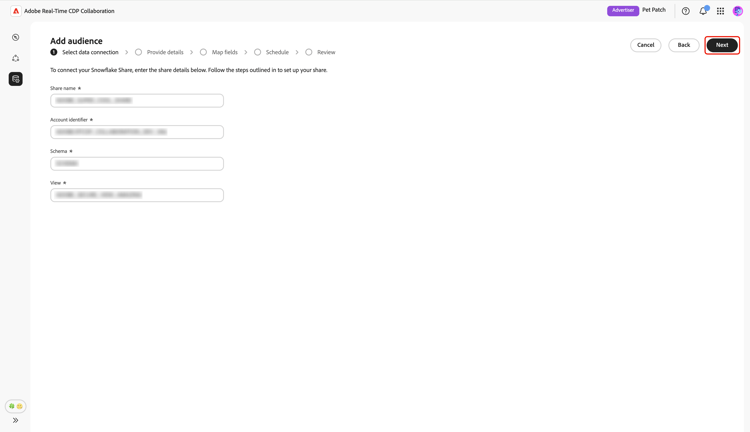
A confirmation dialog appears at the bottom of the next page, confirming your Snowflake Share was successfully connected to Collaboration.
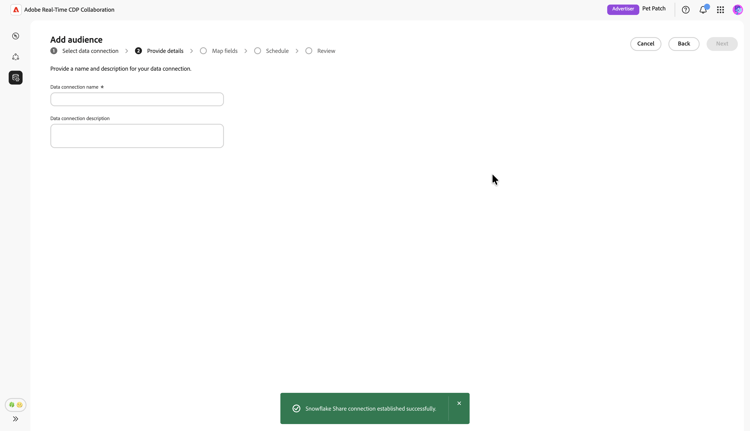
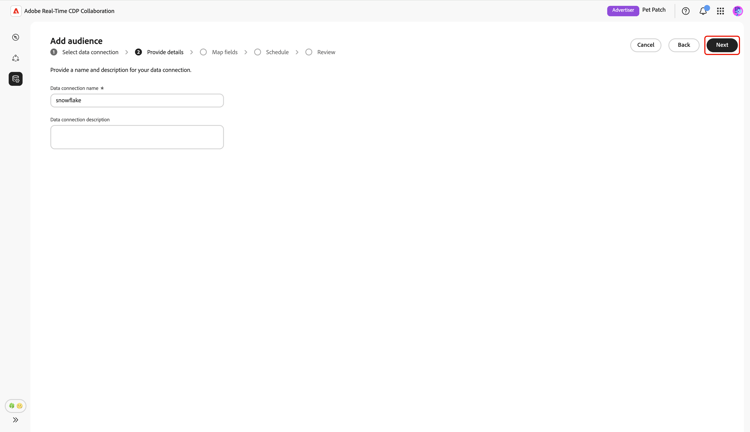
Provide name and description provide-name-description
In the Provide details view, enter a descriptive name and optional description for your Snowflake data connection. When finished, select Next.
Map fields map-fields
The Mapping screen is read-only at this time. You cannot add, delete, or apply transformations. Collaboration automatically maps source identity fields from your Snowflake Share data to target fields based on the Audience Sourcing Specification (v1.3).
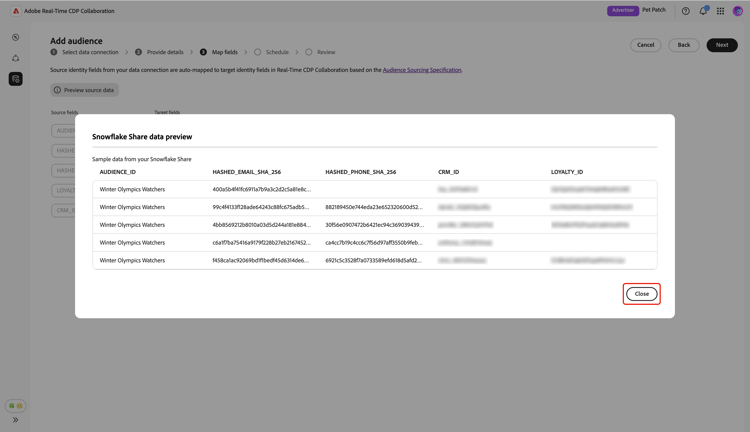
Visually confirm the mapped fields and select Next to continue. You can also preview a sample data from your Snowflake Share with the Preview source data option.
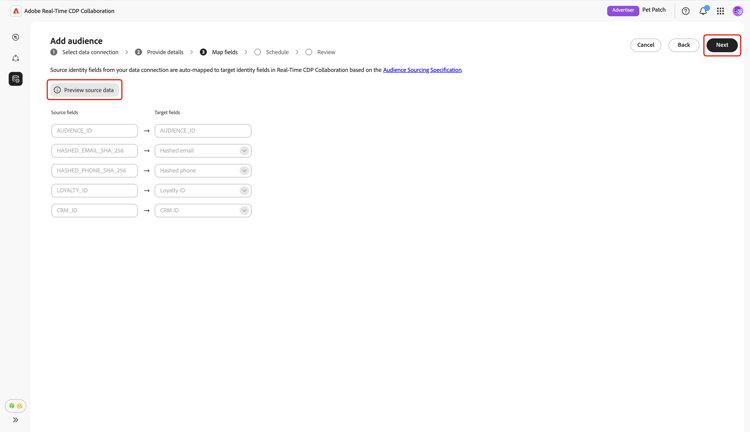
When you choose to preview, the Snowflake Share data preview dialog appears with a sample data displayed in tabular format. Review this, then select Close.
Schedule refresh frequency and date range refresh-frequency-date-range
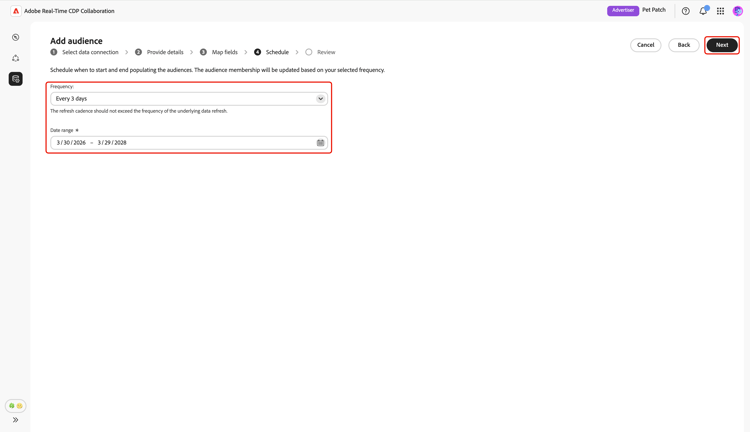
Next, in the Schedule view, use the dropdown menu to select refresh frequency between one and six days. Then use the calendar icon to specify start and end dates for sourcing audience.
Review and complete the connection review-and-complete
Finally, review your configuration settings in the summary screen. This view contains a summary of the following sections:
- Data connection: Displays the Share name, account identifier, scheme and view of your Snowflake Share.
- Details: Displays the name and optional description of your data connection to help identify it later.
- Mapping: Displays how the source fields from your audience file map to target fields used in Collaboration.
- Schedule: Displays how often the connection refreshes audience data and the active date range for sourcing.
Select the pencil icon (

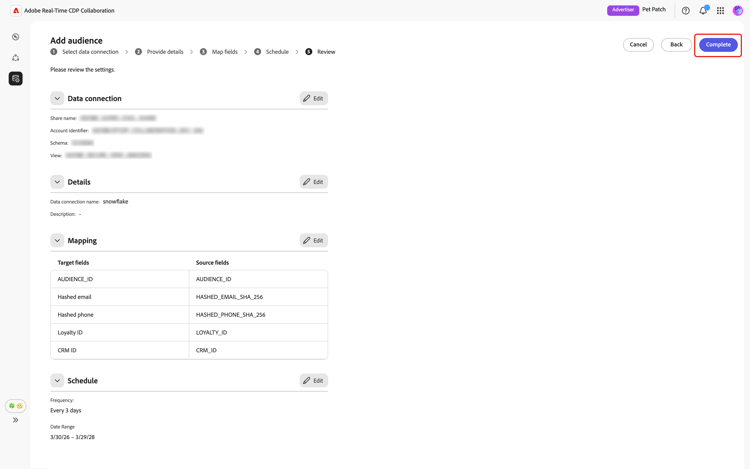
A confirmation dialog confirms that the data connection was created successfully and audience sourcing is in progress.
Review sourced audiences review-sourced-audiences
After the setup is complete, Collaboration begins sourcing audiences from your Snowflake Share. If audience sourcing is in progress, a banner is displayed at the top of the view.
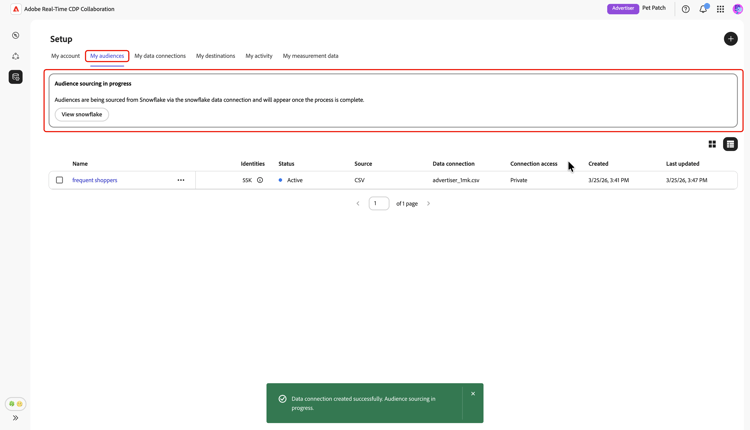
When the sourcing finishes, your audiences are available in the My Audiences tab with the same features and information as audiences sourced from Experience Platform.
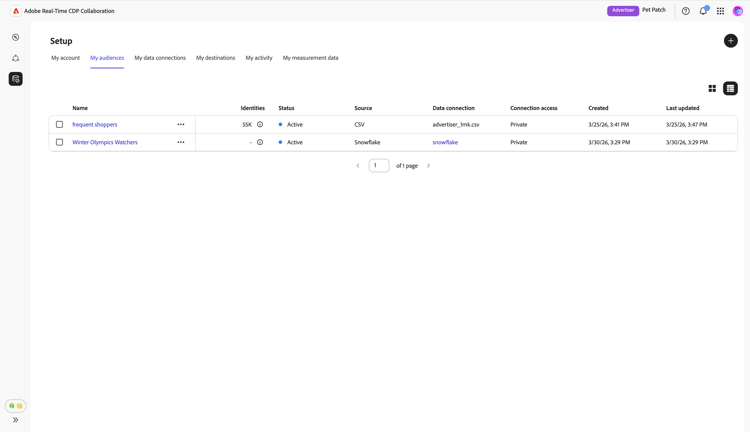
When in grid view or table view, select a row item or View audience to see an overview of a specific audience. It displays the audience’s status, source, and data connection name, along with detailed panels for Identities, Categories, Connection access, and Metadata visibility. See how to view an individual audience for details.
Use this view to confirm audience configuration and visibility settings before using the audience in collaboration projects.
View your Snowflake data connection view-snowflake-connection
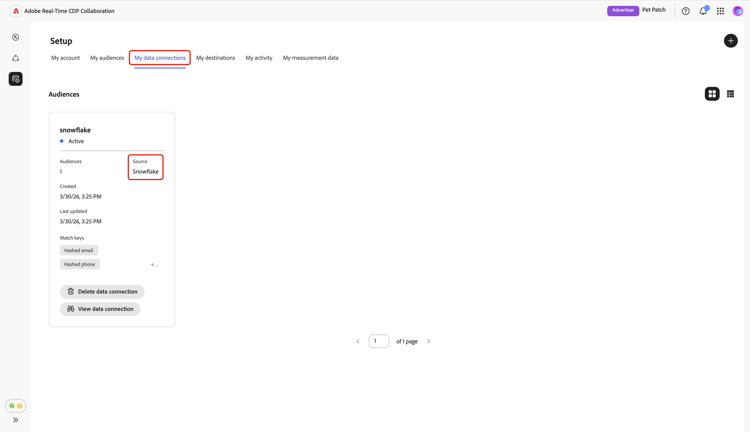
Your newly added Snowflake connection is immediately available in the My data connections tab. The audience source is displayed as Snowflake.
Your Snowflake data connection includes the same functionality and details as other audience data connections. Learn more about how to view and manage data connections.
Next steps next-steps
You have now successfully configured and connected your Snowflake as a data source in Collaboration. After sourcing completes, you can create collaboration projects, activate audiences, review overlaps and insights, and manage your audience settings and visibility.
For information about other audience sourcing methods, see the following documentations: