[Limited Availability]{class="badge informative"}
Measure performance
Learn about the available reports in Adobe Real-Time CDP Collaboration and understand how to measure and analyze the performance of your marketing campaigns across various channels.
Prerequisites prerequisites
Before you can access the measurement reports in Collaboration, you must:
-
Connect with a collaborator with the Measurement use case enabled
-
Collaborate on at least one project with your collaborator. Learn how to create a project.
-
Run your campaign and make sure a Campaign ID is provided for the campaign:
- If you are a publisher, input the Campaign ID linked to your advertiser’s campaign.
- If you are an advertiser, request that your collaborator (publisher) provide the Campaign ID. This is required to generate reports in the Measure workspace.
-
Upload measurement data into Collaboration if you want to create Attribution reports.
View reports view-reports
To view the reports available in the measurement tab:
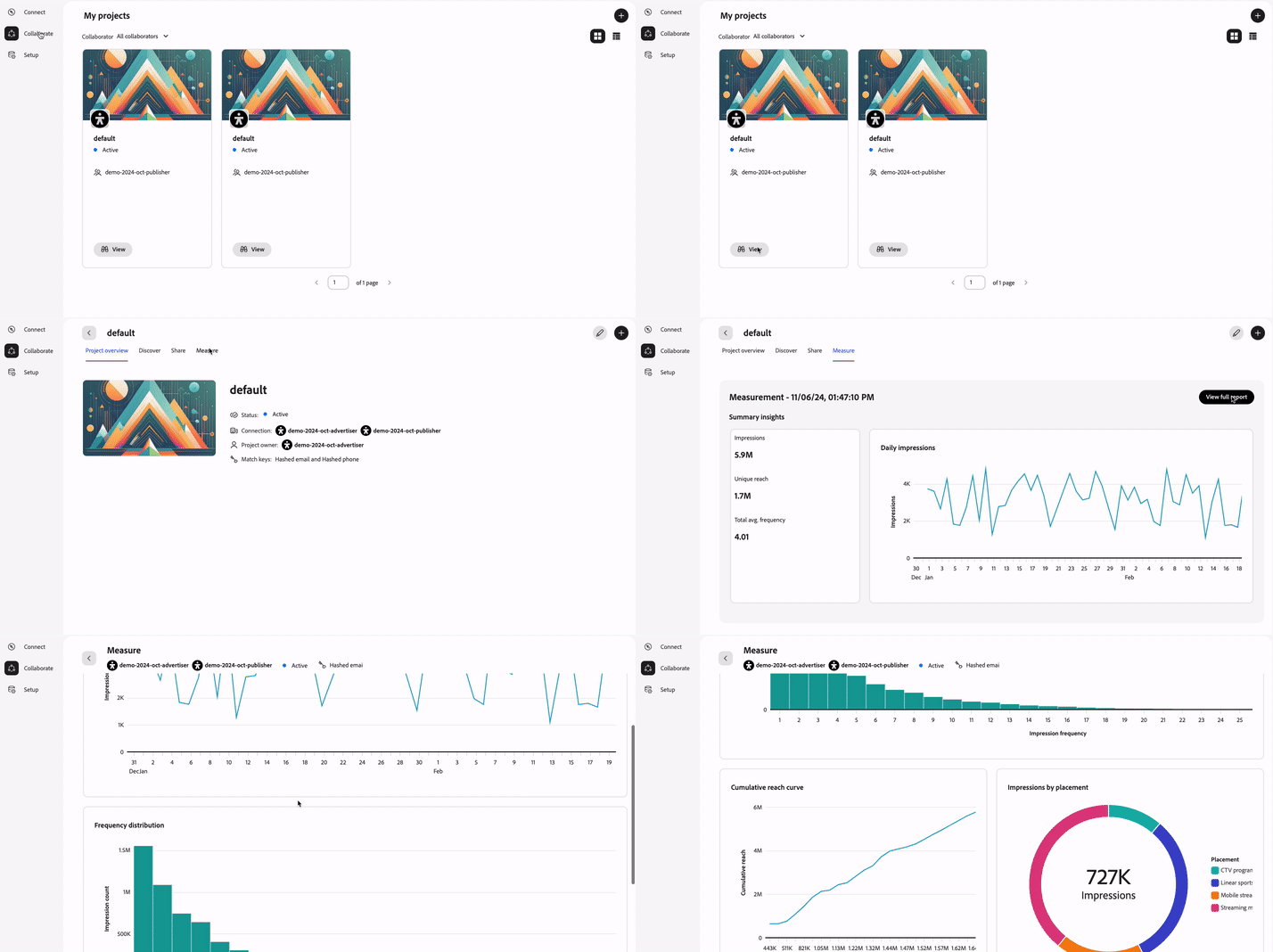
- Navigate to Collaborate > My projects.
- For your desired project and select View.
- In the project, select the Measure tab.
Select View full report to access the various available reports, detailed further below.
Summary view
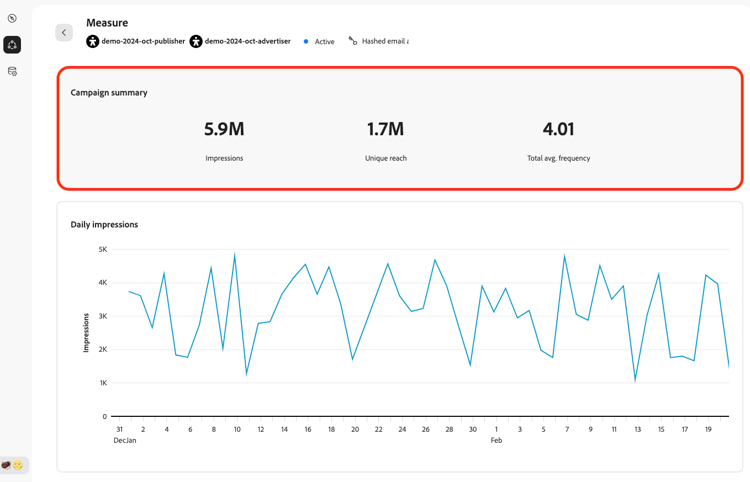
The top-of-page view in the measurement tab shows a campaign summary with some high-level numbers for you to reference:
Impressions: The total number of times that the creative was displayed.
Unique reach: The number of individual identities who have seen the creative.
Total average frequency: The number of impressions divided by unique identities reached. This figure indicates how often every identity was displayed the creative.
Metrics over time metrics-over-time
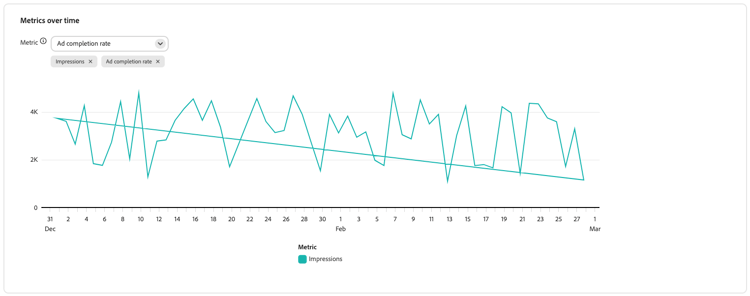
Use the metrics over time view to understand the total number of impressions displayed for your creative throughout the period of the campaign. Note that you can select a maximum of two metrics to display and analyze in the report.
Frequency distribution frequency-distribution
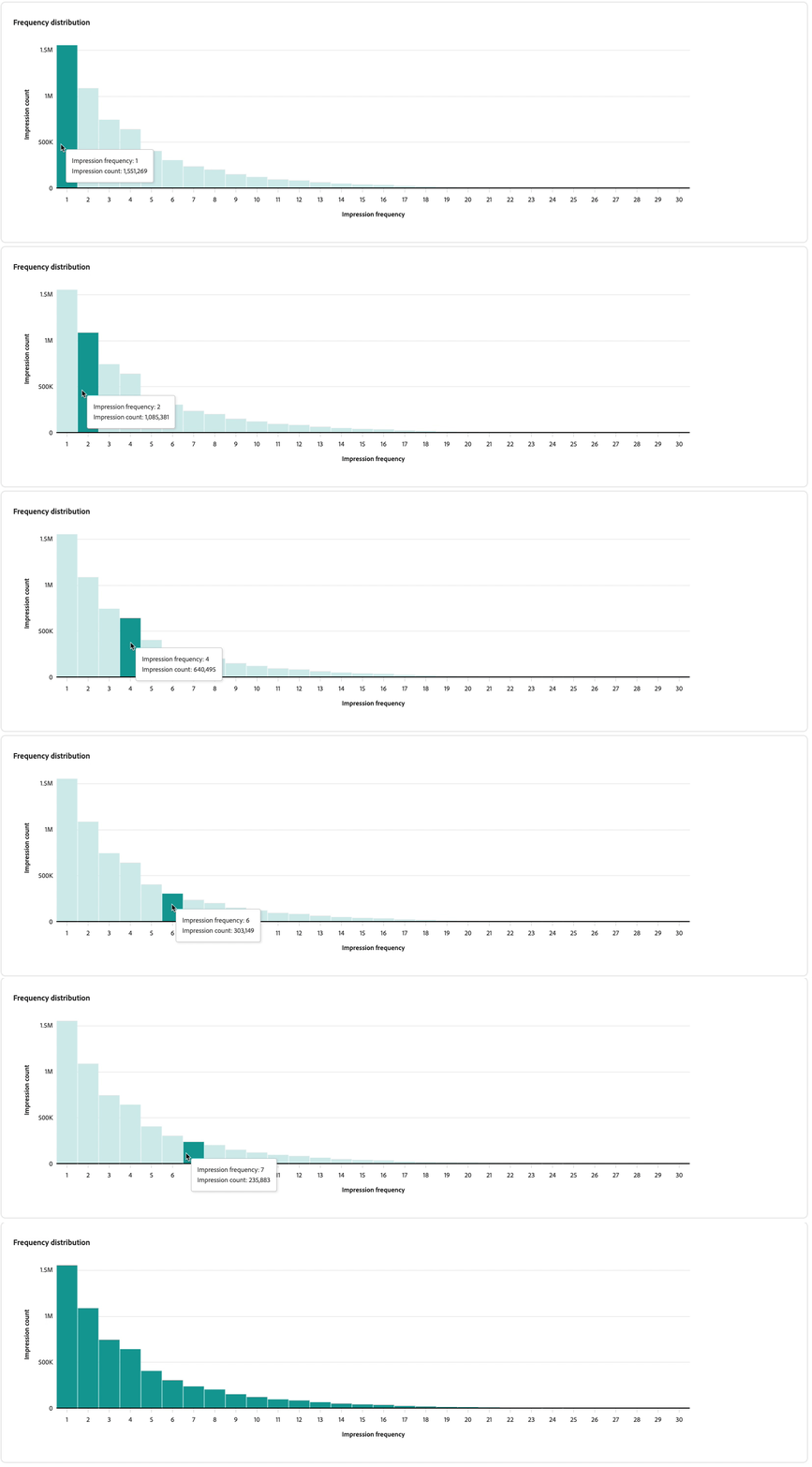
Use the frequency distribution view to understand the breakdown of how many impressions were shown to each unique user. This view can help you in future campaigns to decide as of which point you want to start suppressing audiences. For example, you may want to suppress profiles who have already seen a creative three times.
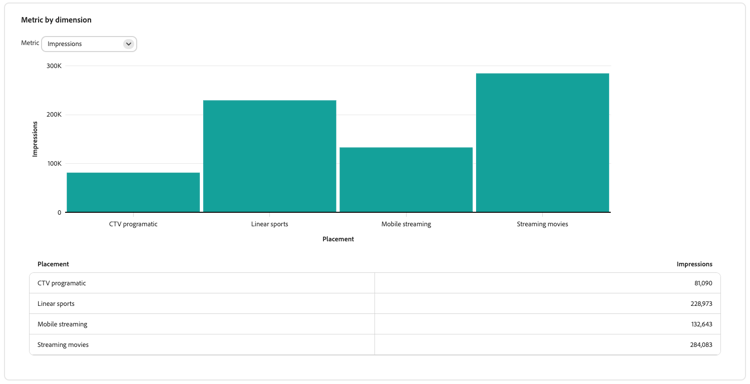
Metric by dimension metric-by-dimension
Analyze different metrics like impressions, viewable impressions, unique reach, cost, and more in the context of the placement medium. Analyze which medium (for example mobile streaming, CTV programmatic, or others) are driving the best results for your campaigns.
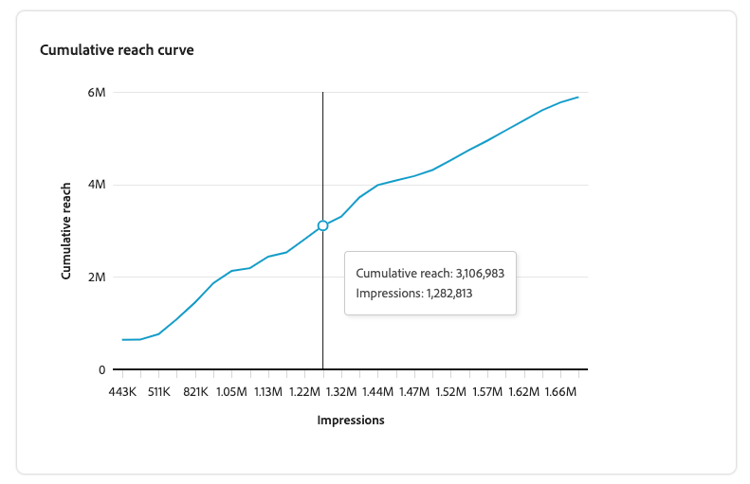
Cumulative reach curve cumulative-reach-curve
As the campaign progressed and the number of impressions went up, understand whether the number of users that you were able to reach has also grown. A common pattern in campaigns is that after a certain point a plateau is reached where the creative is displayed to the same people over and over again. This view can help you adjust the length of future campaigns, depending on the moment that new people were not being reached anymore.
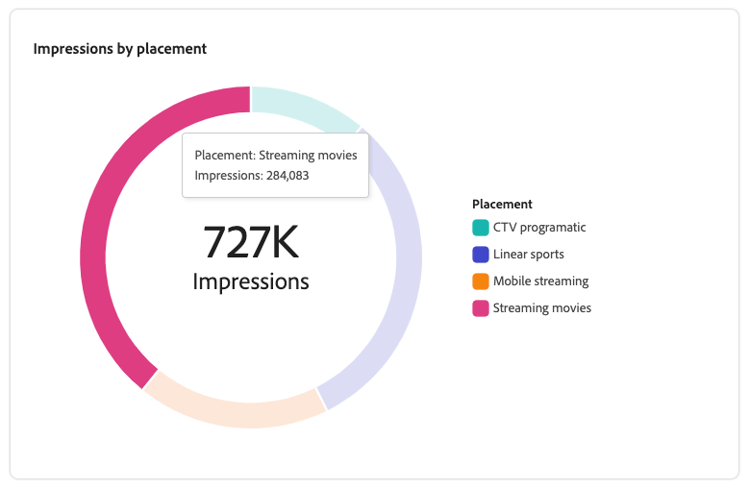
Impressions by placement impressions-by-placement
Understand which medium is driving impressions for your creative. This can help you decide where to invest your ad spend in future campaigns.
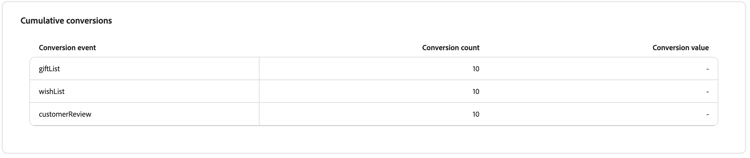
Cumulative conversions cumulative-conversions
This view provides a detailed breakdown of the conversion events you choose to measure in a tabular format. Results are calculated at the Campaign ID level. The table includes:
- Conversion event: Name of each conversion event you are tracking.
- Conversion count: Total count of conversions that occurred for each event, for the Campaign ID.
- Conversion value(s): Value attributed to each conversion event, for the Campaign ID.
Review this table to evaluate the effectiveness of your campaign in driving the desired actions.
Conversions by day conversions-by-day
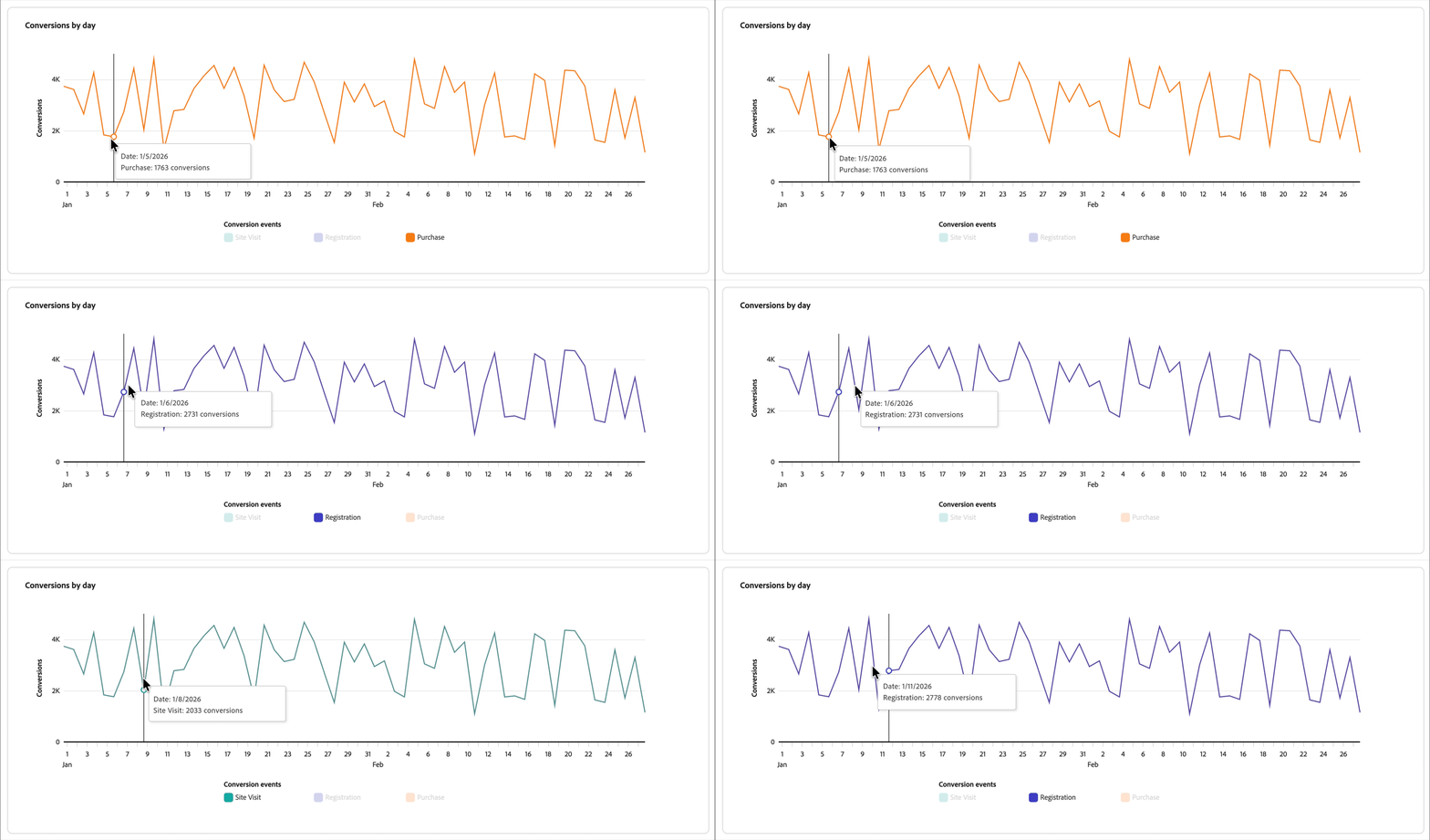
This chart provides a day-by-day breakdown of conversions for each event set up when you create an Attribution report. Use this view to uncover daily patterns, identify periods of high or low conversion activity, and compare how different conversion events perform across your campaign timeline.
Conversions by placement conversions-by-placement
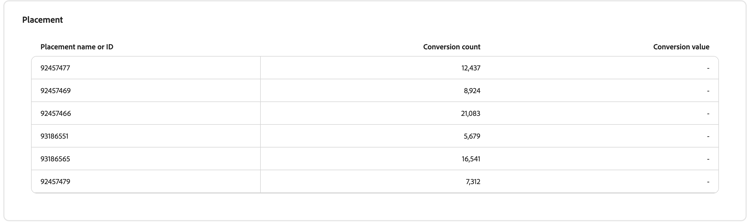
This table provides a Placement ID-level breakdown of the conversion events selected for the Attribution report. A single Campaign ID can include multiple Placement IDs, so use this view to see how conversions break down within a campaign. For each selected conversion event, the table shows the conversions attributed to each placement and the corresponding conversion value. The table includes:
- Placement name or ID: The identifier for the placement where the creative ran.
- Conversion count: The count of conversions attributed to that placement, for each conversion event selected when the report was created. A placement can display up to three conversion events, matching the maximum number of conversion events allowed per report.
- Conversion value: The value attributed to each conversion event, for that specific placement.
Create measurement report create-measurement-report
In Collaboration, you can create two main types of measurement reports:
- Campaign Summary: Provides high-level metrics such as reach, impressions, average frequency, and delivery by channel, giving a quick overview of overall campaign performance.
- Attribution: Measures how campaign exposures drive downstream actions like conversions or purchases, helping you understand campaign effectiveness.
You can run Campaign Summary report on its own, while Attribution report requires both report types to be selected together.
Create campaign summary report create-campaign-summary-report
Both publishers and advertisers can generate Campaign Summary reports to evaluate campaign performance. Use these reports to gain insights into key metrics such as reach, frequency, and impressions, and understand how your campaign was delivered and its overall impact.
To generate a Campaign Summary report, navigate to the project workspace from the Collaborator workspace. From the Measure tab, select the add icon (

If this is your first report, you may also select the Run report option.
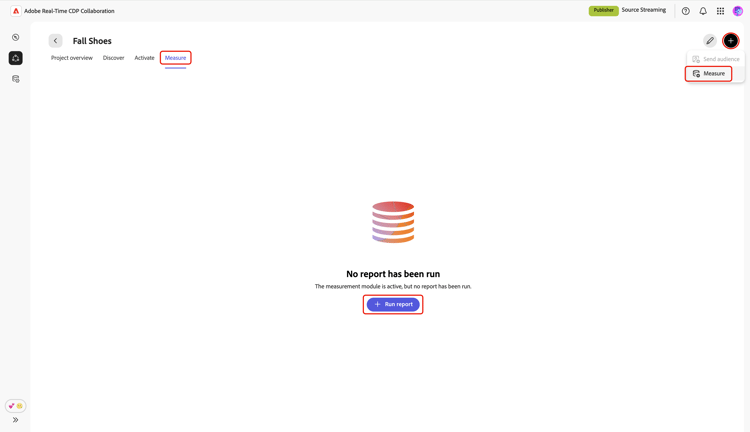
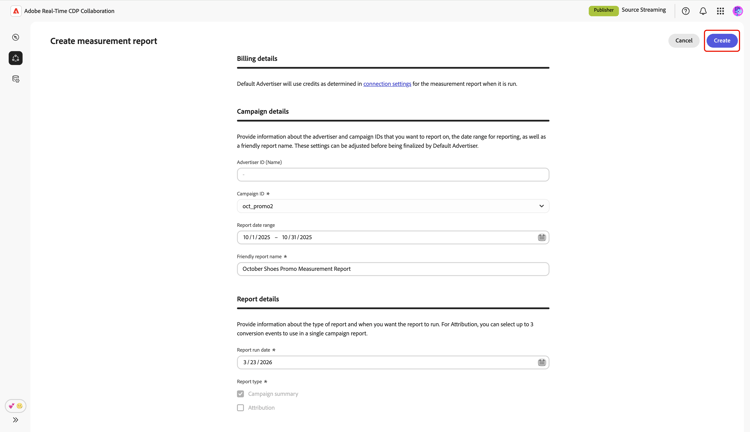
The Create measurement report screen appears with information and input fields grouped under Billing details, Campaign details, and Report details sections.
Billing details billing-details
This section explains how credits are used when generating measurement reports. Credit responsibility is established during connection setup. Before running any reports, make sure to review and confirm the credit split settings and reporting roles with your collaborator.
Campaign details campaign-details
In the Campaign details section, select the appropriate Advertiser ID to associate with your report. These advertiser names or IDs were added during connection setup. If only one name was configured, it appears by default. If no name was set up, the Advertiser ID (Name) field is disabled and prefilled with the advertiser account name.
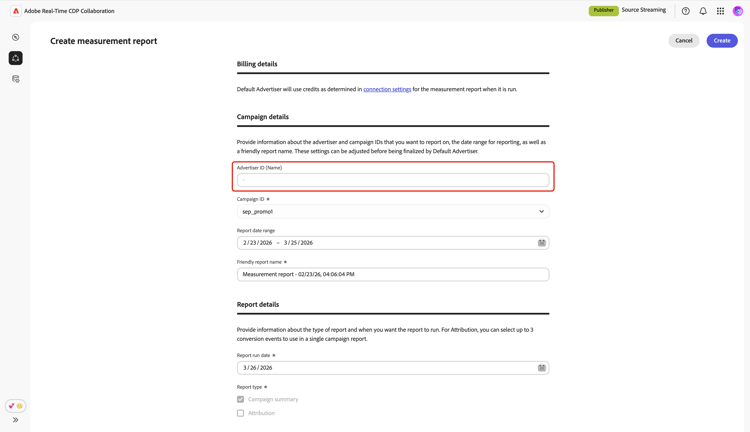
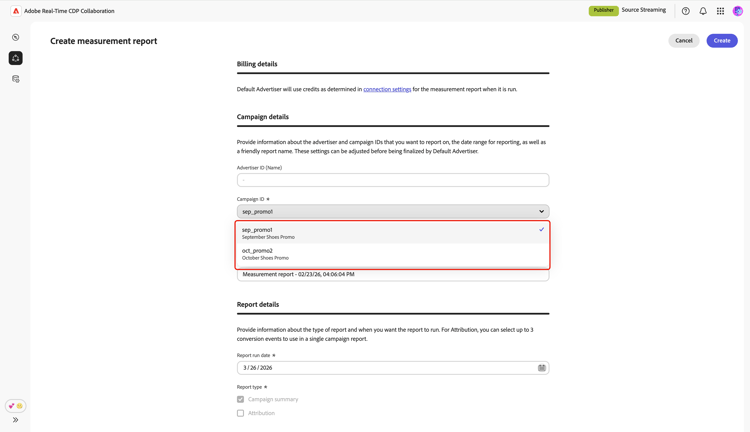
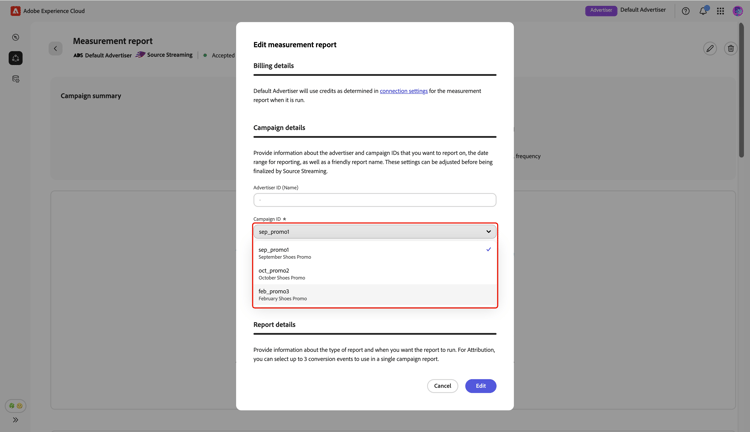
Then, select the desired campaign from the Campaign ID dropdown menu. This menu lists all campaign IDs entered by the publisher for your project. If the campaign you need isn’t available, add it in the UI before generating the report.
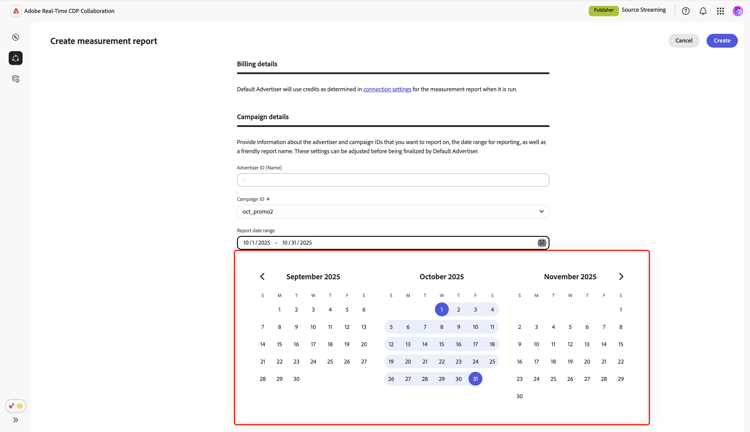
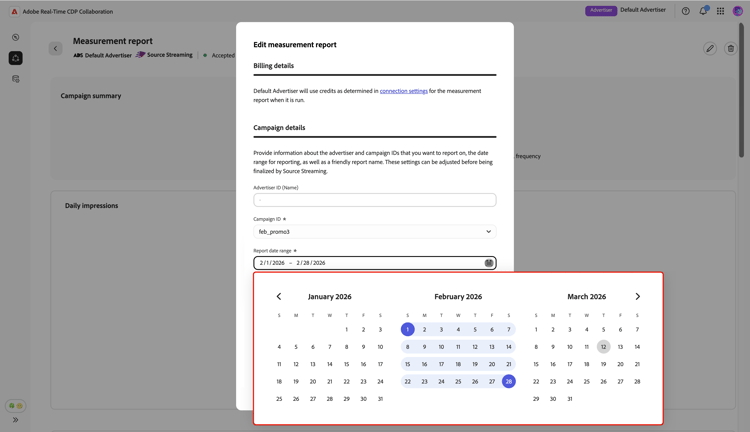
Next, specify the period you want the report to cover. Select Report date range, then use the calendar to choose the start and end dates.
Report details report-details
Report run date
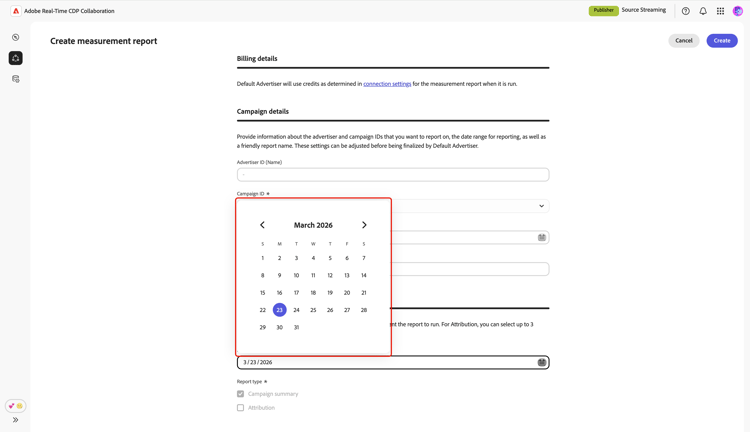
In the Report details section, choose the date on which the report should run. Select Report run date and choose your preferred date from the calendar.
- If you choose today’s date or a date in the past, the Campaign Summary report runs right away.
- If you choose a future date, the Campaign Summary report is scheduled to run on that day.
Report type
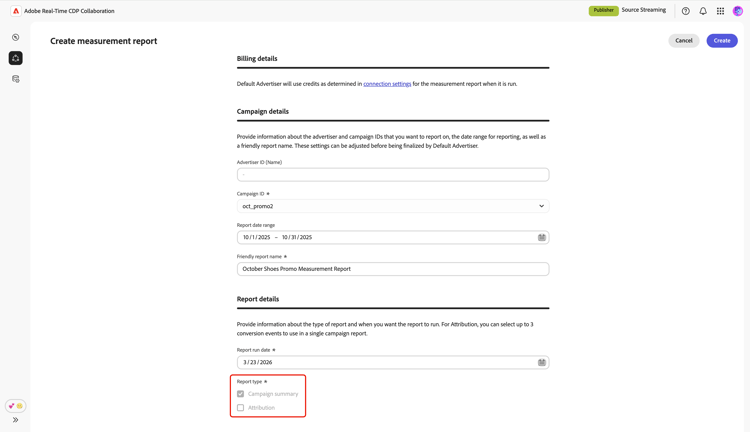
- If you’re an advertiser, you can select the Campaign summary report type from the available options. Only advertisers can generate attribution reports.
- If you’re a publisher, the Campaign summary report type is preselected and cannot be changed. At this time, publishers cannot run attribution reports.
Finally, review your settings and select Create. Your campaign summary report generates immediately if the run date is today or earlier, or on the chosen future date. You can edit the scheduled report before its run date. For step-by-step instructions, refer to the [Edit measurement report] section.
Once available, you can view your report at any time in the Measure tab within your project workspace.
Create attribution report create-attribution-report
As an advertiser, you can generate Attribution reports to assess how your campaign exposures contribute to key outcomes such as sign-ups or purchases. Use these reports to understand user interactions with your campaign, identify which touchpoints drive the most impact, and inform more effective marketing strategies.
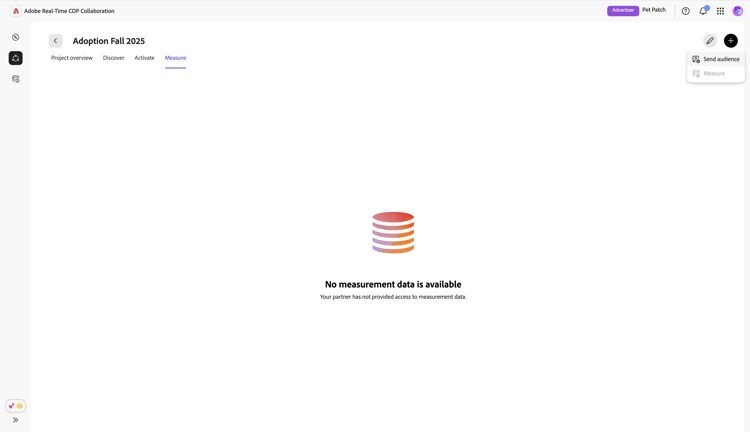
To generate an Attribution report, navigate to the project workspace from the Collaborator workspace. From the Measure tab, select the add icon (
If this is your first report, you may also select the Run report option.
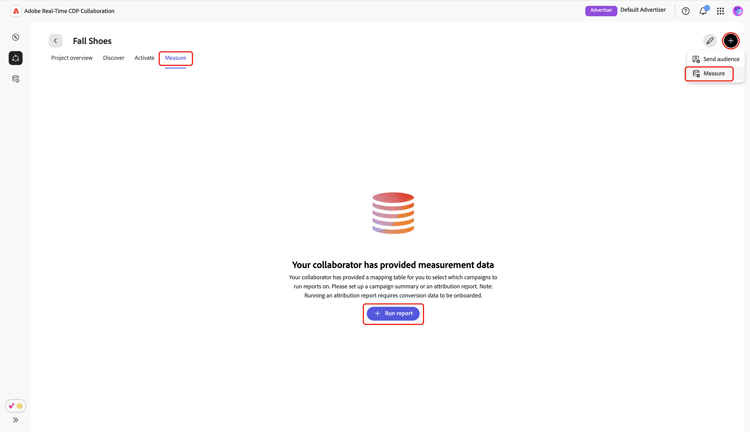
The Create measurement report screen appears with information and input fields grouped under Billing details, Campaign details, and Report details sections.
Read and follow steps in the Create campaign summary report section to configure the following settings:
Report details for Attribution reports report-details-attribution
Report run date
Report run date ≥ report end date + lookback window + 1
In the Report details section, choose the date on which the report should run. Select Report run date and choose your preferred date from the calendar.
Report type
As an advertiser, you can select Attribution as a report type in addition to Campaign summary. When you choose the Attribution report, your results include both standard Campaign Summary metrics and detailed Attribution analysis, providing a comprehensive view of campaign performance.
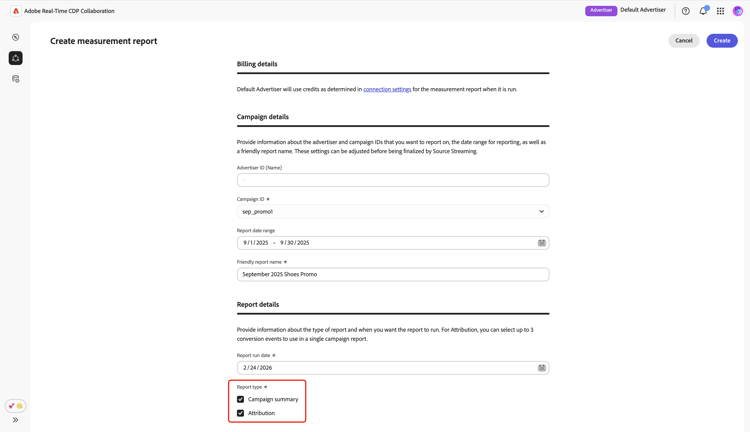
When you select Attribution as the report type, an Attribution configuration section appears with additional required settings:
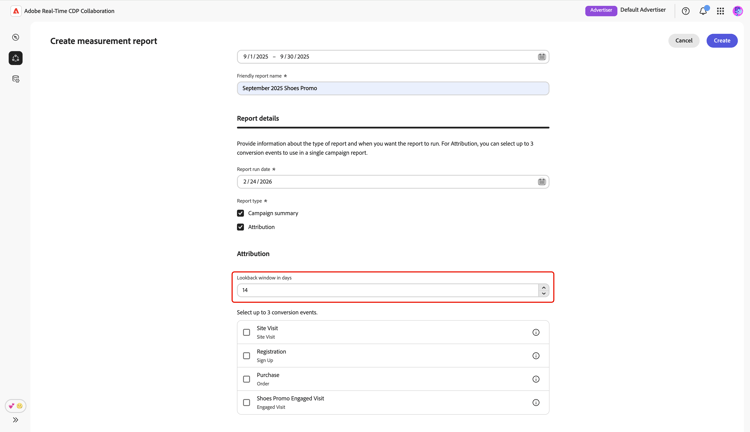
- Lookback window in days: Defines how far back the report considers campaign impressions before each conversion. Only impressions within this period are eligible for attribution credit.
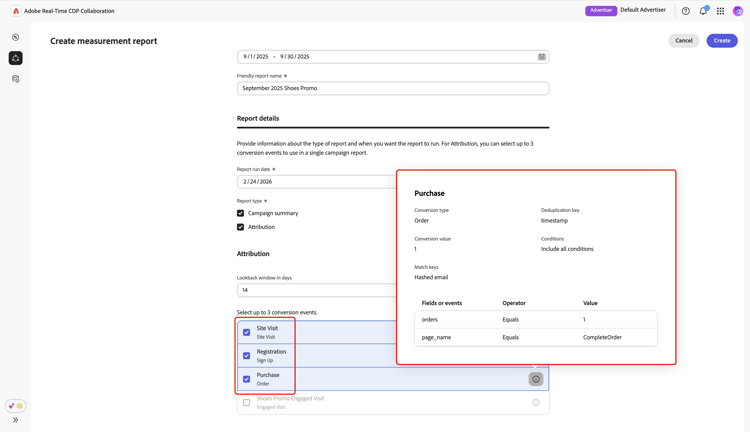
- Conversion events: Specifies which conversion actions you want to measure, for example, purchases or sign-ups. These events must be set up in advance when you source your measurement data into Collaboration.
First, enter a value for the Lookback window in days field, or adjust it with the increment/decrement options.
Next, choose up to 3 conversion events from the available list. For more information about a particular event, select the i icon to view its details.
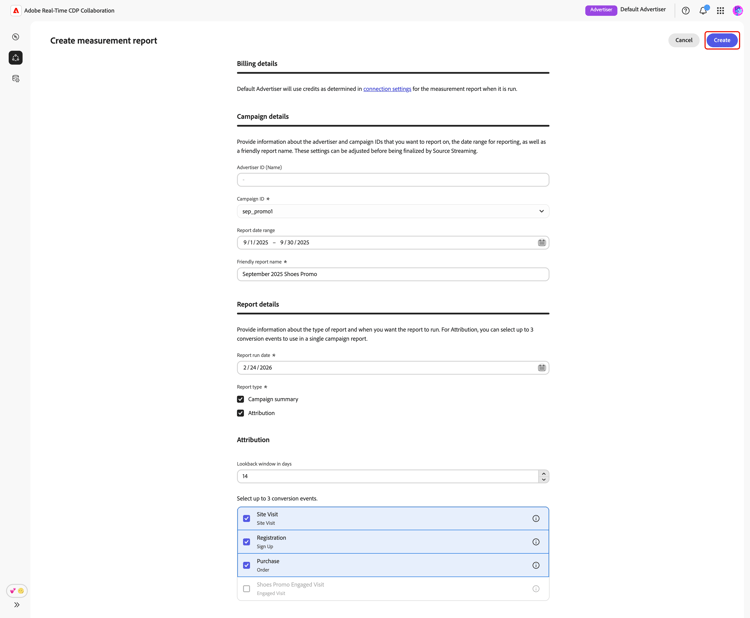
Finally, review your settings and select Create to schedule the report. Your attribution report will be generated on the specified run date. You can edit the scheduled report before its run date. For step-by-step instructions, refer to the [Edit measurement report] section.
Once available, you can view your report at any time in the Measure tab within your project workspace.
Edit measurement report edit-measurement-report
Update a measurement report settings to ensure the report provides the correct analysis of your campaign within a specific period and runs on a desired date.
To begin, navigate to the workspace of the measurement report you want to update. Select the edit icon (

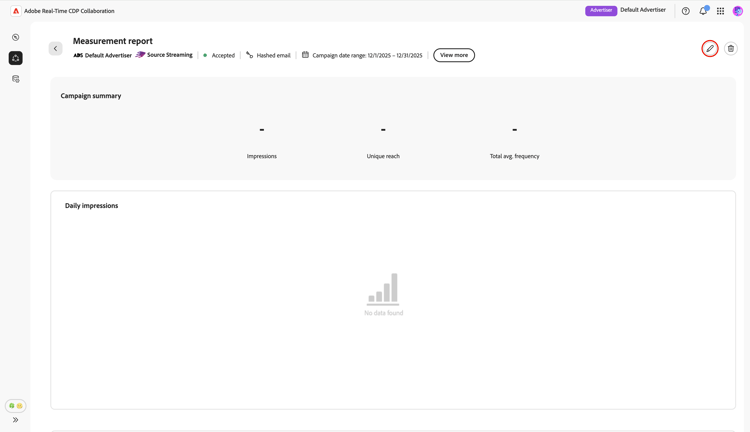
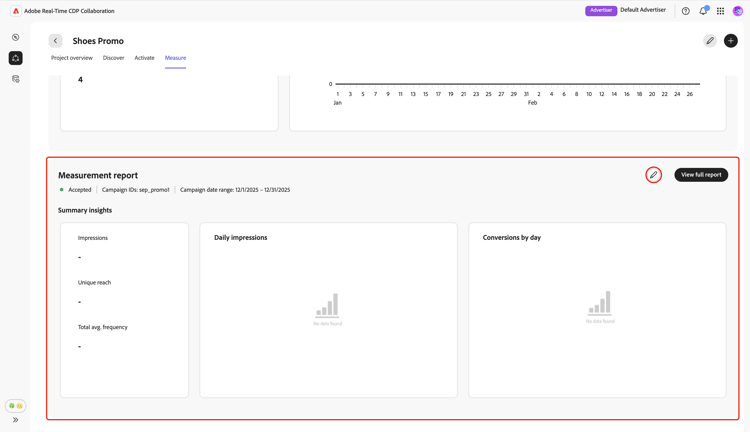
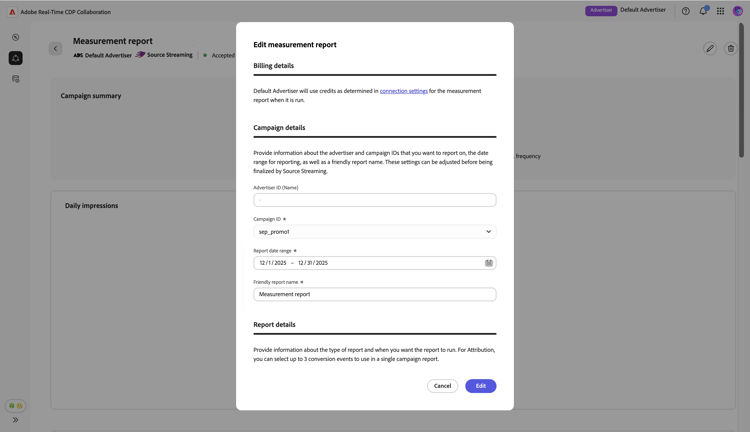
The Edit measurement report dialog appears with the current settings of the report in the following sections:
- Billing details: Displays information about credits when running measurement reports. No configuration is required.
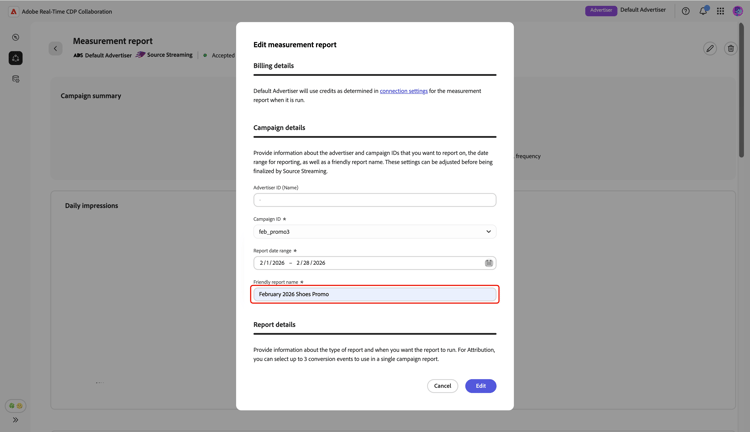
- Campaign details: Displays settings for the advertiser, campaign ID, reporting period, and a user-friendly report name.
- Report details: Displays settings for the report type, report run date, and configuration options specifically for attribution reports.
Edit campaign details edit-campaign-details
In the Edit measurement report dialog, use the Advertiser ID (Name) and Campaign ID dropdown menus to edit the advertiser and campaign ID for your report.
Next, select Report date range and use the calendar to change the start and end dates of the report.
Enter an updated friendly report name to capture your recent changes. This helps you recognize and find this report in the future.
Edit report details edit-report-details
To schedule the report for a different date, navigate to the Report details section. Select the current run date option, then use the calendar to choose your preferred date.
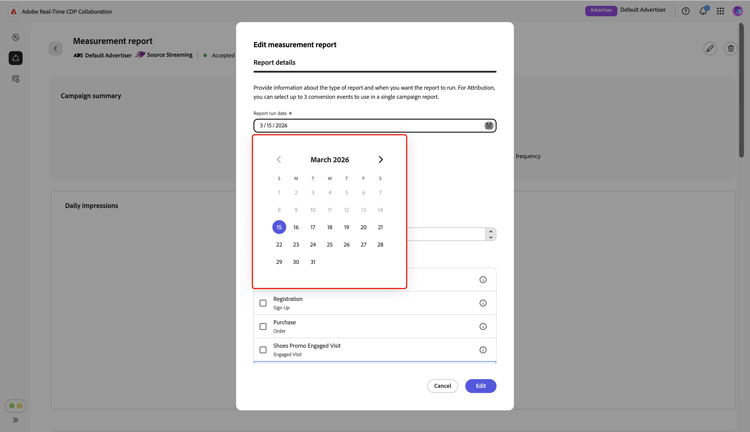
As an advertiser, you have the option to select or remove the Attribution report type in addition to Campaign summary. If you choose Attribution, your attribution report includes both standard Campaign Summary metrics and in-depth Attribution insights. For more information about the Campaign summary and Attribution report types, refer to the create measurement report section.
- If you choose Attribution as the report type, you must fill out the required fields in the Attribution section. For setup instructions, see the attribution report details section.
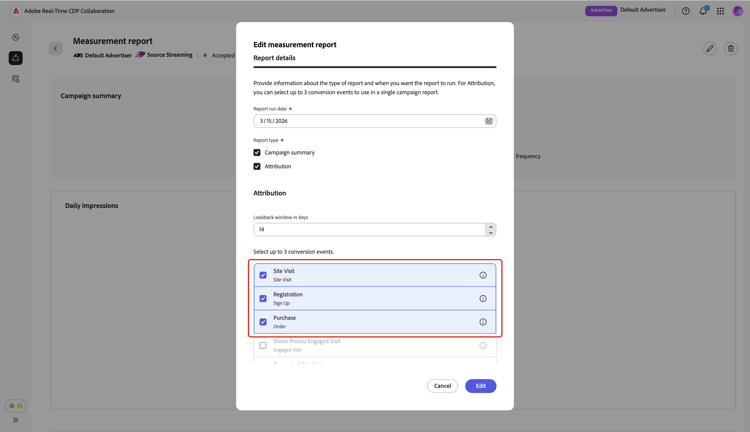
- If you previously configured attribution settings when creating the report, you can choose to edit the lookback window (measured in days) and select which conversion events to report on.
To update Lookback window in days, enter a numeric value, or adjust it with the increment/decrement options. Next, select the conversion events you want to report on. You can choose up to 3 conversions from the available list.
Once finished, review the updates and select Edit to apply your changes.
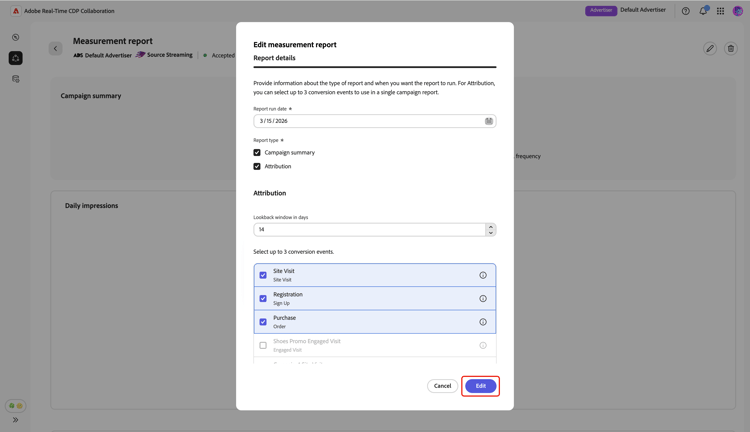
A confirmation dialog confirms that your report has been successfully saved.
Delete measurement report delete-measurement-report
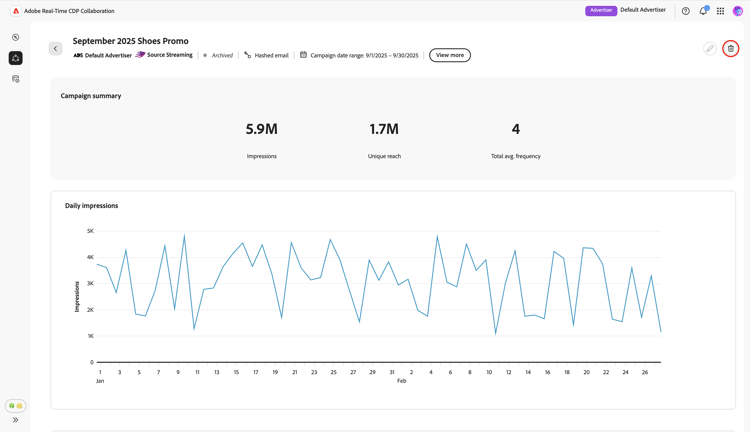
Deleting a measurement report in Collaboration permanently removes it from the system. This action cannot be undone. To do this, select the report you wish to delete in the Measure tab.
In the measurement report workspace, select the delete icon (

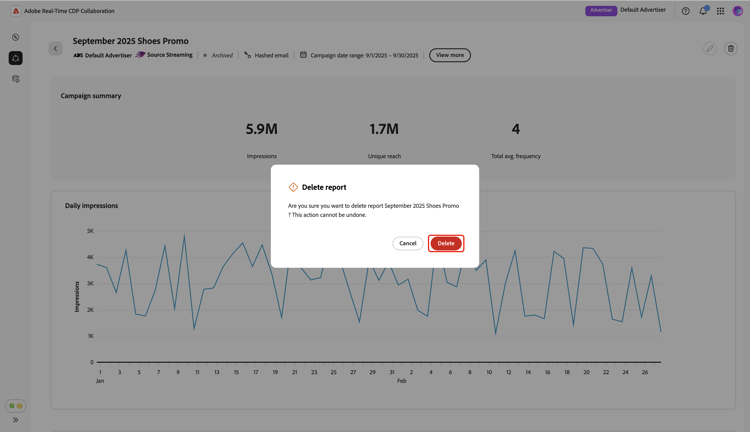
The Delete report dialog appears, prompting you to confirm the deletion. Select Delete.
A confirmation dialog confirms the report was successfully deleted.