[Limited Availability]{class="badge informative"}
Add and manage measurement data add-and-manage-measurement-data
This document outlines the steps to add campaign measurement data to Adobe Real-Time CDP Collaboration. Publishers can work with Adobe teams to upload campaign measurement data. After that data is uploaded and processed, both publisher and advertiser will be able to view extensive campaign measurement reports.
Add measurement data add-measurement-data
As an advertiser, you can upload your measurement data containing conversion events to Collaboration for use in campaign measurement reports. Conversion data typically includes fields such as user identifiers (for example, hashed email or device IDs), timestamp of the conversion event, and specific conversion event details such as purchase or sign-up.
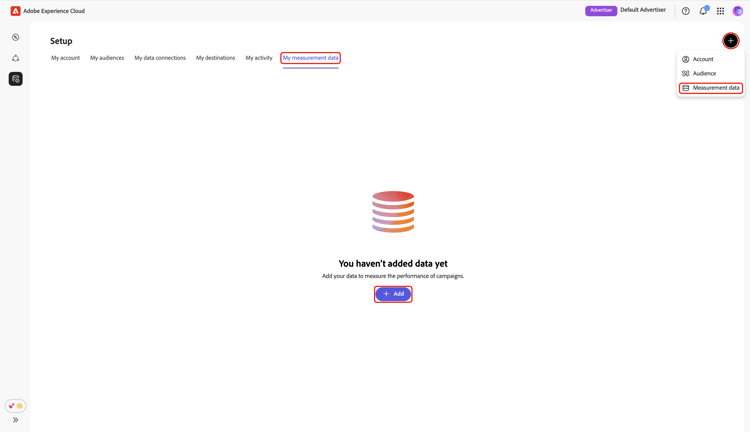
To source measurement data, navigate to the My measurement data tab within the Setup workspace. Select the add icon (

If this is your first measurement data, you may also select the Add option.
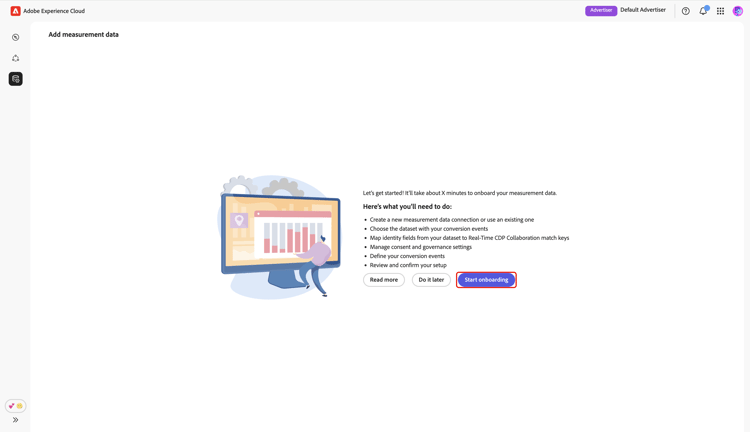
The Add measurement data screen appears, displaying a summary of steps to source measurement data. Select Start onboarding.
Data connection and details data-connection-and-details
In this step, you need to configure your data connection and specify the details for your measurement data.
Select measurement data type select-measurement-data-type
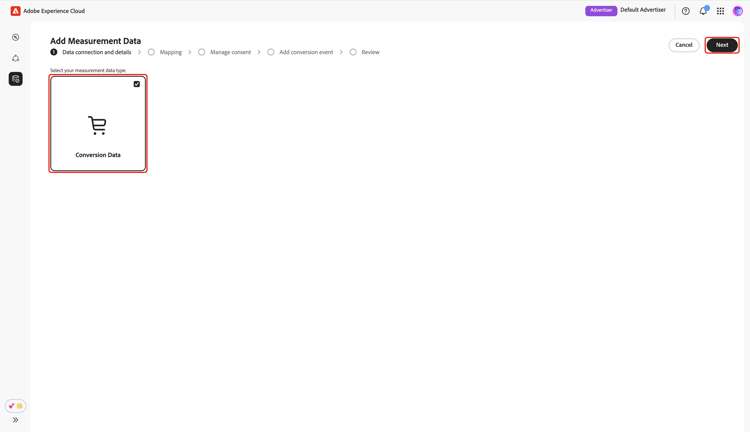
The measurement data type defines the kind of events you bring in for campaign measurement. Currently, Conversion Data is the supported type.
Select Conversion Data as your measurement data type, followed by Next.
Select data connection select-data-connection
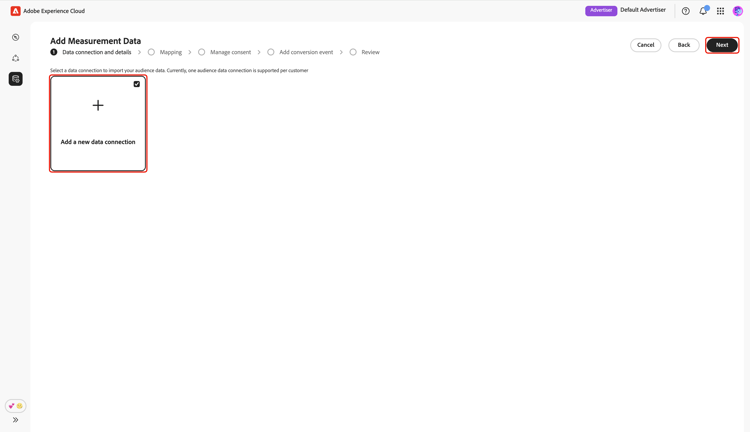
A data connection is the source from where you source measurement data into Collaboration. Once you have established your initial data connection and sourced your first set of measurement data, you can continue sourcing additional measurement data using the same data connection.
To add a data connection, select Add a new data connection, then select Next.
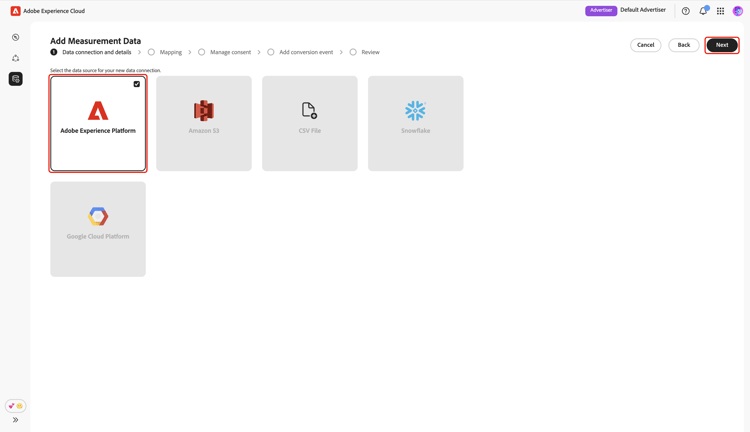
Select data source select-data-source
Next, choose the source for your data connection. At this time, Adobe Experience Platform is the only supported data source.
Select your data source, then select Next.
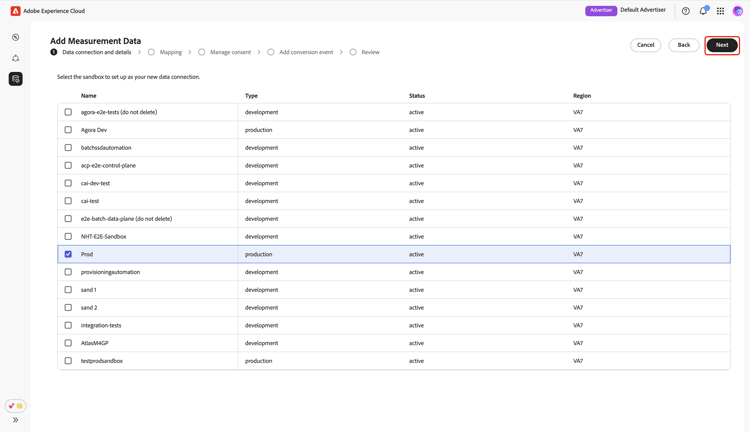
Select sandbox select-sandbox
Select the sandbox that includes the measurement data that you want to use for Collaboration campaign measurement reports. Choose the sandbox from the list of available sandboxes and then select Next.
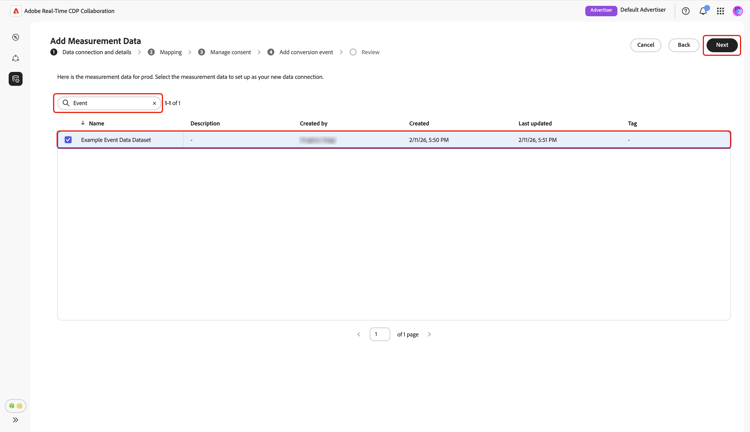
Select measurement dataset select-measurement-dataset
A list of datasets in the selected sandbox appears. Select a dataset as your measurement data, then select Next. You can use the Search option to filter and find the preferred dataset.
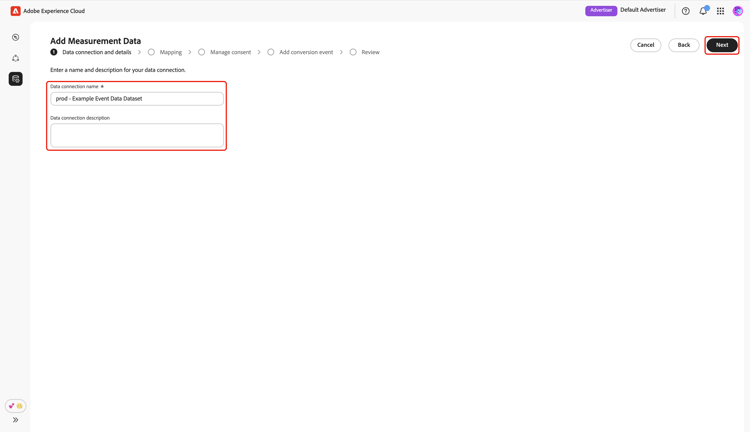
Provide name and details provide-name-and-details
Next, provide a name and a description for your data connection. This information will help you identify the data connection later on.
Mapping mapping
The next step is to map fields from your measurement data to the corresponding target fields used in Collaboration. You can also choose to enrich your event dataset with attributes from Real‑Time Customer Profile by mapping join keys, and use these attributes to break down measurement reports.
Enrich event data enrich-event-data
To enrich your event data, select the Source field join key option.
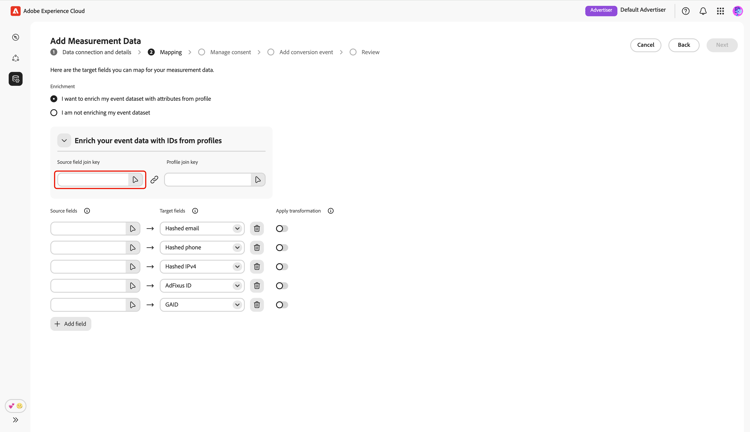
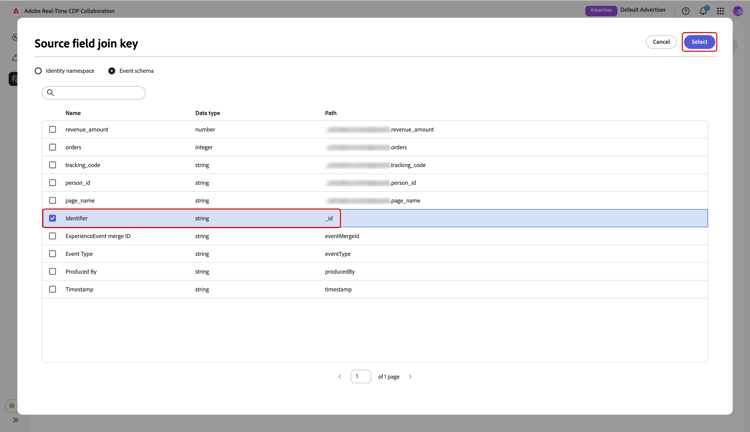
In the Source field join key dialog, choose the source field, followed by Select.
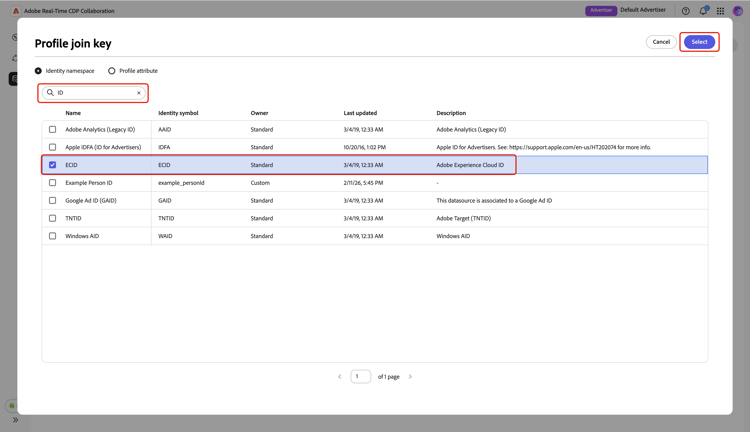
Next, select the Profile join key option. In the Profile join key dialog, select the profile field from the list. You can use the Search option to find the desired field. Then, choose Select to confirm.
Mapping fields mapping-fields
To start mapping source fields from your measurement data to the target fields in Collaboration, select the empty source field in the Mapping screen.
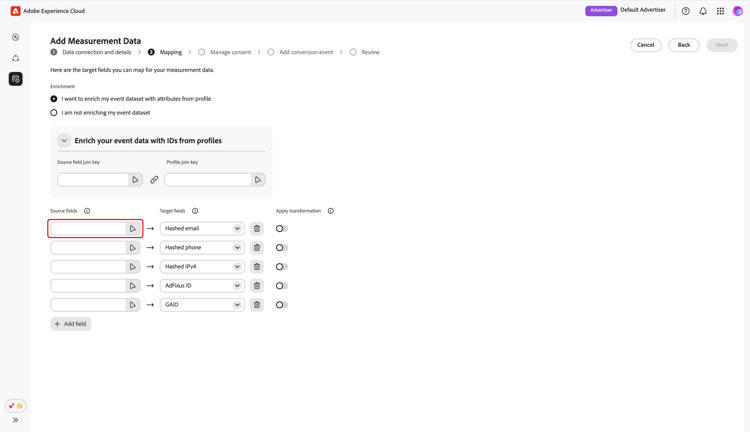
The Select source field dialog appears, displaying a list of available source fields grouped under options such as Identity namespace and Event schema. You can use the search option to filter and find the source field from the list.
Choose the source field that you want, followed by Select.
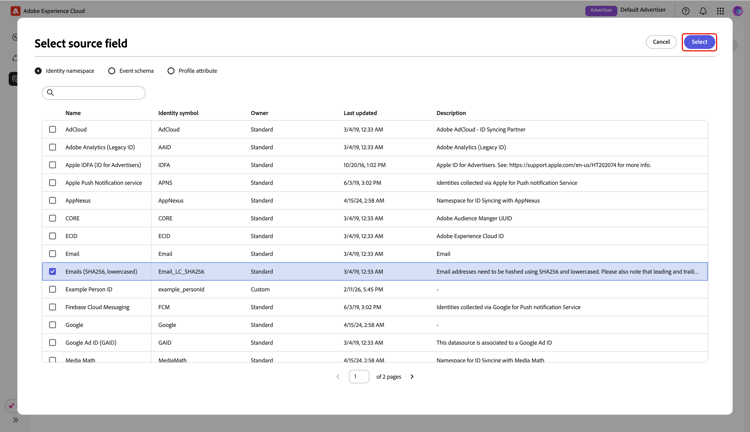
Next, use the dropdown menu to map the selected source field to an appropriate target field. All available target fields are the match keys configured for your Collaborator account.
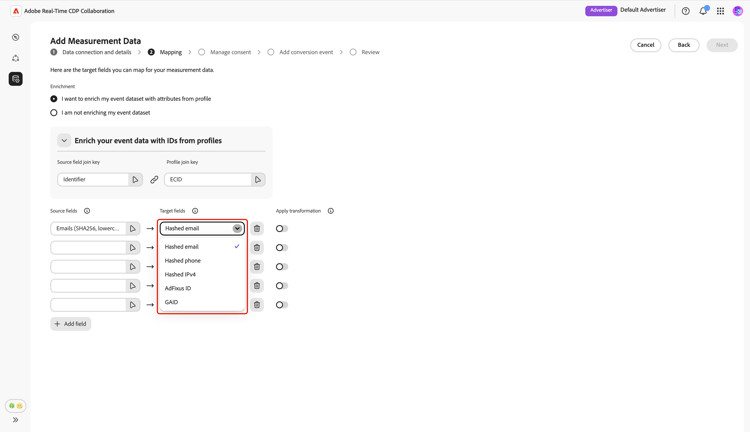
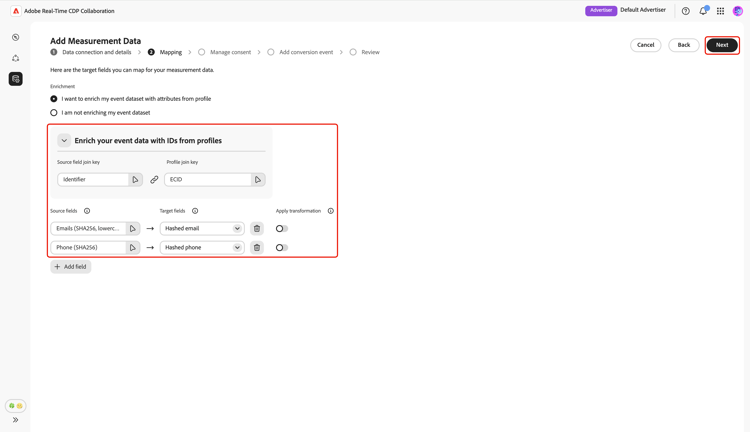
You can add or remove mapping rows as necessary. If you need to map a non-hashed source field to a hashed target field (for example, mapping a plain text email to Hashed email), use the Apply transformation option to apply the required hashing.
When you are done, review the mapped fields and join keys if enrichment is enabled. Then, select Next.
Manage consent manage-consent
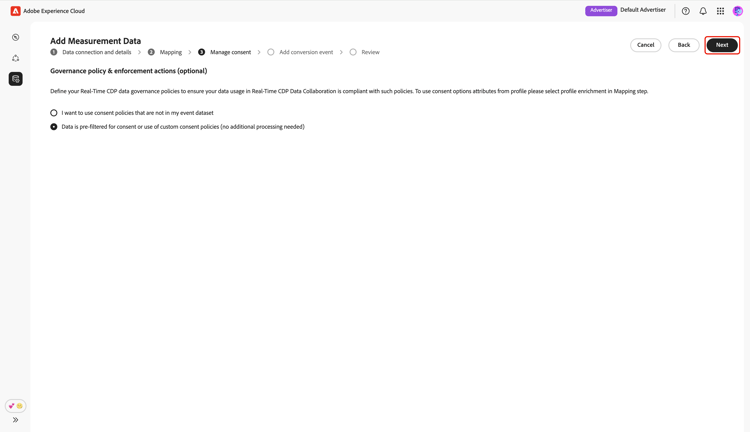
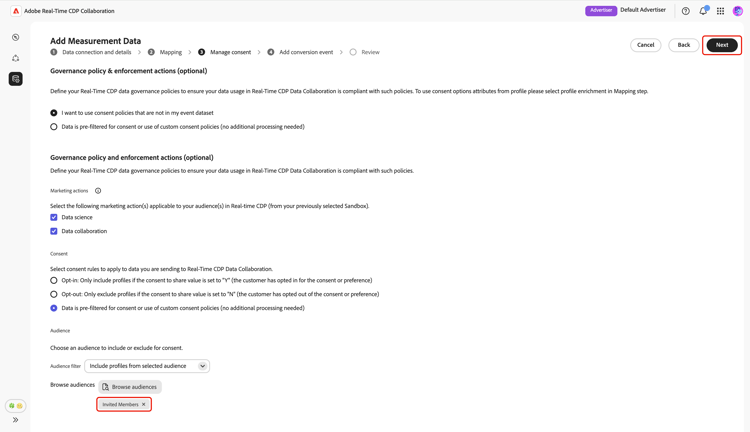
Before proceeding, you must acknowledge that your data usage in Collaboration complies with your Real-Time CDP data governance policies. All data must be pre-filtered according to consent requirements or any applicable custom consent policies, so no further processing is required.
To confirm your acknowledgement, select Next.
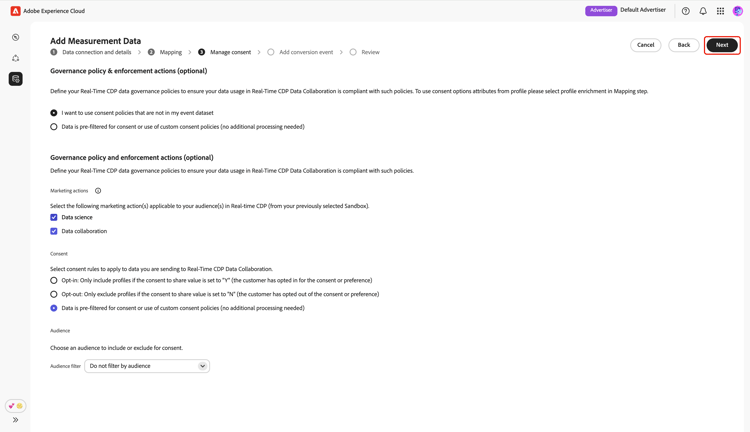
If you enable profile enrichment during the mapping step, you can configure consent policies from a list of pre-defined options. This includes:
- Marketing actions: Use these marketing actions to control which audience data to bring into Collaboration from Experience Platform.
- Consent rules: Select the consent rules to apply to data being sourced into Collaboration.
- Audience: Use the audience filter to include or exclude audience profiles for consent.
Select the preferred settings, then select Next.
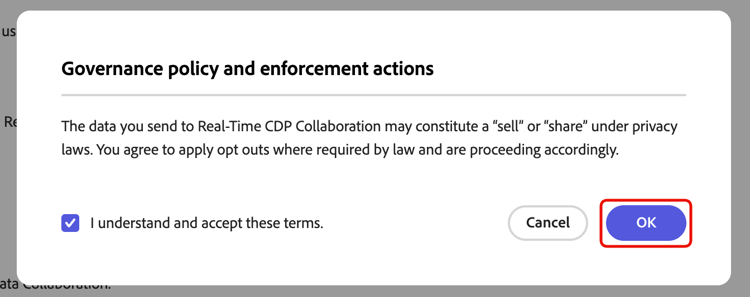
Before proceeding, you need to confirm and accept the terms in the Governance policy and enforcement actions dialog. Select the checkbox, followed by OK.
Audience filter audience-filter
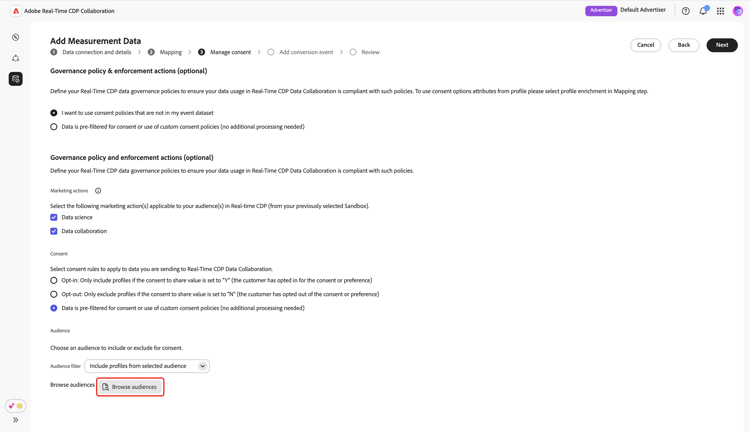
To include or exclude certain audience profiles for consent, use the Audience filter dropdown menu. Once you select this filter, the UI updates to display the Browse audiences option. Select Browse audiences.
The Select audiences dialog appears. Choose an audience from the list, followed by Select.
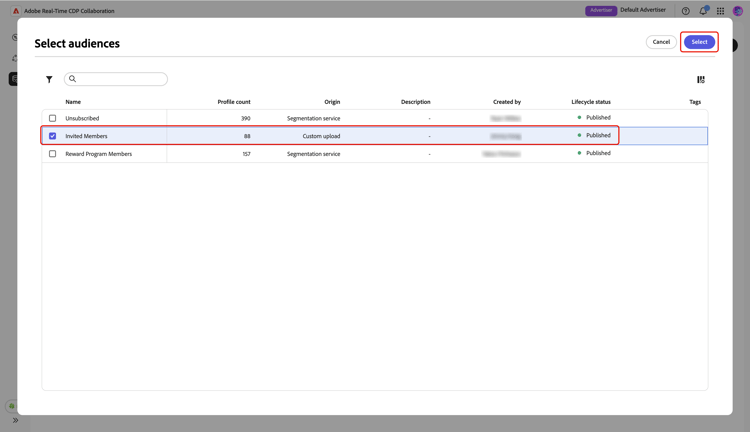
Your chosen audience now appears, with the option to remove it if needed. Review your consent settings, then select Next.
Add conversion event add-conversion-event
Next, define the conversion events that you want to measure the impact of your campaigns on, for example, site visits, registrations, or completed purchases. You can specify up to 3 distinct conversion events for measurement.
Provide the name of the conversion event, then use the dropdown menu to select the conversion type.
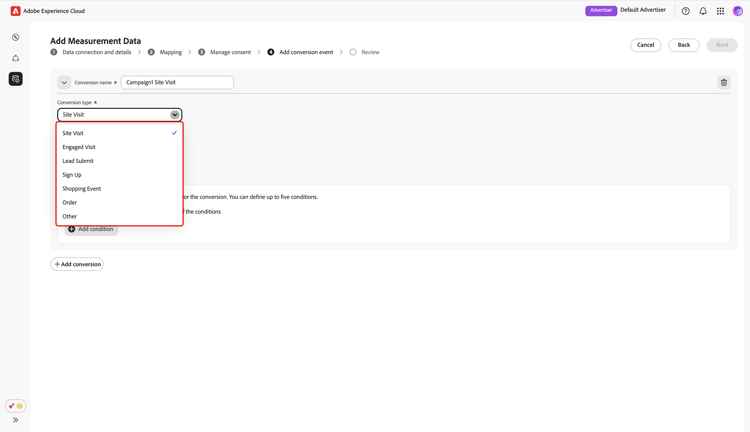
You can enter a value for the conversion, or leave it empty if you do not wish to assign a value at this time.
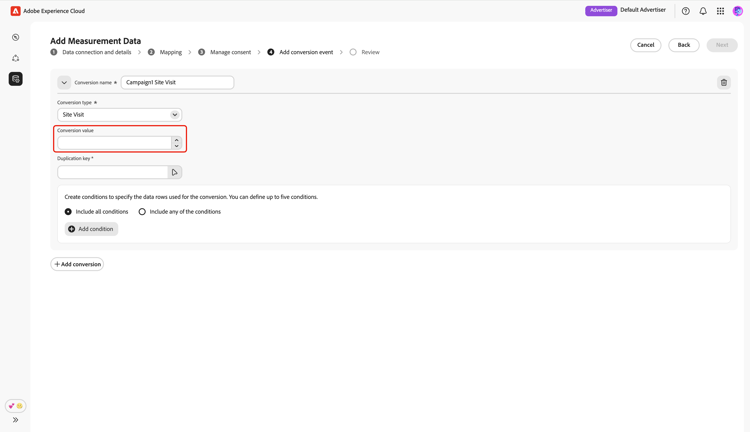
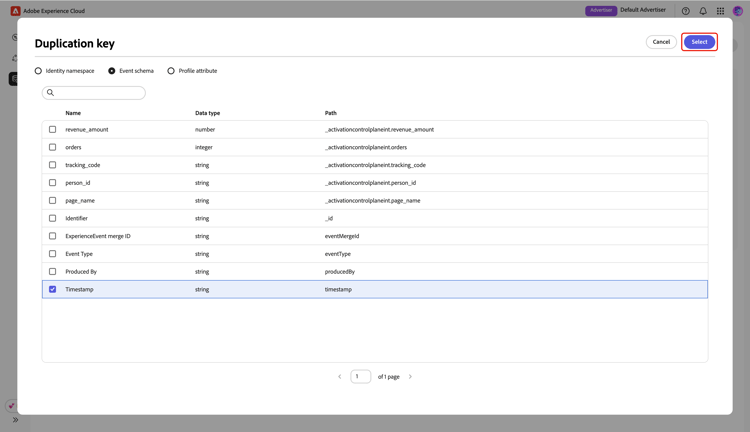
Next, you need to specify the duplication key to indicate which rows in your event dataset belong to the same underlying conversion event (for example, the same timestamp during a sign-up process). This prevents counting the same conversion multiple times in measurement reports. To do this, select Duplication key. In the Duplication key dialog, find and choose the key, followed by Select.
After specifying the duplication key, you can add up to 5 conditions to include only relevant rows from the event dataset for the conversion. Choose to apply all or any of these conditions.
Select Add condition, then select the condition option.
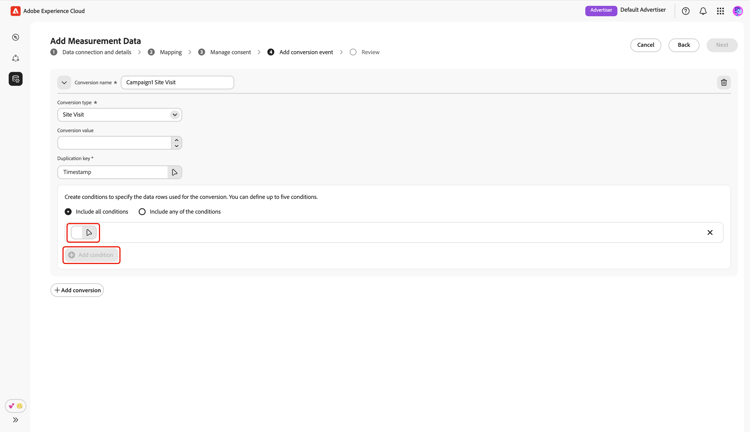
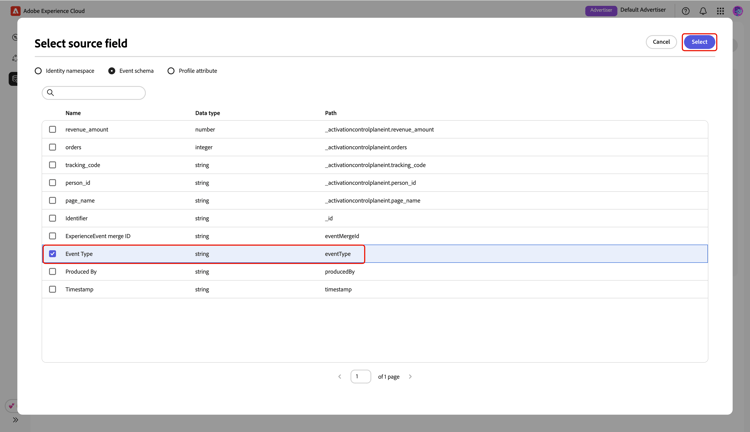
In the Select source field dialog, find and choose a source field for the condition rule, followed by Select.
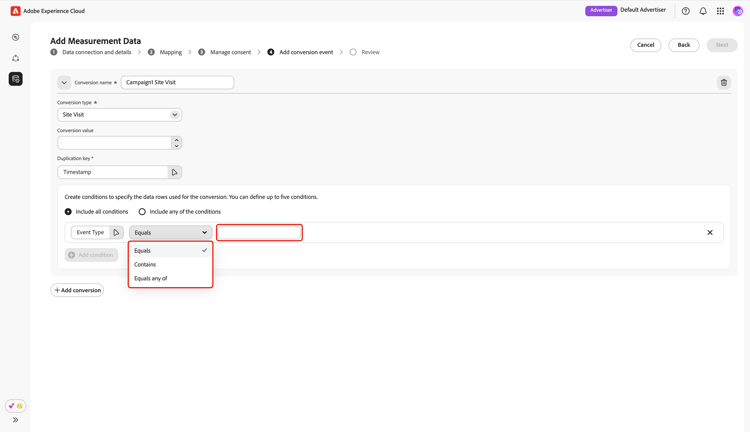
Use the dropdown menu to select a logic operator, then enter the value for the confition rule.
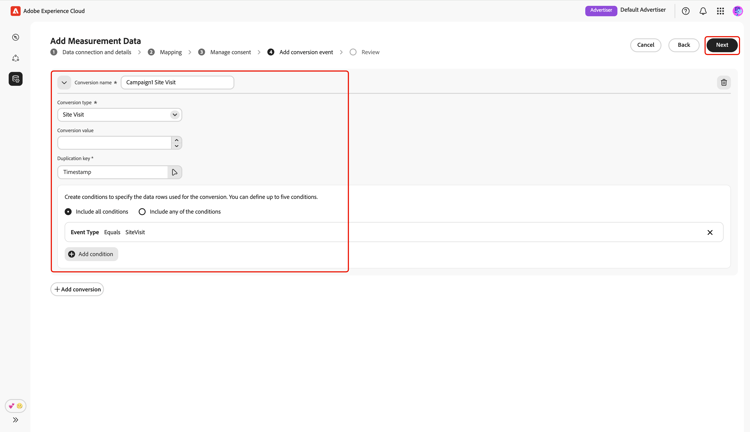
To add another conversion event, select Add conversion. You can include up to 3 conversion events in total. Once finished, review the conversion configurations and select Next.
Review review
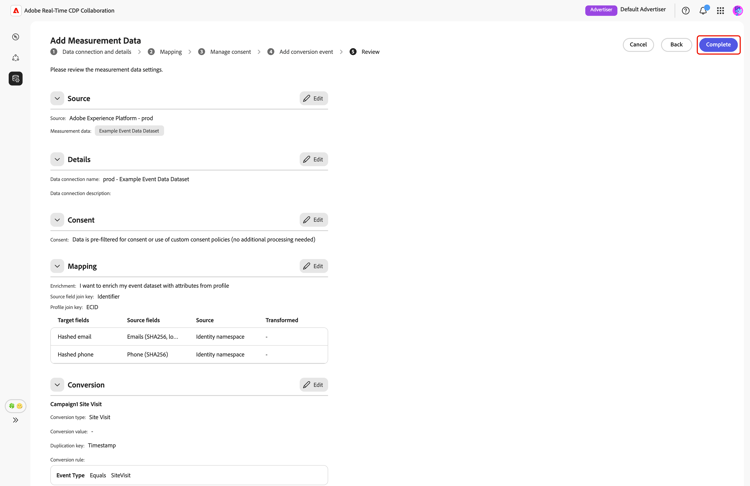
The Review screen appears with a summary of measurement data settings. Review and ensure all the information are correct. If you need to change any section, use the Edit option.
Finally, select Complete to finish adding your measurement data.
A confirmation dialog confirms that your measurement data was created successfully. You can see the new conversion events configured from your measurement data in the My measurement data workspace.
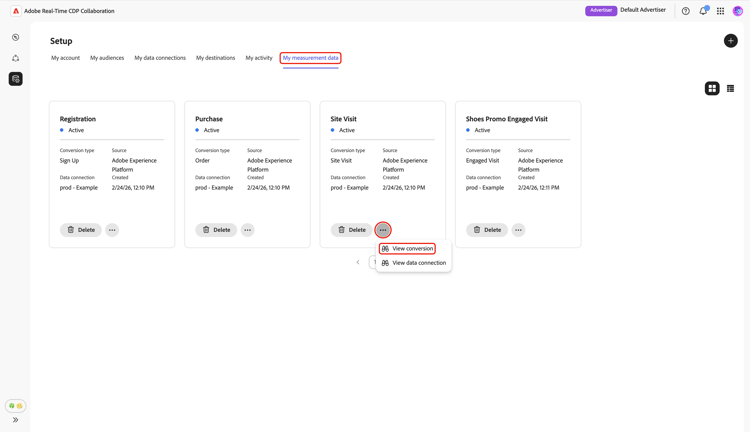
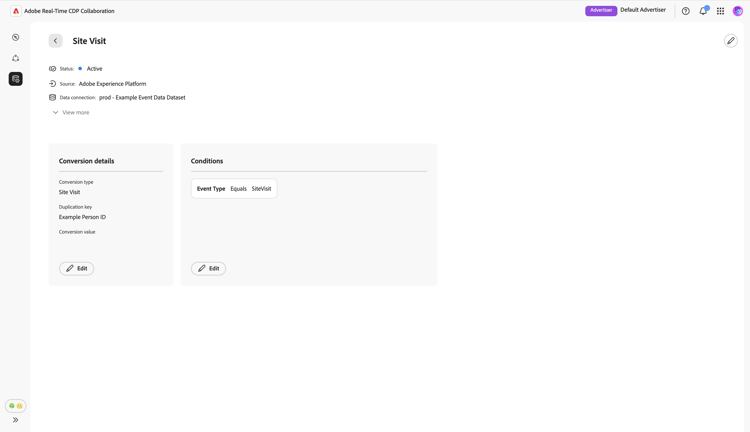
When in grid view or table view, select a row item or the View conversion option within an event card to see an overview of a specific conversion event. It displays the event’s status, source, and data connection name, along with detailed panels for:
- Conversion details: Displays key information about the conversion, including its type, the duplication key used to identify unique events, and the assigned conversion value (if specified).
- Conditions: Displays the condition rules applied to this conversion event.
Edit measurement data edit-measurement-data
After sourcing your measurement data, you can edit the details and condition rules of a conversion event at anytime.
From the My measurement data tab, select the ellipsis option (

Edit name and description edit-name-and-description
To update the event’s name and description, select the edit icon (

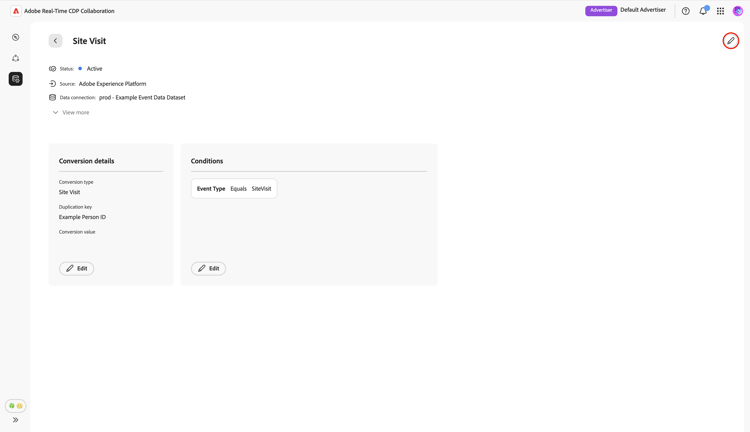
In the Edit name and description dialog, update the fields with the desired values, then select Save to apply your changes.
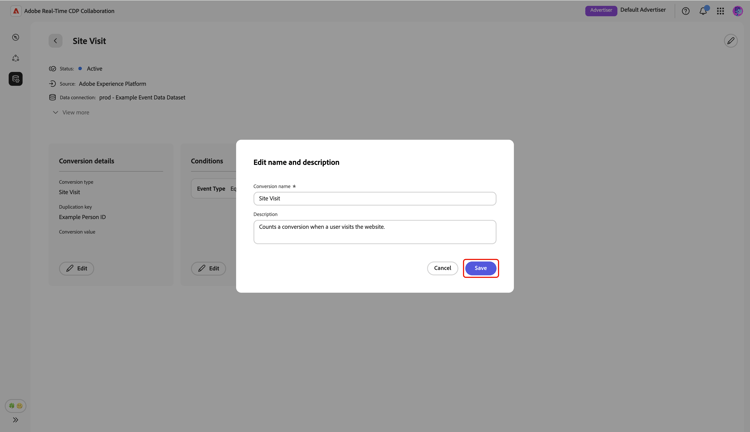
A confirmation dialog appears to confirm that the details are successfully updated.
Edit conversion details edit-conversion-details
You can update the following conversion details of the event:
To start editing, select Edit within the Conversion details panel.
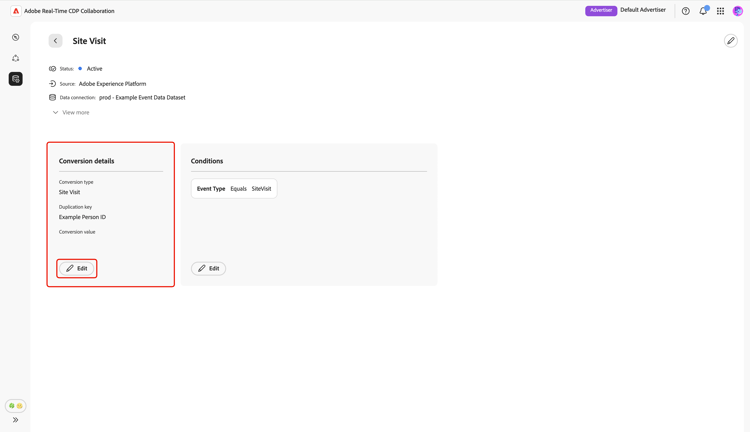
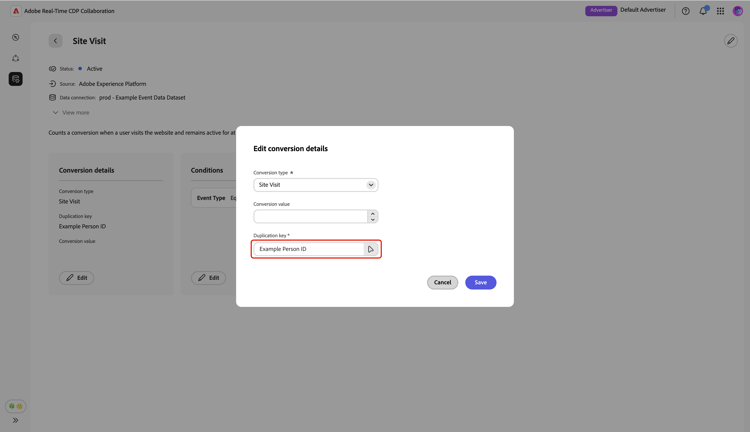
In the Edit conversion details dialog, use the dropdown menu to update the conversion type. You can enter a value for the conversion, or leave it empty if you do not wish to assign a value. To edit the duplication key, select the existing key option.
The Duplication key dialog displays a list of available fields grouped under options such as Identity namespace and Event schema. Find and choose the desired key, followed by Select.
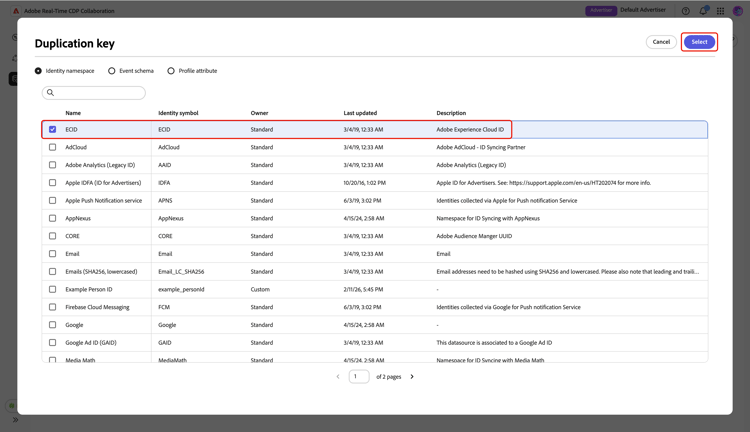
Once finished, review the updates and select Save to apply your changes.
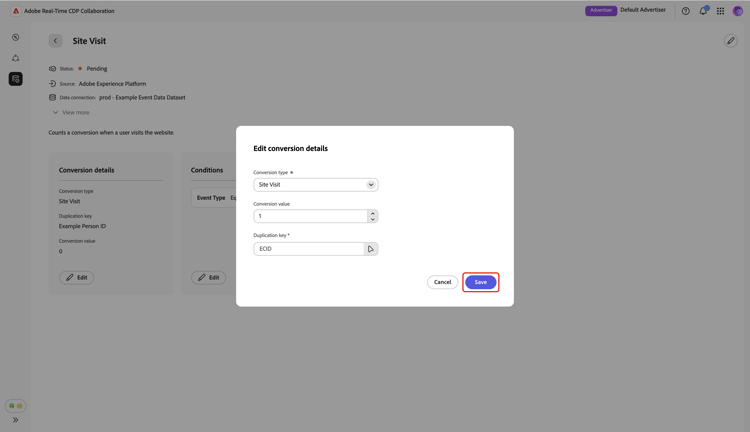
A confirmation dialog appears to confirm that the details are successfully updated.
Edit conditions edit-conditions
Condition rules specify which data rows from your event dataset are included as conversions. Update these rules as needed to ensure your measurement reflects only the most relevant data for your analysis.
To edit conditions, select Edit within the Conditions panel.
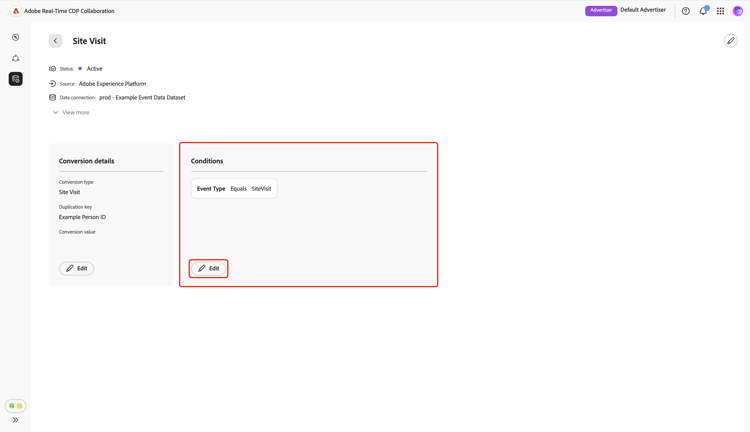
In the Edit conversion rules dialog, you can view the current details of all conditions. Select an existing condition option to update its details including source field, logic rule and value.
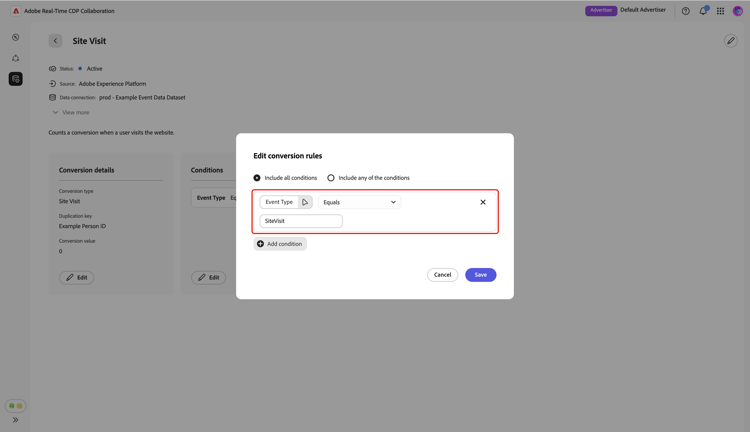
To include additional conversion rules, select Add condition. Then select the new empty condition option.
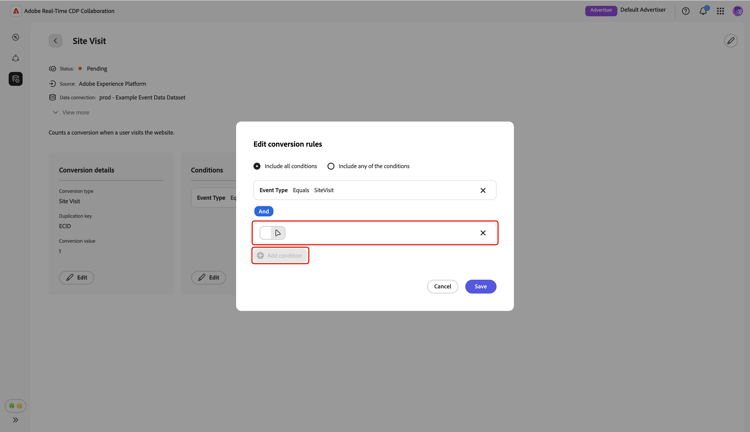
In the Select source field dialog, you can see available fields grouped under options such as Identity namespace and Event schema. Select the appropriate field you want to use for your condition, then choose Select. You can use the Search option to quickly find your preferred field.
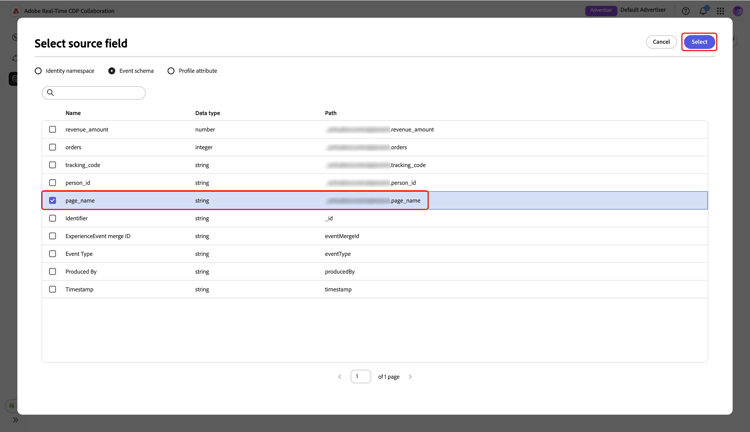
Next, use the dropdown menu to select a logic operator from the available list and enter a value for the condition.
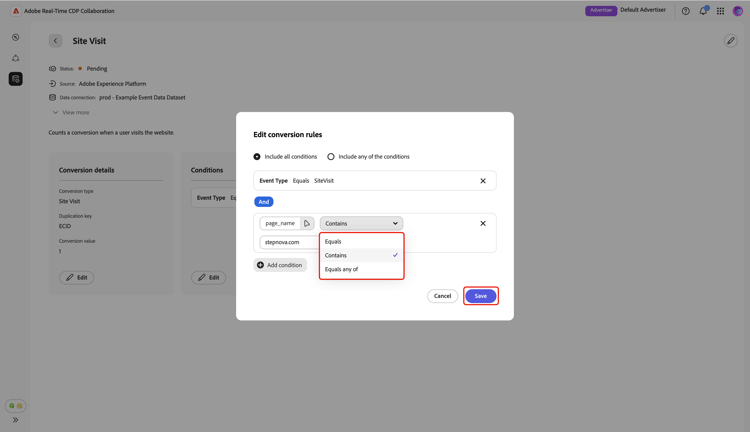
Use Include all conditions if all specified conditions are required for each conversion, or use Include any of the conditions to allow conversions that match at least one condition. When you finish updating, review and select Save to apply the changes.
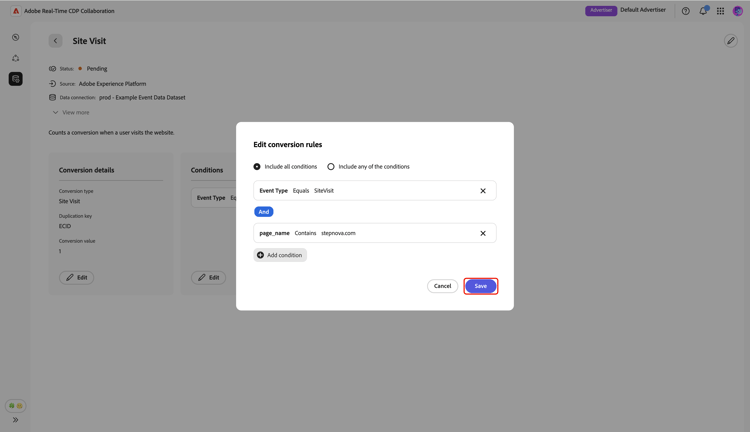
A confirmation dialog appears to confirm that the details are successfully updated.
Delete measurement data delete-measurement-data
Deleting measurement data removes the associated conversion event and all linked measurement details from your project permanently. Any measurement reports that rely on this event will lose corresponding conversion metrics and can no longer be updated. This action cannot be undone.
To delete an existing conversion event, navigate to the My measurement data tab in the Setup workspace. In grid view, select Delete within the relevant event card. In table view, select the delete icon (

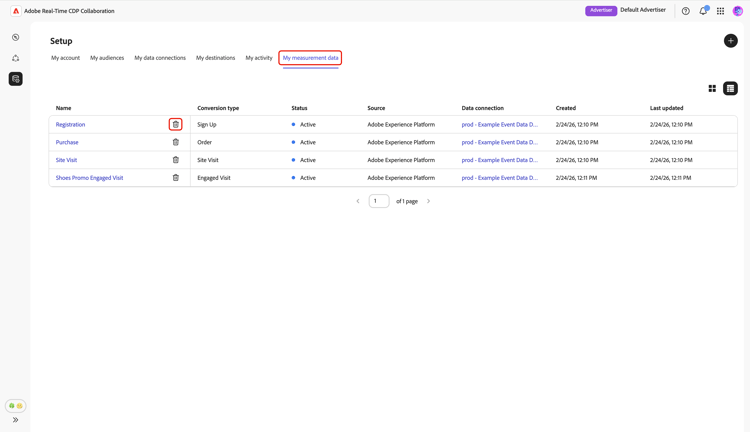
The Delete measurement dialog appears, prompting you to confirm the deletion of the event. Select Delete.
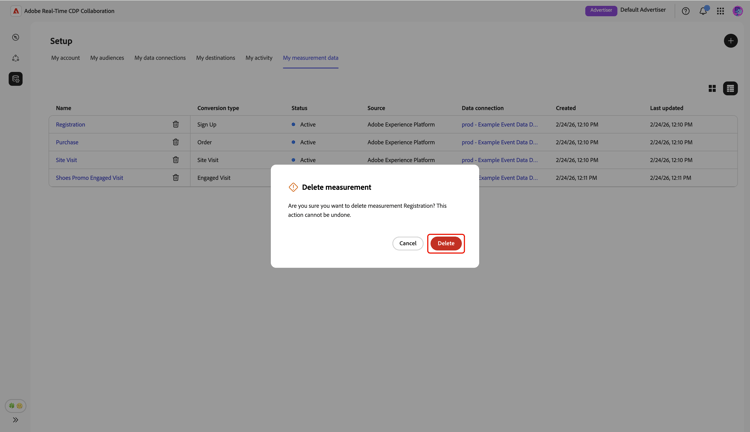
A confirmation dialog appears to confirm that the conversion event is successfully deleted.
Next steps next-steps
You have completed sourcing your measurement data in Collaboration. As an advertiser, you can now create Attribution reports to explore how your campaigns drive conversions and measure overall impact. If you’re a publisher, request your collaborator to generate an Attribution report for your campaigns. For detailed instructions, see the Create attribution report guide.