[Limited Availability]{class="badge informative"}
Create and manage projects
Projects are the centerpiece of your workflow in Adobe Real-Time CDP Collaboration. After connecting with collaborators, create a project to run audience overlap calculations and discover relevant audiences for campaigns.
For an overview of how audiences are sourced into Collaboration and used in projects for Discover, Activate, and Measure, see Audiences overview.
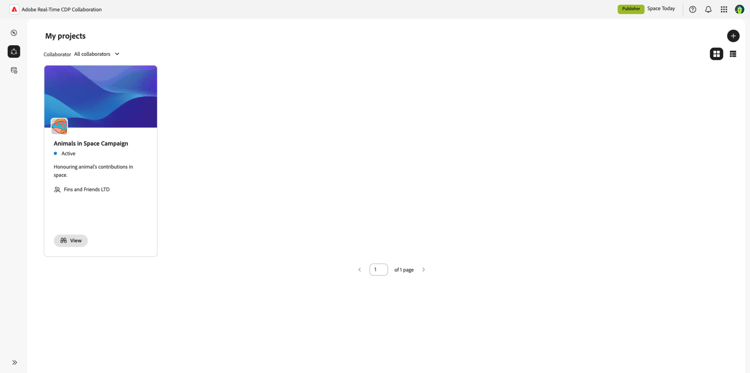
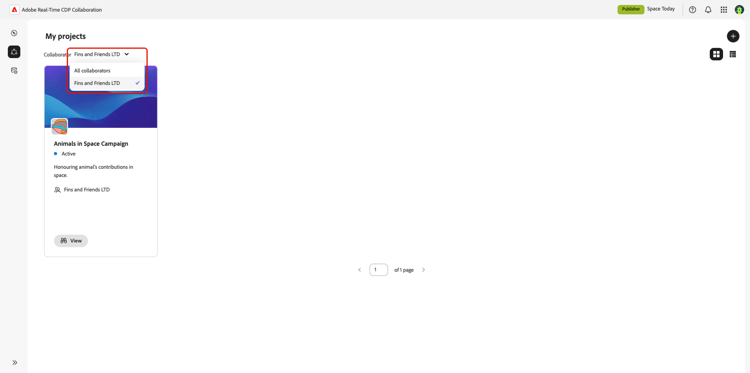
You can use filters to view only the projects that you have started with certain collaborators, as shown below:
Create project create-project
To create a project, you must first establish a connection with a collaborator. Once the connection is established, you can create a project with that collaborator.
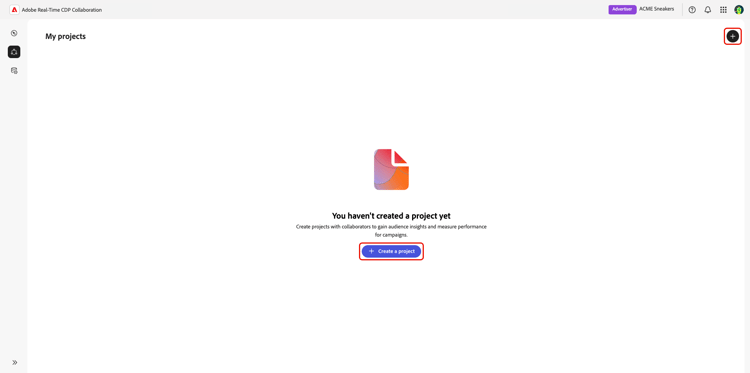
Navigate to Collaborate and then My Projects. If this is your first project, you can select Create a project. Otherwise you can select the add icon (

The Create project dialog appears. Select the Collaborator you are creating the project with via the dropdown. If you’re a publisher and you set advertiser names during your connection setup, you can select the Advertiser name.
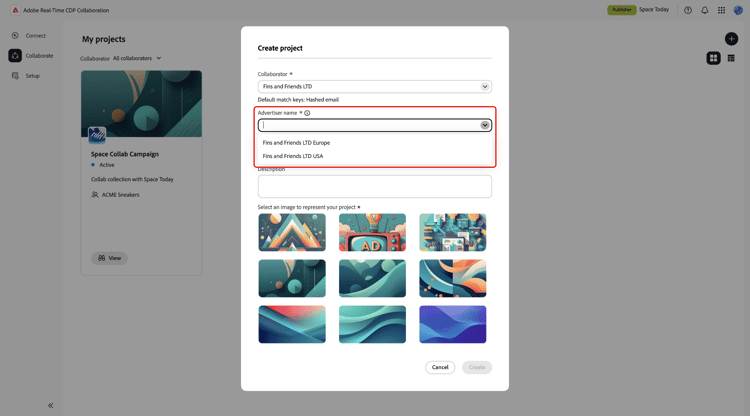
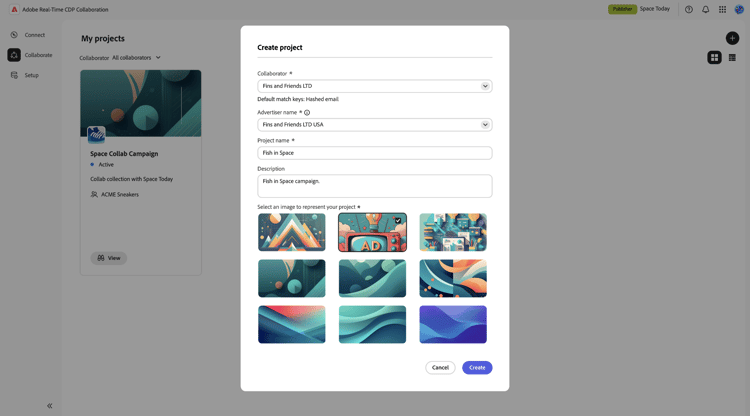
Next, add a Project name and Description for your project. Then, select an image to represent the project. This image helps to distinguish the project in the project overview page. Once you’re done, select Create to create the project.
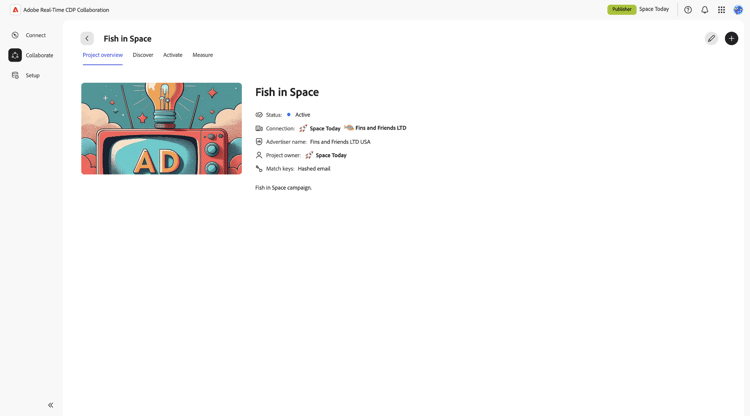
You can now view your new project, its details, and available sections based on the use cases selected during connection setup.
Manage campaign ID manage-campaign-id
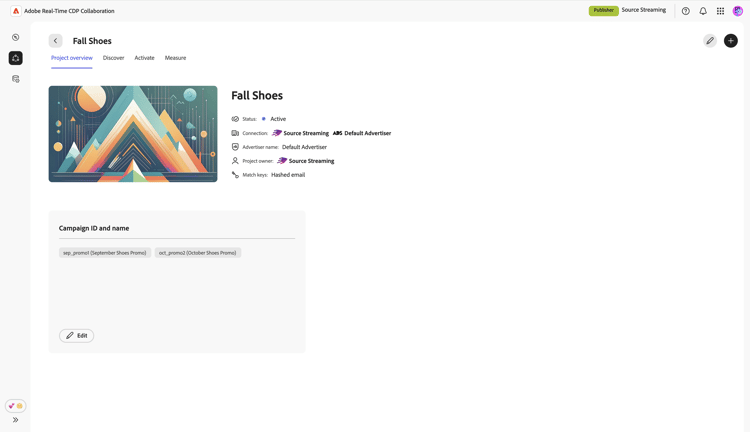
A Campaign ID links your project to a specific campaign and is required to generate measurement reports. You can add multiple campaign IDs to one project if you run several campaigns with the same collaborator. All these campaigns are available for selection in reporting.
- Publishers: Enter or update Campaign IDs and associated names in the Collaboration UI before running reports.
- Advertisers: Request your collaborator (publisher) to add Campaign IDs as needed.
To add or update campaign IDs, navigate to the Collaborate workspace, then select View within the relevant project card.
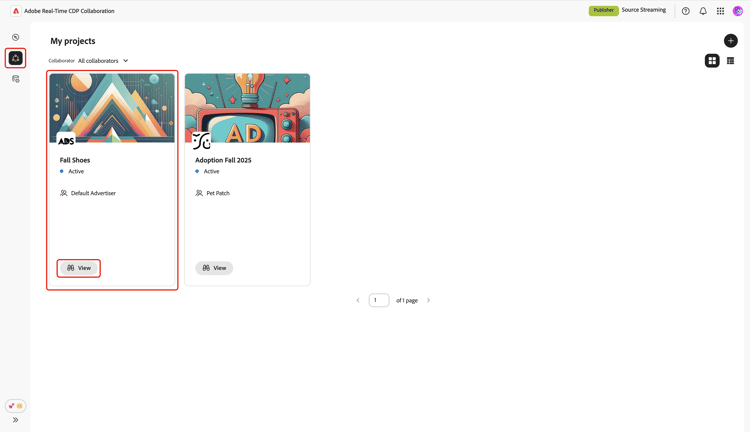
The corresponding Project overview workspace appears with a Campaign ID and name section that lists all campaigns linked to the project. If you have not added a campaign yet, select Add. If there are already campaigns present, select Edit to update details or add additional ones.
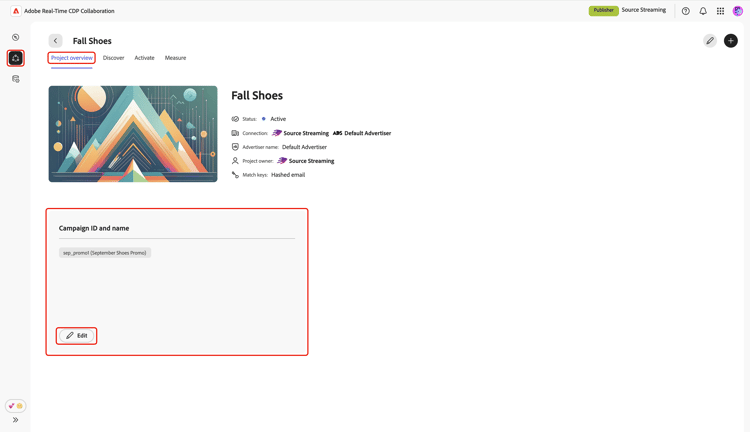
In the Campaign ID and name dialog, select Add campaign ID to add a new row where you can enter campaign details.
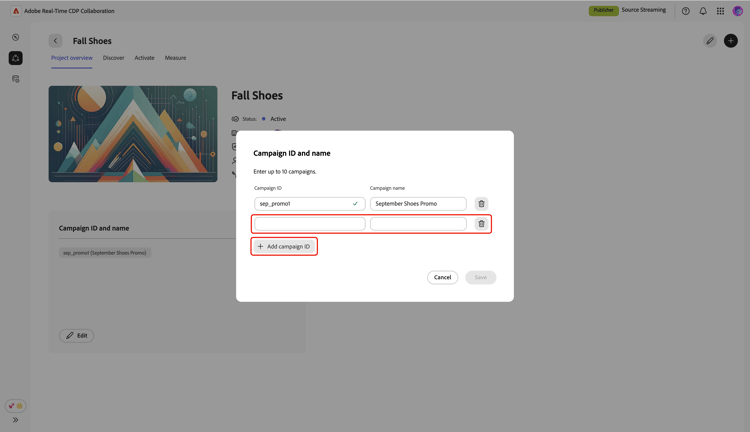
Provide the Campaign ID and Campaign name, then select Save.
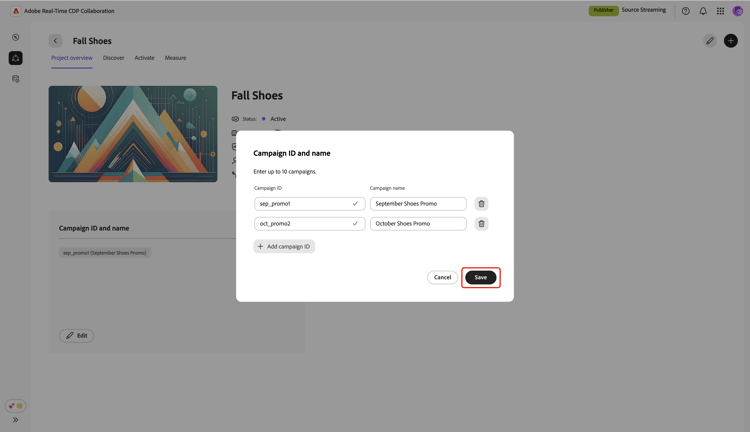
Check the Campaign ID and name section to view your latest campaigns and recent changes. You can now use the new Campaign IDs to generate measurement reports.