Upload CSV file for audience sourcing
This guide provides steps to upload a CSV file in the Adobe Real-Time CDP Collaboration UI to source your audience data for use in collaboration projects.
Overview overview
CSV file upload is one method to source first-party audience data for collaboration projects. This is an alternative to connecting your AWS S3 bucket, connecting Google Cloud Storage, or sourcing audiences from Experience Platform.
Follow this workflow to upload a CSV file containing your audience data to source and manage first-party audiences within Collaboration. You can map identity fields for activation and overlap analysis. Once your file is uploaded and processed, the sourced audience becomes available in the My audiences workspace, where you can review, activate, and manage for your collaboration projects.
-
Audiences sourced through CSV upload are available for 7 days. After this period, the audience expires and must be re-uploaded for use in your collaboration projects.
-
You can upload one CSV file per session at this time. To add additional audiences, complete the upload workflow again for each file you wish to source.
Prerequisites prerequisites
Before you can upload CSV files for audience sourcing, ensure you have:
- Completed account onboarding in Real-Time CDP Collaboration. See Onboard your account for step-by-step instructions.
- The necessary permissions to add audiences in your organization.
- A CSV file containing your audience data with identity fields such as email or phone.
Upload a CSV file upload-csv-file
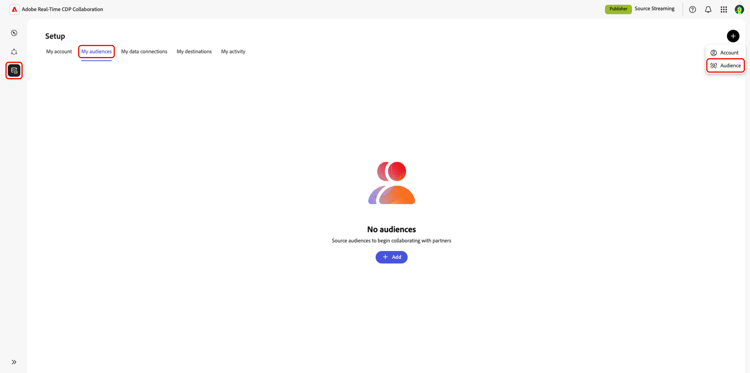
From the My audiences tab within the Setup workspace, select the add icon (

If this is your first audience, you may also select the Add option.
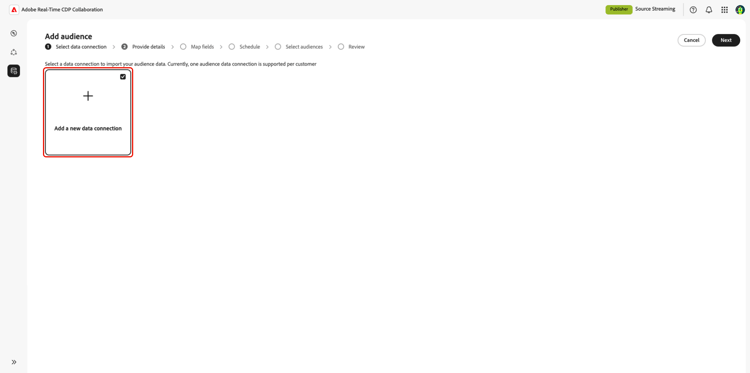
The Add audience workflow appears. Select Add a new data connection and then select Next.
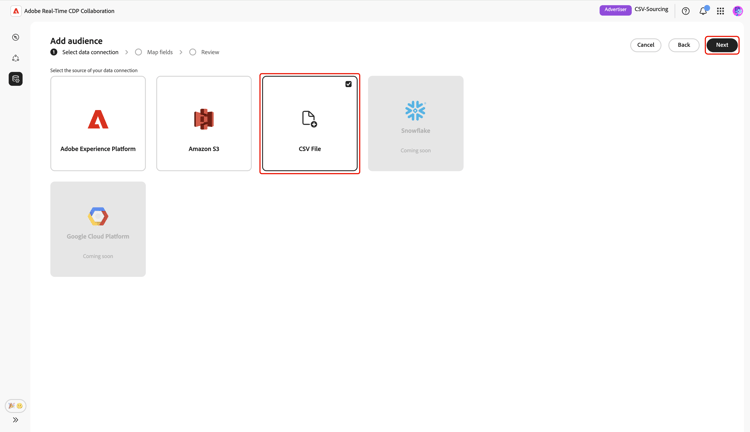
Select CSV File as the data connection select-csv-file
Select CSV File as a data connection, followed by Next.
Select file select-file
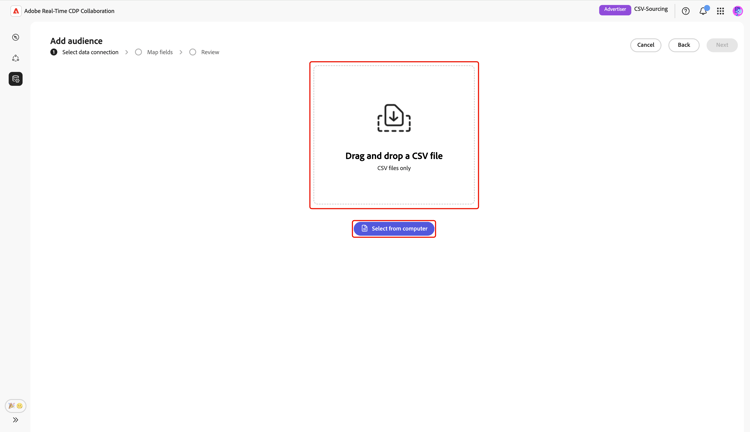
Choose Select from computer to upload a CSV file from your local system. Alternatively, you can drag and drop the CSV file you want to upload into the Drag and drop a CSV file panel.
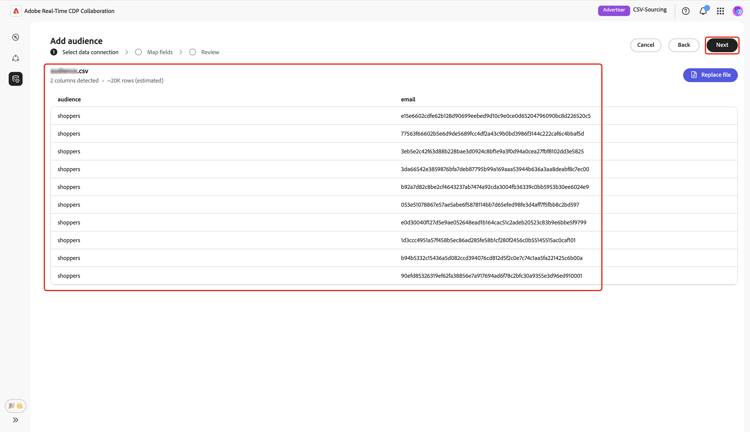
Once uploaded, the UI shows a summary including the number of columns, an estimated row count, the structure of the file, and a preview of the first 10 rows of data.
Review the summary, then select Next.
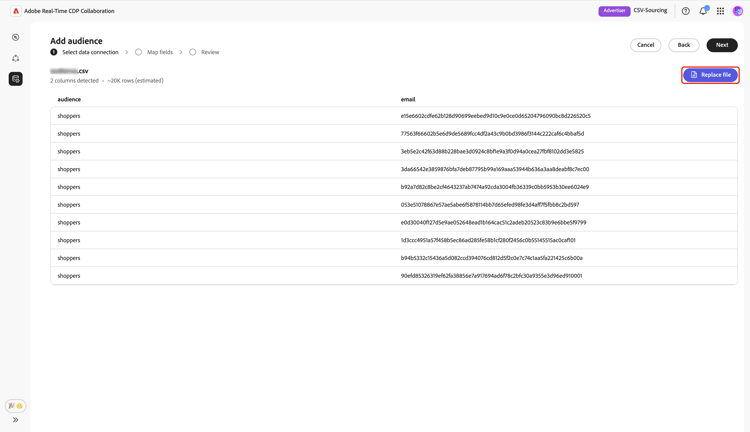
Replace file replace-file
If you need to upload a different CSV file, choose Replace file and select your new file. The interface then refreshes to display an updated summary of the new data.
After reviewing the revised summary, select Next.
Confirm consent acknowledgment confirm-consent
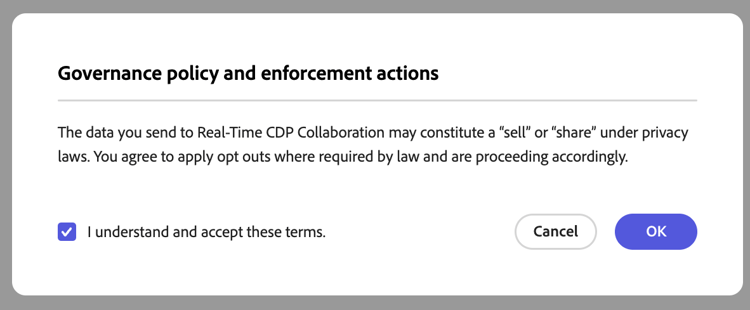
Before proceeding, you must acknowledge that consent opt-outs have been removed from your audience data. Collaboration requires clean audience data without users who have opted out of data sharing.
Check the confirmation box followed by OK to confirm. The dialog then closes, and you proceed to the map fields screen.
Map source identity fields map-fields
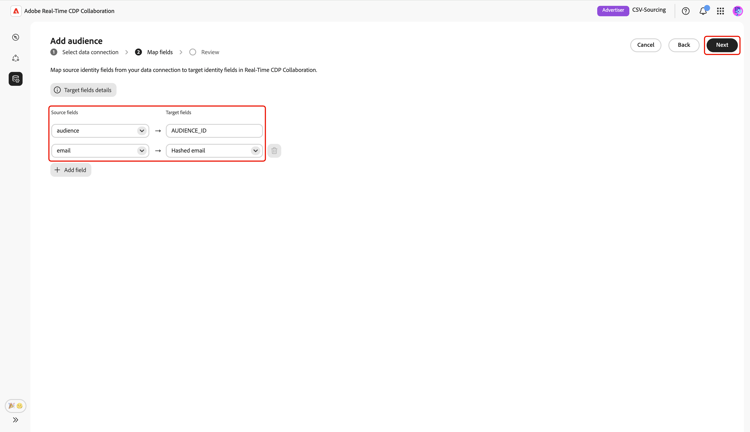
Field mapping determines how Collaboration uses your audience data for activation and overlap analysis. On the Map fields screen, use the dropdown menus to map each source identity field from your CSV file to the appropriate target field in Collaboration.
If you need additional details about a target field including the data type or description, select Target fields details for more information.
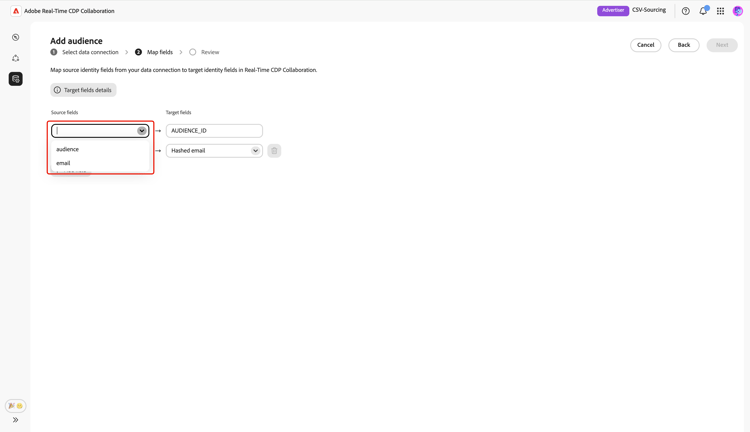
Next, review the mapped fields, and then select Next.
Review and complete the upload review-and-complete
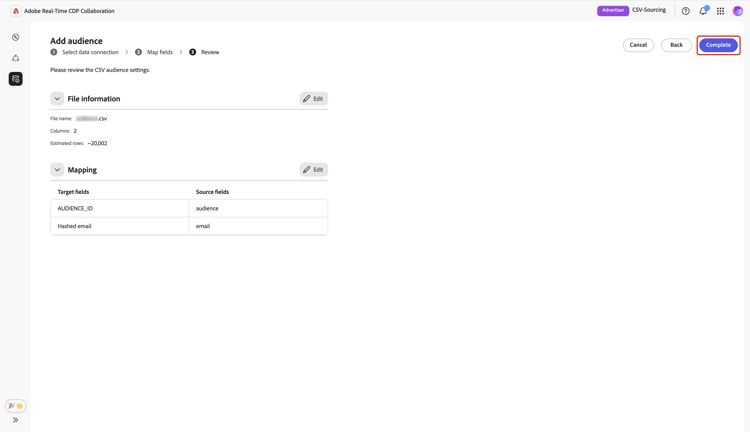
The Review screen appears with a summary of the audience settings from your CSV file. Review the information in the following sections:
- File Information: Displays the file name, the number of columns, and the estimated row count.
- Mapping: Lists how the source fields from your uploaded audience file (for example,
email) map to target fields used in Collaboration (for example, Hashed email).
Select the pencil icon if you need to edit a section. Select Complete to confirm all sections.
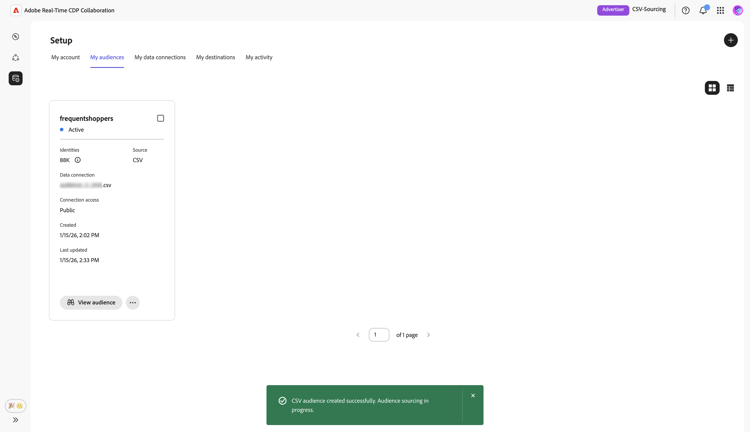
A progress bar appears below the summary sections to indicate upload progress. Once the upload completes, a confirmation dialog confirms that your CSV audience was created and audience sourcing is in progress.
Review sourced audiences review-sourced-audiences
After uploading your CSV file, Collaboration begins sourcing audiences from the file. This process may take several minutes. When the sourcing finishes, your audiences are available in the My Audiences tab with the same features and information as audiences sourced from Experience Platform.
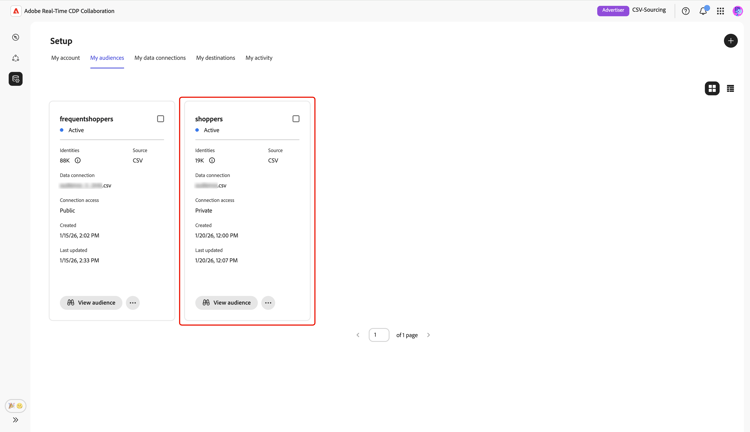
When in grid view or table view, select a row item or View audience to see an overview of a specific audience. It displays the audience’s status, source, and data connection name, along with detailed panels for:
Identities: Displays the total identity count and breakdown once data becomes available.
Categories: Displays any tags used for organizing or filtering the audience.
Connection access: Displays whether the audience is private, public, or shared with specific collaborators.
Metadata visibility: Displays what audience information (such as identity count, overlap percentage, and index) is visible to collaborators.
Use this view to confirm audience configuration and visibility settings before using the audience in collaboration projects. For more information, see how to view an individual audience.
Next steps next-steps
You have now successfully uploaded your CSV file in Collaboration. After sourcing completes, you can:
- Create collaboration projects with your sourced audiences. See Discover audiences.
- Activate audiences to connected destinations. See Activate audiences.
- Review audience overlap and insights. See Measure campaign performance.
- Manage your audience settings and visibility. See Source and manage audiences.
To learn more about all available sources in Collaboration, see Sources overview.