[Limited Availability]{class="badge informative"}
Configure Adobe Audience Manager for audience sourcing
Learn how to connect your Adobe Audience Manager (AAM) instance to Adobe Real-Time CDP Collaboration so you can source eligible first-party segments into the platform. After you create the connection, Collaboration retrieves audience membership from Adobe Audience Manager on a recurring schedule and makes those audiences available for overlap analysis and activation within your collaboration projects.
Prerequisites prerequisites
Complete all items in this section before starting the configuration workflow. Incomplete prerequisites are the most common reason setup fails or audiences do not appear after sourcing. Before following this guide, you must have completed account onboarding and setup.
Adobe Audience Manager access and permissions aam-access-and-permissions
Before proceeding, confirm that you have:
- An active Adobe Audience Manager contract and a provisioned Audience Manager instance.
- Access to the Audience Manager user interface with permission to view the segments that you want to source.
- Your Audience Manager instance and Collaboration account provisioned under the same Adobe IMS Organization. Cross-organization sourcing is not supported.
Segment eligibility requirements aam-segments-requirements
When you configure the connection, Collaboration automatically filters the segment list based on the following rules.
First-party data only
Only segments based on your own first-party data are available for sourcing. Segments that include traits from third-party data providers or AAM Audience Marketplace are excluded.
Recency filter
Only segments that were created or updated within the last 13 months are available for sourcing. Older segments are excluded during connection setup and on each subsequent refresh.
Consent requirements consent-requirements
All AAM segments sourced into Collaboration must be post-consent filtered. If an opt-out marker is present for a profile at export time, that profile is excluded before it reaches Collaboration.
Configure your Audience Manager connection configure-aam-connection
The configuration workflow is a multi-step wizard inside the Setup workspace. Complete each step in sequence. You can return to any step using the pencil icon on the final review screen before you create the connection.
Add a data connection add-data-connection
From the My audiences tab within the Setup workspace, select the add icon (

If this is your first audience, you may also select the Add audience option.
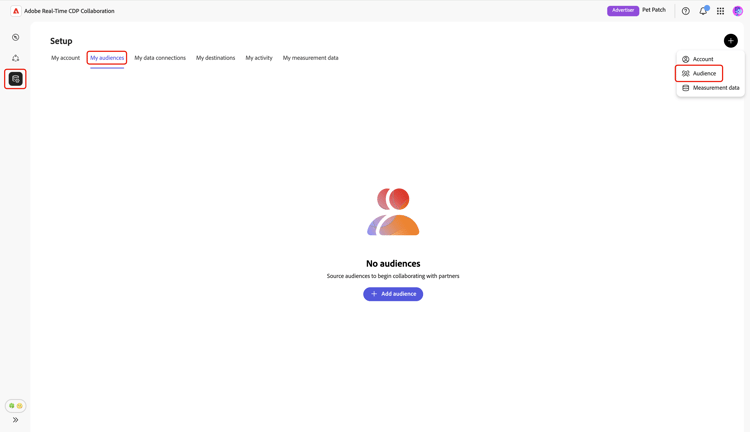
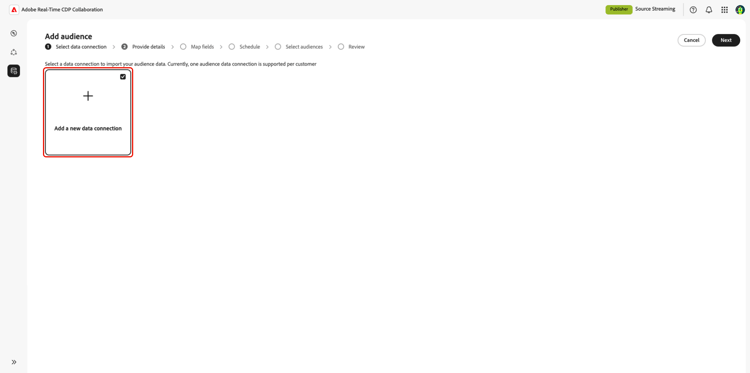
The Add audience workflow appears. Select Add a new data connection and then select Next.
Select Adobe Audience Manager as the data connection select-aam
The data source selection screen lists all available connection types. Select Adobe Audience Manager as a data connection, and then select Next.

Confirm consent and data use confirm-consent-data-use
Before proceeding, confirm that you have applied any opt-outs required by law to the audience data you send to Collaboration. If you are unsure whether your data meets this requirement, review the governance policy and enforcement actions guide before proceeding. Select the confirmation checkbox and then select OK to proceed.

Provide connection details provide-connection-details
Next, enter a name and an optional description for this data connection. After the connection is created, the name you provide appears in the My data connections tab and helps you identify this source in the future.
- Data connection name (required)
- Data connection description (optional)
When finished, select Next.

Review identity mapping review-identity-mapping
The Mapping screen is read-only. Collaboration automatically maps supported identity output from your AAM segments to Collaboration identity fields. See the following table for more information.
Demdex IDDEMDEX_IDGAIDGAIDIDFAIDFAYou can review the mapping, but you cannot modify it at this stage. Select Next to continue.

Schedule data refresh schedule-data-refresh
In the Schedule view, set the refresh frequency at which Collaboration retrieves updated audience membership data from your AAM segments, and define the active date range for sourcing.
Use the Frequency dropdown to select a refresh interval between one and six days. Then use the calendar to set start and end dates for audience sourcing. When the end date is reached, sourcing stops and previously sourced audiences expire.
Once finished, select Next.

Select audiences select-audiences
You can view a list of eligible segments that use first-party data source traits and were created or updated in the last 13 months.
Select the segments that you want to source into Collaboration. You can search by name or scroll to find specific segments. Select Next when you are finished.

Review and complete the connection review-and-complete
Review the full configuration summary before creating the connection. The summary screen shows the following sections:
- Details: The name and optional description of this data connection.
- Audience selection: The AAM segments you selected.
- Mapping: The identity field mapping from AAM source fields to Collaboration identity fields.
- Schedule: The refresh frequency and active date range.
Select the pencil icon (

A confirmation dialog appears, indicating that the data connection was created and that audience sourcing is in progress.

Review sourced audiences review-sourced-audiences
After you complete the wizard, Collaboration begins retrieving audience membership data from your selected AAM segments asynchronously. Navigate to Setup > My audiences to monitor progress.
Monitor audience sourcing progress monitor-progress
While Collaboration is retrieving your AAM segment data, a banner at the top of the My audiences workspace indicates that sourcing is in progress. Individual audiences appear in the list as sourcing completes for each segment.
View sourced audience details view-sourced-audience-details
Once sourcing completes, your AAM segments appear in the My audiences tab. The Source column identifies them as Adobe Audience Manager.

Select a row or the View audience option to open the detail view of a specific audience.
The detail view shows:
- Identities: The total identity count and any available breakdown information.
- Categories: Any tags you have applied to organize or filter the audience.
- Connection access: Whether the audience is private, public, or shared with specific collaborators.
- Metadata visibility: What audience information is visible to collaborators.

Use this view to confirm audience configuration and visibility settings before using the audience in collaboration projects. To update categories, connection access, or metadata visibility, see View and manage individual audiences.
Known limitations
Be aware of the following constraints when configuring and using the Audience Manager source connector:
- First-party data only: Segments that include traits from third-party data providers or Adobe Audience Marketplace cannot be sourced. Only segments built entirely from your own first-party data sources are eligible.
- 13-month segment recency window: Only segments created or updated within the past 13 months are available for selection during setup and on each scheduled refresh.
- No on-demand refresh: Audience data refreshes on the schedule you configure. Manual, immediate refresh is not supported.
- One active AAM connection per organization: Only one active AAM data connection is supported per IMS organization.
- Match key constraints: Once a match key is enabled for a data connection, it cannot be removed. To change active match keys, delete the connection and create a new one.
Troubleshooting troubleshooting
Read this section to resolve common issues after you establish the initial connection.
Audiences are not appearing or sourcing is taking longer than expected
- Sourcing time scales with the number of selected segments and the size of each segment population.
- If audiences do not appear within 24 hours, confirm that the segments you selected are still active in Audience Manager and have non-zero population counts.
- Check the My data connections tab for any error indicators on the connection.
- If the issue persists, contact Adobe customer support with your data connection name and the names of the segments that are not appearing.
A segment I expected to select was not available during setup
Confirm that the segment:
- Was created or last updated within the past 13 months. Older segments are not shown.
- Uses only first-party traits. Segments with third-party or Audience Marketplace traits are excluded.
- Belongs to the IMS Organization configured for the connection.
The data connection shows a failed status after initially succeeding
- Confirm the IMS organization relationship between your AAM instance and Collaboration account has not changed.
- Confirm the selected segments still exist in AAM and have not been deleted.
- If the issue persists, delete the connection and create a new one, or contact Adobe customer support.
Next steps next-steps
You have now configured Audience Manager as a data source in Collaboration. After sourcing completes, your audiences are available in the My audiences workspace and ready for use in collaboration projects. If your audiences do not appear after the initial sourcing process completes, review the troubleshooting section on this page.
From here, you can:
For other audience sourcing methods, see: