On this page: Learn how to configure a journey that sends emails only on weekdays, queuing weekend entries for Monday delivery using a condition activity and Wait activities with custom formulas.
This use case demonstrates how to configure a journey in Adobe Journey Optimizer that sends emails only on weekdays (Monday through Friday). For profiles that enter the journey on weekends (Saturday or Sunday), emails are automatically queued and sent on Monday at a specified time. This ensures optimal engagement by delivering messages during the workweek.
Use case overview
The Challenge: Ensuring that emails are only sent on weekdays, even though profiles may enter the journey on weekends. For weekend entries, emails should be queued and sent on Monday at a specific time.
The Solution: Use a condition activity to identify the day of the week. For weekend entries, Wait activities with custom formulas delay the email until Monday. Weekday entries proceed directly to the email send step.
This approach shows you how to use a condition activity to check if the current day is Saturday or Sunday, implement Wait activities with custom formulas for weekend entries, queue weekend emails for Monday delivery at a specific hour, and send emails immediately for weekday entries (Monday-Friday).
This approach is ideal for business-to-business (B2B) email campaigns, professional newsletters and communications, business-related announcements, work-related product updates, and any marketing campaign where weekend delivery is not desired.
Implementation steps
Use these steps to build the weekday-only email flow.
Step 1: Create your journey
-
Navigate to Journey Management > Journeys in Adobe Journey Optimizer.
-
Click Create Journey to create a new journey.
-
Configure the journey properties.
-
Choose your journey entry point:
- Read Audience: For batch campaigns targeting a specific audience
- Event: For real-time triggered journeys based on customer behavior
Step 2: add a condition activity to check the day of the week
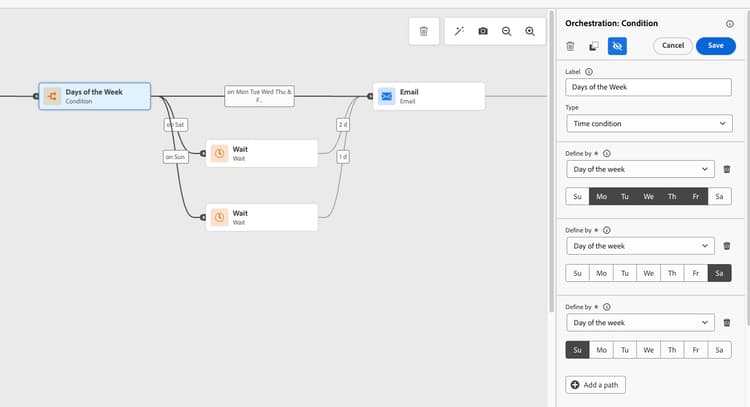
Right after the journey start, add a Condition activity to check if the current day is Saturday or Sunday. This will branch the workflow accordingly.
-
Drag and drop an Optimize activity onto the canvas after your entry point.
-
Click on the Condition activity to open its configuration panel.
-
Select Time condition as the condition type.
-
Select Day of the week as the time filtering option.
-
For the first path (Saturday), select Saturday only. Label this path as “Saturday”.
-
Click Add a path to create a second condition.
-
For the second path (Sunday), select Day of the week and choose Sunday only. Label this path as “Sunday”.
-
Check Show path for other cases than the one(s) above to create a path for weekday entries (Monday-Friday).
Step 3: configure wait activities for weekend entries
For profiles entering on Saturday or Sunday, use Wait activities with custom formulas to delay the email until Monday at your desired hour.
In the Wait activity, use the following formula:
toDateTimeOnly(setHours(nowWithDelta(X, "days"), H))
Where:
-
X is the number of days to wait:
- Use 2 for Saturday (wait until Monday)
- Use 1 for Sunday (wait until Monday)
-
H is the hour you want to send (e.g., 9 for 9 AM)
Example for Saturday:
toDateTimeOnly(setHours(nowWithDelta(2, "days"), 9))
Example for Sunday:
toDateTimeOnly(setHours(nowWithDelta(1, "days"), 9))
To implement this in your journey:
-
On the Saturday path, add a Wait activity after the condition.
-
Select Duration as the wait type.
-
Click Advanced mode to enter the custom formula.
-
Enter:
toDateTimeOnly(setHours(nowWithDelta(2, "days"), 9))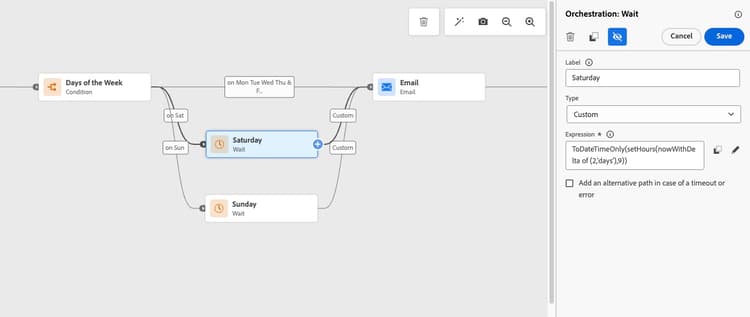
-
Repeat the same steps for the Sunday path, using:
toDateTimeOnly(setHours(nowWithDelta(1, "days"), 9))
Step 4: Weekday branch
For profiles entering Monday to Friday, proceed to the email send step as usual.
-
On the Weekday path (the “other cases” path), proceed directly to add an Email action activity. No Wait activity is needed for weekday entries.
-
Configure your email message as needed.
Step 5: Complete the journey flow
After the Wait activities on both the Saturday and Sunday paths, all three paths (Saturday, Sunday, and weekdays) should flow to the same Email action activity. Add an End activity after the email.
Visual workflow overview
The complete journey workflow follows this logic:
-
Start → Condition: Is it Saturday or Sunday?
- Yes (Saturday): Wait until Monday 9 AM → Send email
- Yes (Sunday): Wait until Monday 9 AM → Send email
- No (Monday-Friday): Send email immediately
This ensures that all emails are sent on weekdays only, with weekend entries automatically queued for Monday delivery.
Step 6: Test your journey
Before publishing, thoroughly test your journey logic in Adobe Journey Optimizer’s Test Mode to confirm everything works as expected:
-
Click Validate in the journey header. Resolve any errors in the Alerts panel and validate again before continuing. Learn about journey validation.
-
Click the Test button in the top right corner.
-
Enable test mode.
-
Create test profiles with simulated entry times on different days of the week:
- Saturday entry: Verify the profile follows the Saturday path, waits, and receives email on Monday at the specified hour
- Sunday entry: Verify the profile follows the Sunday path, waits, and receives email on Monday at the specified hour
- Monday-Friday entries: Verify emails are sent immediately without any wait
-
Review the journey visualization to ensure profiles follow the correct conditional paths (Saturday, Sunday, or weekday).
-
Check for any errors or warnings in the journey.
-
Verify that the Wait formulas calculate the correct duration for your desired Monday delivery time.
Step 7: Publish your journey
Once testing is complete:
-
Make sure validation is current and passed. If you changed the journey after validation, click Validate again and resolve any errors before publishing.
-
Click Publish in the top right corner.
-
Confirm the publication.
-
Monitor the journey performance using Journey reporting and live reports.
Related topics
- Optimize activities - Learn how to create different paths in your journey
- Use conditions in a journey - Detailed guide on journey conditions
- Wait activity - Configure wait durations and formulas
- Date functions - Complete reference for date and time functions
- Expression editor - Build complex expressions
- Journey best practices - Recommended approaches for journey design
This section contains structured knowledge intended to support interpretation, retrieval, and question answering related to this topic.
For complete understanding, this information should be combined with the documentation on this page. Neither source is intended to stand alone; the page describes the feature, while this section provides additional context that helps disambiguate terminology, intent, applicability, and constraints.
- TL;DR: This page provides a step-by-step use case for configuring a journey that sends emails only on weekdays by using a day-of-week condition and custom Wait formulas to delay weekend entries until Monday.
Intents:
- Configure a Condition activity to branch a journey based on the day of the week (Saturday, Sunday, or weekday)
- Write custom Wait expressions using
toDateTimeOnly(setHours(nowWithDelta(X, "days"), H))to delay weekend profiles until Monday - Build a three-path journey that merges all paths into a single Action activity with the Email channel
- Test the weekday-only email logic using test profiles with different simulated entry days
- Send emails immediately for weekday entries (Monday to Friday) while queuing weekend entries for Monday delivery
Glossary:
- Time condition: A condition activity type in Journey Optimizer that branches journey paths based on date/time criteria such as day of the week (product-specific)
- nowWithDelta: A function used with a day offset of 2 for Saturday or 1 for Sunday in the example Wait formulas (product-specific)
- setHours: An expression function that sets a specific hour on a given date/time value (product-specific)
- toDateTimeOnly: A function used around
setHours(nowWithDelta(X, "days"), H)in the example Wait formulas (product-specific)
Guardrails:
- Before testing, click Validate, resolve any errors in the Alerts panel, and validate again before continuing.
- The time zone used for day-of-week evaluation is the journey’s configured timezone (set in journey properties), not the individual recipient’s timezone.
- An active Adobe Journey Optimizer instance with a configured email channel surface, and an audience or event to trigger the journey, are required to implement this use case.
- Basic understanding of journey conditions and expressions is a prerequisite.
- Always test the journey in test mode before publishing to verify the Wait formulas produce the correct Monday delivery time.
Terminology:
- Canonical name: Send emails only on weekdays. UI terms: Time condition, Day of the week, Wait.
- Synonyms: “other cases” path = “Weekday path”.
- Do not confuse: journey timezone (used for day-of-week evaluation) ≠ recipient’s local timezone
FAQ:
- Q: What formula delays a Saturday entry until Monday at 9 AM? — Use
toDateTimeOnly(setHours(nowWithDelta(2, "days"), 9))on the Saturday path (2 days forward lands on Monday). - Q: What formula delays a Sunday entry until Monday at 9 AM? — Use
toDateTimeOnly(setHours(nowWithDelta(1, "days"), 9))on the Sunday path (1 day forward lands on Monday). - Q: Which timezone is used when evaluating the day-of-week condition? — The journey’s configured timezone defined in journey properties; it is not the recipient’s local timezone.
- Q: Do weekday entries need a Wait activity? — No, profiles entering Monday through Friday proceed directly to the Action activity with the Email channel without any wait.
- Q: How do I test that weekend entries are correctly queued? — In test mode, create test profiles with simulated Saturday and Sunday entry times and verify they follow the correct conditional path and receive the email on Monday at the configured hour.