On this page: Build a campaign that uses the Inbox action, target an audience, and schedule or trigger it, so you can deliver persistent messages that users can revisit in their inbox.
Prior to creating an inbox, complete the steps in Inbox configuration. The channel configuration identifies the target application or website, the page or rule, and the placement where the inbox is rendered.
To create a message inbox through a campaign, follow these steps:
-
Create a campaign. Learn more
-
Select the type of campaign you want to execute:
-
Scheduled - Marketing: execute the campaign immediately or on a specified date. Scheduled campaigns are aimed at sending marketing messages. They are configured and executed from the user interface.
-
API-triggered - Marketing/Transactional: execute the campaign using an API call. API-triggered campaigns are aimed at sending either marketing, or transactional messages, i.e. messages sent out following an action performed by an individual: password reset, cart purchase etc. Learn how to trigger a campaign using APIs
-
-
In the Properties tab, specify a name and a description for the campaign.
-
From the Action tab, select the Inbox action.
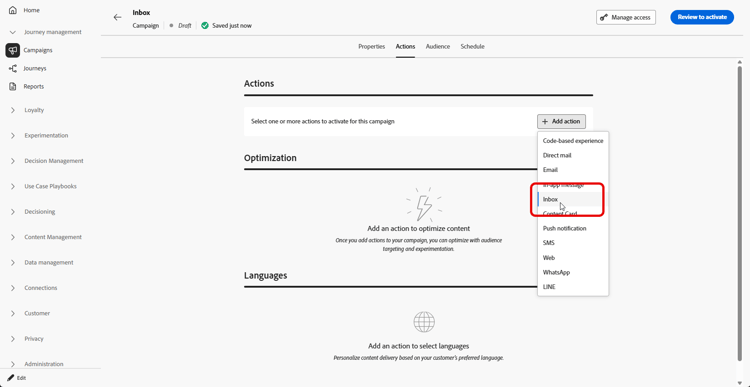
-
Select or create a new Inbox configuration.
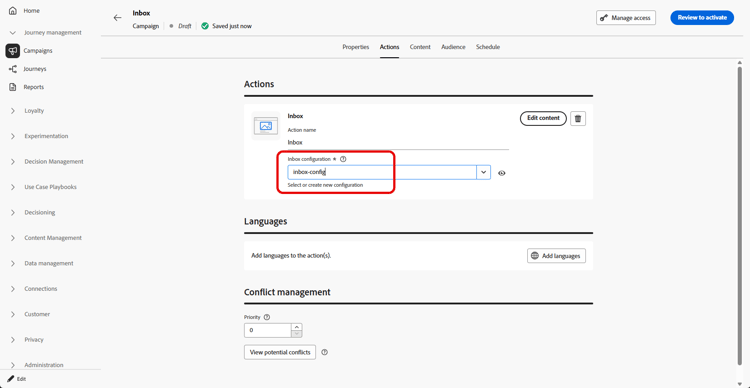
-
Access the Content tab to design your message using the content designer. Learn more
-
In the Audience tab, click the Select audience button to display the list of available Adobe Experience Platform audiences. Learn more about audiences
-
In the Identity namespace field, choose the namespace to use in order to identify the individuals from the selected segment. Learn more about namespaces
-
You can schedule your campaign to a specific date or set to recur at regular intervals. Learn more
-
Review and activate your campaign to send messages to the inbox.
You can now choose this Inbox when creating your Content card campaign.
This section contains structured knowledge intended to support interpretation, retrieval, and question answering related to this topic.
For complete understanding, this information should be combined with the documentation on this page. Neither source is intended to stand alone; the page describes the feature, while this section provides additional context that helps disambiguate terminology, intent, applicability, and constraints.
- TL;DR: This page explains how to create a message inbox through a campaign that uses the Inbox action, targets an audience, and is scheduled or triggered to deliver persistent messages users can revisit.
Intents:
- Create a campaign that uses the Inbox action
- Choose a Scheduled - Marketing or API-triggered campaign type
- Select or create an Inbox configuration for the campaign
- Design the message using the content designer
- Select an audience and the identity namespace to identify individuals
- Schedule and activate the campaign to send messages to the inbox
Glossary:
- Inbox action: The campaign action, selected in the Action tab, that delivers messages to the inbox (product-specific)
- Scheduled - Marketing campaign: A campaign executed immediately or on a specified date, aimed at sending marketing messages, configured and executed from the user interface (product-specific)
- API-triggered - Marketing/Transactional campaign: A campaign executed using an API call, aimed at sending either marketing or transactional messages; transactional messages are messages sent out following an action performed by an individual (for example password reset or cart purchase) (product-specific)
- Identity namespace: The namespace chosen to identify the individuals from the selected segment (product-specific)
Guardrails:
- Prior to creating an inbox, you must complete the steps in Inbox configuration; the channel configuration identifies the target application or website, the page or rule, and the placement where the inbox is rendered.
- You must select or create an Inbox configuration for the campaign.
- The campaign must be reviewed and activated to send messages to the inbox.
Terminology:
- Canonical name: Inbox action — Acronym: n/a — related terms: message inbox, Inbox configuration
- Do not confuse: “Scheduled - Marketing” (executed immediately or on a specified date from the UI, marketing messages) ≠ “API-triggered - Marketing/Transactional” (executed using an API call, marketing or transactional messages)
- Do not confuse: “Audience” (the selected Adobe Experience Platform audience) ≠ “Identity namespace” (the namespace used to identify individuals from the segment)
FAQ:
- Q: What must I do before creating an inbox? — Complete the steps in Inbox configuration, which identifies the target application or website, the page or rule, and the placement where the inbox is rendered.
- Q: Which campaign types can I use? — Scheduled - Marketing (executed immediately or on a specified date from the UI) or API-triggered - Marketing/Transactional (executed using an API call).
- Q: How do I design the message? — Access the Content tab and design your message using the content designer.
- Q: How are individuals identified? — In the Identity namespace field, choose the namespace used to identify the individuals from the selected segment.
- Q: What can I do after creating this Inbox? — You can choose this Inbox when creating your Content card campaign.