On this page: Define an Inbox channel configuration that sets consent, optional access labels, and where the inbox appears on the web or in your iOS or Android app, so you can deliver Content card experiences through the inbox.
Before you can deliver Content card experiences through the Inbox, you must define an Inbox channel configuration in Channel configurations. That configuration ties the surface to consent, optional access labels, and where the experience appears on the web or in your iOS or Android app. Follow the steps below to create a configuration:
-
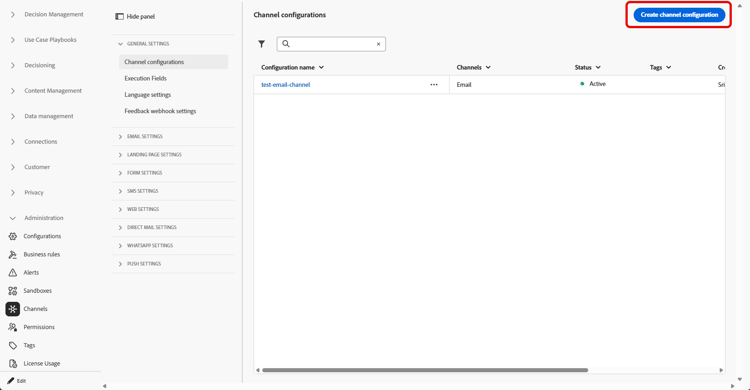
Access the Channels > General settings > Channel configurations menu, then click Create channel configuration.
-
Enter a name and a description (optional) for the configuration.
note NOTE Names must begin with a letter (A-Z). It can only contain alpha-numeric characters. You can also use underscore _, dot.and hyphen-characters. -
To assign custom or core data usage labels to the configuration, you can select Manage access. Learn more about Object Level Access Control (OLAC).
-
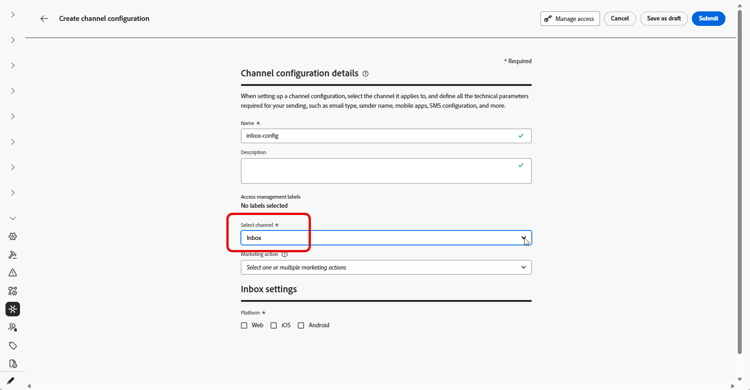
Select Inbox channel.
-
Select Marketing action(s) to associate consent policies to the messages using this configuration. All consent policies associated with the marketing action are leveraged in order to respect the preferences of your customers. Learn more
-
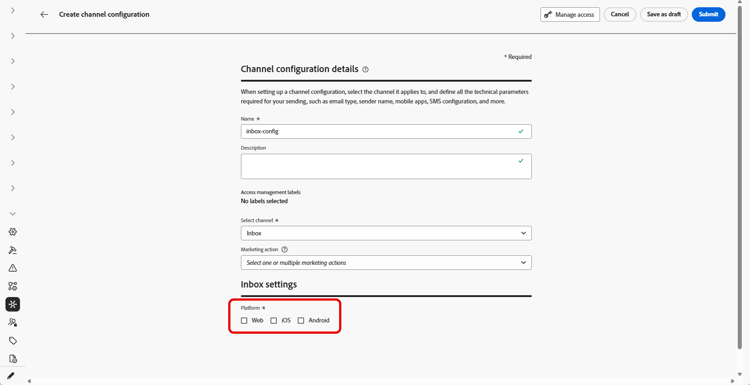
Select the platform for which the Inbox experience will be applied.
-
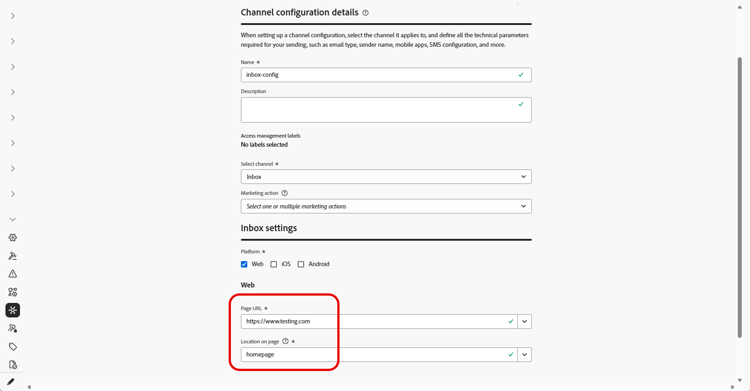
For Web:
-
In Page URL, enter or select the URL of the page where the inbox should appear. Use this when the experience is limited to one page.
-
In Location on page, define the in-page placement, for example, the region or identifier your site uses for the inbox surface. Learn more
-
-
For iOS and Android:
-
In App id, enter or select the identifier for your app so the configuration applies to the correct iOS or Android build.
-
In Location or path inside the app, specify the screen, route, or container where users should open the inbox.
-
-
Submit your changes.
You can now select your configuration when creating your Inbox experience.
➡️ Follow the steps detailed in this page
This section contains structured knowledge intended to support interpretation, retrieval, and question answering related to this topic.
For complete understanding, this information should be combined with the documentation on this page. Neither source is intended to stand alone; the page describes the feature, while this section provides additional context that helps disambiguate terminology, intent, applicability, and constraints.
- TL;DR: This page explains how to create an Inbox channel configuration that ties the surface to consent, optional access labels, and where the inbox appears on the web or in your iOS or Android app.
Intents:
- Create an Inbox channel configuration in Channel configurations
- Associate consent policies to messages by selecting marketing action(s)
- Assign custom or core data usage labels through Manage access
- Define where the inbox appears for Web using Page URL and Location on page
- Define where the inbox appears for iOS and Android using App id and the location or path inside the app
Glossary:
- Inbox channel configuration: A configuration in Channel configurations that ties the surface to consent, optional access labels, and where the experience appears on web, iOS, or Android (product-specific)
- Marketing action: A selection that associates consent policies to messages using the configuration so customer preferences are respected (product-specific)
- Page URL: For Web, the URL of the page where the inbox should appear, used when the experience is limited to one page (product-specific)
- Location on page: For Web, the in-page placement (region or identifier your site uses for the inbox surface) (product-specific)
- App id: For iOS and Android, the identifier for your app so the configuration applies to the correct build (product-specific)
- Manage access: The option used to assign custom or core data usage labels to the configuration, related to Object Level Access Control (OLAC) (product-specific)
Guardrails:
- You must define an Inbox channel configuration in Channel configurations before you can deliver Content card experiences through the Inbox.
- Configuration names must begin with a letter (A-Z) and can only contain alpha-numeric characters plus underscore, dot, and hyphen characters.
- All consent policies associated with the selected marketing action are leveraged to respect customer preferences.
Terminology:
- Canonical name: Inbox channel configuration — Acronym: n/a — variants: Inbox configuration, channel configuration
- Synonyms: “OLAC” = “Object Level Access Control”
- Do not confuse: “Page URL” (the page URL where the inbox appears on Web) ≠ “Location on page” (the in-page placement/region or identifier for the inbox surface)
- Do not confuse: “App id” (identifier for the iOS or Android app) ≠ “Location or path inside the app” (the screen, route, or container where users open the inbox)
FAQ:
- Q: What must I create before delivering Content card experiences through the Inbox? — An Inbox channel configuration in Channel configurations.
- Q: What are the rules for naming a configuration? — The name must begin with a letter (A-Z) and can only contain alpha-numeric characters plus underscore, dot, and hyphen.
- Q: How do I associate consent to messages using this configuration? — Select marketing action(s); all consent policies associated with the marketing action are leveraged to respect customer preferences.
- Q: How do I set where the inbox appears on the web? — Enter or select the Page URL and define the in-page placement in Location on page.
- Q: How do I set where the inbox appears on iOS or Android? — Enter the App id and specify the screen, route, or container in Location or path inside the app.