Create a ChatGPT ad experience
Use Create in GenStudio for Performance Marketing to build ChatGPT ads as paid media experiences, from guidelines and assets through generation, brand and channel checks, approval, publishing to Content, and activation in the same Activate flow used for channels such as Meta and Google Campaign Manager 360.
Before you begin, add guidelines where needed and review effective prompts so your headline prompts produce strong variants.
Prerequisites
You’ll need to be set up according to these prerequisites before you create or activate ChatGPT ads in GenStudio for Performance Marketing.
Access and roles
- You have an Editor role or higher in GenStudio for Performance Marketing. See User roles and permissions.
- You have an OpenAI Ad Account and an API key from that account.
- A ChatGPT Ads account is connected to GenStudio for Performance Marketing.
To create an API key in OpenAI Ads Manager:
- In OpenAI Ads Manager, go to Settings > API Keys > Create New Key.
To connect your ChatGPT Ads account in GenStudio for Performance Marketing:
- In the lower-left area, click More > Settings > ChatGPT > Connect > Add Account.
- Enter the name of your OpenAI Ad Account, paste your API key, and click Add Account.
Your ad account is connected when the flow completes successfully.
Create configuration
- Brands, Products, and Personas are configured so the app can generate on-brand copy. See Guidelines overview.
- Images you want to use are available in Content.
Generate a ChatGPT ad
You create ChatGPT ads as paid media experiences in the Create workspace.
Start a ChatGPT experience
To open ChatGPT creation:
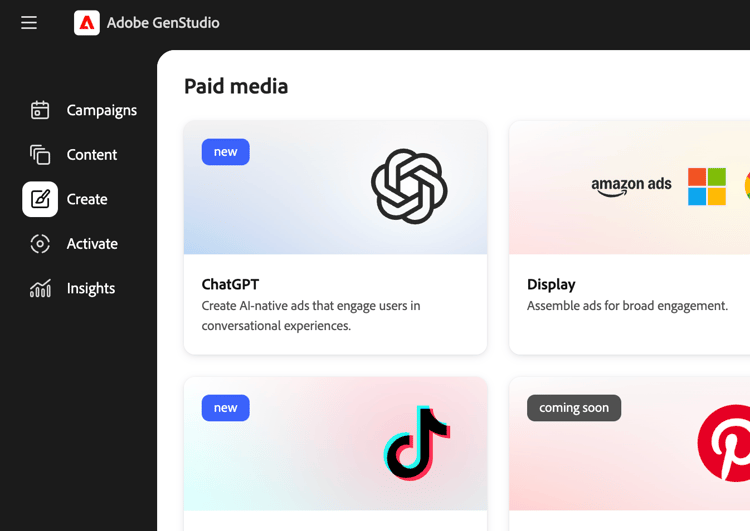
- Go to Create > ChatGPT. You do not select templates for ChatGPT; a single ad layout is used.
- In the Canvas, make selections for Brand, Product, Persona, and Language.
- Select an image from Content.
- Enter a prompt for your ChatGPT headline copy.
- Click Generate.
GenStudio for Performance Marketing generates four creative variants.
You can:
- Use Regenerate or Refine to adjust tone, length, or emphasis.
- Edit text directly in the Canvas.
- Use Swap to choose an alternative image from Content.
See Manage variants for more ways to edit generated experiences.
Run brand and channel checks
Before you save or send the experience for review, validate copy and layout against brand and channel rules.
To run content checks:
- Click Content check (brand and channel checks).
- Review validation results in the Content check panel.
- Resolve any flagged issues (for example, copy length or dense on-screen text) by editing variants or regenerating as needed.
See Brand validation.
Save a ChatGPT ad in GenStudio for Performance Marketing
Saving moves your ChatGPT ad experience into Content so it can be reviewed, reused, and activated.
There are two states:
- Draft experience: Work in progress and not approved.
- Published experience: Approved and available in Content for activation.
Send for review
- From the experience header, click Request review.
- Select approvers (for example brand, legal, or performance stakeholders).
- Optional: Add a note in Settings.
- Click Send for review.
Approvers can view the ChatGPT experience, brand and channel check results, and Approve or request changes.
See Request review and approval and Reviews and approvals.
Publish to Content
After all required approvals, publish to Content:
- Click Publish to Content.
- Confirm metadata, for example campaign or activation name, region, language, persona, funnel stage, and Channel: ChatGPT.
- Click Publish.
The ChatGPT ad appears in Content, discoverable with filters such as channel or campaign, and is ready for selection in Activate.
See Publish approved content and Content overview.
Activate a ChatGPT ad
ChatGPT activation uses the same Activate module as other paid channels. See Activate a ChatGPT ad for prerequisites and setup fields specific to ChatGPT.