[AEM Assets]{class="badge positive" title="Applies to AEM Assets."}
Transcription Support to videos transcription-support
Transcription in Dynamic Media Dynamic Media uses the Automatic Speech Recognition (ASR) technology to convert spoken audio into a written text transcript. It processes audio recordings or live speech, identifies spoken words, and generates a searchable, time-aligned transcript that can be reviewed, edited, and shared.
Transcripts for videos improves the accessibility for your customers. These are Server Side Rendered (SSR) transcripts which directly increase the SEO and LLM visibility of videos. It also embeds a compliant VideoObject that helps search engine and LLM tools recognise videos in your page.
The transcripts are generated based on the captions you have added in the video. With native transcription capabilities now integrated into the video, you can easily access and search content without the need for transcription through external sources.
Prerequisites prerequisites-for-enabling-transcriptions
To enable transcription, ensure you have Dynamic Media Dynamic Media and videos with captions in Adobe Experience Manager (AEM) Sites.
Enabling Transcription for videos in Adobe Experience Manager (AEM) enable-transcription
To enable transcription, follow the steps mentioned below:
-
In Adobe Experience Manager (AEM) Sites, navigate to the homepage of any website.
-
Click the Edit button

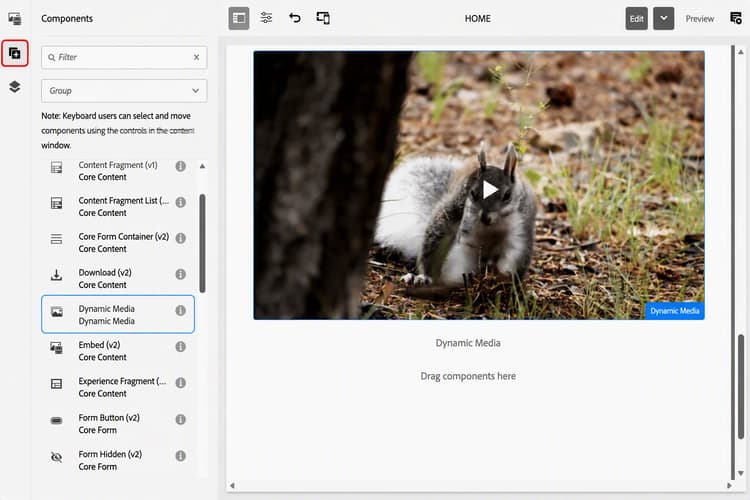
- To add a Dynamic Media component, click the Components icon. Drag and drop a Dynamic Media component as shown in the figure.
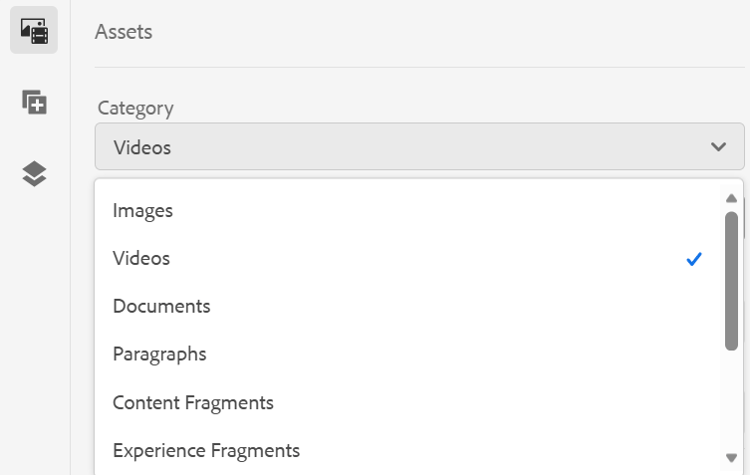
- To add a video element inside the Dynamic Media component, select Videos from the Category drop-down. Drag and drop the video element to add it in the Dynamic Media component.
- To add a Dynamic Media component, click the Components icon. Drag and drop a Dynamic Media component as shown in the figure.
-
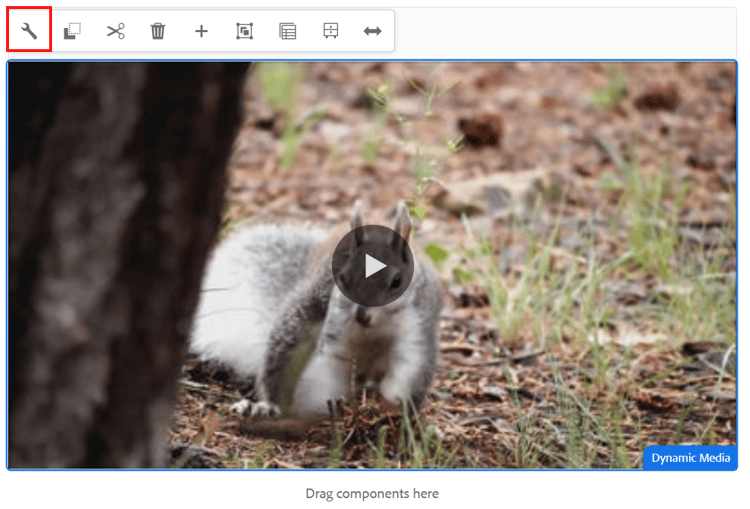
Select the Dynamic Media component and click Configure.
-
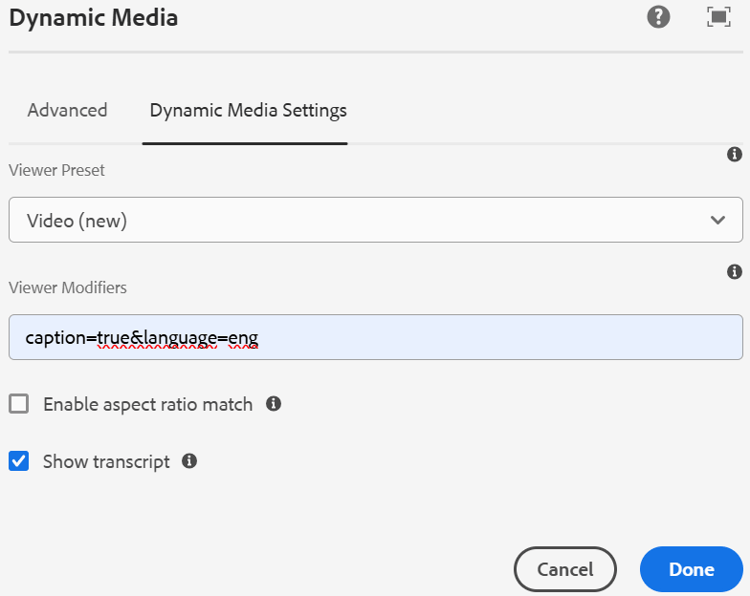
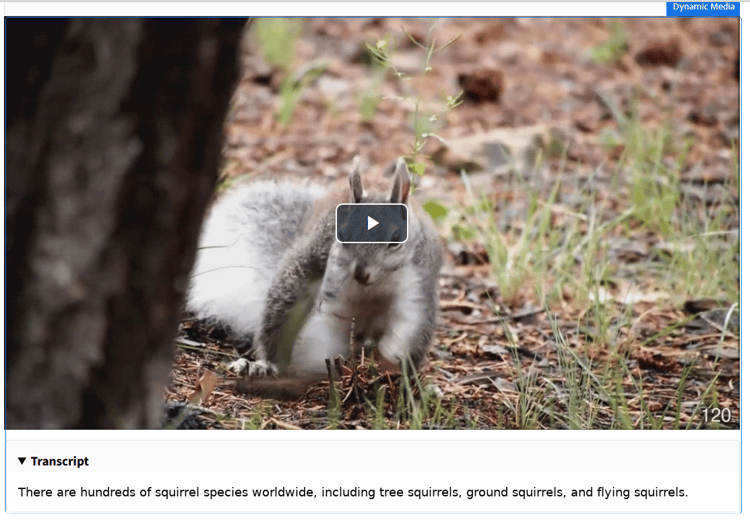
From the Viewer Preset drop down, select Video (new) and click Show transcript. The Viewer Modifiers field allows you to select the language in which you want the transcript to be displayed. For example, you can select English as the default language and click Done.
-
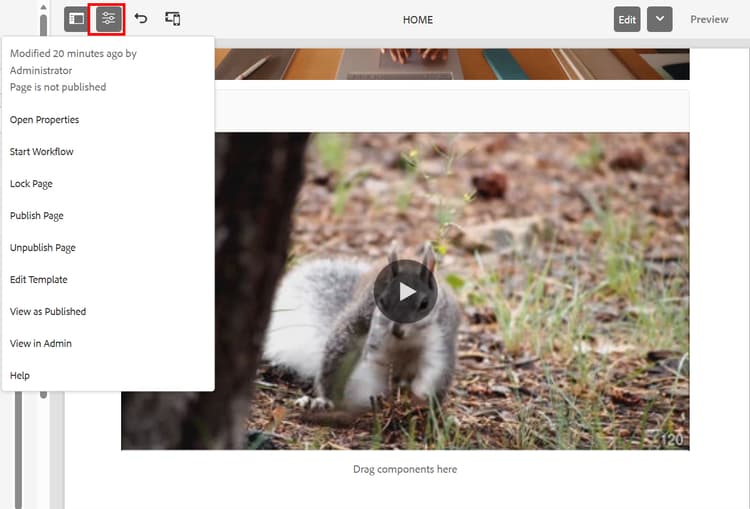
Click the Page Information icon and select View As Published.
The image below shows the video along with the transcript.
See also