[AEM Assets]{class="badge positive" title="Applies to AEM Assets)."}
Preview assets before using them in AEM Sites pages asset-preview-using-Dynamic-Media-with-OpenAPI-capabilities
Dynamic Media with OpenAPI capabilities lets you preview assets available in your Adobe Experience Manager (AEM) Sites author pages before making them publicly available. The asset preview is available on your site’s author and preview tier.
To preview assets on AEM Sites preview pages, update your site’s author pages by either adding the assets you want to preview or replacing the existing ones available in your live sites page. Publish the updated author pages to the preview tier to generate a preview URL.
Share the preview page with stakeholders to gather feedback on the visual quality and contextual alignment of the updated assets. Refine the assets based on feedback. Create and manage multiple versions of the asset during the review cycle.
Once you finalize the assets for public use, update them in your author pages and publish the pages to the publish tier for public access.
Before you begin prerequisites-for-previewing-assets-using-Dynamic-Media-with-OpenAPI-capabilities
Ensure you have:
- Access to AEM Assets as a Cloud Service.
- Permission to edit the Status property of assets.
- Added Preview value to the Status metadata property available in Basic tab of the metadata form applied to the folder containing the assets to preview.
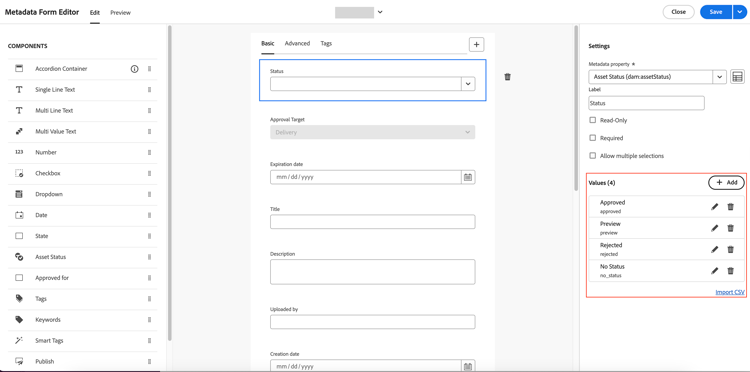
- The key to generate the preview token. Contact Adobe support and raise a request for the key.
Preview assets in your sites preview page asset-preview-on-sites-pages-using-Dynamic-Media-with-OpenAPI-capabilities
You can preview new assets or assets that are already approved. Approved assets only display on your live Sites pages.
Execute the following steps to set the asset status to preview in Assets View and then publish your Sites authoring page to the preview tier to generate a preview URL of the page:
-
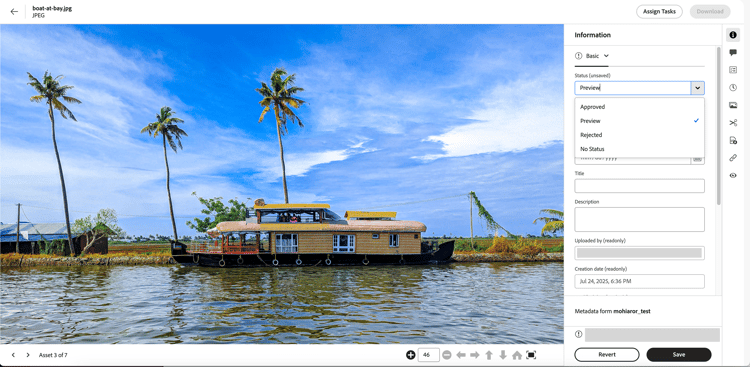
Set asset status to Preview by executing the following steps:
- In Assets View, select Assets and navigate to your folder.
- Select the asset to preview.
- Click Details.
- In the Information Panel, set Status to Preview, then click Save.
-
Navigate to your Sites authoring page. Execute the steps in Access remote assets in AEM Page Editor section to use the Asset Selector panel for selecting the asset you recently set to Preview (status).
note NOTE The Asset Selector displays assets with the most recent status update set to either Approved or Preview. -
Publish your page to the preview tier using the Manage Publication option. Execute the steps in the Publishing Content to Preview section to publish your page to the preview tier. After publishing, generate a preview URL of your page. The Preview page displays the assets (with most recent status updates) in your Sites page.
Share this preview URL with the stakeholders for review and feedback. Ensure that your stakeholders have access to the preview page. See Access the preview service for information on providing access to the preview pages.
After finalising the asset version, publish your pages to the publish tier for public consumption.
Publish your pages with approved assets for public use publish-your-pages-to-publish-tier
After finalising the asset version for public use, set the asset status to Approved. Then publish your pages to the publish tier. Execute the following steps to publish your pages:
-
Follow step 1 in Preview assets in your sites preview page section above to change asset status to Approved.
-
Navigate to your Sites author page and publish it to the Publish tier. Publish the pages by executing the steps in Publishing from the Page Editor section.
Alternatively, follow the steps in Publishing Pages from the Sites Console section to publish your page from your site’s console.note NOTE Only approved assets can be delivered on the Publish tier. Approve the assets before publishing your page to the Publish tier for public use. 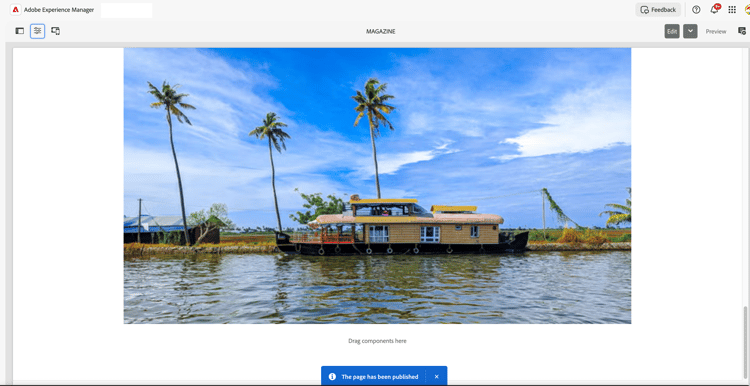
A confirmation message The page has been published displays after successful publishing. Navigate to your published page on publish tier to confirm the updates are live and the content displays as expected.
See also
- Translate Assets
- Assets HTTP API
- Assets supported file formats
- Search assets
- Connected assets
- Asset reports
- Metadata schemas
- Download assets
- Manage metadata
- Manage Dynamic Media templates
- Manage reports in Assets view
- Search facets
- Manage collections
- Bulk metadata import
- Publish Assets to AEM and Dynamic Media