[AEM Assets]{class="badge positive" title="Applies to AEM Assets."}
Custom Thumbnail Support for videos custom-thumbnail
Adobe Experience Manager (AEM) Assets custom video thumbnails let authors select an appropriate thumbnail from a frame within the video or use an uploaded image asset. The number of thumbnails generated for a video asset can be customized. Custom video thumbnails provide greater control over the visual presentation of video assets across digital experiences.
Enabling Custom Thumbnail for videos enabling-custom-thumbnail
To enable custom thumbnails for videos, follow the steps mentioned below:
-
In Adobe Experience Manager (AEM), navigate to Assets > Files.
-
Click any video asset and navigate to Properties.
-
You can now see the Change Thumbnail option along with the title and other details of the video asset.
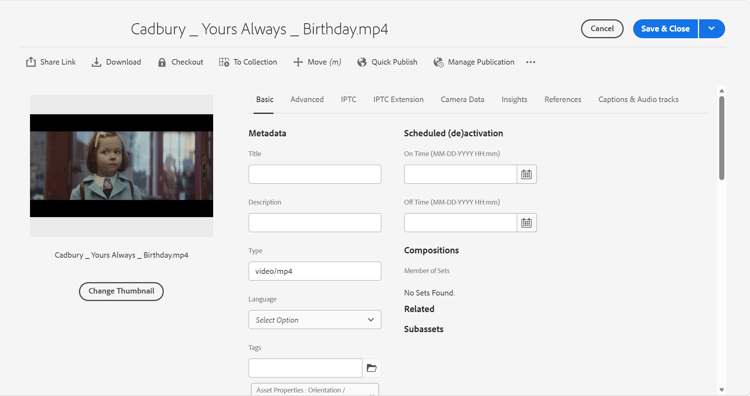
- To generate a thumbnail from an existing video asset, click Change Thumbnail and select Select Frame from Video. Play the video asset and navigate to the desired frame. Once you have identified the frame you want to use as the thumbnail, click Save Change to generate and save the thumbnail from that specific frame in the video asset.
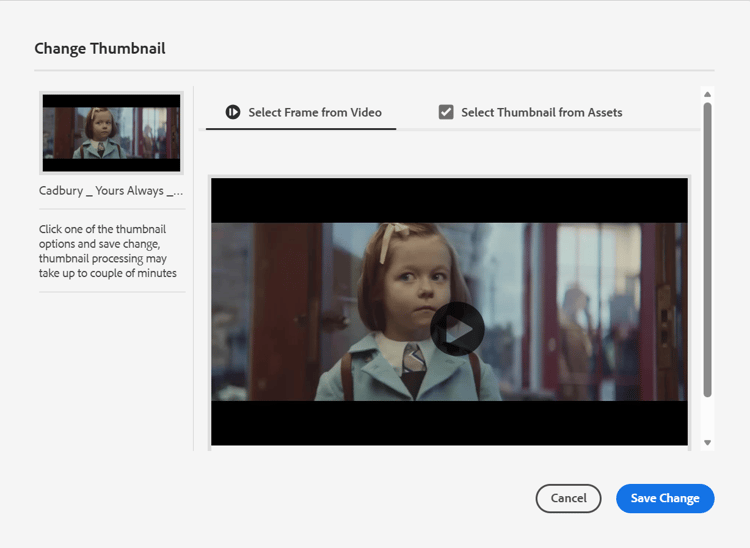
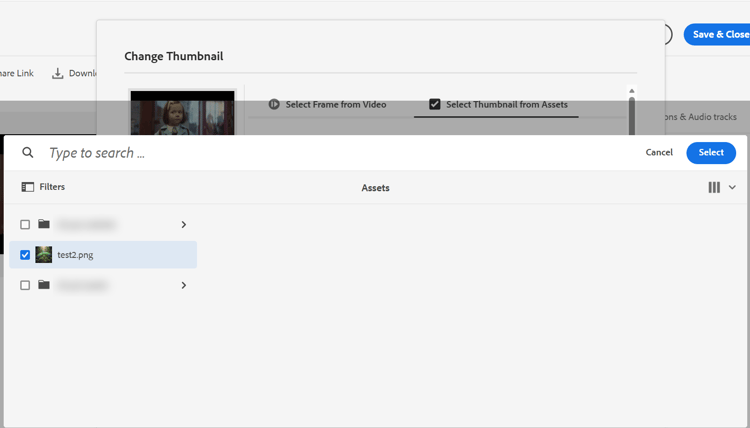
- To select a thumbnail from an existing image in Assets, click Change Thumbnail and select Select Thumbnail from Assets. Click Select Thumbnail and select the thumbnail. Click Save Change.
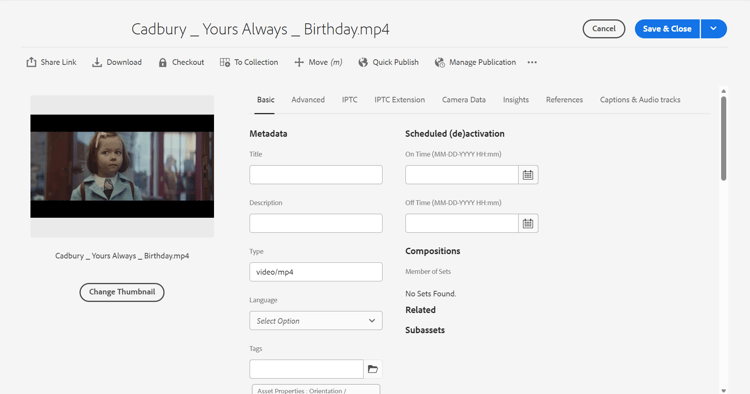
You can now see the newly generated thumbnail image.
- To generate a thumbnail from an existing video asset, click Change Thumbnail and select Select Frame from Video. Play the video asset and navigate to the desired frame. Once you have identified the frame you want to use as the thumbnail, click Save Change to generate and save the thumbnail from that specific frame in the video asset.
See also