[AEM Assets]{class="badge positive" title="Applies to AEM Assets)."}
Use AEM Content Advisor with the browser extension (Beta) content-advisor-browser-extension
Use the power of AEM Content Advisor for AEM Assets, in the application of your choice with the browser extension.
Why you will love it?
-
Zero setup, zero code. Install it, sign in, and start working. No integration, no custom connectors, no developer tickets.
-
Smarter suggestions, on your terms. Recommendations come from the whole page, or narrow them by selecting a region, highlighting text, or choosing an image. The more precisely you point, the sharper the results.
-
Pick exactly what you need. Choose any asset or any Dynamic Media rendition (the right size, format, or crop) and send it straight to your editor. Insert, drag and drop, or copy URL to the clipboard.
-
Works where you author. AEM (Cloud Service, Adobe Managed Services, or On-premise), other Adobe CX Enterprise products (where AEM Assets native integration does not exist), and third-party tools such as Google Docs/WordPress/Microsoft Powerpoint, and any other web application.
aem-content-advisor-feedback@adobe.com to provide feedback on AEM Content Advisor browser extension.Pre-requisites prerequisites-content-advisor
-
You must sign in with an Adobe ID that has access to the required AEM Assets repository.
-
A valid Dynamic Media license to view Dynamic Media renditions.
Install and use the extension content-advisor-browser-extension-install
-
Install the AEM Content Advisor extension from the Chrome Web Store.
-
Sign in with your Adobe ID when prompted.
-
Open a supported web application.
-
Open AEM Content Advisor by selecting the AEM Content Advisor extension button or the floating AEM Content Advisor widget. You can also configure settings for AEM Content Advisor browser extension before starting to use the extension.
-
Select one of the following options to additionally benefit from AEM Content Advisor suggestions:
- Suggest from page to get recommendations based on the page content.
- Suggest from region to get recommendations based on a selected area of the page.
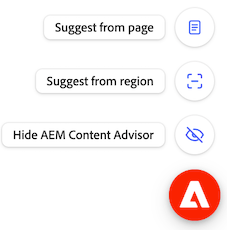
-
Drag a recommended asset into the editor, or select to copy the asset if direct drag and drop is not supported.
note NOTE The rich features of AEM Content Advisor, including AI Search, campaign brief-based suggestions, Dynamic Media renditions, and more, are also available with the browser extension.
Working with Dynamic Media renditions working-with-dynamic-media-renditions
Dynamic Media renditions available within AEM Content Advisor browser extension provide ready-to-use, channel-optimized versions of assets, including image presets, Smart Crops, format types, and color profiles. These renditions help ensure that the selected asset meets channel and design requirements without requiring manual editing or asset duplication.
You can also apply Dynamic Media modifiers to preview adjustments in real-time before selecting the rendition for the host Adobe application, enabling faster selection of the most appropriate rendition while maintaining asset consistency and quality.
Click the

Select the rendition to open its preview and you can drag the asset from the preview to the editor. You can also click the Link icon to copy the Dynamic Media rendition to the clipboard.
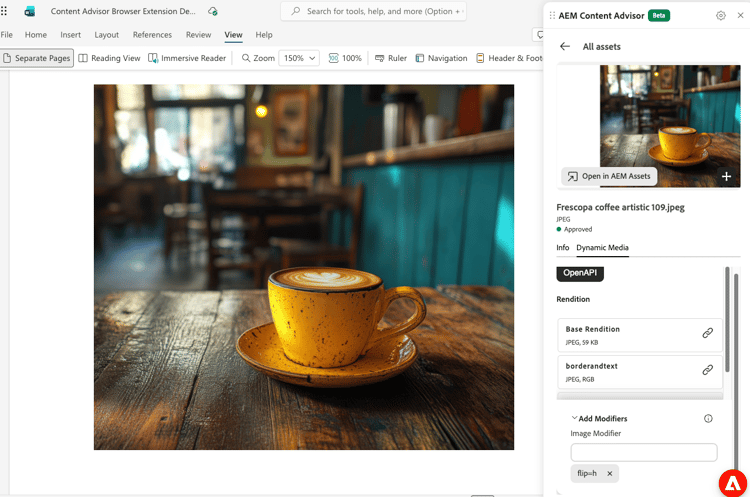
On surfaces that support rendering assets directly from a URL, the Dynamic Media URL is retained. On other surfaces, the Dynamic Media rendition is copied to the host web application.
You can optionally click Add Modifiers, specify a modifier in the text box, and press Enter to apply the transformation to all asset renditions in real-time. Similarly, you can add multiple modifiers to renditions and preview those transformations. You can drag the asset from Preview to the editor. The rendition after applying those modifiers is not saved. See the list of supported modifiers for Dynamic Media with OpenAPI and Dynamic Media Scene 7.
Working with AEM Sites content-advisor-browser-extension-aem-sites
Dynamic Media with OpenAPI allows AEM Sites integration with remote AEM Assets Cloud Services, for approved assets.
You can now experience the full range of AEM Content Advisor capabilities, even from AEM Sites (Adobe Managed Services and On-premise), via the browser extension. Ensure to select the same remote AEM Assets Cloud Services instance in the browser extension repository picker, as what is configured in the Dynamic Media with OpenAPI integration. Use of only approved assets from the remote AEM Assets Cloud Services instance is allowed via the browser extension in AEM Sites (Adobe Managed Services and On-premise).
Working with Adobe Acrobat on the web content-advisor-browser-extension-acrobat-web
Use the Content Advisor browser extension with Acrobat on the web to seamlessly bring documents from AEM Assets into your workflows. Select PDFs from AEM Assets to get answers to questions about your content, prepare documents for e-signing, or turn a PDF campaign brief into a presentation using a simple prompt, and so on.
Watch this video for a quick demo of the integration in action.
Configure AEM Content Advisor content-advisor-browser-extension-configure
Select the Settings icon in the AEM Content Advisor panel to configure the extension.
Important points to note content-advisor-browser-extension-important-points
- The AEM Content Advisor extension is supported in Google Chrome and other browsers based on Chromium, such as Microsoft Edge.
- Asset recommendations depend on the content available on the page or in the selected region. Pages with limited or inaccessible content might return fewer recommendations.
- The browser extension does not work in applications that already have a native AEM Content Advisor integration, or in applications that block extensions. To request AEM Content Advisor in such web applications, email
aem-content-advisor-feedback@adobe.com. - The capabilities available in AEM Content Advisor depend on the host application. Drag and drop and adding assets directly to content are supported only when the host application allows these operations. In other applications, you can select the asset to copy it and then paste it into the editor.
See also
- Translate Assets
- Assets HTTP API
- Assets supported file formats
- Search assets
- Connected assets
- Asset reports
- Metadata schemas
- Download assets
- Manage metadata
- Manage Dynamic Media templates
- Manage reports in Assets view
- Search facets
- Manage collections
- Bulk metadata import
- Publish Assets to AEM and Dynamic Media