[AEM Assets]{class="badge positive" title="Applies to AEM Assets)."}
Dynamic Media delivery reports dynamic-media-delivery-reports
Get delivery insights for assets delivered with Dynamic Media, with asset level delivery count, referrer information, asset path in AEM Assets and unique asset ID. Reports can be generated for all assets delivered via the Dynamic Media for AEM Assets repository or for a specific folder hierarchy in AEM Assets. Moreover, Dynamic Media Delivery Reports insights help measure ROI of assets delivered, measure channel performance, and help take informed asset management tasks for assets.
Prerequisites for generating Dynamic Media delivery reports prereqs-dynamic-media-delivery-reports
You should have a Dynamic Media license to create and use this report.
- Reports are provided for assets delivered via Dynamic Media.
- Reports are generated for the first 1 million rows. To capture all files within this limit, consider including the referrer column for smaller folders.
- Reports can be generated for the past 3 months only.
Create a Dynamic Media Delivery Report in Assets view create-dynamic-media-delivery-report
-
Create a Dynamic Media Delivery Report, using the steps mentioned in Create a report.
-
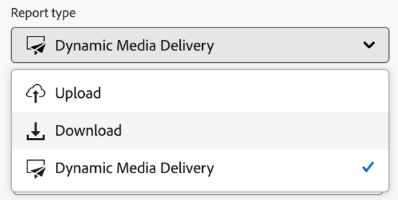
Select Dynamic Media Delivery from the Report type drop-down list.
-
In the Columns tab, you can select the Referrer column to include it in your report.
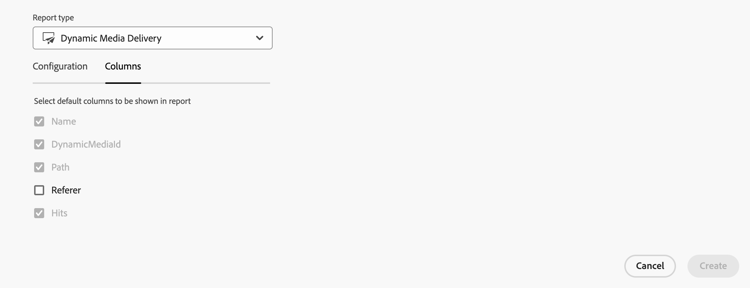
All the columns of the downloaded report are read-only, except the Referrer column, which you can modify to include or exclude from the report.
Actions performed on Dynamic Media delivery report actions-performed-dynamic-media-delivery-reports
After creating the report, you can perform the following actions:
-
Delete: You can delete the selected report.
-
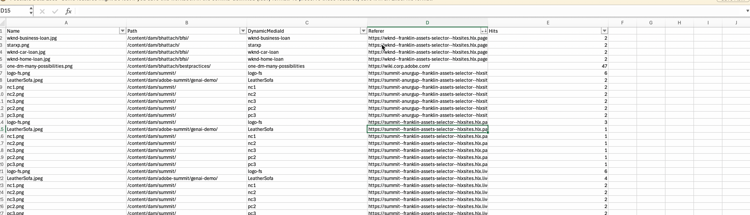
Download CSV: You can download the selected report in a CSV format. The downloaded report consists of the Name, Path, DynamicMediaID, Referrer, Hits columns.
-
Referrer column lists the URL where the asset is delivered or included.
-
Hits column lists the number of times the asset is delivered (delivery count).
-
To delete or download the Dynamic Media Delivery Report as CSV, see View and download existing report.
Troubleshoot missing Referrer data in Dynamic Media delivery report troubleshoot-missing-referrer-data-dynamic-media-delivery-reports
The Referrer column displays the URL of the webpage from which a Dynamic Media asset request originated. The value is populated from the Referrer request header that is sent with the asset delivery request.
If the Referrer column is empty, review the following scenarios.
Webpage does not send referrer information webpage-does-not-send-referrer-information
If the webpage’s Referrer-Policy is set to no-referrer, the browser does not send referrer information with the asset request. As a result, the Referrer column remains empty.
Asset is accessed directly asset-is-accessed-directly
The Referrer column can also be empty when users access an asset directly, for example by:
- Entering the asset URL in the browser’s address bar.
- Opening a bookmarked asset URL.
- Opening the asset URL directly.
In these scenarios, no referrer information is available.
Request comes from a non-browser client request-comes-from-a-non-browser-client
Non-browser clients, such as:
- Native mobile applications
- Server-to-server requests
- Scripts
- Bots
- cURL clients
Do not automatically send the Referrer request header. If the header is not included in the asset delivery request, the Referrer column remains empty.
Populate the Referrer column populate-the-referrer-column-dynamic-media-delivery-reports
Browser-based requests browser-based-requests
Browsers automatically populate the Referrer, if webpage’s Referrer-Policyset is not set to no-referrer policy.
Native mobile applications and server-side clients native-mobile-applications-and-server-side-clients
For native mobile applications and server-side callers, explicitly include the Referrer request header in the asset delivery request.
The following examples demonstrate how to set the Referrer header.
iOS (URLSession) ios-urlsession
request.setValue(
    "https://app.customer.com/<screen>",
    forHTTPHeaderField: "Referer"
)
Android (OkHttp) android-okhttp
Request request = new Request.Builder()
    .url(assetUrl)
    .header("Referer", "https://app.customer.com/<screen>")
    .build();
https://app.customer.com/<screen> as a placeholder value. Replace it with the appropriate URL for your application.See also