[AEM Assets]{class="badge positive" title="Applies to AEM Assets)."}
Rename asset or folder in Assets view rename-single-asset-or-folder
Renaming an asset or folder improves organization, categorization, and identification without altering the asset’s content or its location within Assets view. The rename action changes only the display name, so the asset’s stored data, references, and folder placement remain unchanged.
Execute the steps below to rename an asset or a folder:
-
Locate the asset or folder that you want to rename.
-
Use one of the following methods to rename an asset or a folder:
- Select the asset or folder and click

- Click more options
...on the asset or folder and select Rename. Then enter the new name in the Rename Asset textbox and click Save. - Click the title of an asset or a folder to rename it directly. Mention the new text in the Rename Asset textbox and click Save to apply the change. This inline renaming capability is available in Grid, Gallery, Waterfall, and List views.
- Select the asset or folder and click
AI-powered assets bulk rename rename-bulk-assets-using-ai
The Assets view enables you to rename multiple assets simultaneously using AI. The AI Bulk Rename functionality applies only to files, not folders. Select multiple files at once and rename them together in a single operation, saving significant time compared to renaming each file individually.
Steps to bulk rename assets using AI
An AI-generated prompt is a plain-language instruction that tells the AI how the selected files should be named. Follow these steps to rename a batch of assets at once using AI-generated prompts:
-
Select multiple assets and click Bulk Rename from the top menu.
-
Add the prompt describing how you want to rename the selected assets. Refer to some examples illustrating AI Bulk Rename.
-
Click Execute so the AI renames the selected assets according to the instructions in your prompt. This applies the naming pattern consistently across every selected file.
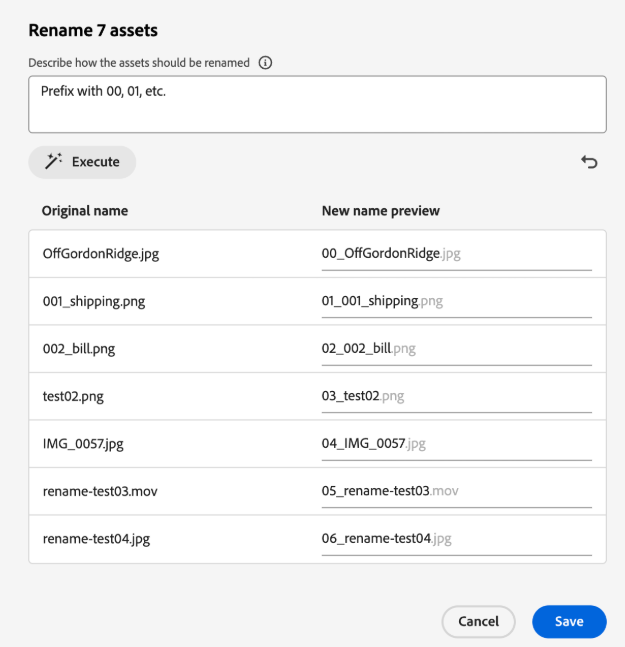
-
[Optional] Click

-
Review the proposed changes in the New name preview column, which shows each file’s new name before it is applied, then click Save to confirm and finalize the renaming.
Some examples illustrating AI Bulk Rename examples-ai-bulk-rename
The following examples demonstrate how to use AI prompts to rename assets in bulk, transforming multiple asset names simultaneously through a single natural-language instruction. This prompt-driven approach lets you apply consistent naming conventions across large sets of assets without editing each name individually:
- Sequential prefix with date suffix: Prefix each file with 00, 01, and so on, and suffix with today’s date (for example,
00-filename-2024). - Rename with incrementing counter: Change all files to
my-fileand append an incrementing number (for example,my-file-1,my-file-2). - Extract the core name: Remove the prefix and suffix, keeping only the middle portion of the file name.
- Sequential prefix with translation: Prefix the files with 001, 002, and so on, and translate the names into English.
- You cannot convert emojis into text.
- Use a unique name to avoid warning messages while renaming assets, because duplicate names within the same location can conflict with existing assets. If a warning appears, you can try again with a new name.
- You can also convert Unicode or non-alphanumeric characters into text.
Next Steps next-steps
After configuring metadata forms, continue with these steps to extend, refine, and support your Assets view workflow:
-
Watch a video to manage metadata forms in Assets view for a guided, visual walkthrough of building and editing metadata forms
-
Provide product feedback using the Feedback option available on the Assets view user interface, so the Adobe product team can prioritize enhancements based on real usage
-
Provide documentation feedback using Edit this page


-
Contact Adobe Customer Care for account-specific or technical support that self-service resources cannot resolve
See also
- Translate Assets — localize asset metadata and content for multiple languages and regions
- Assets HTTP API — programmatically create, read, update, and manage assets through RESTful operations
- Assets supported file formats — review which image, document, video, and other file types Assets can ingest and process
- Search assets — locate assets quickly using keywords, filters, and metadata criteria
- Connected assets — reuse assets across connected instances to maintain a single source of truth
- Asset reports — generate insights on asset usage, activity, and inventory
- Metadata schemas — define and standardize the metadata fields captured for each asset
- Download assets — export original files or renditions from AEM to local or external destinations
- Manage metadata — view, edit, and enrich the metadata that governs asset discoverability and governance
- Manage Dynamic Media templates — create and control reusable templates for dynamic image and video delivery
- Manage reports in Assets view — build, schedule, and monitor reports directly within the Assets view interface
- Search facets — configure facet-based filtering to narrow search results by metadata attributes
- Manage collections — group related assets into collections for streamlined organization and sharing
- Bulk metadata import — import and export metadata in bulk to update large asset sets efficiently
- Publish Assets to AEM and Dynamic Media — make assets available for delivery across AEM and Dynamic Media channels