[AEM Assets]{class="badge positive" title="Applies to AEM Assets)."}
Bulk metadata edit in Assets View how-to-edit-the-metadata-of-multiple-assets-simultaneously
The Bulk Metadata Edit capability in Assets View lets you edit a predefined set of standard metadata fields across multiple asset files simultaneously. Instead of editing each asset one at a time, you select a group of assets and apply the same standardized metadata updates to all of them in a single action.
What Bulk Metadata Edit Does
Bulk Metadata Edit applies changes to a predefined set of standard metadata properties for many assets at once. This means you can update shared attributes—such as the standard descriptive fields that classify and label your files—across an entire selection in one operation rather than repeating the same edit individually for every asset.
Key Benefits
Editing metadata in bulk preserves the quality of your asset library at scale. The primary benefits include:
- Efficiency — Apply the same metadata values to many assets in a single step, eliminating repetitive per-asset editing.
- Consistency — Ensure that the same standard metadata properties are applied uniformly across large collections of assets.
- Accuracy — Reduce the manual errors that occur when the same fields are entered separately on each individual asset.
- Improved searchability and organization — Standardized metadata ensures assets surface reliably in searches, filters, and browsing views, because consistent field values make assets easier to locate and group.
When to Use Bulk Metadata Edit
Bulk Metadata Edit is most valuable when working with large sets of related files that share common attributes. Consistent, standardized metadata across large collections of assets keeps the entire library well organized and searchable, so applying uniform standard metadata to many assets at once maintains efficiency, consistency, and accuracy where individual editing would be slow and error-prone.
Bulk edit asset metadata how-to-bulk-edit-the-metadata-of-multiple-assets-on-assets-view
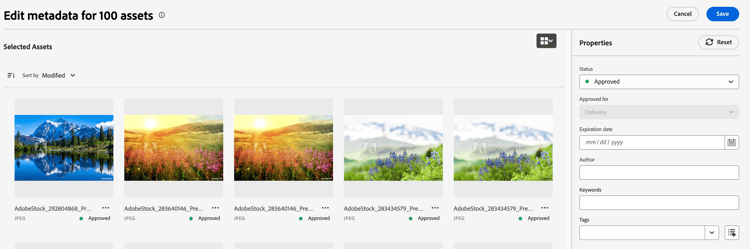
Assets View lets you update the metadata of up to 100 assets at a time in a single operation. Execute these steps to bulk edit the metadata of multiple assets:
-
Navigate to Assets View and click Assets.
-
Browse for specific assets or search them using keywords in the search bar.
-
Select the assets and click Bulk Metadata Edit from the top menu.

-
On the Edit metadata page, edit the following fields in the Properties panel:
-
Status: Select a status for the selected assets.
-
Expiration date: Set a date after which the assets are no longer valid or needed.
-
Author: Specify the author’s name.
-
Keywords: Add specific terms or text strings that give high-level information about the assets and directly improve their discoverability in search. Add a keyword and press Enter or return to add another keyword to the list.
-
Tags: Click

-
Click Save to apply the above metadata updates to the selected assets. The save behavior differs by field type: Keywords and Tags are appended to the existing values, so no prior keywords or tags are lost. In contrast, the updated details for Status, Expiration date, and Author override their existing values, because each of these fields holds a single value per asset.
note NOTE You can edit the metadata of 100 assets at a time.
-
To see the applied metadata updates to an asset, navigate to the asset details page (select asset, and click Details) and click

See also
- Translate Assets
- Assets HTTP API
- Assets supported file formats
- Search assets
- Connected assets
- Asset reports
- Metadata schemas
- Download assets
- Manage metadata
- Manage Dynamic Media templates
- Manage reports in Assets view
- Search facets
- Manage collections
- Bulk metadata import
- Publish Assets to AEM and Dynamic Media