
Enrichment
This topic introduces you to enrichmentAdditional contextual content shown around commerce experiences to improve a shopper’s page experience. for product pages in your storefront. You will learn how to add content blocksEdge Delivery Services blocks used for non-commerce page content and layout, such as cards, columns, headers, and footers. above or below a commerce block (or any other block).
Enrichment metadata structure
Section titled “Enrichment metadata structure”The enrichment system uses specific metadata tags in your enrichment content documents to determine when and where content appears. Based on the query.yaml configuration, the following metadata properties are supported:
Example enrichment content metadata
Section titled “Example enrichment content metadata”When creating enrichment content, add these metadata tags to the document’s frontmatter:
---title: "Special Watch Promotion"enrichment-products: "WATCH-001, WATCH-002"enrichment-categories: "watches, accessories"enrichment-positions: "below"---Add content blocks
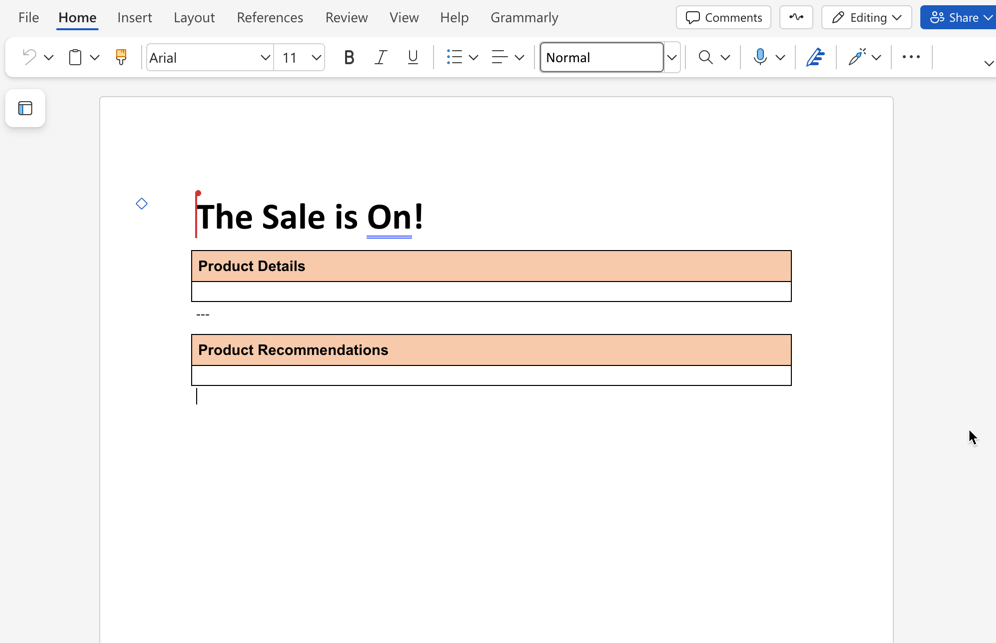
Section titled “Add content blocks”The following steps show you how to enrich a commerce block by placing content blocks above or below it. This content positioningThe placement order of content blocks and commerce blocks on a page, including above/below relationships. pattern uses an enrichment block to control where supporting content appears. The following example shows the default product-details document with a simple product recommendation block below it.
Open a commerce block document
Section titled “Open a commerce block document”Open the document that contains the commerce block you want to enrich. In the boilerplate starter content, open the products/default document to see an example of a product recommendation block below the product details block.
Add normal content or content blocks
Section titled “Add normal content or content blocks”Add normal headings, text, images or content blocks above or below the commerce block in the document. You can copy content blocks (tables) from the AEM Sidekick Library and paste them into the document.
Preview and publish changes
Section titled “Preview and publish changes”Use AEM Sidekick to preview and publish the changes to see the content above or below the commerce block.
Add enrichment blocks
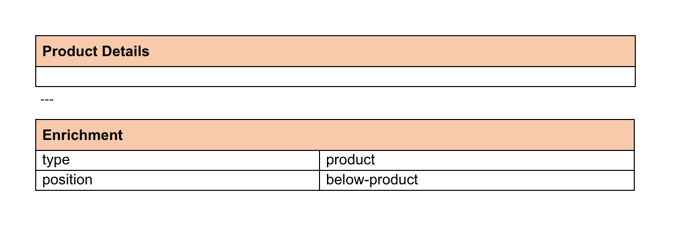
Section titled “Add enrichment blocks”Enrichment blocks are used to add content above or below commerce blocks based on product and category numbers. The following steps show you how to enrich a commerce block by placing an enrichment block above or below it.
Create enrichment content
Section titled “Create enrichment content”In your content folder, add a new document to the enrichment folder. You can duplicate the product-banner document and rename it. Then add the content you want to display below the commerce block.
Change the metadata values
Section titled “Change the metadata values”To make your content appear for specific product SKUs or categories, change the metadata values for the enrichment content.
Preview and publish changes
Section titled “Preview and publish changes”Use AEM Sidekick to preview and publish the changes to see the content above or below the commerce block.
Troubleshooting
Section titled “Troubleshooting”If enrichment functionality is not working as expected, follow these troubleshooting steps:
Common issues and solutions
Section titled “Common issues and solutions”Enrichments not appearing on product pages
- Check content structure: Ensure enrichment content follows the correct document structure.
- Content not published: Use AEM Sidekick to preview and publish enrichment content.
- Backend setup: If content is published and still doesn’t appear, ask your developer to check the Enrichment configuration troubleshooting steps.
Enrichment content not displaying
- Metadata mismatch: Ensure the
enrichment-productsandenrichment-categoriesmetadata values match your actual product SKUs and category IDs. - Missing metadata: Verify that enrichment content documents include the required metadata tags (
enrichment-products,enrichment-categories,enrichment-positions). - Content not published: Use AEM Sidekick to preview and publish enrichment content.
- Document structure: Verify that enrichment content follows the correct table structure.
If issues continue after checking these items, contact Adobe Commerce support with specific error messages from your browser console.
Summary
Section titled “Summary”In this topic, you learned how to enrich drop-in components by adding Edge Delivery Services content and enrichment blocks above and below commerce blocks (powered by drop-in components). You also learned how to troubleshoot common issues.