在此頁面上:瞭解歷程模擬如何讓您與模擬的使用者進行測試,以及在發佈之前,模擬體驗如何根據您的歷程型別而有所不同。
當歷程在 模擬 中時,您可以用 模擬使用者 測試它:您新增用於測試的暫時的、設定檔類似的實體,而不是在Adobe Experience Platform中的持續性測試設定檔。
Adobe Journey Optimizer提供三種方法來測試和驗證您的歷程:
-
歷程模擬:使用 模擬 歷程功能,在Adobe Experience Platform中模擬沒有預先建立設定檔的使用者,同時支援AI支援和手動建立的使用者。
-
歷程測試模式:使用在Adobe Experience Platform中標示為測試設定檔的持續性設定檔,可跨工作階段重複使用。 當您需要一致、預先定義的資料時,請選擇此方法。 瞭解如何建立測試設定檔。
-
歷程練習:在不連絡真實客戶或更新設定檔資訊的情況下,針對真實的生產對象和細分資料執行歷程。 會略過動作節點,例如電子郵件、行動訊息和自訂動作。 進一步瞭解歷程練習。
不確定模擬是適合您使用的方法嗎? 比較所有三個驗證選項。
必要權限 required-permissions
若要使用模擬,請從 歷程 功能指派至少一個許可權: 模擬歷程、發佈歷程或核准並發佈歷程。 這些許可權也可讓您建立和管理模擬使用者;不需要模擬使用者。 了解更多
若要管理不含 模擬 的模擬使用者,請指派 管理模擬使用者 或檢視模擬使用者 (來自 模擬使用者 功能)。
針對模擬中的AI (快速模擬、AI產生的使用者和產生事件值),從 AI助理 功能指派產生內容。
依歷程型別模擬 by-journey-type
模擬面板只會顯示您歷程所需的步驟。 這取決於設定檔進入歷程的方式。 根據這些因素,Adobe Journey Optimizer會呈現不同的模擬體驗。 展開下方的每個型別,檢視執行的差異以及您使用的面板。
如需詳細資訊,請參閱模擬您的歷程。
歷程是由 讀取對象 觸發,而且畫布沒有單一事件活動。 模擬期間不會觸發對象母體。 只有模擬的使用者進入歷程。
為模擬選取的模擬使用者會出現在 測試使用者 區段中:

包括沿路徑的一或多個單一事件的區段觸發歷程。 您先會觸發模擬使用者輸入模擬,然後為在事件節點等待的使用者觸發事件。
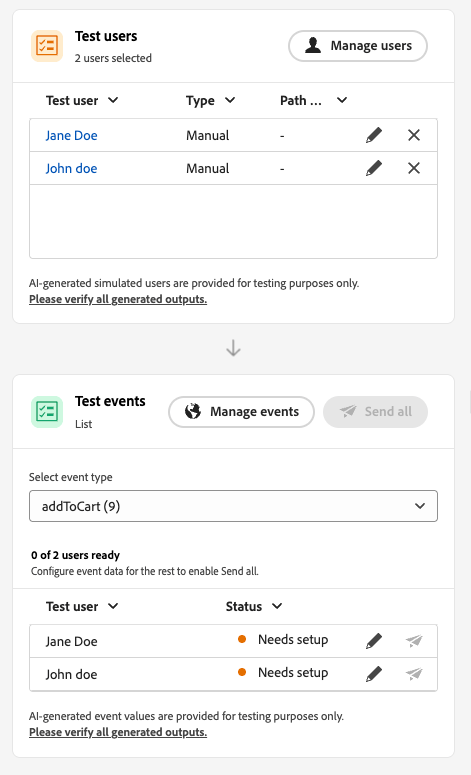
針對模擬和已設定事件選取的模擬使用者將分別顯示在測試使用者和測試事件區段中。 在模擬使用者進入歷程之前,不會顯示測試事件區段。

歷程從單一事件開始,而不是讀取對象。 直到為其觸發該開始事件後,模擬使用者才會進入歷程。
為模擬選取的模擬使用者與設定的事件將分別顯示在 測試使用者 與 測試事件 區段中。 測試使用者區段不包含將模擬使用者觸發歷程的動作。 您從 測試事件 觸發專案。
啟動模擬 launch
將歷程切換為 模擬 以與模擬的使用者測試。 在模擬您的歷程中會詳細說明逐步工作。
-
在歷程標題中按一下驗證。 解決「警示」面板中的任何錯誤,並再次驗證,然後再繼續。 瞭解歷程驗證。
-
在您的歷程中,按一下 模擬 並選擇模擬。
歷程介面中的

-
等候啟用完成。 當歷程切換至 模擬 時,面板中的控制項會停用,並在啟動完成後自動重新啟用。
限制 limitations
在這個版本中,模擬可能不支援 測試模式 或即時歷程支援的所有活動、管道或整合,而且行為可能會隨著功能成熟而改變。 請針對支援的工作流程使用本文。
請參閱下方的下拉式清單,以進一步瞭解模擬限制。
某些節點會阻止 模擬 啟動。 其他則使用下述行為在模擬中執行。 當您在模擬之前必須移除或變更節點時,請先更新歷程。
| table 0-row-2 1-row-2 2-row-2 3-row-2 4-row-2 5-row-2 6-row-2 7-row-2 8-row-2 9-row-2 10-row-2 | |
|---|---|
| 受限制的節點 | 附註 |
| 業務事件 | 您無法在 模擬 中執行以業務事件開始的歷程。 |
| 傳入頻道 | 您無法在 模擬 中執行包含輸入管道節點的歷程。 |
| 資料集查詢 | 模擬不支援依索引鍵查詢客戶資料集。 在執行模擬之前,請移除或變更此活動。 |
| 最佳化活動 | 最佳化方法的行為如下: 目標規則: AI會根據模擬使用者的設定檔屬性評估已設定的規則,以選取分支。 實驗 (路徑實驗):路由是由Decisioning處理,任何分割甚至50/50分割或10%保留。 每個模擬使用者的指派是隨機且非確定性的,因此小批次(例如,快速模擬中的5位使用者甚至AI產生的使用者)並不保證涵蓋每個處理,他們可能會偶然登陸同一個處理。 這與下方的 百分比分割 不同。 百分比分割: AI會為每個分支建立一個模擬使用者,而不是根據分支百分比。 在執行階段,即時評估會挑選分支,而且可能與產生的路徑不同。 您無法模擬分支選擇。 若要引導使用者,請仰賴畫布上的分支順序。 總是選擇頂端分支。 時間條件:條件會在執行階段套用,如同在即時歷程中一樣。 例如,從8:00到20:00的視窗只允許使用者在該視窗內執行模擬時通過。 您無法模擬執行時間。 設定符合目前測試時間的條件。 日期條件:條件會在執行階段套用,如同在即時歷程中一樣。 例如,2026年6月8日這個日期只允許使用者在該日期執行模擬時通過。 您不能模擬執行日期。 將條件設定為您測試時的目前日期。 設定檔上限:模擬期間未強制執行上限。 AI會為每個分支建立一個模擬使用者。 您無法模擬分支選擇。 若要引導使用者,請仰賴畫布上的分支順序。 總是選擇頂端分支。 |
| 逾時和錯誤分支 | AI不會針對活動逾時或錯誤分支產生使用者。 只有在模擬期間發生實際的逾時或錯誤時,使用者才會輸入這些路徑。 |
| 逾時分支(事件活動) | 已建立模擬使用者,但在 手動模擬 中,AI不會決定誰進入事件逾時分支。 透過傳送或不傳送事件來控制路徑。 例如,若要測試逾時分支,請等候逾時設定,並且不要傳送事件。 快速模擬可以自動傳送或保留事件以涵蓋逾時分支。 |
| 回應事件 | 反應事件會在模擬中執行,但動作必須在現實生活中發生。 例如,電子郵件 開啟 回應需要開啟校樣訊息。 您無法在模擬UI中模擬回應。 |
| 外部資料來源 | 呼叫在模擬期間的執行方式與即時歷程中相同。 下游活動可以使用回應,但您無法加以模擬。 當回應值摘要 最佳化 活動時,AI無法發明該輸出。 它只會產生呼叫的輸入。 例如,如果呼叫取用設定檔城市並傳回天氣,則「代理程式」會為模擬使用者設定城市,而即時呼叫會傳回天氣。 |
| 自訂動作 | 行為符合外部資料來源。 傳出呼叫會實際執行。 AI會填入輸入。 輸出來自即時回應。 您無法模擬回應。 |
| 外部對象屬性擴充 | 套用此驗證時,使用來自外部對象來源的個人化屬性的歷程不會在 模擬 中開始。 |
支援下列Decisioning元素:
| table 0-row-2 1-row-2 2-row-2 3-row-2 4-row-2 5-row-2 6-row-2 7-row-2 | |
|---|---|
| 決策元素 | 附註 |
| 優惠資格 | 支援,包括根據設定檔屬性的適用性。 |
| 適用性規則 | 支援。 規則可包含設定檔屬性。 |
| 適用受眾 | 將對象新增至模擬使用者的設定檔時支援。 |
| 依優惠優先順序排名 | 支援。 設定檔屬性不包含在內。 |
| 依公式排名 | 支援。 公式可以使用設定檔屬性。 |
| 依AI模型排名 — 自動 | 支援。 排名僅根據選件和設定的資料集,不涉及設定檔屬性。 需要必要的資料才能存在於設定的資料集中。 |
| 依AI模型排名 — Personalization | 支援。 考量對象是排名,而非資格。 由於排名是由AI導向,因此傳回的優惠方案可能會因模擬執行而異。 |
下列功能在 模擬 中不支援。
| table 0-row-2 1-row-2 2-row-2 3-row-2 4-row-2 5-row-2 6-row-2 7-row-2 8-row-2 9-row-2 10-row-2 11-row-2 12-row-2 13-row-2 | |
|---|---|
| 功能 | 附註 |
| 退出條件 | 當您執行 模擬 時,不會套用退出條件。 |
| 模擬自訂動作回應 | 自訂動作預設會執行實際傳出呼叫。 正在模擬回應,因此不支援執行任何外部呼叫。 |
| 同意原則評估 | 在模擬使用者層級上無法模擬同意,而且在模擬期間不會評估同意原則。 |
| 歷程上限和仲裁 | 模擬期間未評估或執行。 |
| 頻率限定(依頻道或通訊型別) | 模擬期間未評估或執行。 |
| 選擇退出管理、隱藏和允許清單 | 模擬期間未評估或套用。 |
| 頻道設定中的動態子網域和動態屬性 | 不支援。 |
| 傳送時間最佳化(STO) | 模擬期間未評估或套用。 |
| 沙箱工具(跨沙箱複製模擬使用者) | 不支援。 |
| 在歷程中傳送的波次 | 不支援。 |
| 無訊息時間 | 模擬期間未評估或套用。 |
| Privacy service | 模擬的使用者不是符合GDPR的永久性設定檔。 請勿在模擬的使用者中包含真實的客戶資料。 |
| 設定檔持續性 | 將模擬使用者傳送到歷程會觸發透過標準傳送管道傳送的真實訊息。 如果受影響的資料集(例如意見事件或追蹤事件)已啟用設定檔,即使執行標籤為模擬,仍可能導致在Adobe Experience Platform中為該模擬使用者建立持續的設定檔。 |
這些護欄適用於模擬。 數值上限會在歷程介面和執行階段中強制執行。 上限在後續版本中可能會變更。 如果您在接近天花板的地方執行,請驗證您的沙箱中的行為。
| table 0-row-3 1-row-3 2-row-3 3-row-3 4-row-3 5-row-3 6-row-3 7-row-3 8-row-3 | ||
|---|---|---|
| 護欄 | 限制 | 附註 |
| 可以選取和觸發一個批次的最大模擬使用者數(批次歷程、事件觸發的流程和對象資格流程) | 20 | 每個 傳送全部 或 觸發選取的事件 都會計入,而非整個歷程的累積上限。 |
| 每一代請求的最大模擬使用者數 | 50 | 透過 快速模擬 或 在 手動模擬 中使用AI 產生,在一個要求中產生的模擬使用者AI數目上限。 如果歷程具有超過 50 個路徑,AI會隨機選取路徑以產生這些 50 個模擬使用者。 |
| 在單一模擬回合中測試的不重複模擬使用者上限 | 100 | 在一個執行區塊中聯絡 100 個不重複使用者為新的模擬使用者選取模擬使用者。 如果您位於90,在相同區塊之前最多可以新增10。 在讀取對象歷程上具有補充ID,此限制會追蹤歷程執行總數,而不是不重複使用者。 例如,將相同的5名模擬使用者重新執行20次會達到限制。 停止和重新啟動,或重設模擬,會清除計數。 |
| 可以在一個沙箱中同時在 模擬 中執行的最大歷程數 | 20 | Cap一次由該沙箱中的每個 模擬 歷程共用。 |
| 一個沙箱中最大活動模擬使用者數 | 2,000 | 一次可存在於沙箱中的最大模擬使用者數。 Adobe可能會根據客戶意見反應調整此限制。 |
| 事件預填(僅限瀏覽器) | — | 您只能在瀏覽器型模擬UI中預先填寫事件裝載欄位。 預先填入的值只會保留在瀏覽器中,不會同步至其他瀏覽器、裝置或工作階段,因此您可能會在每個測試位置看到不同的預先填入資料。 |
| AI產生的模擬使用者保留 | 10天 | AI產生的模擬使用者會在建立10天後自動刪除。 |
| 全域模擬使用者保留 | 12個月 | 全域模擬使用者會在建立12個月後自動刪除。 |
作法影片 video
以下影片說明如何使用快速模擬,自動化關鍵流程以測試客戶歷程。 它會產生測試輪廓、協調事件、縮短等待時間,並驗證情境。
This section contains structured knowledge intended to support interpretation, retrieval, and question answering related to this topic.
For complete understanding, this information should be combined with the documentation on this page. Neither source is intended to stand alone; the page describes the feature, while this section provides additional context that helps disambiguate terminology, intent, applicability, and constraints.
- TL;DR: This page introduces Simulation in Adobe Journey Optimizer, explaining how it differs from Test mode, which journey types it supports, how to launch a simulation, how Optimize activity methods and other decisioning elements behave during a simulation, and what its node-level, functional, and quantitative limitations are.
Intents:
- Understand the difference between Simulation and Test mode for validating journeys
- Launch a Simulation session for a batch or unitary journey type
- Identify which journey nodes block or restrict Simulation from running
- Determine how Optimize activity methods (Targeting rule, Experiment, Percentage split, Time condition, Date condition, Profile cap) behave during Simulation
- Determine which decisioning elements (offer eligibility, eligibility rule or audience, ranking) are supported during Simulation
- Determine which features are unsupported during Simulation (e.g., consent, frequency capping, STO)
Glossary:
- Simulated users: Temporary profile-like entities created for Simulation. Sending a simulated user triggers a real message send; if an impacted dataset, such as feedback or tracking events, is profile-enabled, a persistent profile can be created in Adobe Experience Platform (product-specific)
- Simulation: A journey feature used for testing with simulated users rather than persistent test profiles (product-specific)
- Journey Dry run: A validation method that runs a journey against real production audience and segmentation data without contacting real customers or updating profile information (product-specific)
- Experiment (Path Experimentation): An Optimize activity method whose routing is handled by Decisioning, with random assignment that is non-deterministic per simulated user (product-specific)
Guardrails:
- The journey must be validated before entering Simulation. Errors in the Alerts panel must be resolved and validation rerun before continuing.
- To use Simulation, assign at least one of: Simulate journeys, Publish journeys, or Approve and Publish journeys permissions from the Journeys capability; these permissions also allow users to create and manage simulated users without Simulated Users permissions
- Managing simulated users without Simulation requires Manage Simulated Users or View Simulated Users from the Simulated Users capability
- AI-powered simulation features (Quick simulation, AI-generated users, and Generate event values) require Generate Content from the AI Assistant capability
- Maximum 20 simulated users per Send all or Trigger selected events batch (hard limit)
- Maximum 50 simulated users per AI generation request (hard limit)
- Maximum 100 unique simulated users per single simulation run (hard limit); with a supplemental ID on a Read audience journey, this counts total journey runs rather than unique users
- Maximum 20 journeys running Simulation simultaneously in one sandbox (hard limit)
- Maximum 2,000 active simulated users in one sandbox at a time (hard limit)
- Journeys that start with a business event cannot be run in Simulation
- Consent policies, frequency capping, and quiet hours are not evaluated during Simulation; opt-out management and STO are not evaluated or applied
- Simulated users are not GDPR-compliant persistent profiles; do not include real customer data in simulated users
Terminology:
- Canonical name: Simulation
- Canonical name: Simulated users
- Canonical name: Experiment — variants: Path Experimentation
- Do not confuse: “Simulation” ≠ “Test mode” (Test mode uses persistent profiles flagged as test profiles in Adobe Experience Platform; Simulation uses temporary simulated users)
- Do not confuse: “Journey Simulation” ≠ “Journey Test mode” ≠ “Journey Dry run” (the three validation methods use different data and validation approaches)
- Do not confuse: Targeting rule ≠ Experiment (both are Optimize activity methods, but AI evaluates the configured rule for Targeting rule, whereas routing for Experiment is handled by Decisioning)
FAQ:
- Q: What permissions do I need to use Simulation? — Assign at least one of: Simulate journeys, Publish journeys, or Approve and Publish journeys from the Journeys capability. These permissions also let you create and manage simulated users; Simulated Users permissions are not required. AI features additionally require Generate Content from the AI Assistant capability.
- Q: How does Simulation differ from Test mode? — Simulation uses temporary simulated users without pre-created profiles in Adobe Experience Platform; Test mode uses persistent profiles explicitly flagged as test profiles in Adobe Experience Platform. Sending a simulated user triggers a real message send; if an impacted dataset is profile-enabled, a persistent profile can be created.
- Q: Can I simulate a journey that starts with a business event? — No. Journeys that start with a business event cannot be run in Simulation.
- Q: Are the Targeting rule and Experiment methods of the Optimize activity supported in Simulation? — Targeting rule is evaluated by AI against the simulated user’s profile attributes. For Experiment (Path Experimentation), routing is handled by Decisioning and assignment is random and non-deterministic per simulated user.
- Q: Are decisioning elements such as offer eligibility and ranking supported during Simulation? — Yes. Offer eligibility, eligibility rule, and ranking by offer priority or formula are supported. Eligibility audience is supported when the audience is added to the simulated user’s profile. AI Model - Auto requires the necessary data in the configured dataset. AI Model - Personalization considers the audience for ranking, not eligibility; returned offers may vary between simulation runs.
- Q: How many simulated users can I test in a single simulation run? — Up to 100 unique simulated users per run; with a supplemental ID on a Read audience journey, the limit counts total journey runs. Each Send all action is capped at 20 users at once.