在此頁面上:連線您已使用Adobe Analytics或Web SDK擷取的網頁行為資料,以便觸發歷程並自動化客戶即時活動中的即時體驗。
您可以善用已透過Adobe Analytics或Web SDK擷取並串流至Adobe Experience Platform的所有網頁行為事件資料,以觸發歷程並自動化客戶體驗。
為了讓此功能與Adobe Analytics搭配使用,您必須:
設定Adobe Analytics或Web SDK資料 leverage-analytics-data
您必須啟用來自Adobe Analytics或Adobe Experience Platform Web SDK的資料,才能在歷程中使用。
請依照下列步驟執行此操作:
-
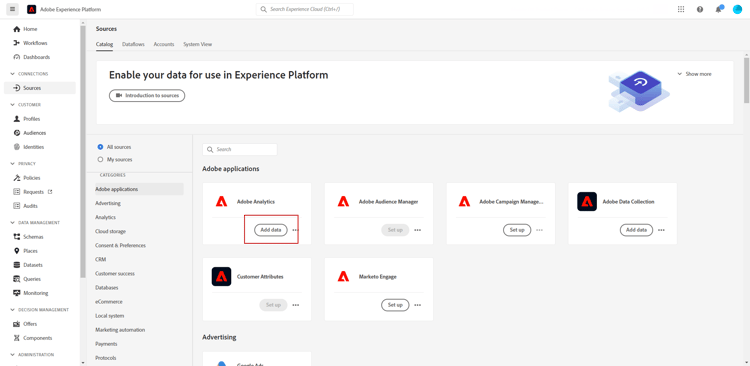
瀏覽至 來源 功能表。
-
在Adobe Analytics區段中,選取新增資料
-
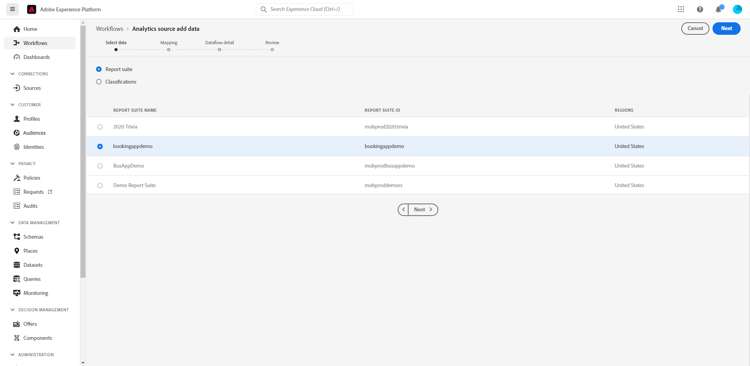
從可用的Adobe Analytics報表套裝清單中,選取要啟用的報表套裝。 然後,按一下下一步。
-
選擇您要使用預設或自訂結構描述。
-
從 資料流詳細資料 畫面中,選擇資料流名稱。
-
組態完成後,按一下完成。
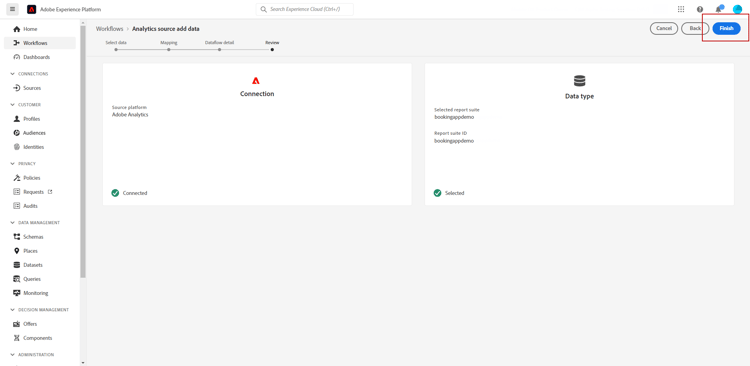
如此將可啟用該報表套裝的Analytics來源聯結器。 只要有資料進來,就會轉換為Experience事件並傳送到Adobe Experience Platform。
在Adobe Analytics檔案和教學課程中進一步瞭解Adobe Experience Platform來源聯結器。
啟用此設定 activate-analytics-data
完成此設定後,請聯絡Adobe讓您的Journey Optimizer環境能夠使用此資料來源。 只有Adobe Analytics資料來源才需要此步驟。 若要執行此動作:
-
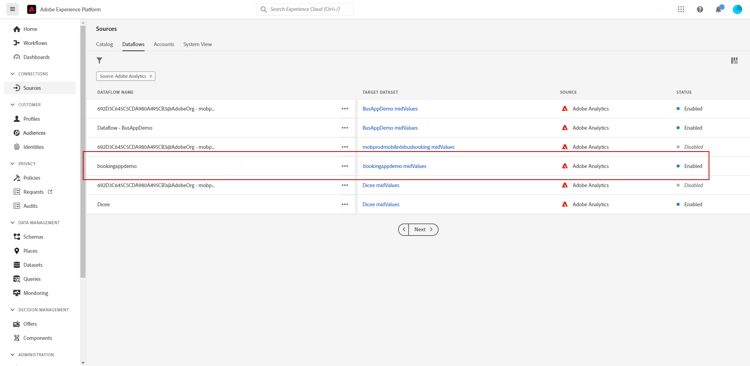
取得資料來源識別碼。 此資訊可在使用者介面中取得:瀏覽至您從 來源 功能表的 資料流 索引標籤建立的資料來源。 要找到該變數,最簡單的方式是篩選Adobe Analytics來源。
-
請聯絡Adobe客戶服務,瞭解下列詳細資訊:
-
主旨:為歷程啟用Adobe Analytics事件
-
內容:請啟用我的環境以使用AA事件。
-
組織ID: “XXX@AdobeOrg”
-
資料來源ID: “ID: xxxxx”
-
-
-
一旦您確認環境準備就緒,即可在您的歷程中使用Adobe Analytics資料。
使用Adobe Analytics或Web SDK資料建立包含事件的歷程 event-analytics
您現在可以根據Adobe Analytics或Adobe Experience Platform Web SDK資料建立事件,以用於歷程中。
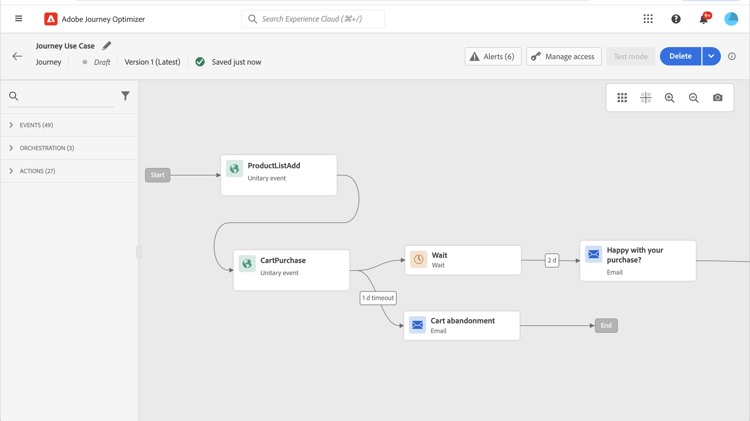
在下列範例中,瞭解如何鎖定在購物車中新增產品的使用者:
- 如果訂單已完成,使用者會在兩天後收到後續電子郵件,要求您提供意見。
- 如果訂單未完成,使用者會收到一封電子郵件,提醒他們完成訂單。
-
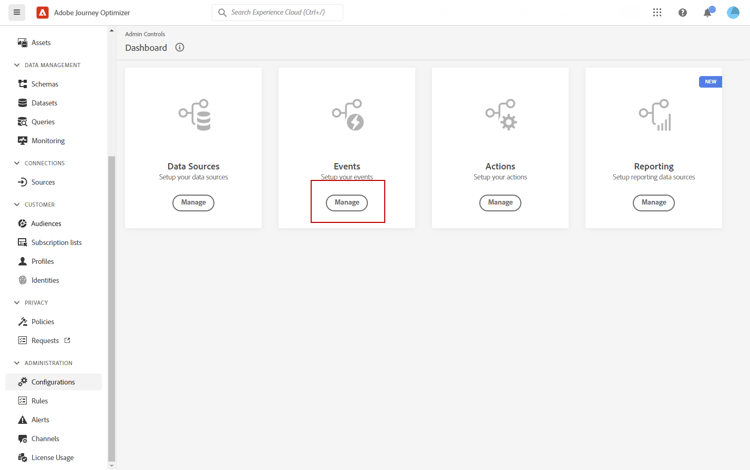
從Adobe Journey Optimizer存取 設定 功能表。
-
然後,從 事件 卡片選取管理。
-
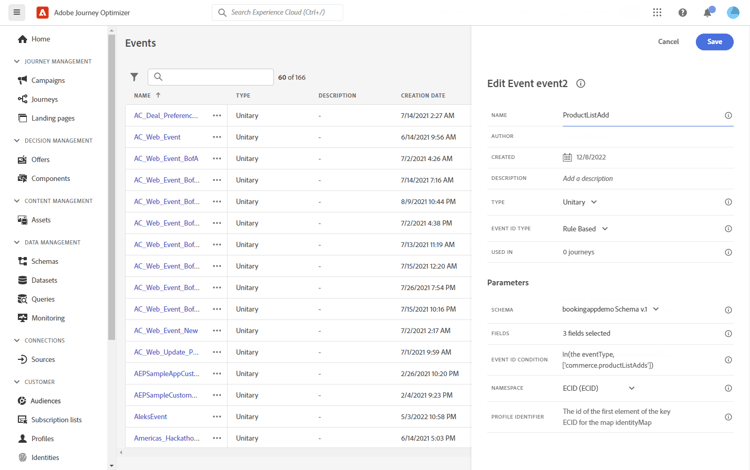
按一下建立事件。 事件設定窗格會在畫面右側開啟。
-
填入 事件 引數:
-
名稱:個人化 活動 的名稱。
-
型別:選擇 單一 型別。 了解更多
-
事件ID型別:選擇以 規則為基礎的 事件ID型別。 了解更多
-
結構描述:選取在🔗之前建立的Analytics或WebSDK結構描述。
-
欄位:選取裝載欄位。 了解更多
-
事件ID條件:定義條件以識別將觸發您歷程的事件。
在此,當客戶將專案新增至購物車時會觸發事件。
-
設定檔識別碼:從您的裝載欄位選擇一個欄位,或是定義一個公式,以識別與事件相關聯的人員。
-
-
設定後,選取儲存。
現在事件已準備就緒,請建立歷程以使用它。
-
從 歷程 功能表,開啟或建立歷程。 如需詳細資訊,請參閱本章節。
-
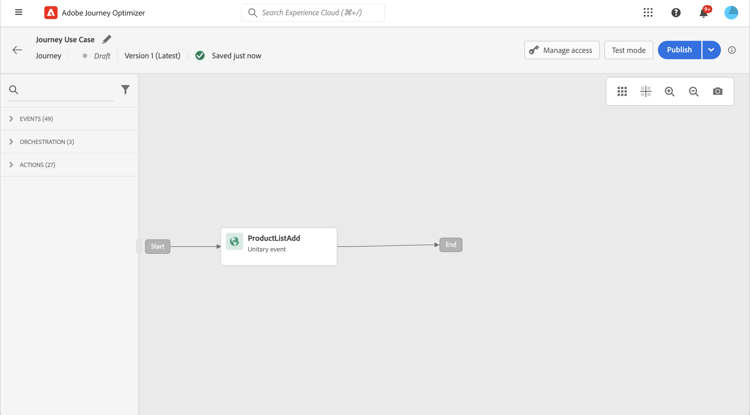
將您先前設定的Analytics事件新增至您的歷程。
-
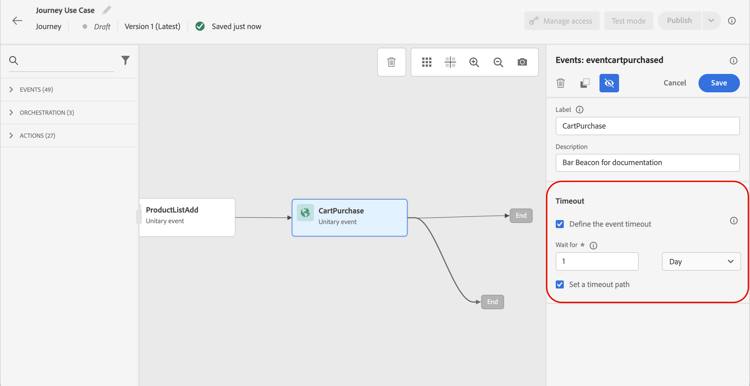
新增完成訂購時觸發的事件。
-
從您的事件功能表,選取 定義事件逾時 和 設定逾時路徑 選項。
-
從逾時路徑,新增 電子郵件 動作。 此路徑將用來傳送電子郵件給未完成訂單的客戶,以提醒他們其購物車仍然可用。
-
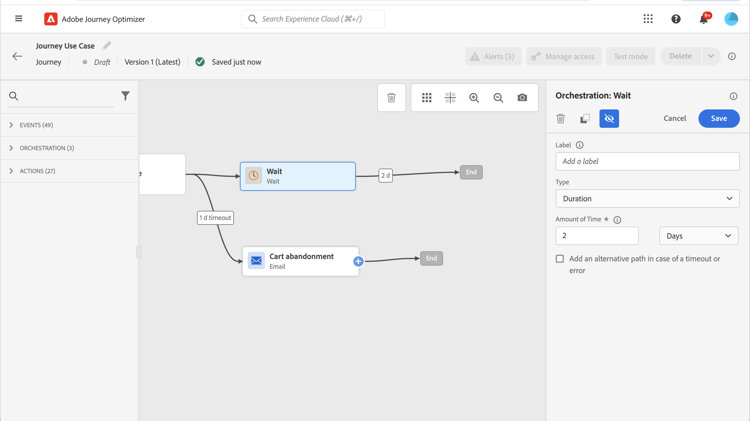
在主要路徑後新增 等待 活動,並將其設定為所需的持續時間。
-
然後,新增電子郵件動作。 在這封電子郵件中,系統會提示客戶對所下訂單提供意見。
您現在可以測試並發佈您的歷程。 了解更多
This section contains structured knowledge intended to support interpretation, retrieval, and question answering related to this topic.
For complete understanding, this information should be combined with the documentation on this page. Neither source is intended to stand alone; the page describes the feature, while this section provides additional context that helps disambiguate terminology, intent, applicability, and constraints.
- TL;DR: This page explains how to leverage web behavioral data already captured through Adobe Analytics or Web SDK and streamed into Adobe Experience Platform to trigger journeys, by configuring the data source, activating it for Journey Optimizer, and adding a rule-based event to a journey.
Intents:
- Configure an Adobe Analytics or Web SDK data source from the Sources menu so its data can be used in journeys
- Enable the Analytics source connector for a chosen report suite
- Activate the configuration by contacting Adobe to enable the environment for an Adobe Analytics data source
- Create a rule-based event based on Adobe Analytics or Web SDK data and use it in a journey
- Build a journey that reacts to web behavioral events, such as targeting users who added a product to their cart
Glossary:
- Report suite: The item you select from the list of available Adobe Analytics report suites to enable (product-specific)
- Analytics source connector: The connector enabled for a report suite that transforms incoming data into an Experience event and sends it into Adobe Experience Platform (product-specific)
- Data source ID: The identifier of the data source you created, found in the Dataflows tab of the Sources menu, and shared with Adobe Customer Care to enable the environment (product-specific)
- Experience event: The event form into which incoming Adobe Analytics or Web SDK data is transformed before being sent into Adobe Experience Platform (product-specific)
Guardrails:
- This integration only applies for rule-based events and customers who need to use Adobe Analytics or Web SDK data; customers using Adobe Customer Journey Analytics are directed to a separate page.
- The activation step of contacting Adobe to enable the environment is only required for Adobe Analytics data sources.
- In the page’s example, the event uses the Unitary Type and the Rule based Event ID type, with the Analytics or WebSDK schema created before.
- Data coming from Adobe Analytics or Web SDK must be enabled before it can be used in journeys.
Terminology:
- Canonical name: Work with Adobe Analytics data — variants: Adobe Analytics data source, Web SDK data
- Synonyms: “Web SDK” = “Adobe Experience Platform Web SDK”
- Do not confuse: “Adobe Analytics” ≠ “Adobe Customer Journey Analytics” (customers using Adobe Customer Journey Analytics are referred to a different page)
FAQ:
- Q: Which event configuration is used for Adobe Analytics or Web SDK data? — In the page’s example, a Unitary event with a Rule based Event ID type, using the Analytics or WebSDK schema.
- Q: Is the step of contacting Adobe required for Web SDK data? — The page states that contacting Adobe to enable the environment is only required for Adobe Analytics data sources.
- Q: Where do I enable an Adobe Analytics report suite? — In the Sources menu, in the Adobe Analytics section, select Add data and choose the report suite to enable.
- Q: What happens to the data once the source connector is enabled? — Whenever the data comes in, it is transformed into an Experience event and sent into Adobe Experience Platform.
- Q: What if I use Adobe Customer Journey Analytics instead? — The note on this page directs you to a different page instead.
Personas:
- developer: Can select the Payload fields and define the Event ID condition when configuring an event based on Adobe Analytics or Web SDK data. Can choose a field from the payload fields, or define a formula, as the Profile Identifier. Where: “Create a journey with an event using Adobe Analytics or Web SDK data”.
- admin: Can contact Adobe Customer Care to enable an Adobe Analytics data source for journeys, using the Organization ID and the Data source ID. The page states that this step is only required for Adobe Analytics data sources. Where: “Activate this configuration”.
Onboarding:
- Level: Intermediate, Experienced
- First minimal step: Browse to the Sources menu.
- Success check: Whenever the data comes in, it is transformed into an Experience event and sent into Adobe Experience Platform.
- Previous: Learn about event types and the Event ID type before configuring the event: Work with journey events (event/about-events.md); Learn how to define the payload fields before configuring the event: Configure a unitary event (event/about-creating.md)
- Next: Open or create a journey to add the configured event: Create your first journey (building-journeys/journey-gs.md); Test and publish the journey: Publish the journey (building-journeys/publish-journey.md)