在此頁面上:開始使用 Adobe Journey Optimizer 中的推播通知,透過歷程和行銷活動觸及您的行動應用程式使用者和網頁訪客。
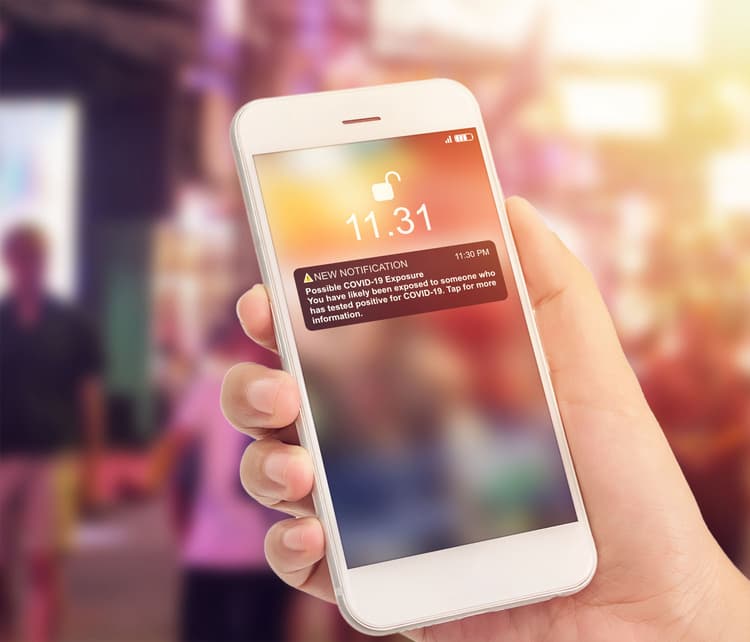
推播通知可協助您隨時聯絡行動應用程式使用者和網站訪客,尤其是當他們目前未使用您的應用程式或瀏覽您的網站時。 推播通知可協助您達成各種使用案例,例如提供服務的更新、要求使用者採取動作、提醒使用者留意新交易等。裝置平台要求選擇加入,一般使用者才能接收或檢視您的通知。 使用者的選擇加入同意最早可在安裝後首次啟動應用程式時取得,或視情況在後續的工作階段或工作流程中取得。
Journey Optimizer 支援推播通知,並協助您以領先業界的輸送率傳送高度相關的通知。 推播通知可以加入個人化和歷程型情境,以運用您的品牌透過 Adobe CX Enterprise 所掌握的資料洞察。
可建立的推播通知:
-
在 歷程 中:一旦在歷程新增推播活動並定義基本設定後,使用 動作:推播 右側窗格,建立推播通知的內容。 了解如何建立歷程
-
在 行銷活動 中:一旦建立行銷活動,請選取「推播通知」作為動作並定義基本設定。 了解如何建立動作行銷活動 | API 觸發的行銷活動 | 協調的行銷活動
使用專用索引標籤定義 iOS、Android 及 網頁 平台的推播通知設定。


使用案例
當您需要在使用者的裝置上快速且直接觸及他們,而不必仰賴他們正在使用您的應用程式或查看收件匣時,推播通知效果最佳。
不適用情境
並非每則訊息都適合使用推播通知。 在下列情況下,建議考慮採用其他管道:
- 如果您的客群推播選擇加入率偏低,或對通知表現出抗拒,訊息可能永遠無法觸及他們
- 訊息需要長篇內容,而電子郵件更適合處理,且可提供更細緻的格式設定
- 內容具敏感性或私密性,不應顯示在鎖定畫面上,因為裝置附近的任何人都可能看見
- 大多數使用者是從桌面而非行動應用程式存取您的服務,而推播通知在這種情況下觸及範圍有限或無法觸及
This section contains structured knowledge intended to support interpretation, retrieval, and question answering related to this topic.
For complete understanding, this information should be combined with the documentation on this page. Neither source is intended to stand alone; the page describes the feature, while this section provides additional context that helps disambiguate terminology, intent, applicability, and constraints.
- TL;DR: This page introduces push notifications in Journey Optimizer for reaching mobile app users and web visitors through journeys and campaigns, and covers when to use or not use the channel.
Intents:
- Understand what push notifications enable in Journey Optimizer
- Decide whether to create a push in a journey or a campaign
- Define push settings for iOS, Android, and Web platforms
- Evaluate use cases where push is the right channel and where it is not
- Understand how push opt-in and opt-out are handled
Glossary:
- Push notification: A message that reaches mobile app users and web visitors at any time, including when they are not actively using the app or website (product-specific)
- Opt-in: The consent device platforms require before end-users can receive or view notifications, obtainable as early as first app launch post-install (product-specific)
Guardrails:
- Before creating a push notification for the first time, the Push channel must be configured.
- Device platforms require opt-in before end-users may receive or view notifications.
- Push notifications do not require opt-out management on your side: recipients unsubscribe through their devices, and their notification settings via the mobile OS or web browser.
Terminology:
- Canonical name: Push notification — Acronym: n/a — variants: push, notification
- Do not confuse: creating a push “In a Journey” ≠ creating a push “In a Campaign”
FAQ:
- Q: Where can push notifications be created? — In a Journey (by adding an Action activity and selecting Push) or in a Campaign (by selecting Push notification as the action).
- Q: Which platforms are supported? — iOS, Android, and Web, configured via dedicated tabs.
- Q: Do I need to manage push opt-out? — No, recipients can unsubscribe through their devices or via mobile OS / browser notification settings.
- Q: When should I not use push? — When opt-in rates are low, the message needs long-form content, the content is sensitive and should not appear on a lock screen, or most users are on desktop.
- Q: How do I check a profile’s push consent status? — In the AEP profile viewer, via Check push opt-out status.