On this page: Learn how to use conditions in the Optimize activity to create multiple journey paths based on data sources, time, dates, percentage splits, profile caps, or audience membership.
With conditions you can define how individuals progress through your journey by creating multiple paths based on specific criteria. You can also configure an alternate path to handle timeouts or errors, ensuring a seamless experience.
Add a condition add-condition-activity
To add a condition to your journey, follow the steps below.
-
Drop the Optimize activity into the journey canvas. Learn more
-
Add an optional label to identify the activity in reporting and test mode logs.
-
Select a condition from the Method drop-down list.
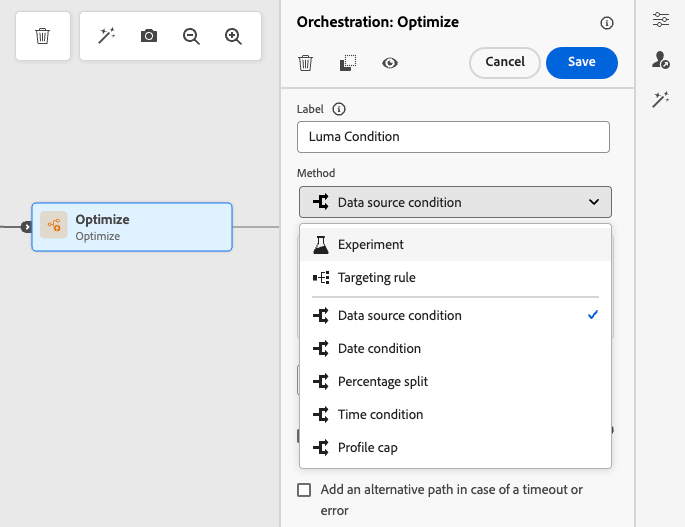
The following types of conditions are available:
- Data source condition
- Time condition
- Percentage split
- Date condition
- Profile cap
- You can also use an audience in a journey condition. Learn more
Manage condition paths condition_paths
When using several conditions in a journey, you can define labels for each of them to identify them more easily.
Click Add a path if you want to define several conditions. For each condition, a new path is added in the canvas after the activity.
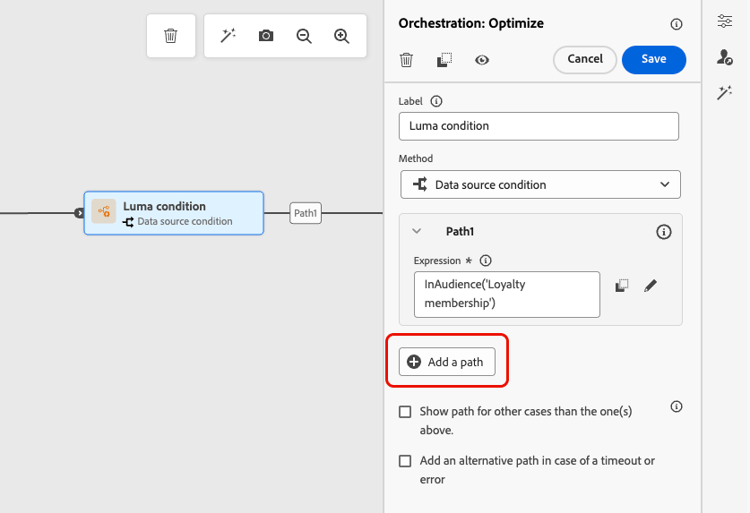
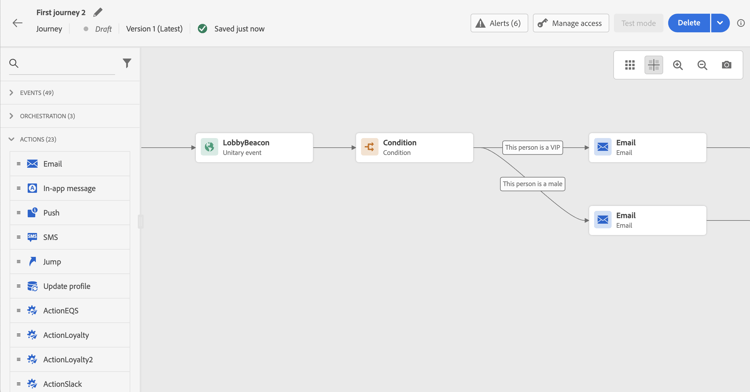
Note that the design of journeys has functional impacts. When several paths are defined after a condition, only the first eligible path will be executed. It means that you can vary the prioritization of paths by placing them above or below one another.
Let’s take two path conditions: “The person is a VIP” and “The person is a male.” If a person meets both conditions, the first path is chosen because it is above the second. To change this priority, move your activities to a different vertical order.
You can create another path for audiences that are not eligible to the defined conditions by checking Show path for other cases than the one(s) above.
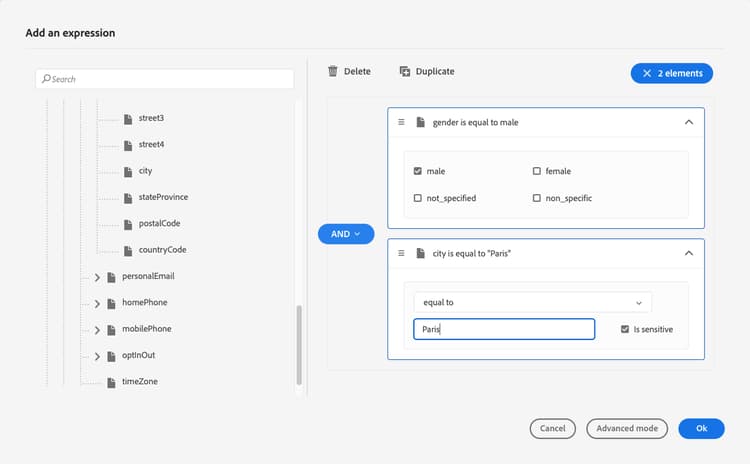
The simple mode allows you to perform simple queries based on a combination of fields. All the available fields are displayed on the left side of the screen. Drag and drop fields into the main zone. To combine the different elements, interlock them into one another to create different groups and/or group levels. You can then select a logical operator to combine elements on the same level:
- AND - An intersection of two criteria. Only the elements matching all criteria are taken into account.
- OR - A union of two criteria. Elements matching at least one of the two criteria are taken into account.
If you are using the Adobe Experience Platform Segmentation Service to create your audiences, you can leverage them in your journey conditions. Refer to Use audience in conditions.
When an error occurs in an action or a condition, the journey of an individual stops. The only way to make it continue is to check the box Add an alternative path in case of a timeout or an error. Learn more
In the simple editor, you will also find the Journey Properties category, below the event and data source categories. This category contains technical fields related to the journey for a given profile. This is the information retrieved by the system from live journeys, such as the journey ID or the specific errors encountered. Learn more
Data source condition data_source_condition
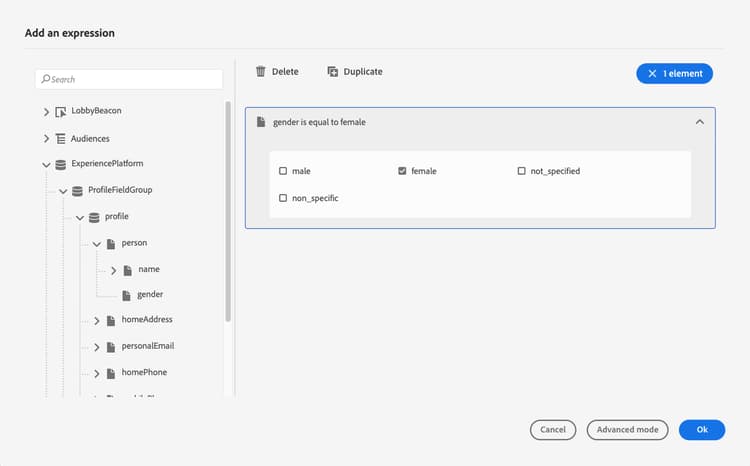
Use a Data source condition to define a condition based on fields from the data sources or the events previously positioned in the journey. This type of condition is defined with the expression editor. Learn how to use the expression editor
For example, if you are targeting an audience with enrichment attributes generated using a composition workflow or a custom upload (CSV file), you can leverage these enrichment attributes to build your condition.
null. As a result, conditions that check for isEmpty(), isNull(), or similar functions will evaluate to true even if the attribute was never ingested. This can lead to unexpected journey behavior if you are not aware that the field has no data.Using the advanced expression editor, you can setup more advanced conditions manipulating collections or using data sources requiring the passing of parameters. Learn more
Date condition date_condition
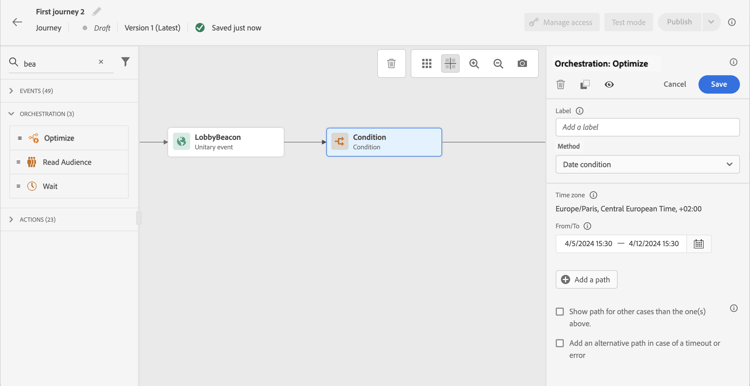
This allows you to define a different flow based on the date. For example, if the person enters the step during the “sales” period, you’ll send them a specific message. The rest of the year, you’ll send another message.
Percentage split percentage_split
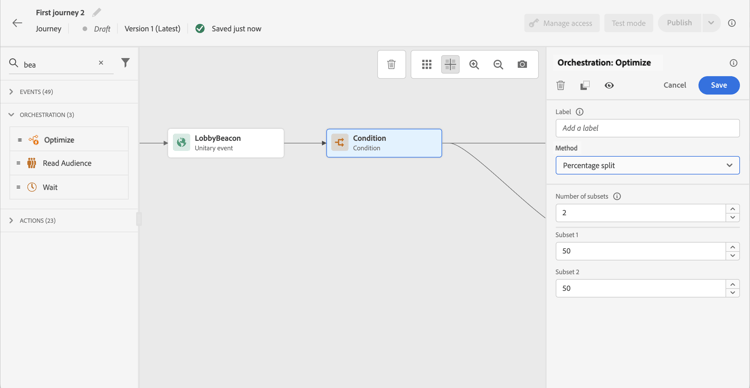
This option allows you to randomly split the audience to define a different action for each group. Define the number of splits and the repartition for each path. The split calculation is statistical as the system cannot anticipate how many people will flow in this activity of the journey. As a result, the split has a very low error margin. This function is based on a Java random mechanism.
In test mode, when reaching a split, the top branch is always chosen. You can reorganize the position of the split branches if you want the test to choose a different path. Learn more
Time condition time_condition
Use a Time condition to perform different actions according to the hour of the day and/or the day of the week. For example, you can decide to send push notifications during daytime and emails at night during weekdays.
-
The time zone is not specific to a condition and is defined at the journey level in the journey properties. Learn more
-
By default, the Time condition is set by hour, from 00:00 to 12:00.
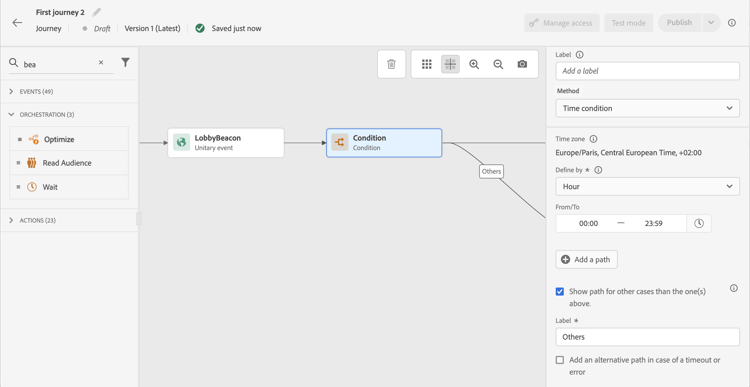
Three time filtering options are available:
- Hour - Allows you to set up a condition based on the time of the day. You then define the start and end times. Individuals will enter the path only during the defined hour range.
- Day of the week - Allows you to set up a condition based on the day of the week. You then select which days you want individuals to enter the path.
- Day of the week and hour - This option combines the first two options.
Profile cap profile_cap
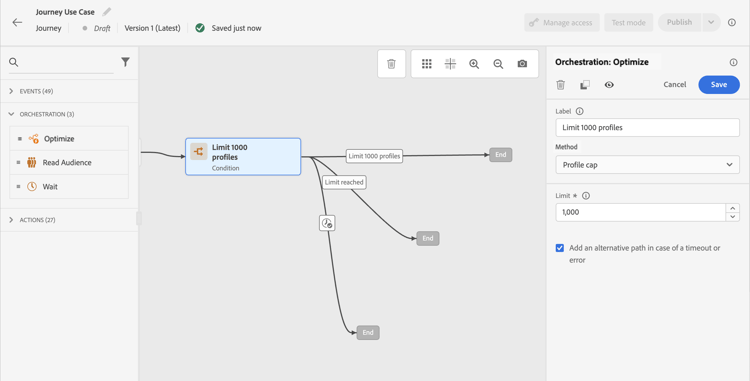
Use this condition type to set a maximum number of profiles for a journey path. When this limit is reached, the entering profiles take an alternate path. This ensures that your journeys will never exceed the limit defined.
The default cap is 1,000.
The counter applies only to the selected journey version. The counter resets to zero when the journey is duplicated or when a new version is created. After a reset, the entering profiles take the nominal path again until the counter limit is reached.
When profile cap is defined on a recurring journey, the counter does not reset after each recurrence.
The nominal path always has priority over the alternate path, even if you move the alternate path above the nominal path on the journey canvas.
For live journeys, here are the thresholds to consider to ensure the limit is reached:
- For a cap greater than 10,000, the number of distinct profiles to be injected must be at least 1.3 times the cap.
- For a cap below 10,000, the number of distinct profiles to be injected must be 1000 plus the cap.
Profile cap is not taken into account in test mode.
Use audiences in conditions using-a-segment
This section explains how to use an audience in a journey condition. For more on audiences and how to build them, refer to this section.
To use an audience in a journey condition, follow these steps:
-
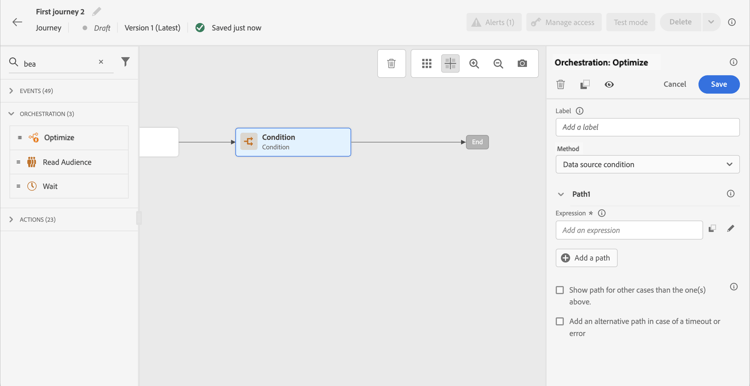
Open a journey, drop an Optimize activity and choose the Data source condition.
-
Click Add a path for each extra path needed. For each path, click the Expression field.
-
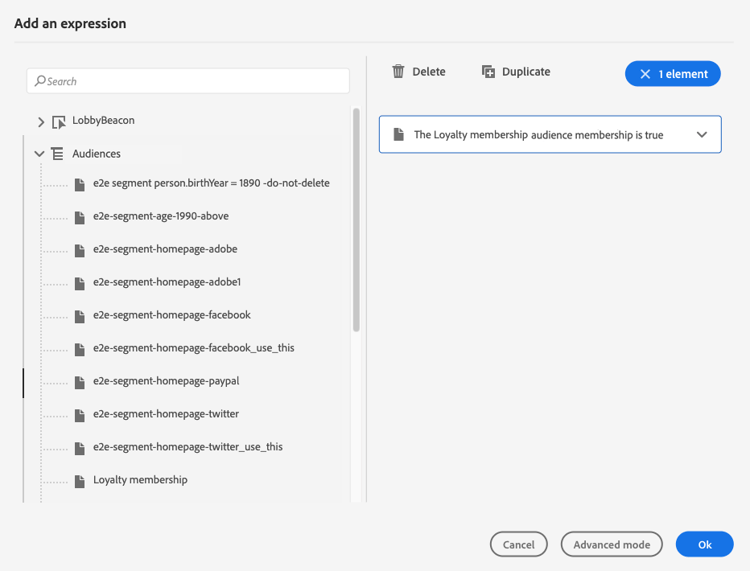
On the left side, unfold Audiences node. Drag and drop the audience you want to use for your condition. By default, the condition on the audience is true.
note NOTE Note that only the individuals with the Realized audience participation status will be considered as members of the audience. For more on how to evaluate an audience, refer to the Segmentation Service documentation.
➡️ See it in practice: Learn how to use time and day-of-week conditions to send emails only on weekdays.
This section contains structured knowledge intended to support interpretation, retrieval, and question answering related to this topic.
For complete understanding, this information should be combined with the documentation on this page. Neither source is intended to stand alone; the page describes the feature, while this section provides additional context that helps disambiguate terminology, intent, applicability, and constraints.
- TL;DR: This page explains how to configure conditions within the Optimize activity in Journey Optimizer, covering five condition types — Data Source, Time, Percentage Split, Date, and Profile Cap — that route profiles to different journey paths based on rules, time, or audience membership.
Intents:
- Add a condition to a journey using the Optimize activity and select a condition method
- Create multiple branching paths and manage their priority order in the journey canvas
- Configure a Data Source condition using the expression editor to evaluate profile or event attributes
- Set up a Time condition to route profiles based on hour of day or day of week
- Apply a Profile Cap to limit the number of profiles routed down a specific path
- Use an audience membership check as a condition in a journey path
Glossary:
- Optimize activity: The current journey activity that replaces the former Condition activity; all conditional branching logic is now configured through its Method drop-down (product-specific)
- Data source condition: A condition method that evaluates fields from data sources or journey events using the expression editor (product-specific)
- Percentage split: A condition method that randomly distributes profiles across paths using a statistical Java random mechanism (product-specific)
- Profile cap: A condition method that routes profiles to an alternate path once a defined maximum count is reached on the nominal path (product-specific)
- Nominal path: The primary journey path associated with a Profile Cap condition; it always has priority over the alternate path (product-specific)
Guardrails:
- Condition evaluation fails for profiles with more than two cross-device identities in the Profile Store
- Schema fields with no ingested data are interpreted as null; isEmpty() and isNull() evaluate to true for such fields
- Time zone is defined at the journey level, not at the individual condition level
- The “Show path for other cases” option is not available in Percentage Split conditions
- Profile cap default is 1,000; counter resets on journey duplication or new version creation, but not between recurrences
- For caps above 10,000, inject at least 1.3x the cap; for caps below 10,000, inject at least 1,000 plus the cap
- Profile cap is not applied in test mode; in test mode, the top branch is always chosen for Percentage Split
Terminology:
- Canonical name: Conditions — Acronym: none — variants: condition activity, condition method, conditional branching
- Synonyms: “Optimize activity (Condition method)” = “former Condition activity”
- Do not confuse: “Percentage split” ≠ “Profile cap” (percentage split distributes all profiles statistically; profile cap stops routing to the nominal path after a count threshold)
FAQ:
- Q: The Condition activity is gone from my UI — what replaced it? — The Condition activity has been replaced by the Optimize activity. Select “Condition” from the Method drop-down to get the same behavior. Existing journeys with Condition activities continue to work and now display with an Optimize icon.
- Q: When multiple paths are eligible for a profile, which path is taken? — Only the first eligible path (highest on the canvas) is executed; you can reprioritize by reordering paths vertically.
- Q: Why does my isEmpty() condition unexpectedly evaluate to true? — If the schema field exists but no data has been ingested for it, Journey Optimizer interprets it as null, causing isEmpty() and isNull() to return true.
- Q: Does the profile cap counter reset on a recurring journey? — No, the counter does not reset between recurrences; it only resets when the journey is duplicated or a new version is created.
- Q: Can I use an Adobe Experience Platform audience as a condition? — Yes, drop an Optimize activity, select “Data source condition,” add a path, and drag the audience from the Audiences node in the expression editor.