이 페이지에서: 지원에 문의하기 전에 여정에서 인앱, 웹 및 코드 기반 경험과 같은 인바운드 작업에 대한 일반적인 문제를 디버깅하고 해결하는 방법에 대해 알아봅니다.
인앱, 웹 및 코드 기반 경험과 같은 인바운드 작업은 여정 중에 사용자와의 개인화된 참여를 활성화하므로 Journey Optimizer의 중요한 구성 요소입니다. 그러나 프로필이 여정을 종료한 후 인바운드 콘텐츠 누락 또는 지속적인 게재와 같은 예기치 않은 동작이 발생할 수 있습니다.
이 안내서는 여정에서 인바운드 작업과 관련된 문제를 디버깅하는 단계별 프로세스를 제공합니다. 이를 통해 문제를 독립적으로 식별하고 해결한 후 지원에 문의하십시오.
전제 조건 prerequisites
문제 해결을 시작하기 전에 다음을 확인하십시오.
-
Assurance 세션을 설정합니다. Adobe Experience Platform Assurance 설명서에서 방법을 알아보세요.
-
여정 이름과 버전 ID를 검색하려면 인바운드 작업이 포함된 여정으로 이동합니다.
note NOTE 여정 버전 ID는 '여정/' 다음의 URL에서 찾을 수 있습니다(예: 86232fb1-2932-4036-8198-55dfec606fd7). 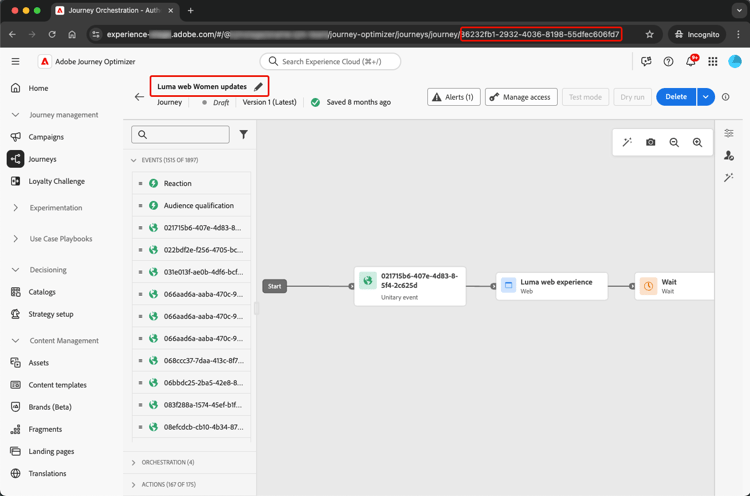
-
인바운드 작업을 클릭하여 세부 사항을 확인합니다. 인바운드 작업 레이블 및 ID를 검색합니다.
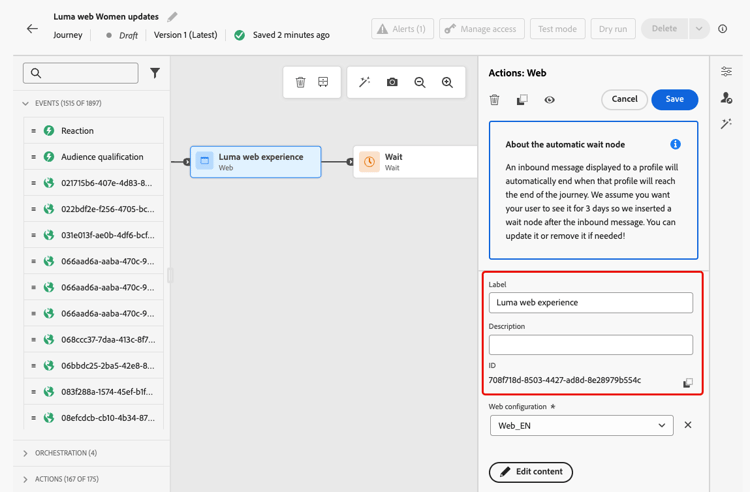
-
프로필 네임스페이스 및 ID를 가져와서 문제가 발생하는 프로필을 식별합니다. 구성에 따라 네임스페이스는 ECID, 이메일 또는 고객 ID 등이 될 수 있습니다. Experience Platform 설명서에서 프로필을 찾는 방법에 대해 알아보세요.
시나리오 1: 사용자가 인바운드 콘텐츠를 받지 못했습니다. scenario-1
이 시나리오에서는 프로필이 여정에 인바운드 작업을 입력했지만 30분이 지나도 설정 트리거 단계에서 해당 인바운드 콘텐츠가 장치/클라이언트에 표시되지 않습니다.
사전 확인 pre-checks
-
여정 인바운드 데이터 세트가 프로필 수집에 대해 활성화됨
인바운드 작업은 실행 중에 여정 업데이트를 위해 프로필 인바운드 데이터 세트를 사용합니다. 현재 샌드박스에서 프로필에 대해 데이터 세트가 활성화되어 있는지 확인합니다. 데이터 세트에 대해 자세히 알아보기
-
‘joai’ id가 플랫폼 id에 정의됨
인바운드 작업에서는
segmentMembership프로필의 joai 네임스페이스를 사용하여 인바운드 단계에 대한 프로필을 활성화합니다. 샌드박스의 Platform ID에서 정의되었는지 확인합니다. Experience Platform ID 서비스에 대해 자세히 알아보기
디버깅 단계 debugging-steps
아래 차트는 따를 수 있는 디버깅 단계의 순서를 보여 줍니다.
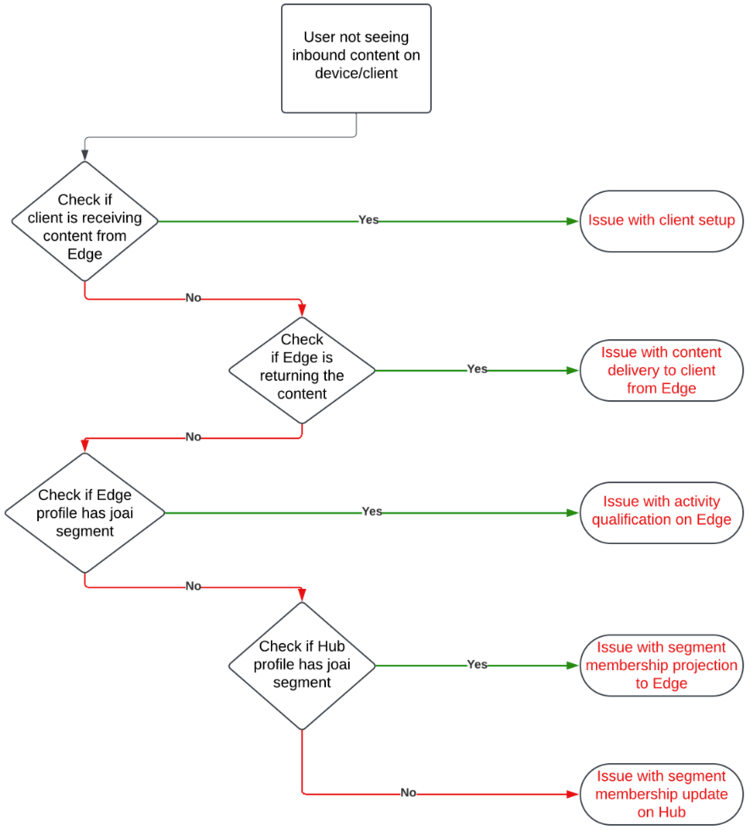
1단계: 장치/클라이언트가 Edge Network에서 콘텐츠를 수신하고 있는지 확인 step-1
먼저 장치/클라이언트가 예상 콘텐츠를 가져오는지 확인합니다.
-
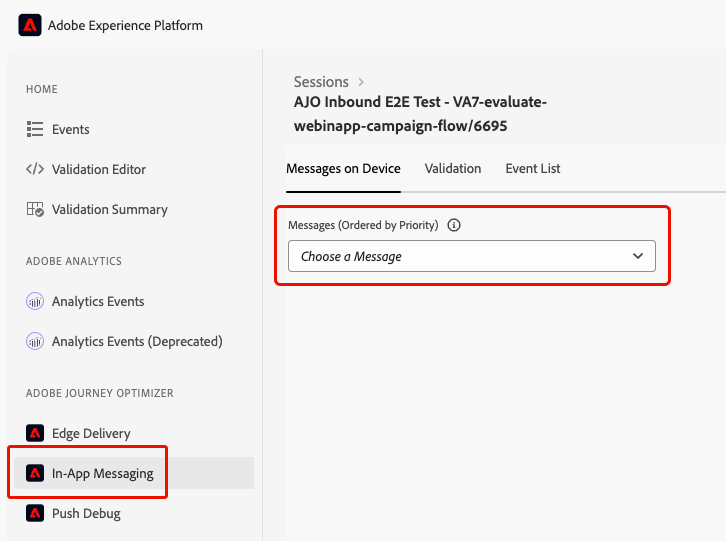
Assurance 세션으로 이동하여 왼쪽 패널에서 인앱 메시지 섹션을 선택합니다.
-
장치의 메시지 탭에서 메시지 드롭다운 목록을 클릭합니다.
-
여정 이름 뒤에 '- 인앱 메시지’가 오는 메시지를 찾습니다. 존재하는 경우 인앱 메시지가 장치/클라이언트에 있으며 문제는 인앱 트리거와 관련될 수 있음을 의미합니다.
-
메시지를 찾을 수 없는 경우 디바이스/클라이언트가 인앱 메시지를 받지 못했습니다.
2단계: Edge Network에서 콘텐츠를 반환하는지 확인 step-2
이 단계는 Edge Network이 장치/클라이언트에서 렌더링할 예상 인바운드 콘텐츠를 반환하는지 확인하는 것입니다.
프로필이 여정에 인바운드 작업을 입력하면 인바운드 여정 작업에 해당하는 특수 대상 세그먼트(joai 네임스페이스의)에 자동으로 자격이 부여됩니다.
클라이언트가 주어진 프로필 및 표면에 대해 Edge Network에 요청하면 프로필은 해당 표면을 타깃팅하는 인바운드 여정 작업에 대한 콘텐츠를 받을 자격이 있습니다. 이는 프로필이 요청 시 해당 joai 세그먼트의 멤버인 경우에만 가능합니다.
Edge Network 동작을 디버깅하려면 아래 단계를 수행합니다.
-
Assurance 세션에서 Edge Delivery 보기를 엽니다. 이 보기는 Edge Network 서버에서의 인바운드 작업 실행에 대한 정보를 제공합니다. Experience Platform 설명서에서 자세한 내용을 알아보십시오.
-
인바운드 동작에 해당하는 Edge 활동이 자격 있는 활동 또는 자격 없는 활동 섹션에 나열되는지 확인하십시오.
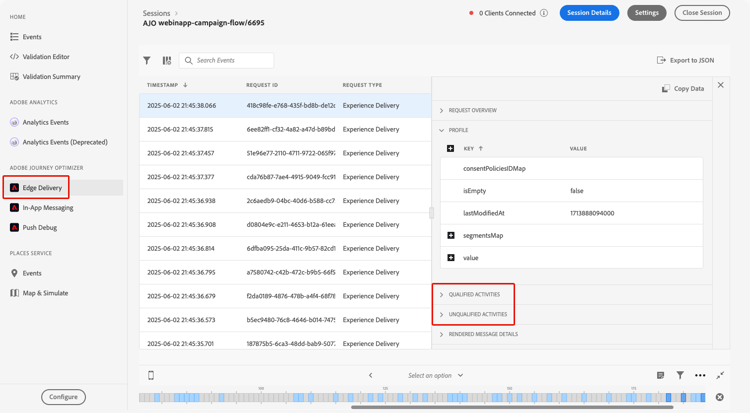
- 적격 활동 섹션에서 인바운드 여정 작업에 대해 적격한 프로필과 콘텐츠를 반환해야 합니다.
- 정규화되지 않은 활동 섹션에서 프로필이 인바운드 여정 작업에 적합하지 않은 경우 자세한 내용은 제외 이유 를 참조하십시오.
- 두 섹션이 모두 아닌 경우 Edge Network에 인바운드 여정 작업을 게시하는 데 문제가 있거나 요청된 표면 URI가 인바운드 작업에 대한 채널 구성 설정과 일치하지 않습니다.
note NOTE Assurance 세션에서 Edge 활동을 찾으려면 audienceNamespace이 joai이고 audienceSegmentId이 <JourneyVersionID>_<JourneyActionID>인 활동을 찾으십시오(예: 86232fb1-2932-4036-8198-55dfec606fd7_708f718d-8503-4427-ad8d-8e28979b554c). 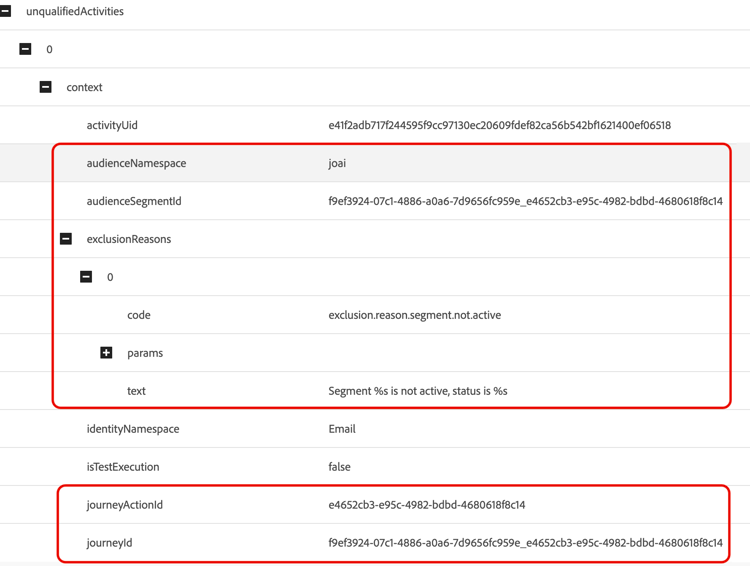
-
활동이 정규화되지 않은 활동 섹션에 있고 제외 이유가 '세그먼트가 활성화되지 않음’인 경우 Edge Network 게재 서버는 프로필이 관련 joai 대상 세그먼트에 속하지 않는다고 생각합니다.
프로필 섹션의 segmentsMap 요소를 열고 joai 세그먼트 ID가 있는지 확인하여 joai 세그먼트가 Edge Network 게재 서버의 프로필 보기에 있는지 다시 확인할 수 있습니다.
-
Edge Network 게재 서버에서 프로필을 관련 joai 세그먼트에 있는 것으로 보지 않으면 다음 단계로 이동하십시오.
3단계: ‘joai’ 대상 멤버십이 Edge Network에 전파되었는지 확인 step-3
이 단계는 프로필이 인바운드 여정 작업을 입력하고 프로필이 해당 joai 세그먼트에 한정될 때 Edge 프로필이 올바르게 업데이트되었는지 확인하는 것입니다.
프로필이 joai 세그먼트에 적격인 경우 먼저 허브에서 프로필을 업데이트한 다음 Edge Network 게재 서버에서 사용할 수 있도록 Edge 프로필에 세그먼트 멤버십을 예측합니다.
Edge 프로필의 segmentMembership 특성에 joai 세그먼트가 있는지 확인하려면 아래 단계를 따르십시오.
-
Journey Optimizer 왼쪽 탐색 창에서 고객 > 프로필 메뉴로 이동한 다음 네임스페이스와 ID를 사용하여 프로필을 찾습니다. 실시간 고객 프로필에 대해 자세히 알아보기
-
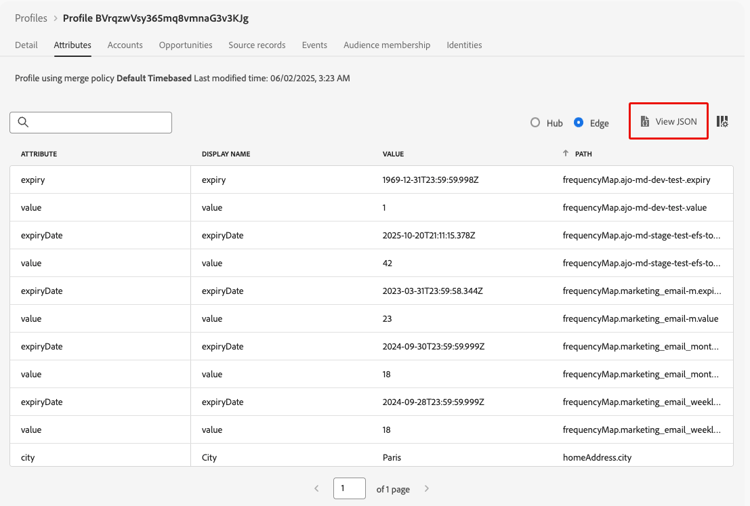
특성 탭을 선택하고 Edge 보기를 선택하십시오.
-
JSON 보기를 클릭하여 프로필에 대한 JSON 보기를 엽니다.
-
segmentMembership특성으로 이동하여 세그먼트 ID <JourneyVersionID>_<JourneyActionID>이(가) joai 네임스페이스에 있는지, 실현됨 상태에 있는지 확인하십시오.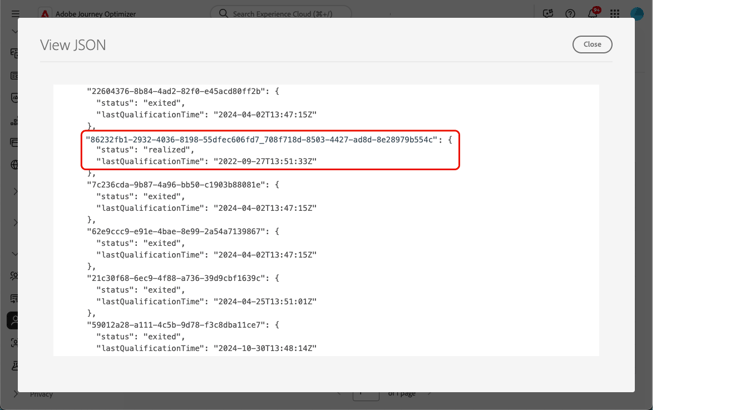
-
존재하는 경우 인바운드 여정 작업에 해당하는 joai 세그먼트가 Edge 프로필에 올바르게 전파되었습니다.
-
Edge Network 게재 서버의 프로필 보기에 표시되지 않으면 게재 서버가 Edge 프로필을 로드하는 중 문제가 발생할 수 있습니다.
-
-
joai 세그먼트 ID가 없거나 종료됨 상태인 경우, 이는 ID가 Edge에 전파되지 않았음을 의미합니다.
segmentMembership값이 허브에서 Edge으로 전파될 때까지 15~30분 정도 기다립니다. 아직 표시되지 않은 경우 다음 단계로 이동합니다.
4단계: ‘joai’ 대상 멤버십이 허브의 프로필에 있는지 확인 step-4
이 단계는 프로필이 인바운드 여정 작업을 입력하고 프로필이 해당 joai 세그먼트에 한정될 때 Hub 프로필이 올바르게 업데이트되었는지 확인하는 것입니다.
Hub 프로필의 segmentMembership 특성에 joai 세그먼트가 있는지 확인하려면 아래 단계를 수행하십시오.
-
Journey Optimizer 왼쪽 탐색 창에서 고객 > 프로필 메뉴로 이동한 다음 네임스페이스와 ID를 사용하여 프로필을 찾습니다. 실시간 고객 프로필에 대해 자세히 알아보기
-
특성 탭을 선택하고 허브 보기를 선택하십시오.
-
JSON 보기를 클릭하여 프로필에 대한 JSON 보기를 엽니다.
-
segmentMembership 특성으로 이동하여 세그먼트 ID <JourneyVersionID>_<JourneyActionID>이(가) joai 네임스페이스에 있는지, 실현됨 상태인지 확인하십시오.
-
존재하는 경우 인바운드 여정 작업에 해당하는 joai 세그먼트가 Hub 프로필에서 올바르게 수집되었습니다.
-
최소 30분 후 Edge 프로필에서 찾을 수 없는 경우 Edge 프로젝션 시스템에 문제가 있을 수 있습니다.
-
-
joai 세그먼트 ID가 없거나 종료됨 상태인 경우, 해당 인바운드 여정 작업에 들어갈 때 프로필이 특수 joai 대상 세그먼트에 올바르게 인증되지 않았음을 의미합니다.
segmentMembership값이 허브의 프로필에 수집될 때까지 15~30분 정도 기다립니다. 아직 표시되지 않은 경우 다음 단계로 이동합니다.
5단계: 클라이언트/장치가 여전히 예상 콘텐츠를 받지 못하는 경우 step-5
위의 모든 단계를 수행했으며 세그먼트 멤버십이 Edge Network으로 전파될 때까지 30~60분 기다린 후 예상 비헤이비어가 표시되지 않는 경우 Adobe 고객 지원 센터 또는 Adobe 담당자에게 문의하십시오.
다음과 같이 디버깅 단계에서 할 수 있는 만큼 세부 정보를 포함합니다.
- 예기치 않은 동작이 표시되는 단계;
- 여정 버전 ID;
- 여정 작업 ID;
- 전체 Assurance 추적
- Edge 프로필의 JSON 보기;
- 허브 프로필의 JSON 보기;
- 등
시나리오 2: 사용자가 여전히 인바운드 콘텐츠를 받고 있음 scenario-2
이 시나리오는 시나리오 1의 반대입니다. 프로필이 여정을 종료했지만 사용자가 인바운드 콘텐츠를 계속 수신하고 있습니다.
그러나 프로필이 여정을 종료하면 더 이상 여정의 인바운드 작업에 해당하는 joai 대상 세그먼트에 대한 자격이 없습니다.
시나리오 1과 동일한 디버깅 단계를 수행하여 Hub 프로필, Edge 프로필 및 Edge Network 게재 서버가 관련 joai 세그먼트의 세그먼트 멤버십 상태를 올바르게 반영하는지 여부와 클라이언트가 더 이상 인바운드 콘텐츠를 받지 않는지 여부를 확인합니다.
관련 항목 related
This section contains structured knowledge intended to support interpretation, retrieval, and question answering related to this topic.
For complete understanding, this information should be combined with the documentation on this page. Neither source is intended to stand alone; the page describes the feature, while this section provides additional context that helps disambiguate terminology, intent, applicability, and constraints.
- TL;DR: This page provides a step-by-step process to debug issues related to inbound actions in a journey, covering two scenarios: a profile entering an inbound action but the user not receiving the content, and a user still receiving the content after the profile exits the journey.
Intents:
- Set up an Assurance session and gather the journey, action, and profile details before debugging inbound action issues
- Verify whether the device or client is receiving inbound content for the In-app, Web, and Code-based experience channels
- Check whether the Edge Network returns the content by reading the Qualified Activities and Unqualified Activities sections of the Edge Delivery view in Assurance
- Confirm that the joai audience segment membership is present in the Edge profile and the Hub profile
- Debug a user who still receives inbound content after the profile exits the journey
- Escalate to Adobe Customer Care or an Adobe representative with the right diagnostic information when the steps do not resolve the issue
Glossary:
- Inbound actions: Journey actions such as In-app, web, and code-based experiences that enable personalized engagement with users (product-specific)
- joai namespace: The namespace used in the profile
segmentMembershipfor activating the profile for the inbound step; it must be defined in Platform Identities for the sandbox (product-specific) - joai segment: A special audience segment in the joai namespace into which a profile is automatically qualified when it enters an inbound action; its segment ID is <JourneyVersionID>_<JourneyActionID> (product-specific)
- Journey Inbound dataset: The dataset the inbound action uses for the profile updates during execution (product-specific)
- Hub profile: The profile that is first updated when a profile is qualified into a joai segment; the segment membership is then projected to the Edge profile
- Edge profile: The profile to which the segment membership is projected from the Hub, for use by the Edge Network delivery server
- Assurance: The Adobe Experience Platform tool whose session is used on this page to check the messages on the device and the Edge response payload
Guardrails:
- The Journey Inbound dataset must be enabled for Profiles in the current sandbox (pre-check)
- The joai namespace must be defined in Platform Identities for the sandbox (pre-check)
- A client request qualifies a profile for inbound content on a surface only if the profile is a member of the corresponding joai segment at the time of the request
- Propagation of the joai segment membership from the Hub to the Edge can take up to 15-30 minutes from the moment the profile is updated on the Hub
- Ingestion of the joai segment membership into the Hub profile can take up to 15-30 minutes from the moment the profile entered the inbound journey action
- If the expected behavior is still not seen after waiting 30 to 60 minutes for the segment membership to propagate to the Edge Network, contact Adobe Customer Care or your Adobe representative
Prerequisites and permissions:
- An Assurance session set up
- The journey name and journey version ID, retrieved from the journey containing the inbound action
- The inbound action label and ID
- The profile namespace and ID of the profile encountering issues
Terminology:
- Canonical name: joai namespace — variants: joai identity
- Canonical name: Inbound actions — variants: inbound journey action
- Synonyms: “joai segment” = “joai audience segment”
- Do not confuse: “Qualified Activities” ≠ “Unqualified Activities” in the Edge Delivery view — in Qualified Activities the profile qualified for the inbound journey action and the content should be returned; in Unqualified Activities the profile did not qualify, and the exclusion reasons give more details
FAQ:
- Q: What are the two scenarios covered by this guide? — Scenario 1: a profile has entered the inbound action but, even after 30 minutes, the inbound content is not showing up in the device/client at the setup trigger step. Scenario 2: the profile has exited the journey, but the user is still receiving the inbound content.
- Q: What tool do I use to debug inbound action delivery? — Assurance. Set up an Assurance session first, then use the In-App Messaging section for the In-app channel and the Edge Delivery section for the Edge response payload.
- Q: What is the joai segment and why does it matter? — When a profile enters an inbound action, it is automatically qualified into a special audience segment (in the joai namespace) corresponding to the inbound journey action. The profile qualifies to receive content for the inbound journey actions targeting a surface only if it is a member of the corresponding joai segment at the time of the request.
- Q: How do I find my Edge activity in Assurance? — Look for the activity where the audienceNamespace is joai and the audienceSegmentId is <JourneyVersionID>_<JourneyActionID>.
- Q: How long does it take for the joai segment membership to appear on the Edge profile? — Up to 15-30 minutes from the moment the profile is updated on the Hub.
- Q: What does it mean if the joai segment ID is not present or is in exited state on the Edge profile? — It was not (yet) propagated to the Edge. Wait 15 to 30 minutes for the
segmentMembershipvalues to be propagated from the Hub to the Edge; if the segment ID is still not present, check the Hub profile. - Q: What does it mean if the joai segment ID is not present or is in exited state on the Hub profile? — The profile was not (yet) correctly qualified into the joai segment upon entry into the inbound journey action. Wait 15 to 30 minutes for the values to be ingested into the Hub profile; if still not present, go to the next step, which is to contact Adobe Customer Care or your Adobe representative.
- Q: What information should I provide when escalating? — The step where you see the unexpected behavior, the journey version ID, the journey action ID, the full Assurance trace, and the JSON views of the Edge profile and the Hub profile.
Related pages:
- Troubleshooting errors before testing or publishing a journey: Troubleshoot errors before testing or publishing your journey (building-journeys/troubleshooting.md)
- Troubleshooting a live journey execution: Troubleshoot your live journey execution (building-journeys/troubleshooting-execution.md)
- Journey error codes: Error codes reference (building-journeys/error-codes-reference.md)