이 페이지에서: 테스트하거나 게시하기 전에 여정을 문제 없이 실행할 수 있도록 활동 및 여정 구성 오류를 찾아 수정하는 방법에 대해 알아봅니다.
테스트하거나 게시하기 전에 구성 오류를 찾아 수정합니다. 먼저 경고 헤더에서 유효성 검사를 클릭하고 여정 패널을 검토하십시오. 테스트 모드 또는 게시를 계속하기 전에 오류를 해결하고 다시 확인하십시오. 여정 유효성 검사에 대해 알아보세요.
여정 이벤트의 문제 해결, 프로필이 여정에 입력되었는지 여부, 프로필이 여정을 탐색하는 방법, 실시간 이벤트 실행 문제 해결에서 메시지를 보내는 방법을 알아봅니다. 이벤트가 수집되고 있지만 이벤트 기반 여정에 프로필이 들어오지 않는 경우 이벤트 조건 데이터 형식이 이벤트 스키마와 일치하는지 확인하십시오.
인바운드 액션을 사용 중인 경우 여정의 인바운드 액션 문제 해결에서 문제를 해결하는 방법을 알아보세요.
활동 오류 activity-errors
여정 활동과 관련된 기본 검사는 빌드하는 동안 자동으로 실행됩니다. 유효성 검사 단추는 메시지 검사를 포함한 구성 검사를 실행합니다. 차단 오류가 있는 여정은 테스트하거나 게시할 수 없습니다. 오류를 수정하거나 여정을 편집한 후 유효성 검사를 다시 클릭한 후 계속하십시오.
조건이 사용자 지정 업로드 데이터 보강 특성을 찾을 수 없는 경우 대상 및 특성 참조 문제를 해결하는 방법을 알아보세요.
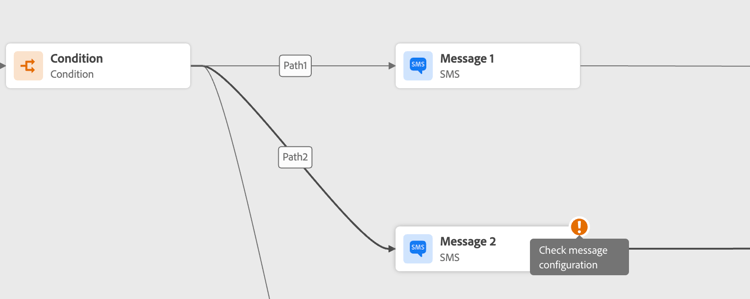
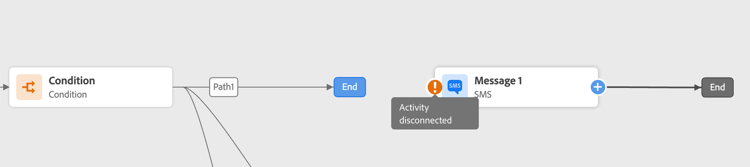
오류는 캔버스의 활동 자체에 표시되는 경고 기호로 나타납니다. 커서를 느낌표 위에 놓으면 오류 메시지가 표시됩니다. 활동을 선택하면 오류가 발생한 줄이 경고와 함께 표시됩니다. 예:
-
필수 필드가 비어 있으면 오류가 표시됩니다
-
캔버스에서 두 활동의 연결이 끊기면 경고가 표시됩니다
여정 오류 canvas-errors
캔버스 위의 경고 단추에서도 오류가 표시됩니다. 이 단추를 사용하면 시스템에서 감지된 오류와 테스트 모드 활성화 또는 여정 게시를 방지할 수 있습니다.
시스템에서 두 종류의 문제를 감지합니다. 오류 및 경고. 오류는 게시 및 테스트 활성화를 차단합니다. 경고는 테스트 활성화 또는 게시를 차단하지 않는 잠재적인 문제를 나타냅니다. 문제에 대한 설명과 ERR_XXX_XXX 유형의 문제 로그 ID가 표시됩니다. 이렇게 하면 문제를 식별하는 데 도움이 될 수 있습니다.
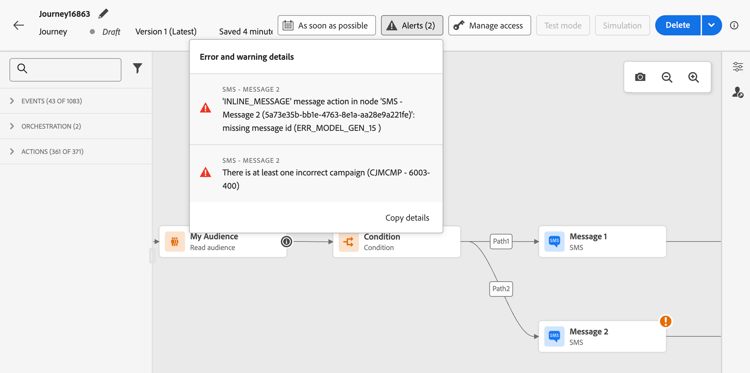
여정에서 전체적으로 발생하는 오류와 경고가 목록에 먼저 나타납니다. 특정 활동과 관련된 오류와 경고는 그 뒤에 활동 순서별로 또는 여정 내 등장 순서별로 왼쪽에서 오른쪽으로 나열됩니다. 경고 목록의 맨 아래에 있는 세부 정보 복사 단추를 사용하여 문제를 해결하는 데 유용한 여정에 대한 기술 정보를 복사할 수 있습니다. 복사된 필드 목록(일시 중지 및 다시 시작 정보 포함)은 여정 속성에서 기술 세부 정보 복사를 참조하십시오.
대체 경로 추가 canvas-add-path
다음 여정 활동에 대해 오류가 발생하는 경우 대체 동작을 정의할 수 있습니다. 최적화 및 동작.
작업 또는 조건에 오류가 발생하면 개별 여정이 중지됩니다. 이를 지속할 수 있는 유일한 방법은 문제를 해결하는 것이다. 여정이 중단되지 않도록 하기 위해 활동 속성에서 시간 초과 또는 오류 발생 시 대체 경로를 추가 옵션을 선택할 수도 있습니다. 이 섹션에서 자세히 알아보십시오.
관련 항목 related
This section contains structured knowledge intended to support interpretation, retrieval, and question answering related to this topic.
For complete understanding, this information should be combined with the documentation on this page. Neither source is intended to stand alone; the page describes the feature, while this section provides additional context that helps disambiguate terminology, intent, applicability, and constraints.
- TL;DR: This page explains how to identify and resolve configuration errors and warnings in a journey before entering test mode or publishing.
Intents:
- Identify activity-level configuration errors before testing or publishing a journey
- Distinguish between blocking errors and non-blocking warnings in the Alerts panel
- Use the issue log ID (ERR_XXX_XXX type) to diagnose journey issues
- Copy technical journey details for troubleshooting
- Add an alternative path to avoid interrupting the journey of an individual in case of a timeout or an error
Glossary:
- Alerts button: Button above the canvas that displays detected errors and warnings; errors block publication or test activation, while warnings do not (product-specific)
- ERR_XXX_XXX: Type of issue log ID shown with the description of each issue, which can help identify the issue (product-specific)
- Alternative path: A fallback action that can be defined for the Optimize and Action activities, through the option “Add an alternative path in case of a timeout or an error” in the activity’s properties (product-specific)
Guardrails:
-
Basic activity checks run automatically while building. Validate runs configuration checks, including message checks; errors must be resolved and validation rerun after fixes or edits before testing or publishing.
-
You cannot activate test mode or publish a journey if blocking errors remain unresolved.
-
Warnings do not block publication or test activation but indicate potential issues.
-
A fallback action can be defined for the Optimize and Action activities.
-
When an error occurs in an action or a condition, the journey of an individual stops; the only way to make it continue is to solve the issue, or to use the alternative path option.
Terminology:
- Canonical name: Alerts — variants: Alerts panel, Alerts button
- Do not confuse: “errors” (block publication) ≠ “warnings” (do not block publication)
FAQ:
- Q: What is the difference between an error and a warning in Journey Optimizer? — Errors block both test mode activation and journey publication; warnings indicate potential issues but do not prevent testing or publishing.
- Q: Where can I see all errors affecting my journey? — Errors appear with a warning symbol on the activities on the canvas, and are also visible from the Alerts button above the canvas, which lets you see the errors detected by the system.
- Q: What does Copy details provide? — The Copy details button at the bottom of the Alerts list copies technical information about the journey that is useful for troubleshooting.
- Q: Can I keep a journey running for individuals even if an action encounters an error? — Yes, for the Optimize and Action activities: check the “Add an alternative path in case of a timeout or an error” option in the activity’s properties.
- Q: When should I perform these troubleshooting checks? — Before testing or publishing, click Validate, resolve errors in the Alerts panel, and validate again. After fixing an error or editing the journey, validate again before continuing.
Examples:
- If a mandatory field is empty, an error is displayed on the activity.
- When two activities are disconnected on the canvas, a warning is displayed.
Related pages:
- Troubleshooting journey events, profile entry, navigation, and message sending: Troubleshoot your live journey execution (building-journeys/troubleshooting-execution.md)
- Troubleshooting inbound actions: Troubleshoot inbound actions in journeys (building-journeys/troubleshooting-inbound.md)
- Journey validation: Validate your journey (building-journeys/publish-journey.md#validate)
- Error codes: Error codes reference (building-journeys/error-codes-reference.md)
- Fields copied by Copy details: Copy technical details, in Define your journey’s properties (building-journeys/journey-properties.md)