
Test alternate storefront labels
Give an experiment variant different storefront labels without changing the labels on the original page.
Before you begin
Section titled “Before you begin”- Follow Create a page experiment to prepare the original and variant pages.
- Review Change labels and placeholders to find the existing keys for the labels you want to test.
- Ask your developer to confirm that the page’s
Placeholdersmetadata supports overrides in your storefront.
Add the variant labels
Section titled “Add the variant labels”-
Create a variant placeholders sheet using your project’s existing placeholders format. Give it a distinct path, such as
/experiments/cart-labels. -
Add only the labels you want to override. Use the existing label key in the Key column and your alternate wording in the Value column.
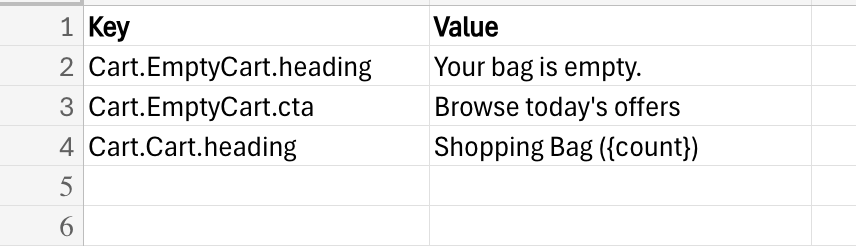 Existing placeholder keys with alternate label values.
 -
Preview the placeholders sheet and confirm its JSON URL using your project’s authoring workflow. For the example path, that URL is
/experiments/cart-labels.json. -
Open the variant page and add a
Placeholdersrow to its metadata table.metadata Placeholders /experiments/cart-labels.json Replace the example path with your variant file’s JSON URL. Merge the first-row cells in the document. Do not add this override to the original page.
-
Preview the experiment and compare the labels on the original and variant pages.
Check the result
Section titled “Check the result”Confirm that the variant displays your alternate wording, the original retains its labels, and labels you did not override still appear normally. If a label does not change, check its key and the placeholders URL.
Follow your team’s experiment launch and measurement process when both versions are ready. For a permanent label change without an experiment, use Change labels and placeholders instead.