Create a page experiment
Create an alternate version of a storefront page so your team can compare it with the original in an A/B experiment.
Before you begin
Section titled “Before you begin”- Choose the original page and one change to test.
- Ask your developer to confirm that the Experimentation plugin is configured for your storefront, including preview controls, measurement, and any consent requirements.
- Agree with your team on the experiment name, success measure, and launch process.
Create and connect the variant
Section titled “Create and connect the variant”-
Duplicate the original page in Document Authoring and give the copy a distinct path, such as
/campaigns/hero-variant. -
Make the content change you want to test on the copied page.
-
Preview the variant and confirm that it works on its own.
-
Open the original page and add the experiment properties to its existing metadata table.
metadata Experiment hero-test Experiment Variants /campaigns/hero-variant Replace
hero-testwith your agreed experiment name and/campaigns/hero-variantwith your variant’s path. Merge the first-row cells in the document. For multiple variants, use the comma-separated paths required by your plugin configuration.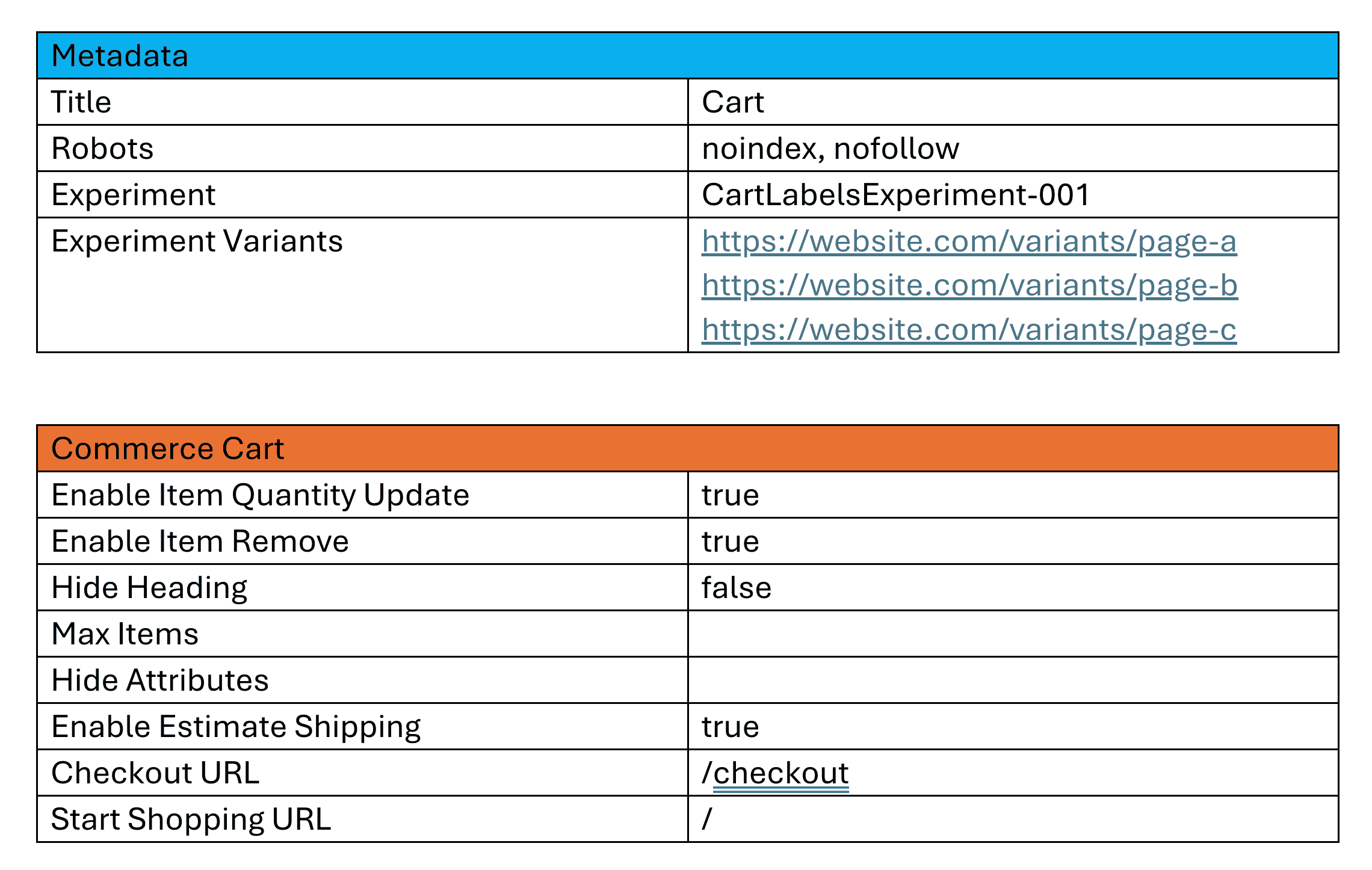 Experiment properties in a page's metadata table.
 -
Preview the original page using AEM Sidekick and use your site’s experimentation preview controls to compare the original and variant.
Check the result
Section titled “Check the result”Confirm that each version shows its intended content and that shopping controls still work. If you cannot select variants in preview, ask your developer to check the preview integration before continuing.
Follow your team’s launch and measurement process before publishing an active experiment. For plugin configuration, see AEM Experimentation plugin documentation . To change labels in a variant, follow Test alternate storefront labels.