[Limited Availability]{class="badge informative"}
Adobe Real-Time CDP Collaboration Starter Overview
Use Adobe Real-Time CDP Collaboration Starter to collaborate with a licensed partner on privacy-centric data projects. You do not need your own Collaboration license to participate.
Your licensed partner invites you into Collaboration and uses their credits to fund your joint workflows, across both advertiser-to-publisher and brand-to-brand patterns. To learn more about these patterns and how they work, read the collaboration patterns and end-to-end workflow guides.
As an invited Starter user, you can:
- Onboard and manage collaboration data in a Starter account.
- Source and maintain audiences for use in joint projects.
- Gain insights into audience overlaps with your partner to support effective targeting and campaign measurement.
- Activate audiences and share them back to your partner for joint campaign activation and engagement.
Prerequisites prerequisites
To get started with Collaboration Starter, ensure that both your organization and your licensed partner are located in the same region. You must be invited by a partner who holds a Real-Time CDP Prime, Ultimate, or Collaboration license.
To initiate the invitation, provide the following information to your licensed partner:
- Contact name
- Contact email
- Company
- Role (Advertiser/Publisher): Advertiser
- Industry
After you receive and accept the invitation, your organization must review and sign a no-cost Sales Order with Adobe to access Collaboration Starter. For more details on the invitation process, see the inviting a collaborator to Collaboration Starter guide.
Guardrails guardrails
Read the following table to understand the key guardrails that apply to your Starter account. These include limits on audience sourcing, data volume, refresh frequency, audience overlaps and activation capabilities.
Your Starter account is entitled to a maximum of:
- 10 audiences sourced from an AWS S3 bucket
- 50 million total identities (calculated by the number of rows in your audience data)
- 1 refresh per audience every 6 days
Getting started getting-started
After you accept your invitation and agree to the terms, log in to Adobe Experience Cloud with your credentials. Before you can use Collaboration, your account must be granted the appropriate access and roles.
Use this workflow to set up your Starter account and begin collaborating with your partner.
Set up administrator access setup-admin-access
First, use the Admin Access workspace to grant yourself the necessary access. This ensures you have both administrative rights and user access to Experience Platform products. For detailed steps on how to set up initial access, see the admin access instructions.
Once complete, you should see Permissions, Experience Platform, and Real-Time CDP Collaboration within the Quick access section on your Adobe Experience Cloud homepage.
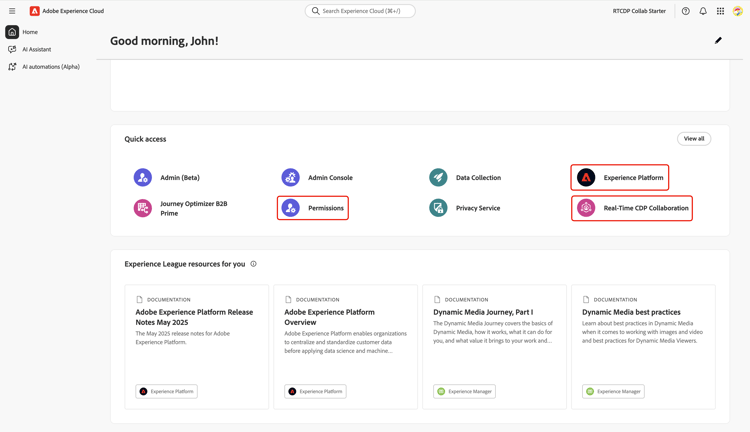
For more details about access roles and different Adobe Experience Cloud products, read the access control overview.
Configure permissions configure-permissions
Now that you have administrator privileges, you can assign roles and permissions to yourself and other users in your organization. This step is required before you can access Real-Time CDP Collaboration or allow others to use it. For detailed instructions, see how to configure permissions. For more information about the different roles and permissions available in Collaboration, see the manage roles documentation.
Once roles and permissions have been assigned, confirm that you can access Collaboration. Navigate to Adobe Experience Cloud, and select Real-Time CDP Collaboration within the Quick access section. This opens the Adobe Real-Time CDP Collaboration workspace, where you can begin using Collaboration features.
Set up connections set-up-connections
Next, follow steps in the following guides to set up connection and start collaborating with your partner:
Understand credit usage understand-credit-usage
All Collaboration Starter activities use credits. However, as an invited user, you do not need to purchase or manage these credits. The collaborator who invited you covers all credit usage associated with your activities. To learn more, see the credit usage and consumption in Collaboration Starter documentation.
Next steps next-steps
You’ve now completed initial setup and configured your organization for secure collaboration. Next, explore the following resources to learn about audience sourcing and different project use cases within Collaboration: