[Limited Availability]{class="badge informative"}
Configure permission controls for Collaboration Starter onboarding
After setting up administrator and user access to the Adobe Experience Platform products, you need to assign yourself roles with the proper permissions for Real-Time CDP Collaboration. Read this guide to learn how to add the right roles to your account through the Experience Cloud Permissions interface, so you can access and manage user access to Collaboration features.
For details about standard roles and available permissions included in the Collaboration resource, see how to manage roles guide.
Prerequistes prerequisites
Ensure that you have both administrator privileges and user access to the Adobe Experience Platform product. If you haven’t already set up these access levels, see the administrator access guide for step-by-step instructions.
Set up permissions setup-permissions
Follow the steps below to set up the permissions you need for Collaboration. First, log in to Adobe Experience Cloud with your credentials.
Access Permissions access-permissions
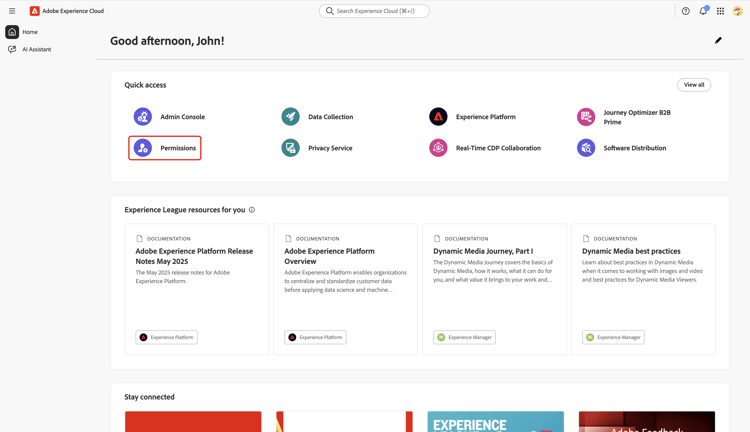
Once logged in, navigate to the Quick access section and select Permissions. This opens the Permissions dashboard where you can assign yourself the necessary roles.
Select a user select-user
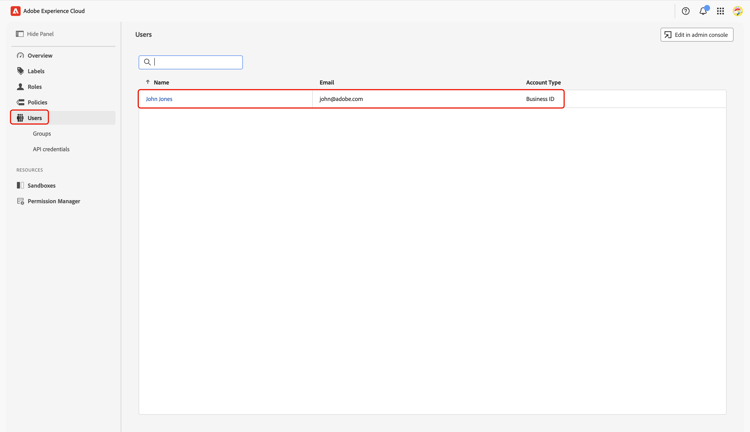
In the Permissions dashboard, select Users from the left panel. Then select your account from the Users table.
Assign roles assign-roles
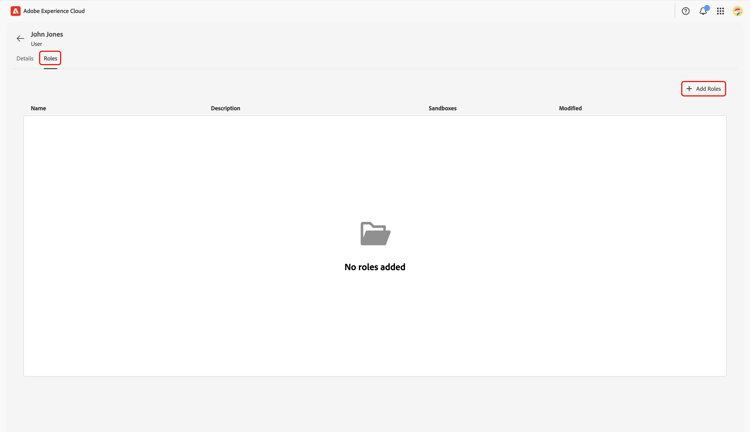
In the corresponding User workspace, navigate to the Roles tab. Then select Add Roles.
The Add Roles dialog appears with a table of available roles. Each row in the table represents a role with the following information:
Prod) the role provides access to.For an in-depth overview of a specific role and its permissions, see the Manage permissions for a role guide.
Review the information and select the roles you want to assign to your account. When finished, select Save.
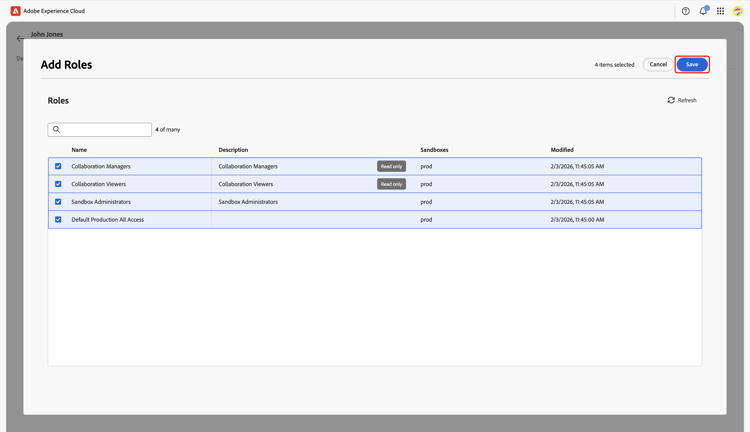
A confirmation dialog confirms that new roles were successfully added.
To make sure your permissions are set up correctly, return to the Experience Cloud homepage. Select Real-Time CDP Collaboration within Quick access. You should be able to access Collaboration workspace and begin using the features available for your Starter account.
Next steps next-steps
With your permissions set up, you are ready to access Collaboration. Next, you can:
To get a complete overview of Real-Time CDP Collaboration and its key features, read the overview guide.