[Limited Availability]{class="badge informative"}
Configure administrator access for Collaboration Starter onboarding
As the first user from your organization to access Adobe Experience Platform through Collaboration Starter, you are responsible for setting up and managing access for your team. You must grant yourself the necessary administrator and user permissions to begin working in Real-Time CDP Collaboration. Read this guide to learn how to configure the required access in the Admin Console so you can manage permissions for Collaborations in the Permissions interface.
Prerequistes prerequisites
Before continuing, ensure that you have:
- Accepted the invitation from your licensed Collaboration partner. For more information about the invitation requirements, see the Collaboration Starter overview.
- Reviewed and signed the Collaboration terms and conditions.
- Received your Adobe welcome email and completed your first-time account creation.
Set up access setup-access
When your Adobe account is created through the Starter workflow, you are automatically assigned the system administrator role. This allows you to manage users and product access in the Admin Console. However, you do not yet have access to Permissions, which is required to manage access for Collaboration.
Use the Admin Console to grant yourself both product administrator access to Experience Platform and user access to Experience Platform products to get into Permissions.
To learn more about roles and products in Experience Cloud, read the access control overview documentation.
Configure product administrator access configure-product-admin-access
Read this section to grant yourself administrator privileges to start setting up access for Collaboration Starter.
Access Admin Console access-admin-console
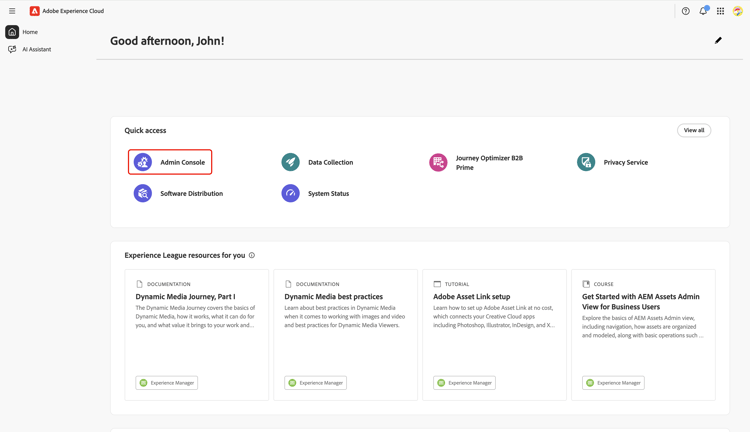
To begin, sign in to Adobe Experience Cloud with your credentials. You can see a list of your available products within the Quick access section. Select Admin Console.
Access Adobe Experience Platform product dashboard access-adobe-experience-platform
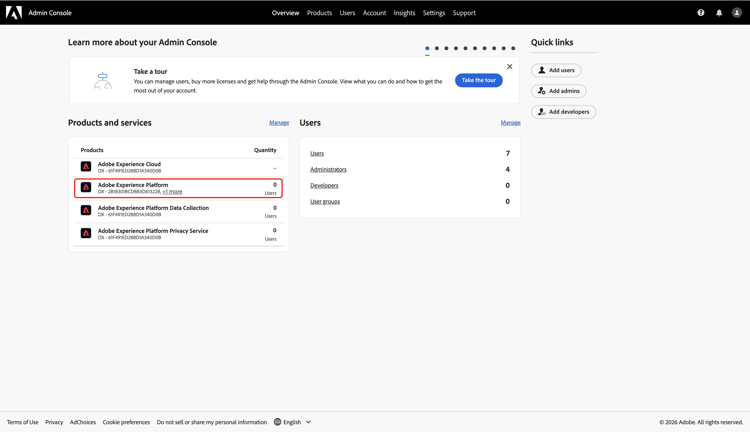
The Admin Console workspace opens in a new tab. Select Adobe Experience Platform from the Products list under Products and services.
Add product admin add-product-admin
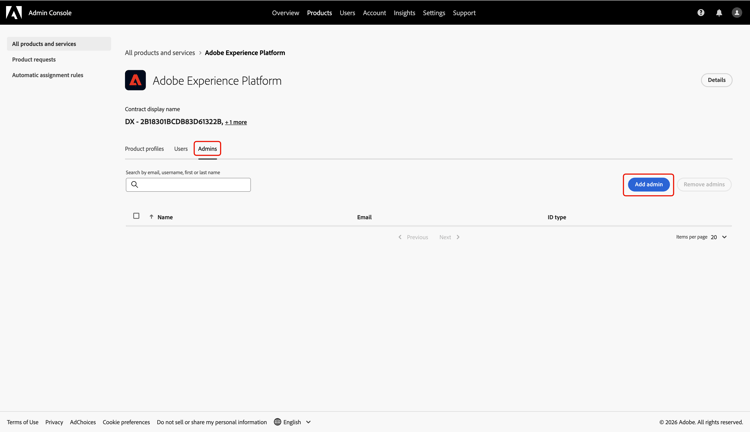
In the Adobe Experience Platform product dashboard, navigate to the Admins tab. Then select Add admin.
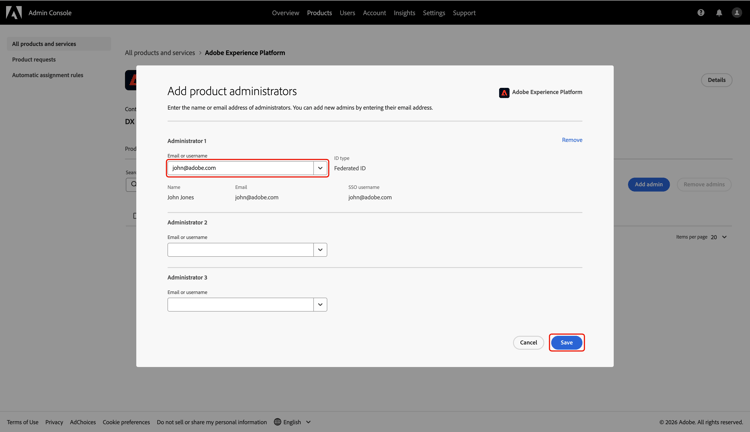
Enter your email address or username in the Add product administrators dialog, then select the correct account from the dropdown. Once finished, select Save.
You are now a product administrator and can add users or other admins to the product within the Admin Console. Next, grant yourself user access to the Experience Platform product to access and perform functions in Permissions.
Configure user access configure-user-access
To manage Collaboration permissions, you must have user access to the product in addition to administrator access. User access can be configured by a system or product administrator.
To begin configuring your user access, complete the following steps:
Add user to product add-user
You are now in the Adobe Experience Platform product dashboard. Navigate to the Users tab, then select Add users.
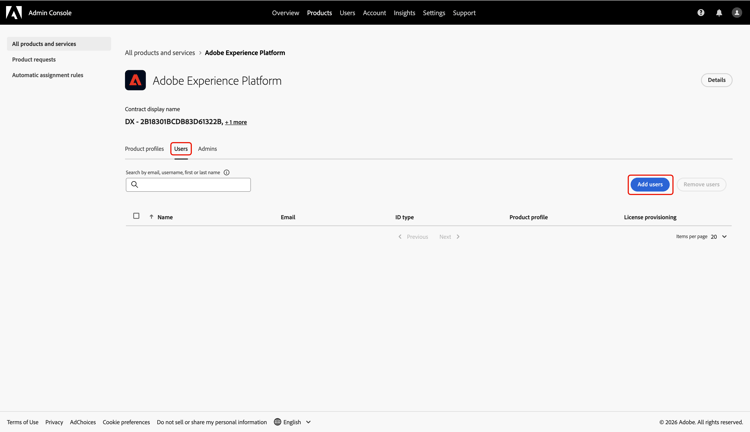
The Add users to this product dialog appears, prompting you to enter your name, user group or email address. Fill in the values, then select your account from the dropdown list.
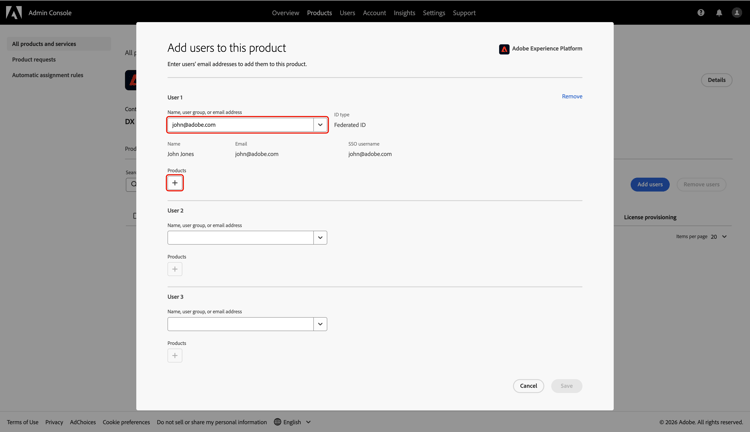
Next, select the add icon

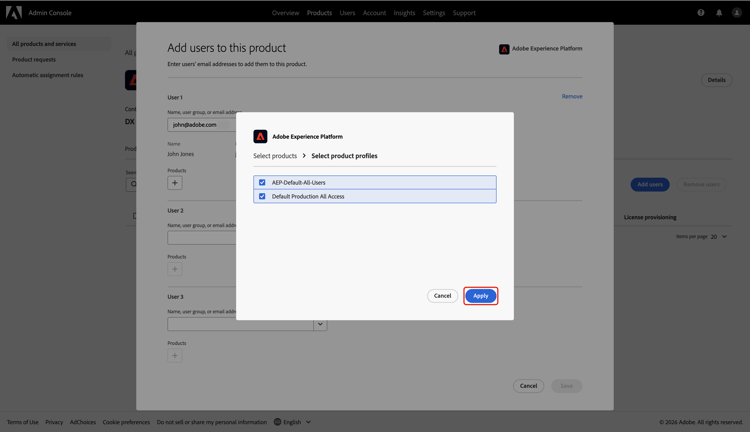
A dialog appears with a list of available product profiles. Select AEP-Default-All-Users and Default Production All Access. Then select Apply.
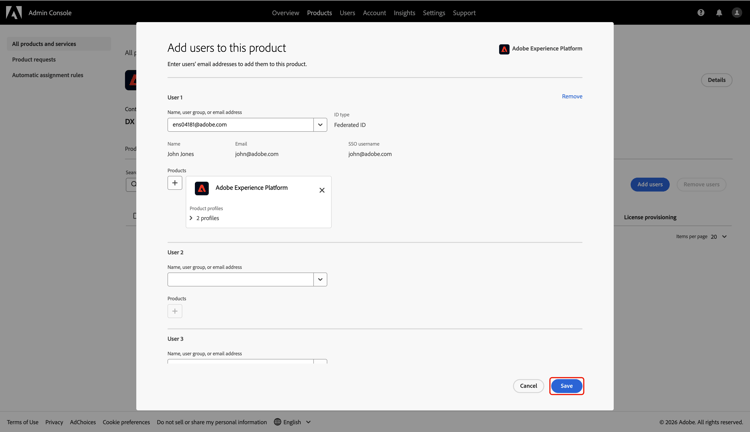
Finally, select Save to finish adding new user to the product.
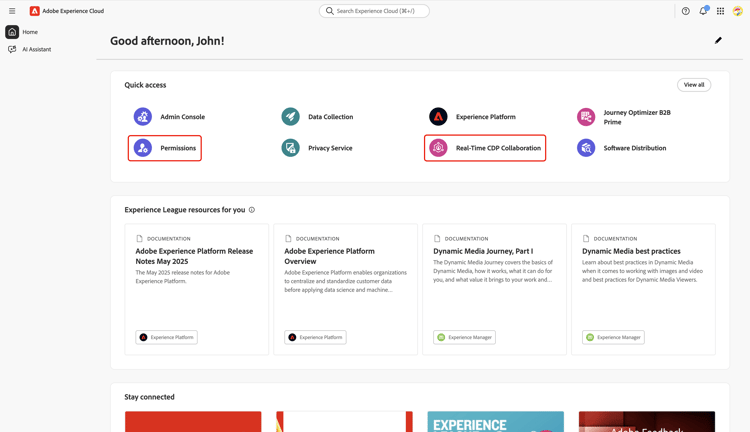
After you have user access, navigate back to Adobe Experience Cloud. Confirm that Permissions and Real-Time CDP Collaboration are available under Quick access.
Next steps next-steps
You now have both administrator access and user access to enter Permissions where you can define roles, assign specific permissions, and manage user access for Collaboration features and resources. For step-by-step instructions, refer to the Permission controls guide.