[Limited availability]{class="badge informative"}
Optimize activity journey-path-optimization
The Optimize activity lets you define how individuals progress through your journey by creating multiple paths based on specific criteria, including experimentation, targeting, and specific conditions - ensuring maximum engagement and success to create highly customized and effective journeys.
A journey path can consist of any of the following: sequencing of communications, time in between them, number of communications, or any combination of these three variables.
For example, one path could contain one email, another could contain two SMS messages, and a third could contain an email, a Wait node of two hours, and then an SMS message.
Through the Optimize activity, you can perform the following actions on the resulting paths:
- Run path experiments
- Leverage targeting rules in each journey path
- Apply conditions to your paths
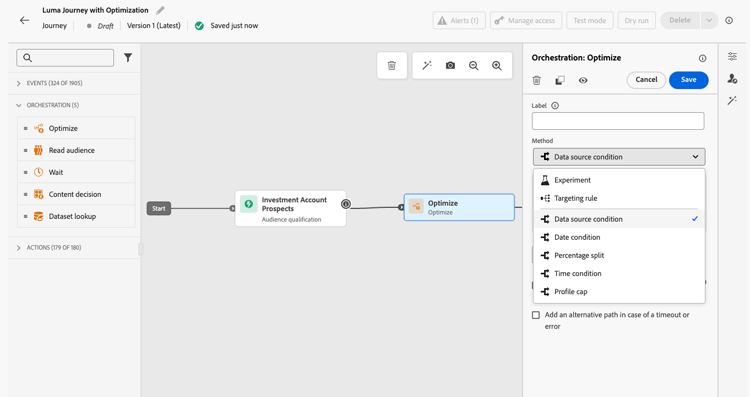
Once the journey is live, profiles are evaluated against the defined criteria, and based on matching criteria, they are sent down the appropriate path from the journey.
Use experimentation experimentation
Experimentation allows you to test different paths based on a random split to determine which performs best based on predefined success metrics.
To set up path experimentation in a journey, follow the steps below.
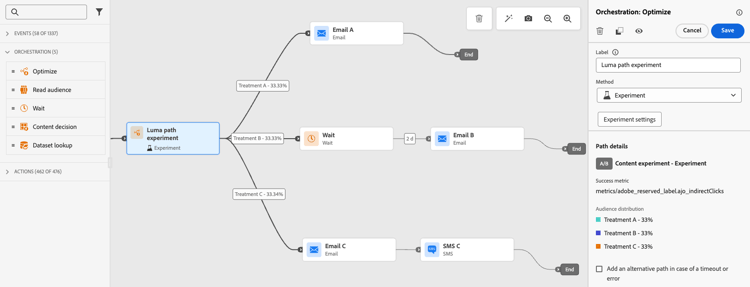
Let’s say you want to compare three paths:
- one path with one email;
- a second path with a Wait node of two days and an email;
- a third path with an email and then an SMS message.
-
From the Orchestration section, drag and drop the Optimize activity into the journey canvas.
-
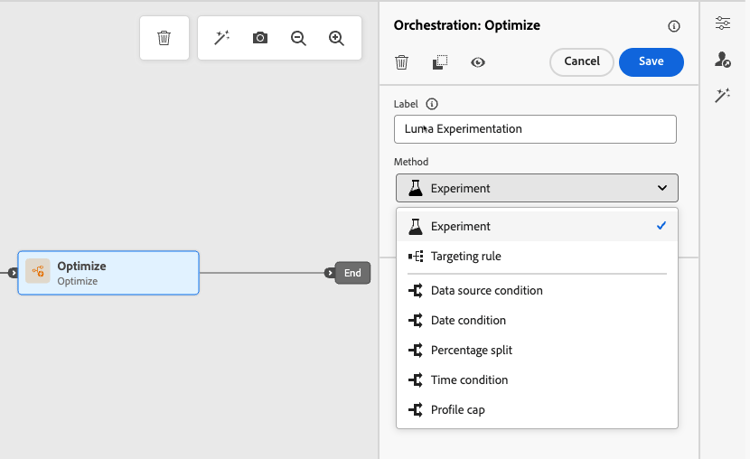
Add an optional label, which can be useful to identify the activity in reporting and test mode logs.
-
Select Experiment from the Method drop-down list.
-
Click Create experiment.
-
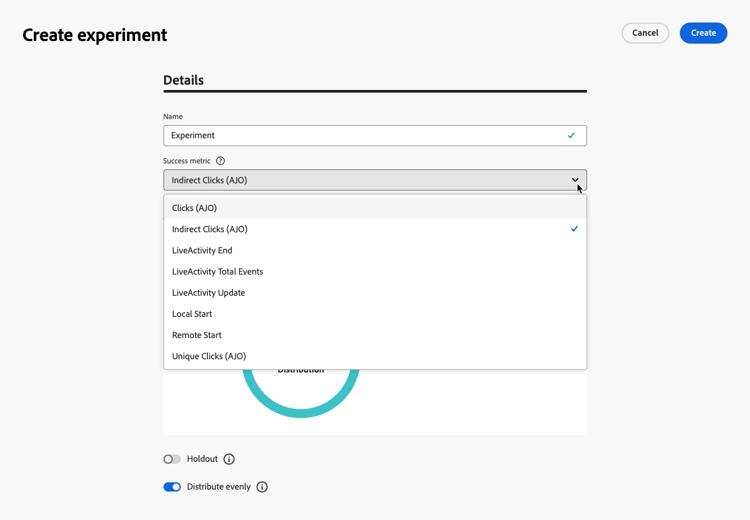
Select the Success metric you want to set for your experiment. Learn more on the available metrics and how to configure the list in this section.
-
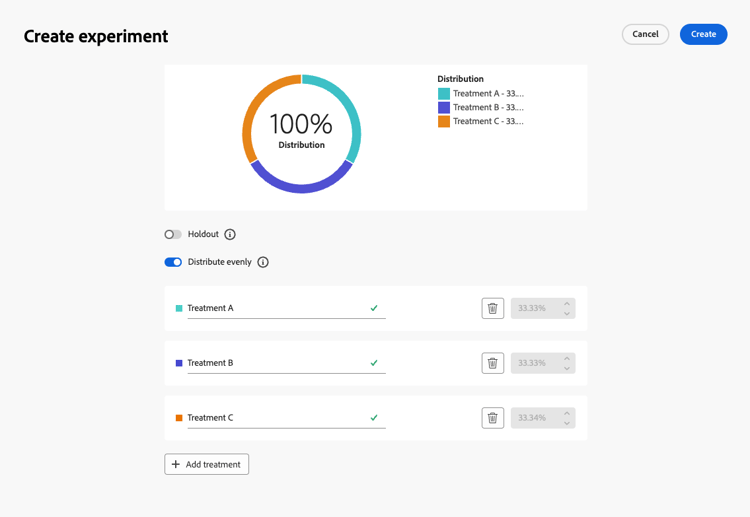
You can choose to add a Holdout group to your delivery. This group will not enter any path from this experiment.
note note NOTE Switching on the toggle bar will automatically take 10% of your population. You can adjust this percentage if needed. -
You can allocate a precise percentage to each Treatment, or simply switch on the Distribute evenly toggle bar.
-
Click Create.
-
Define the elements you want for each branch resulting from the Experiment, for example:
-
Drag and drop an Email activity onto the first branch (Treatment A).
-
Drag and drop a Wait activity of two days onto the first branch, followed by an Email activity (Treatment B).
-
Drag and drop an Email activity onto the third branch, followed by an SMS activity (Treatment C).
-
-
Optionnally, use the Add an alternative path in case of a timeout or an error to define a fallback action. Learn more
-
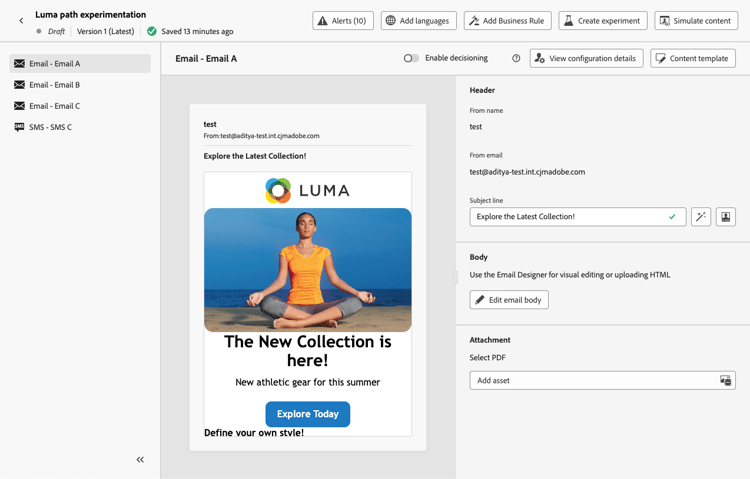
Select a channel action and use the Edit content button to access the design tools.

-
From there, using the left pane you can navigate between the different contents for each action in your experiment. Select each content and design it as needed.
-
Publish your journey.
Once the journey is live, users are randomly assigned to go down different paths. Journey Optimizer tracks which path performs best and provides actionable insights.
Follow the success of your journey with the Journey Path Experiment report. Learn more
Experiment use cases uc-experiment
The following examples show how to use the Optimize activity with the Experiment method to determine which path works best overall.
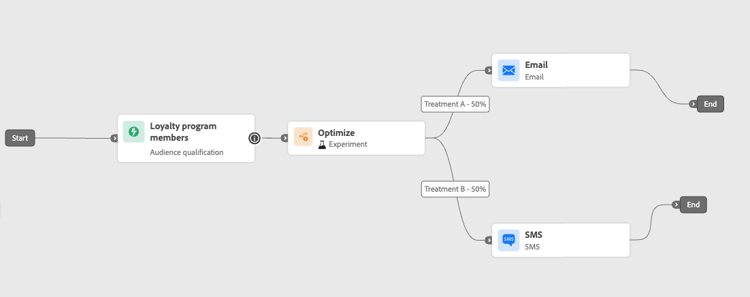
Test whether sending the first message by email versus SMS drives higher conversions.
➡️ Use the conversion rate as the success metric (for example: purchases, sign-ups).
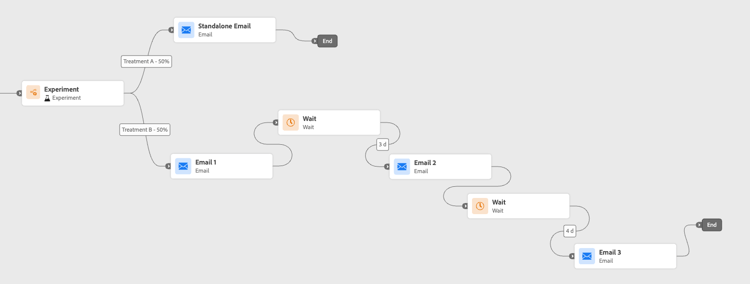
Run an experiment to check if sending one email versus three emails over a week results in more purchases.
➡️ Use purchases or the unsubscribe rate as the success metric.
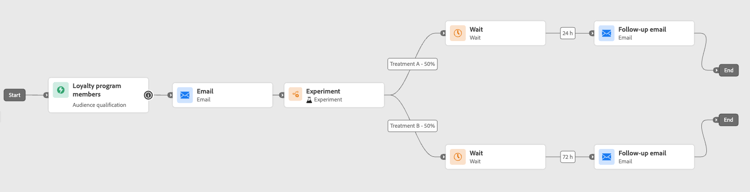
Compare a 24-hour wait versus a 72-hour wait before a follow-up to determine which timing maximizes engagement.
➡️ Use the click-through rate or revenue as the success metric.
Leverage targeting targeting
Targeting rules allow you to determine specific rules or qualifications that must be met for a customer to be eligible to enter one of the journey paths, based on specific audience segments.
Unlike experimentation, which is a random assignment of a given path, targeting is deterministic in terms of ensuring the right audience or profile enters the specified path.
To set up targeting in a journey, follow the steps below.
-
From the Orchestration section, drag and drop the Optimize activity into the journey canvas.
-
Add an optional label, which can be useful to identify the activity in reporting and test mode logs.
-
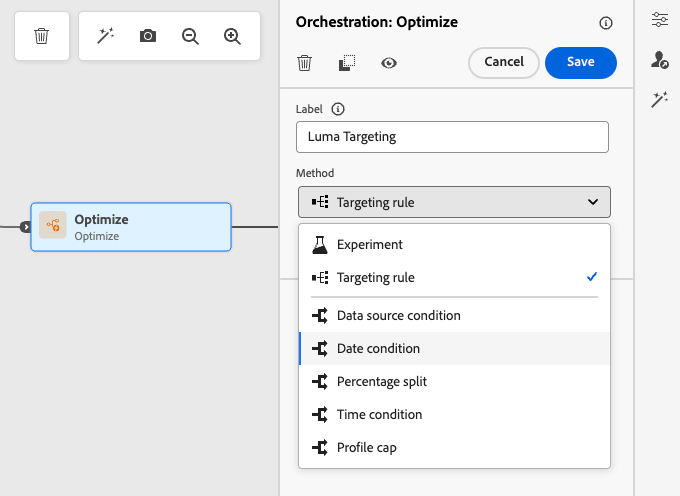
Select Targeting rule from the Method drop-down list.
-
Click Create targeting rule.
-
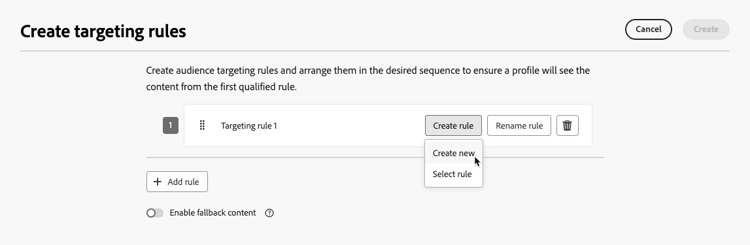
Click Create rule > Create new and use the rule builder to define your criteria.
For example, define a rule for Gold members of the Loyalty program (
loyalty.status.equals("Gold", false)), and a rule for the other members (loyalty.status.notEqualTo("Gold", false)).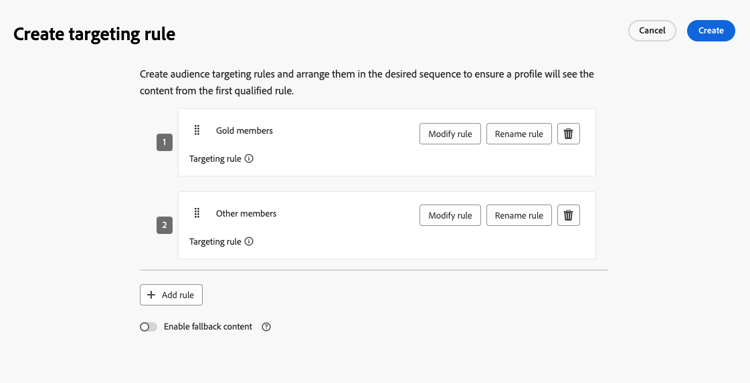
-
You can also click Create rule > Select rule to select an existing targeting rule created from the Rules menu. Learn more
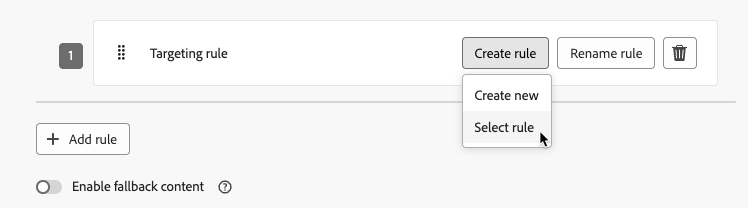
In this case, the formula that makes up the rule is simply copied into the journey activity. Any subsequent changes to that rule from the Rules menu will not affect the journey’s copy.
note availability AVAILABILITY Creating targeting rules from the dedicated Journey Optimizer menu is currently available to organizations that have purchased the Decisioning add-on offering, and they are available on demand for the other organizations (Limited Availability). This capacity will be progressively rolled out to all customers. In the meantime, contact your Adobe representative to gain access. -
After you added a rule, you can still modify it. Choose Edit inline to update it on the go using the rule builder, or Select rule to pick up another existing rule.
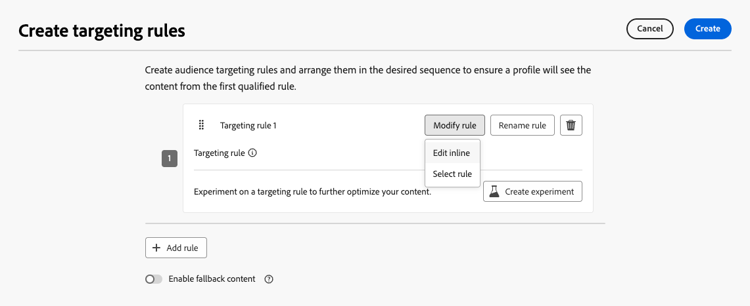
note note NOTE Editing a rule inline does not affect the existing rule it originates from. -
Select the Enable fallback path option as needed. This action creates a fallback path for the audience that does not meet any of the targeting rules defined above.
note note NOTE If you do not select this option, any audience that does not qualify for a targeting rule does not enter the fallback path and exits the journey. -
Click Create to save your targeting rule settings.
-
Back in the journey, drop specific actions to customize each path. For example, create an email with personalized offers for Gold Loyalty members, and an SMS reminder for all other members.
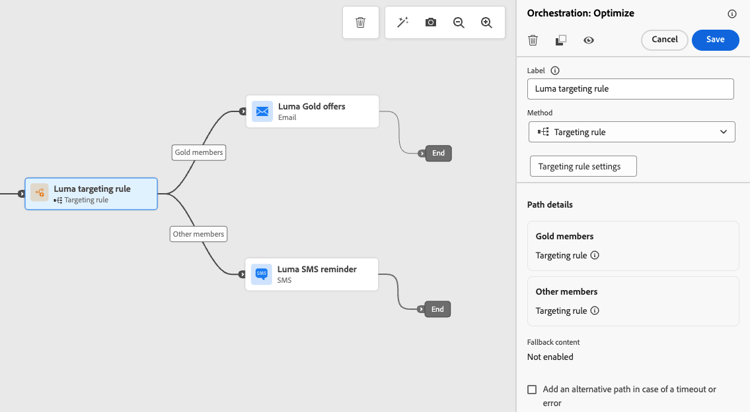
-
If you selected the Enable fallback content option when defining the rule settings, define one or more actions for the fallback path that was automatically added.
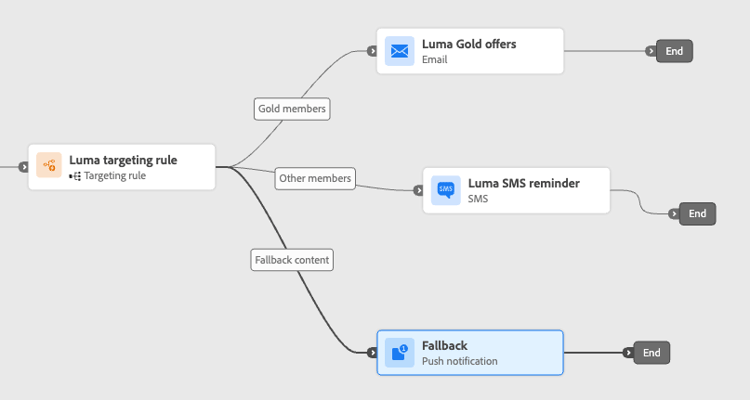
-
Optionnally, use the Add an alternative path in case of a timeout or an error to define an alternate action if issues occur. Learn more
-
Design appropriate content for each action corresponding to each group defined by your targeting rule settings. You can seamlessly navigate between the different contents for each action.
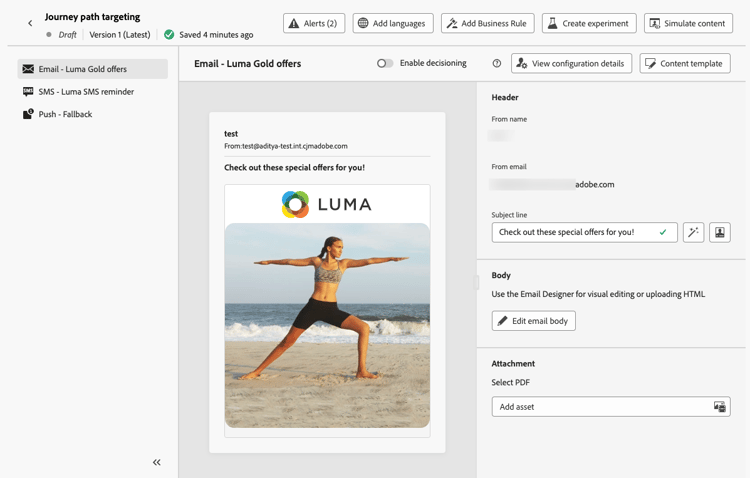
In this example, design an email with special offers for Gold members, and an SMS reminder for the other members.
-
Publish your journey.
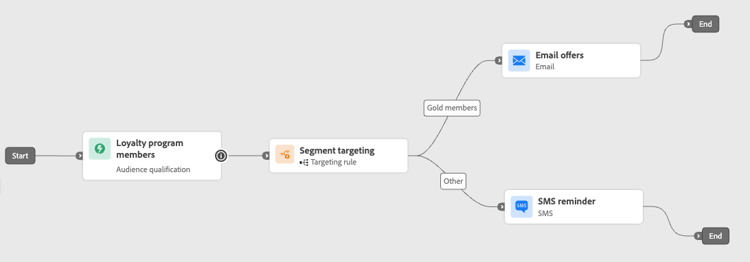
Once the journey is live, the path that is specified for each segment is processed so that Gold members enter the path with the email offers, while the other members enter the path with the SMS reminder.
Follow the success of your journey with the Journey report. Learn more
Targeting rule use cases uc-targeting
The following examples show how to use the Optimize activity with the Targeting rule method to personalize paths for different sub-audiences.
Gold status loyalty members can receive personalized offers via email, while all other members are directed to SMS reminders.
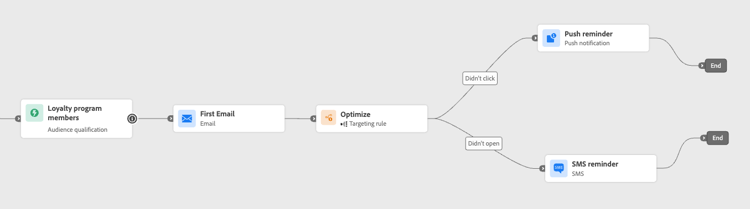
Customers who opened an email but didn’t click can be sent a push notification, while those who didn’t open at all receive an SMS.
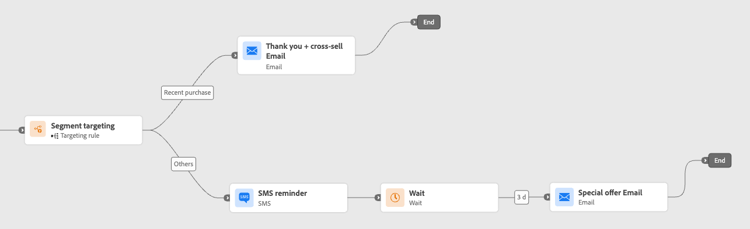
Customers who have recently purchased can go into a short “Thank you + Cross-sell” path, while those with no purchase history enter a longer nurture journey.
Add a condition conditions
Conditions are a type of targeting rules which enable you to define how individuals progress through your journey by creating multiple paths based on specific criteria.
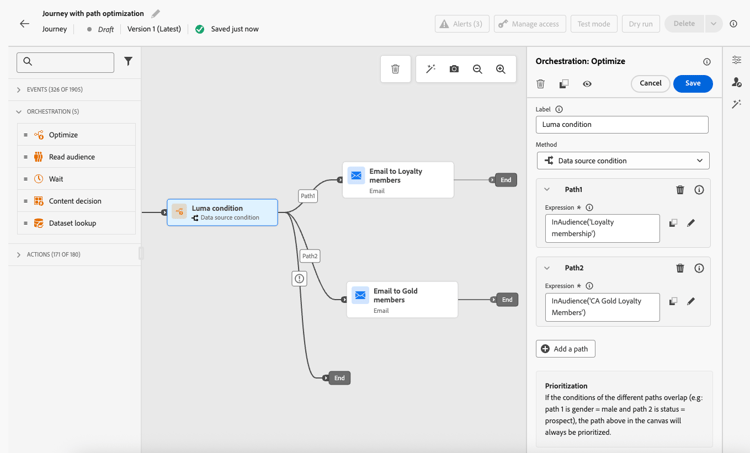
Learn how to define a condition in this section.
The following types of conditions are available: