On this page: Learn how to configure and assign journey metrics to track performance against your KPIs and measure the effectiveness of your customer journeys in real time.
Gain clear visibility into the effectiveness of your customer journeys with journey metrics. This feature enables you to track performance against defined KPIs, uncover insights into what’s working, and identify areas for optimization. By measuring impact in real time, you can drive continuous improvement and make data-informed decisions that elevate customer engagement.
Prerequisites prerequisites
Before using your journey metrics, you must add a dataset which includes the Commerce Details, Web, and Mobile field groups under Configuration > Reporting in Adobe Experience Platform.
These field groups must be selected from the built-in options, not from custom groups. Refer to the Add datasets section.
Available metrics metrics
The list of metrics varies depending on the field groups included to your dataset.
If your dataset is not configured, only the following metrics will be available: Click, Unique Click, Clickthrough Rate and Open Rate.
Note that with a Customer Journey Analytics license allows you to create custom success metrics. Learn more
Attribution attribution
Each metric comes with a set attribution which determines which touchpoints or interactions contributed to a specific outcome.
-
Metrics attribution with Journey Optimizer license:
With Journey Optimizer license only, the maximum available lookback window for any selected metric is set to 7 days. For these metrics, the attribution model is set by default to Last Touch, i.e. the most recent interaction before conversion.
For example, you can track whether a purchase was made after a customer interacted with your journey within the last 7 days.
-
Metrics attribution with Customer Journey Analytics license:
With both Journey Optimizer and Customer Journey Analytics licenses, you can create custom metrics with specific attribution settings or change the built-in metrics’ attributions.
Learn more about Attribution models
Assign your journey metrics assign
To begin tracking your journey metrics, follow the steps outlined below:
-
From your Journeys menu, click Create Journey.
-
Edit the journey’s configuration pane to define the name of the journey and set its properties. Learn how to set your journey’s properties on this page.
-
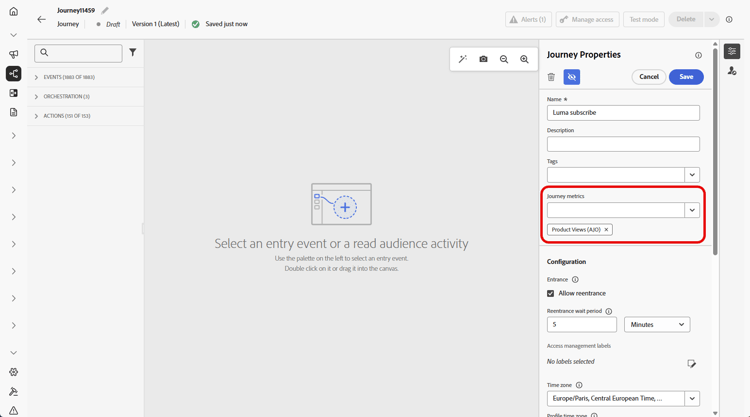
Choose your Journey metrics which will be used to measure the effectiveness of your journey.
Note that the metrics apply to the journey itself and are applicable across all elements of the journey.
-
Click Save.
-
Design your journey with the necessary Activities.
-
Click Validate in the journey header. Resolve any errors in the Alerts panel and validate again before continuing. Learn about journey validation.
-
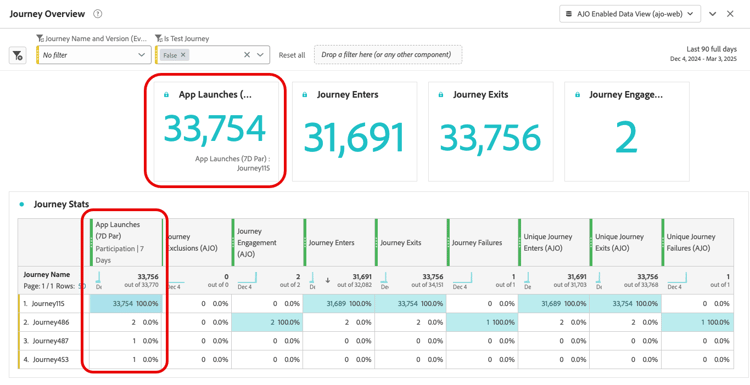
Open your journey report to track the performance of your assigned success metrics.
Your chosen metrics are displayed in the report’s KPIs and Journey Stats table.
This section contains structured knowledge intended to support interpretation, retrieval, and question answering related to this topic.
For complete understanding, this information should be combined with the documentation on this page. Neither source is intended to stand alone; the page describes the feature, while this section provides additional context that helps disambiguate terminology, intent, applicability, and constraints.
- TL;DR: This page explains how to configure and track journey success metrics in Adobe Journey Optimizer by assigning a KPI to a journey and reviewing its performance in journey reports.
Intents:
- Add the required Adobe Experience Platform dataset field groups (Commerce Details, Web, Mobile) as a prerequisite for journey metrics
- Assign a journey metric (KPI) to a journey during journey creation or configuration
- Understand which metrics are available based on the configured dataset field groups
- Interpret attribution models for journey metrics under Journey Optimizer and Customer Journey Analytics licenses
- Create custom success metrics using a Customer Journey Analytics license
- Track journey performance against the assigned KPI in journey reports
Glossary:
- Journey metrics: KPIs assigned to a journey to measure its effectiveness, visible in journey reports (product-specific)
- Last Touch attribution: With Journey Optimizer license only, the default attribution model that credits the most recent interaction before a conversion
- Commerce Details field group: A built-in field group enabling commerce-related metrics such as Purchases, Checkouts, and Cart Adds (product-specific)
- Lookback window: The time range over which attribution is evaluated; set to a maximum of 7 days (hard limit) with Journey Optimizer license only
Guardrails:
- The journey must be validated before testing or publishing. Errors in the Alerts panel must be resolved and validation rerun before continuing.
- Only one journey metric is allowed per journey (hard limit)
- Dataset field groups (Commerce Details, Web, Mobile) must be selected from built-in options, not custom groups, and added under Configuration > Reporting in Adobe Experience Platform
- Without a configured dataset, only Click, Unique Click, Clickthrough Rate, and Open Rate are available
- The maximum lookback window is 7 days (hard limit) with a Journey Optimizer license only
- Custom metrics and custom attribution settings require a Customer Journey Analytics license
Terminology:
- Canonical name: Journey metrics
- Canonical name: Clickthrough rate — Acronym: CTR
- Canonical name: Clickthrough open rate — Acronym: CTOR
- Synonyms: “journey metrics” = “success metrics”
- Do not confuse: With Journey Optimizer license only, attribution defaults to Last Touch; with both Journey Optimizer and Customer Journey Analytics licenses, custom metrics can have specific attribution settings and built-in metrics’ attributions can be changed.
FAQ:
- Q: How many journey metrics can I assign to a single journey? — Only one journey metric is allowed per journey (hard limit).
- Q: What metrics are available if I have not configured a dataset with field groups? — Only Click, Unique Click, Clickthrough Rate, and Open Rate are available without a configured dataset.
- Q: What field groups do I need to enable purchase and commerce metrics? — You need to add the Commerce Details field group to your reporting dataset in Adobe Experience Platform.
- Q: What is the default attribution model for journey metrics with Journey Optimizer license only? — Last Touch, which credits the most recent interaction before conversion, with a maximum 7-day lookback window (hard limit).
- Q: Can I create custom success metrics? — Yes, but only with a Customer Journey Analytics license.
- Q: Where can I see the journey metrics results after publishing? — In the journey report’s KPIs and Journey Stats table.